Getting Started with the Vue Range Slider Component in Vue 3
25 Apr 202517 minutes to read
This article provides a step-by-step guide for setting up aVite project with a JavaScript environment and integrating the Syncfusion® Vue Range Slider component using theComposition API /Options API.
TheComposition API is a new feature introduced in Vue.js 3 that provides an alternative way to organize and reuse component logic. It allows developers to write components as functions that use smaller, reusable functions called composition functions to manage their properties and behavior.
TheOptions API is the traditional way of writing Vue.js components, where the component logic is organized into a series of options that define the component’s properties and behavior. These options include data, methods, computed properties, watchers, lifecycle hooks, and more.
Prerequisites
System requirements for Syncfusion® Vue UI components
Set up the Vite project
A recommended approach for beginning with Vue is to scaffold a project usingVite. To create a new Vite project, use one of the commands that are specific to either NPM or Yarn.
npm create vite@latestor
yarn create viteUsing one of the above commands will lead you to set up additional configurations for the project as below:
1.Define the project name: We can specify the name of the project directly. Let’s specify the name of the project asmy-project for this article.
? Project name: » my-project2.SelectVue as the framework. It will create a Vue 3 project.
? Select a framework: » - Use arrow-keys. Return to submit.Vanilla> Vue React Preact Lit Svelte Others3.ChooseJavaScript as the framework variant to build this Vite project using JavaScript and Vue.
? Select a variant: » - Use arrow-keys. Return to submit.> JavaScript TypeScript Customize with create-vue ↗ Nuxt ↗4.Upon completing the aforementioned steps to create themy-project, run the following command to install its dependencies:
cd my-projectnpm installor
cd my-projectyarn installNow thatmy-project is ready to run with default settings, let’s add Syncfusion® components to the project.
Add Syncfusion® Vue packages
Syncfusion® Vue component packages are available atnpmjs.com. To use Syncfusion® Vue components in the project, install the corresponding npm package.
This article uses theVue Range Slider component as an example. To use the Vue Range Slider component in the project, the@syncfusion/ej2-vue-inputs package needs to be installed using the following command:
npm install @syncfusion/ej2-vue-inputs --saveor
yarn add @syncfusion/ej2-vue-inputsImport Syncfusion® CSS styles
You can import themes for the Syncfusion® Vue component in various ways, such as using CSS or SASS styles from npm packages, CDN,CRG andTheme Studio. Refer tothemes topic to know more about built-in themes and different ways to refer to themes in a Vue project.
In this article,Material theme is applied using CSS styles, which are available in installed packages. The necessaryMaterial CSS styles for the Range Slider component and its dependents were imported into the<style> section ofsrc/App.vue file.
<style>@import"../node_modules/@syncfusion/ej2-base/styles/material.css";@import"../node_modules/@syncfusion/ej2-buttons/styles/material.css";@import"../node_modules/@syncfusion/ej2-popups/styles/material.css";@import"../node_modules/@syncfusion/ej2-vue-inputs/styles/material.css";</style>Add Syncfusion® Vue component
Follow the below steps to add the Vue Range Slider component usingComposition API orOptions API:
1.First, import and register the Range Slider component in thescript section of thesrc/App.vue file. If you are using theComposition API, you should add thesetup attribute to thescript tag to indicate that Vue will be using theComposition API.
<scriptsetup>import{SliderComponentasEjsSlider}from"@syncfusion/ej2-vue-inputs";</script><script>import{SliderComponent}from"@syncfusion/ej2-vue-inputs";//Component registrationexportdefault{name:"App",components:{'ejs-slider':SliderComponent}}</script>2.Add the component definition in template section.
<template><ejs-sliderid='default':value='value'></ejs-slider></template>Here is the summarized code for the above steps in thesrc/App.vue file:
<template><divid="app"><ejs-sliderid='default':value='value'></ejs-slider></div></template><scriptsetup>import{SliderComponentasEjsSlider}from"@syncfusion/ej2-vue-inputs";constvalue=30;</script><style>@import"../node_modules/@syncfusion/ej2-base/styles/material.css";@import"../node_modules/@syncfusion/ej2-buttons/styles/material.css";@import"../node_modules/@syncfusion/ej2-popups/styles/material.css";@import"../node_modules/@syncfusion/ej2-vue-inputs/styles/material.css";</style><template><divid="app"><ejs-sliderid='default':value='value'></ejs-slider></div></template><script>import{SliderComponent}from"@syncfusion/ej2-vue-inputs";//Component registrationexportdefault{name:"App",components:{'ejs-slider':SliderComponent},data(){return{value:30,};}}</script><style>@import"../node_modules/@syncfusion/ej2-base/styles/material.css";@import"../node_modules/@syncfusion/ej2-buttons/styles/material.css";@import"../node_modules/@syncfusion/ej2-popups/styles/material.css";@import"../node_modules/@syncfusion/ej2-vue-inputs/styles/material.css";</style>Run the project
To run the project, use the following command:
npm run devor
yarn run devThe output will appear as follows:

Types
The types of Range Slider are as follows:
| Types | Usage |
|---|---|
| Default | Shows a default Range Slider to select a single value. |
| MinRange | Displays the shadow from the start value to the current selected value. |
| Range | Selects a range of values. It also displays the shadow in-between the selection range. |
Both the Default Slider and Min-Range Slider have same behavior that is used to select a single value. In Min-Range Slider, a shadow is considered from the start value to current handle position. But the Range Slider contains two handles that is used to select a range of values and a shadow is considered in between the two handles.
In the following example demonstrates all types in Range Slider component.
<template><divid="app"><labelclass="labeltext">Default</label><ejs-sliderid='default':value='minvalue'></ejs-slider><labelclass="labeltext">MinRange</label><ejs-sliderid='default':value='minvalue':type="mintype"></ejs-slider><labelclass="labeltext">Range</label><ejs-sliderid='type':value='value':type="type"></ejs-slider></div></template><scriptsetup>import{SliderComponentasEjsSlider}from"@syncfusion/ej2-vue-inputs";constminvalue=30;constvalue=[30,70];consttype='Range';constmintype='MinRange';</script><style>@import"../node_modules/@syncfusion/ej2-base/styles/material.css";@import"../node_modules/@syncfusion/ej2-buttons/styles/material.css";@import"../node_modules/@syncfusion/ej2-popups/styles/material.css";@import"../node_modules/@syncfusion/ej2-vue-inputs/styles/material.css";</style><template><divid="app"><labelclass="labeltext">Default</label><ejs-sliderid='default':value='minvalue'></ejs-slider><labelclass="labeltext">MinRange</label><ejs-sliderid='default':value='minvalue':type="mintype"></ejs-slider><labelclass="labeltext">Range</label><ejs-sliderid='type':value='value':type="type"></ejs-slider></div></template><script>import{SliderComponent}from"@syncfusion/ej2-vue-inputs";//Component registrationexportdefault{name:"App",components:{'ejs-slider':SliderComponent},data(){return{value:[30,70],minvalue:30,mintype:'MinRange',type:'Range'};}}</script><style>@import"../node_modules/@syncfusion/ej2-base/styles/material.css";@import"../node_modules/@syncfusion/ej2-buttons/styles/material.css";@import"../node_modules/@syncfusion/ej2-popups/styles/material.css";@import"../node_modules/@syncfusion/ej2-vue-inputs/styles/material.css";</style>
Customization
Orientation
The Range Slider can be displayed, either in horizontal or vertical orientation. By default, the Range Slider renders in horizontal orientation.
In the following example,orientation property set asVertical in Range Slider component.
<template><divid="app"><ejs-sliderid='orientation':value='value':orientation="orientation"></ejs-slider></div></template><scriptsetup>import{SliderComponentasEjsSlider}from"@syncfusion/ej2-vue-inputs";constvalue=30;constorientation='Vertical';</script><style>@import"../node_modules/@syncfusion/ej2-base/styles/material.css";@import"../node_modules/@syncfusion/ej2-buttons/styles/material.css";@import"../node_modules/@syncfusion/ej2-popups/styles/material.css";@import"../node_modules/@syncfusion/ej2-vue-inputs/styles/material.css";#app{color:#008cff;height:340px;left:30%;position:absolute;width:50%;}</style><template><divid="app"><ejs-sliderid='orientation':value='value':orientation="orientation"></ejs-slider></div></template><script>import{SliderComponent}from"@syncfusion/ej2-vue-inputs";//Component registrationexportdefault{name:"App",components:{'ejs-slider':SliderComponent},data(){return{value:30,orientation:'Vertical'};}}</script><style>@import"../node_modules/@syncfusion/ej2-base/styles/material.css";@import"../node_modules/@syncfusion/ej2-buttons/styles/material.css";@import"../node_modules/@syncfusion/ej2-popups/styles/material.css";@import"../node_modules/@syncfusion/ej2-vue-inputs/styles/material.css";#app{color:#008cff;height:340px;left:30%;position:absolute;width:50%;}</style>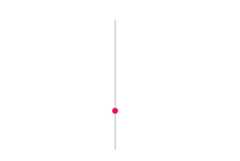
Tooltip
The Range Slider displays the tooltip to indicate the current value by clicking the Range Slider bar or drag the Range Slider handle. The Tooltip position can be customized by using theplacement property. Also decides the tooltip display mode on a page, i.e., on hovering, focusing, or clicking on the Range Slider handle. Tooltip always remains/displays on the page.
In the following example,tooltip property is enabled in Range Slider component.
<template><divid="app"><ejs-sliderid='tooltip':value='value':tooltip="tooltip":type="type"></ejs-slider></div></template><scriptsetup>import{SliderComponentasEjsSlider}from"@syncfusion/ej2-vue-inputs";constvalue=30;consttype='MinRange';consttooltip={placement:'After',isVisible:true,showOn:'Always'};</script><style>@import"../node_modules/@syncfusion/ej2-base/styles/material.css";@import"../node_modules/@syncfusion/ej2-buttons/styles/material.css";@import"../node_modules/@syncfusion/ej2-popups/styles/material.css";@import"../node_modules/@syncfusion/ej2-vue-inputs/styles/material.css";#app{color:#008cff;height:40px;left:30%;position:absolute;top:40%;width:50%;}</style><template><divid="app"><ejs-sliderid='tooltip':value='value':tooltip="tooltip":type="type"></ejs-slider></div></template><script>import{SliderComponent}from"@syncfusion/ej2-vue-inputs";//Component registrationexportdefault{name:"App",components:{'ejs-slider':SliderComponent},data(){return{value:30,type:'MinRange',tooltip:{placement:'After',isVisible:true,showOn:'Always'}};}}</script><style>@import"../node_modules/@syncfusion/ej2-base/styles/material.css";@import"../node_modules/@syncfusion/ej2-buttons/styles/material.css";@import"../node_modules/@syncfusion/ej2-popups/styles/material.css";@import"../node_modules/@syncfusion/ej2-vue-inputs/styles/material.css";#app{color:#008cff;height:40px;left:30%;position:absolute;top:40%;width:50%;}</style>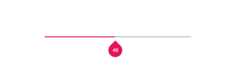
Buttons
The Range Slider value can be changed by using the Increase and Decrease buttons. In Range Range Slider, by default the first handle value will be changed while clicking the button. Change the handle focus and press the button to change the last focused handle value.
After enabling the Range Slider buttons if the ‘Tab’ key is pressed, the focus goes to the handle and not to the button.
In the following example,showButtons property is enabled in Range Slider component.
<template><divid="app"><ejs-sliderid='buttons':value='value':showButtons="showButtons":type="type"></ejs-slider></div></template><scriptsetup>import{SliderComponentasEjsSlider}from"@syncfusion/ej2-vue-inputs";constvalue=[30,70];consttype='Range';constshowButtons=true;</script><style>@import"../node_modules/@syncfusion/ej2-base/styles/material.css";@import"../node_modules/@syncfusion/ej2-buttons/styles/material.css";@import"../node_modules/@syncfusion/ej2-popups/styles/material.css";@import"../node_modules/@syncfusion/ej2-vue-inputs/styles/material.css";#app{color:#008cff;height:40px;left:30%;position:absolute;top:40%;width:50%;}</style><template><divid="app"><ejs-sliderid='buttons':value='value':showButtons="showButtons":type="type"></ejs-slider></div></template><script>import{SliderComponent}from"@syncfusion/ej2-vue-inputs";//Component registrationexportdefault{name:"App",components:{'ejs-slider':SliderComponent},data(){return{value:[30,70],type:'Range',showButtons:true};}}</script><style>@import"../node_modules/@syncfusion/ej2-base/styles/material.css";@import"../node_modules/@syncfusion/ej2-buttons/styles/material.css";@import"../node_modules/@syncfusion/ej2-popups/styles/material.css";@import"../node_modules/@syncfusion/ej2-vue-inputs/styles/material.css";#app{color:#008cff;height:40px;left:30%;position:absolute;top:40%;width:50%;}</style>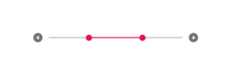
For migrating from Vue 2 to Vue 3, refer to themigration documentation.
See also
[8]ページ先頭