
3.Using Python on Windows
This document aims to give an overview of Windows-specific behaviour you shouldknow about when using Python on Microsoft Windows.
3.1.Installing Python
Unlike most Unix systems and services, Windows does not include a systemsupported installation of Python. To make Python available, the CPython teamhas compiled Windows installers (MSI packages) with everyrelease for many years. These installersare primarily intended to add a per-user installation of Python, with thecore interpreter and library being used by a single user. The installer is alsoable to install for all users of a single machine, and a separate ZIP file isavailable for application-local distributions.
3.1.1.Supported Versions
As specified inPEP 11, a Python release only supports a Windows platformwhile Microsoft considers the platform under extended support. This means thatPython 3.6 supports Windows Vista and newer. If you require Windows XPsupport then please install Python 3.4.
3.1.2.Installation Steps
Four Python 3.6 installers are available for download - two each for the32-bit and 64-bit versions of the interpreter. Theweb installer is a smallinitial download, and it will automatically download the required components asnecessary. Theoffline installer includes the components necessary for adefault installation and only requires an internet connection for optionalfeatures. SeeInstalling Without Downloading for other ways to avoid downloadingduring installation.
After starting the installer, one of two options may be selected:
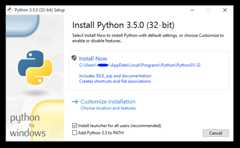
If you select “Install Now”:
You willnot need to be an administrator (unless a system update for theC Runtime Library is required or you install thePython Launcher for Windows for allusers)
Python will be installed into your user directory
ThePython Launcher for Windows will be installed according to the option at the bottomof the first page
The standard library, test suite, launcher and pip will be installed
If selected, the install directory will be added to your
PATHShortcuts will only be visible for the current user
Selecting “Customize installation” will allow you to select the features toinstall, the installation location and other options or post-install actions.To install debugging symbols or binaries, you will need to use this option.
To perform an all-users installation, you should select “Customizeinstallation”. In this case:
You may be required to provide administrative credentials or approval
Python will be installed into the Program Files directory
ThePython Launcher for Windows will be installed into the Windows directory
Optional features may be selected during installation
The standard library can be pre-compiled to bytecode
If selected, the install directory will be added to the system
PATHShortcuts are available for all users
3.1.3.Removing the MAX_PATH Limitation
Windows historically has limited path lengths to 260 characters. This meant thatpaths longer than this would not resolve and errors would result.
In the latest versions of Windows, this limitation can be expanded toapproximately 32,000 characters. Your administrator will need to activate the“Enable Win32 long paths” group policy, or set the registry valueHKEY_LOCAL_MACHINE\SYSTEM\CurrentControlSet\Control\FileSystem@LongPathsEnabledto1.
This allows theopen() function, theos module and most otherpath functionality to accept and return paths longer than 260 characters whenusing strings. (Use of bytes as paths is deprecated on Windows, and this featureis not available when using bytes.)
After changing the above option, no further configuration is required.
Changed in version 3.6:Support for long paths was enabled in Python.
3.1.4.Installing Without UI
All of the options available in the installer UI can also be specified from thecommand line, allowing scripted installers to replicate an installation on manymachines without user interaction. These options may also be set withoutsuppressing the UI in order to change some of the defaults.
To completely hide the installer UI and install Python silently, pass the/quiet option. To skip past the user interaction but still displayprogress and errors, pass the/passive option. The/uninstalloption may be passed to immediately begin removing Python - no prompt will bedisplayed.
All other options are passed asname=value, where the value is usually0 to disable a feature,1 to enable a feature, or a path. The full listof available options is shown below.
Name | Description | Default |
|---|---|---|
InstallAllUsers | Perform a system-wide installation. | 0 |
TargetDir | The installation directory | Selected based onInstallAllUsers |
DefaultAllUsersTargetDir | The default installation directoryfor all-user installs |
|
DefaultJustForMeTargetDir | The default install directory forjust-for-me installs |
|
DefaultCustomTargetDir | The default custom install directorydisplayed in the UI | (empty) |
AssociateFiles | Create file associations if thelauncher is also installed. | 1 |
CompileAll | Compile all | 0 |
PrependPath | Add install and Scripts directoriesto | 0 |
Shortcuts | Create shortcuts for the interpreter,documentation and IDLE if installed. | 1 |
Include_doc | Install Python manual | 1 |
Include_debug | Install debug binaries | 0 |
Include_dev | Install developer headers andlibraries | 1 |
Include_exe | Install | 1 |
Include_launcher | InstallPython Launcher for Windows. | 1 |
InstallLauncherAllUsers | InstallsPython Launcher for Windows for allusers. | 1 |
Include_lib | Install standard library andextension modules | 1 |
Include_pip | Install bundled pip and setuptools | 1 |
Include_symbols | Install debugging symbols (*.pdb) | 0 |
Include_tcltk | Install Tcl/Tk support and IDLE | 1 |
Include_test | Install standard library test suite | 1 |
Include_tools | Install utility scripts | 1 |
LauncherOnly | Only installs the launcher. Thiswill override most other options. | 0 |
SimpleInstall | Disable most install UI | 0 |
SimpleInstallDescription | A custom message to display when thesimplified install UI is used. | (empty) |
For example, to silently install a default, system-wide Python installation,you could use the following command (from an elevated command prompt):
python-3.6.0.exe /quiet InstallAllUsers=1 PrependPath=1 Include_test=0
To allow users to easily install a personal copy of Python without the testsuite, you could provide a shortcut with the following command. This willdisplay a simplified initial page and disallow customization:
python-3.6.0.exe InstallAllUsers=0 Include_launcher=0 Include_test=0 SimpleInstall=1 SimpleInstallDescription="Just for me, no test suite."
(Note that omitting the launcher also omits file associations, and is onlyrecommended for per-user installs when there is also a system-wide installationthat included the launcher.)
The options listed above can also be provided in a file namedunattend.xmlalongside the executable. This file specifies a list of options and values.When a value is provided as an attribute, it will be converted to a number ifpossible. Values provided as element text are always left as strings. Thisexample file sets the same options as the previous example:
<Options><OptionName="InstallAllUsers"Value="no"/><OptionName="Include_launcher"Value="0"/><OptionName="Include_test"Value="no"/><OptionName="SimpleInstall"Value="yes"/><OptionName="SimpleInstallDescription">Justforme,notestsuite</Option></Options>
3.1.5.Installing Without Downloading
As some features of Python are not included in the initial installer download,selecting those features may require an internet connection. To avoid thisneed, all possible components may be downloaded on-demand to create a completelayout that will no longer require an internet connection regardless of theselected features. Note that this download may be bigger than required, butwhere a large number of installations are going to be performed it is veryuseful to have a locally cached copy.
Execute the following command from Command Prompt to download all possiblerequired files. Remember to substitutepython-3.6.0.exe for the actualname of your installer, and to create layouts in their own directories toavoid collisions between files with the same name.
python-3.6.0.exe /layout [optional target directory]
You may also specify the/quiet option to hide the progress display.
3.1.6.Modifying an install
Once Python has been installed, you can add or remove features through thePrograms and Features tool that is part of Windows. Select the Python entry andchoose “Uninstall/Change” to open the installer in maintenance mode.
“Modify” allows you to add or remove features by modifying the checkboxes -unchanged checkboxes will not install or remove anything. Some options cannot bechanged in this mode, such as the install directory; to modify these, you willneed to remove and then reinstall Python completely.
“Repair” will verify all the files that should be installed using the currentsettings and replace any that have been removed or modified.
“Uninstall” will remove Python entirely, with the exception of thePython Launcher for Windows, which has its own entry in Programs and Features.
3.1.7.Other Platforms
With ongoing development of Python, some platforms that used to be supportedearlier are no longer supported (due to the lack of users or developers).CheckPEP 11 for details on all unsupported platforms.
Windows CE is still supported.
TheCygwin installer offers to install the Pythoninterpreter as well (cf.Cygwin package source,Maintainer releases)
SeePython for Windowsfor detailed information about platforms with pre-compiled installers.
See also
- Python on XP
“7 Minutes to “Hello World!””by Richard Dooling, 2006
- Installing on Windows
in “Dive into Python: Python from novice to pro”by Mark Pilgrim, 2004,ISBN 1-59059-356-1
- For Windows users
in “Installing Python”in “A Byte of Python”by Swaroop C H, 2003
3.2.Alternative bundles
Besides the standard CPython distribution, there are modified packages includingadditional functionality. The following is a list of popular versions and theirkey features:
- ActivePython
Installer with multi-platform compatibility, documentation, PyWin32
- Anaconda
Popular scientific modules (such as numpy, scipy and pandas) and the
condapackage manager.- Canopy
A “comprehensive Python analysis environment” with editors and otherdevelopment tools.
- WinPython
Windows-specific distribution with prebuilt scientific packages andtools for building packages.
Note that these packages may not include the latest versions of Python orother libraries, and are not maintained or supported by the core Python team.
3.3.Configuring Python
To run Python conveniently from a command prompt, you might consider changingsome default environment variables in Windows. While the installer provides anoption to configure the PATH and PATHEXT variables for you, this is onlyreliable for a single, system-wide installation. If you regularly use multipleversions of Python, consider using thePython Launcher for Windows.
3.3.1.Excursus: Setting environment variables
Windows allows environment variables to be configured permanently at both theUser level and the System level, or temporarily in a command prompt.
To temporarily set environment variables, open Command Prompt and use theset command:
C:\>setPATH=C:\Program Files\Python 3.6;%PATH%C:\>setPYTHONPATH=%PYTHONPATH%;C:\My_python_libC:\>python
These changes will apply to any further commands executed in that console, andwill be inherited by any applications started from the console.
Including the variable name within percent signs will expand to the existingvalue, allowing you to add your new value at either the start or the end.ModifyingPATH by adding the directory containingpython.exe to the start is a common way to ensure the correct versionof Python is launched.
To permanently modify the default environment variables, click Start and searchfor ‘edit environment variables’, or open System properties,Advancedsystem settings and click theEnvironment Variables button.In this dialog, you can add or modify User and System variables. To changeSystem variables, you need non-restricted access to your machine(i.e. Administrator rights).
Note
Windows will concatenate User variablesafter System variables, which maycause unexpected results when modifyingPATH.
ThePYTHONPATH variable is used by all versions of Python 2 andPython 3, so you should not permanently configure this variable unless itonly includes code that is compatible with all of your installed Pythonversions.
See also
- https://support.microsoft.com/kb/100843
Environment variables in Windows NT
- https://technet.microsoft.com/en-us/library/cc754250.aspx
The SET command, for temporarily modifying environment variables
- https://technet.microsoft.com/en-us/library/cc755104.aspx
The SETX command, for permanently modifying environment variables
- https://support.microsoft.com/kb/310519
How To Manage Environment Variables in Windows XP
- https://www.chem.gla.ac.uk/~louis/software/faq/q1.html
Setting Environment variables, Louis J. Farrugia
3.3.2.Finding the Python executable
Changed in version 3.5.
Besides using the automatically created start menu entry for the Pythoninterpreter, you might want to start Python in the command prompt. Theinstaller has an option to set that up for you.
On the first page of the installer, an option labelled “Add Python to PATH”may be selected to have the installer add the install location into thePATH. The location of theScripts\ folder is also added.This allows you to typepython to run the interpreter, andpip for the package installer. Thus, you can also execute yourscripts with command line options, seeCommand line documentation.
If you don’t enable this option at install time, you can always re-run theinstaller, select Modify, and enable it. Alternatively, you can manuallymodify thePATH using the directions inExcursus: Setting environment variables. Youneed to set yourPATH environment variable to include the directoryof your Python installation, delimited by a semicolon from other entries. Anexample variable could look like this (assuming the first two entries alreadyexisted):
C:\WINDOWS\system32;C:\WINDOWS;C:\Program Files\Python 3.6
3.4.Python Launcher for Windows
New in version 3.3.
The Python launcher for Windows is a utility which aids in locating andexecuting of different Python versions. It allows scripts (or thecommand-line) to indicate a preference for a specific Python version, andwill locate and execute that version.
Unlike thePATH variable, the launcher will correctly select the mostappropriate version of Python. It will prefer per-user installations oversystem-wide ones, and orders by language version rather than using the mostrecently installed version.
3.4.1.Getting started
3.4.1.1.From the command-line
Changed in version 3.6.
System-wide installations of Python 3.3 and later will put the launcher on yourPATH. The launcher is compatible with all available versions ofPython, so it does not matter which version is installed. To check that thelauncher is available, execute the following command in Command Prompt:
py
You should find that the latest version of Python you have installed isstarted - it can be exited as normal, and any additional command-linearguments specified will be sent directly to Python.
If you have multiple versions of Python installed (e.g., 2.7 and 3.6) youwill have noticed that Python 3.6 was started - to launch Python 2.7, trythe command:
py -2.7
If you want the latest version of Python 2.x you have installed, try thecommand:
py -2
You should find the latest version of Python 2.x starts.
If you see the following error, you do not have the launcher installed:
'py' is not recognized as an internal or external command,operable program or batch file.
Per-user installations of Python do not add the launcher toPATHunless the option was selected on installation.
3.4.1.2.Virtual environments
New in version 3.5.
If the launcher is run with no explicit Python version specification, and avirtual environment (created with the standard libraryvenv module orthe externalvirtualenv tool) active, the launcher will run the virtualenvironment’s interpreter rather than the global one. To run the globalinterpreter, either deactivate the virtual environment, or explicitly specifythe global Python version.
3.4.1.3.From a script
Let’s create a test Python script - create a file calledhello.py with thefollowing contents
#! pythonimportsyssys.stdout.write("hello from Python%s\n"%(sys.version,))
From the directory in which hello.py lives, execute the command:
py hello.py
You should notice the version number of your latest Python 2.x installationis printed. Now try changing the first line to be:
#! python3Re-executing the command should now print the latest Python 3.x information.As with the above command-line examples, you can specify a more explicitversion qualifier. Assuming you have Python 2.6 installed, try changing thefirst line to#!python2.6 and you should find the 2.6 versioninformation printed.
Note that unlike interactive use, a bare “python” will use the latestversion of Python 2.x that you have installed. This is for backwardcompatibility and for compatibility with Unix, where the commandpythontypically refers to Python 2.
3.4.1.4.From file associations
The launcher should have been associated with Python files (i.e..py,.pyw,.pyc files) when it was installed. This means thatwhen you double-click on one of these files from Windows explorer the launcherwill be used, and therefore you can use the same facilities described above tohave the script specify the version which should be used.
The key benefit of this is that a single launcher can support multiple Pythonversions at the same time depending on the contents of the first line.
3.4.2.Shebang Lines
If the first line of a script file starts with#!, it is known as a“shebang” line. Linux and other Unix like operating systems have nativesupport for such lines and they are commonly used on such systems to indicatehow a script should be executed. This launcher allows the same facilities tobe used with Python scripts on Windows and the examples above demonstrate theiruse.
To allow shebang lines in Python scripts to be portable between Unix andWindows, this launcher supports a number of ‘virtual’ commands to specifywhich interpreter to use. The supported virtual commands are:
/usr/bin/envpython/usr/bin/python/usr/local/bin/pythonpython
For example, if the first line of your script starts with
#! /usr/bin/pythonThe default Python will be located and used. As many Python scripts writtento work on Unix will already have this line, you should find these scripts canbe used by the launcher without modification. If you are writing a new scripton Windows which you hope will be useful on Unix, you should use one of theshebang lines starting with/usr.
Any of the above virtual commands can be suffixed with an explicit version(either just the major version, or the major and minor version) - for example/usr/bin/python2.7 - which will cause that specific version to be locatedand used.
The/usr/bin/env form of shebang line has one further special property.Before looking for installed Python interpreters, this form will search theexecutablePATH for a Python executable. This corresponds to thebehaviour of the Unixenv program, which performs aPATH search.
3.4.3.Arguments in shebang lines
The shebang lines can also specify additional options to be passed to thePython interpreter. For example, if you have a shebang line:
#! /usr/bin/python -vThen Python will be started with the-v option
3.4.4.Customization
3.4.4.1.Customization via INI files
Two .ini files will be searched by the launcher -py.ini in the currentuser’s “application data” directory (i.e. the directory returned by calling theWindows functionSHGetFolderPath withCSIDL_LOCAL_APPDATA) andpy.ini in thesame directory as the launcher. The same .ini files are used for both the‘console’ version of the launcher (i.e. py.exe) and for the ‘windows’ version(i.e. pyw.exe).
Customization specified in the “application directory” will have precedence overthe one next to the executable, so a user, who may not have write access to the.ini file next to the launcher, can override commands in that global .ini file.
3.4.4.2.Customizing default Python versions
In some cases, a version qualifier can be included in a command to dictatewhich version of Python will be used by the command. A version qualifierstarts with a major version number and can optionally be followed by a period(‘.’) and a minor version specifier. If the minor qualifier is specified, itmay optionally be followed by “-32” to indicate the 32-bit implementation ofthat version be used.
For example, a shebang line of#!python has no version qualifier, while#!python3 has a version qualifier which specifies only a major version.
If no version qualifiers are found in a command, the environment variablePY_PYTHON can be set to specify the default version qualifier - the defaultvalue is “2”. Note this value could specify just a major version (e.g. “2”) ora major.minor qualifier (e.g. “2.6”), or even major.minor-32.
If no minor version qualifiers are found, the environment variablePY_PYTHON{major} (where{major} is the current major version qualifieras determined above) can be set to specify the full version. If no such optionis found, the launcher will enumerate the installed Python versions and usethe latest minor release found for the major version, which is likely,although not guaranteed, to be the most recently installed version in thatfamily.
On 64-bit Windows with both 32-bit and 64-bit implementations of the same(major.minor) Python version installed, the 64-bit version will always bepreferred. This will be true for both 32-bit and 64-bit implementations of thelauncher - a 32-bit launcher will prefer to execute a 64-bit Python installationof the specified version if available. This is so the behavior of the launchercan be predicted knowing only what versions are installed on the PC andwithout regard to the order in which they were installed (i.e., without knowingwhether a 32 or 64-bit version of Python and corresponding launcher wasinstalled last). As noted above, an optional “-32” suffix can be used on aversion specifier to change this behaviour.
Examples:
If no relevant options are set, the commands
pythonandpython2will use the latest Python 2.x version installed andthe commandpython3will use the latest Python 3.x installed.The commands
python3.1andpython2.7will not consult anyoptions at all as the versions are fully specified.If
PY_PYTHON=3, the commandspythonandpython3will both usethe latest installed Python 3 version.If
PY_PYTHON=3.1-32, the commandpythonwill use the 32-bitimplementation of 3.1 whereas the commandpython3will use the latestinstalled Python (PY_PYTHON was not considered at all as a majorversion was specified.)If
PY_PYTHON=3andPY_PYTHON3=3.1, the commandspythonandpython3will both use specifically 3.1
In addition to environment variables, the same settings can be configuredin the .INI file used by the launcher. The section in the INI file iscalled[defaults] and the key name will be the same as theenvironment variables without the leadingPY_ prefix (and note thatthe key names in the INI file are case insensitive.) The contents ofan environment variable will override things specified in the INI file.
For example:
Setting
PY_PYTHON=3.1is equivalent to the INI file containing:
[defaults]python=3.1
Setting
PY_PYTHON=3andPY_PYTHON3=3.1is equivalent to the INI filecontaining:
[defaults]python=3python3=3.1
3.4.5.Diagnostics
If an environment variablePYLAUNCH_DEBUG is set (to any value), thelauncher will print diagnostic information to stderr (i.e. to the console).While this information manages to be simultaneously verboseand terse, itshould allow you to see what versions of Python were located, why aparticular version was chosen and the exact command-line used to execute thetarget Python.
3.5.Finding modules
Python usually stores its library (and thereby your site-packages folder) in theinstallation directory. So, if you had installed Python toC:\Python\, the default library would reside inC:\Python\Lib\ and third-party modules should be stored inC:\Python\Lib\site-packages\.
To completely overridesys.path, create a._pth file with the samename as the DLL (python36._pth) or the executable (python._pth) andspecify one line for each path to add tosys.path. The file based on theDLL name overrides the one based on the executable, which allows paths to berestricted for any program loading the runtime if desired.
When the file exists, all registry and environment variables are ignored,isolated mode is enabled, andsite is not imported unless one line in thefile specifiesimportsite. Blank paths and lines starting with# areignored. Each path may be absolute or relative to the location of the file.Import statements other than tosite are not permitted, and arbitrary codecannot be specified.
Note that.pth files (without leading underscore) will be processed normallyby thesite module.
When no._pth file is found, this is howsys.path is populated onWindows:
An empty entry is added at the start, which corresponds to the currentdirectory.
If the environment variable
PYTHONPATHexists, as described inEnvironment variables, its entries are added next. Note that on Windows,paths in this variable must be separated by semicolons, to distinguish themfrom the colon used in drive identifiers (C:\etc.).Additional “application paths” can be added in the registry as subkeys of
\SOFTWARE\Python\PythonCore{version}\PythonPathunder both theHKEY_CURRENT_USERandHKEY_LOCAL_MACHINEhives. Subkeys which havesemicolon-delimited path strings as their default value will cause each pathto be added tosys.path. (Note that all known installers only useHKLM, so HKCU is typically empty.)If the environment variable
PYTHONHOMEis set, it is assumed as“Python Home”. Otherwise, the path of the main Python executable is used tolocate a “landmark file” (eitherLib\os.pyorpythonXY.zip) to deducethe “Python Home”. If a Python home is found, the relevant sub-directoriesadded tosys.path(Lib,plat-win, etc) are based on thatfolder. Otherwise, the core Python path is constructed from the PythonPathstored in the registry.If the Python Home cannot be located, no
PYTHONPATHis specified inthe environment, and no registry entries can be found, a default path withrelative entries is used (e.g..\Lib;.\plat-win, etc).
If apyvenv.cfg file is found alongside the main executable or in thedirectory one level above the executable, the following variations apply:
If
homeis an absolute path andPYTHONHOMEis not set, thispath is used instead of the path to the main executable when deducing thehome location.
The end result of all this is:
When running
python.exe, or any other .exe in the main Pythondirectory (either an installed version, or directly from the PCbuilddirectory), the core path is deduced, and the core paths in the registry areignored. Other “application paths” in the registry are always read.When Python is hosted in another .exe (different directory, embedded via COM,etc), the “Python Home” will not be deduced, so the core path from theregistry is used. Other “application paths” in the registry are always read.
If Python can’t find its home and there are no registry value (frozen .exe,some very strange installation setup) you get a path with some default, butrelative, paths.
For those who want to bundle Python into their application or distribution, thefollowing advice will prevent conflicts with other installations:
Include a
._pthfile alongside your executable containing thedirectories to include. This will ignore paths listed in the registry andenvironment variables, and also ignoresiteunlessimportsiteislisted.If you are loading
python3.dllorpython36.dllin your ownexecutable, explicitly callPy_SetPath()or (at least)Py_SetProgramName()beforePy_Initialize().Clear and/or overwrite
PYTHONPATHand setPYTHONHOMEbefore launchingpython.exefrom your application.If you cannot use the previous suggestions (for example, you are adistribution that allows people to run
python.exedirectly), ensurethat the landmark file (Lib\os.py) exists in your install directory.(Note that it will not be detected inside a ZIP file, but a correctly namedZIP file will be detected instead.)
These will ensure that the files in a system-wide installation will not takeprecedence over the copy of the standard library bundled with your application.Otherwise, your users may experience problems using your application. Note thatthe first suggestion is the best, as the others may still be susceptible tonon-standard paths in the registry and user site-packages.
Changed in version 3.6:
Adds
._pthfile support and removesapplocaloption frompyvenv.cfg.Adds
pythonXX.zipas a potential landmark when directly adjacentto the executable.
Deprecated since version 3.6:Modules specified in the registry under
Modules(notPythonPath)may be imported byimportlib.machinery.WindowsRegistryFinder.This finder is enabled on Windows in 3.6.0 and earlier, but may need tobe explicitly added tosys.meta_pathin the future.
3.6.Additional modules
Even though Python aims to be portable among all platforms, there are featuresthat are unique to Windows. A couple of modules, both in the standard libraryand external, and snippets exist to use these features.
The Windows-specific standard modules are documented inMS Windows Specific Services.
3.6.1.PyWin32
ThePyWin32 module by Mark Hammondis a collection of modules for advanced Windows-specific support. This includesutilities for:
Component Object Model (COM)
Win32 API calls
Registry
Event log
Microsoft Foundation Classes (MFC)user interfaces
PythonWin is a sample MFC applicationshipped with PyWin32. It is an embeddable IDE with a built-in debugger.
See also
- Win32 How Do I…?
by Tim Golden
- Python and COM
by David and Paul Boddie
3.6.2.cx_Freeze
cx_Freeze is adistutilsextension (seeExtending Distutils) which wraps Python scripts intoexecutable Windows programs (*.exe files). When you have done this,you can distribute your application without requiring your users to installPython.
3.6.3.WConio
Since Python’s advanced terminal handling layer,curses, is restricted toUnix-like systems, there is a library exclusive to Windows as well: WindowsConsole I/O for Python.
WConio is a wrapper forTurbo-C’sCONIO.H, used to create text user interfaces.
3.7.Compiling Python on Windows
If you want to compile CPython yourself, first thing you should do is get thesource. You can download either thelatest release’s source or just grab a freshcheckout.
The source tree contains a build solution and project files for MicrosoftVisual Studio 2015, which is the compiler used to build the official Pythonreleases. These files are in thePCbuild directory.
CheckPCbuild/readme.txt for general information on the build process.
For extension modules, consultBuilding C and C++ Extensions on Windows.
See also
- Python + Windows + distutils + SWIG + gcc MinGW
or “Creating Python extensions in C/C++ with SWIG and compiling them withMinGW gcc under Windows” or “Installing Python extension with distutilsand without Microsoft Visual C++” by Sébastien Sauvage, 2003
- MingW – Python extensions
by Trent Apted et al, 2007
3.8.Embedded Distribution
New in version 3.5.
The embedded distribution is a ZIP file containing a minimal Python environment.It is intended for acting as part of another application, rather than beingdirectly accessed by end-users.
When extracted, the embedded distribution is (almost) fully isolated from theuser’s system, including environment variables, system registry settings, andinstalled packages. The standard library is included as pre-compiled andoptimized.pyc files in a ZIP, andpython3.dll,python36.dll,python.exe andpythonw.exe are all provided. Tcl/tk (including alldependants, such as Idle), pip and the Python documentation are not included.
Note
The embedded distribution does not include theMicrosoft C Runtime and it isthe responsibility of the application installer to provide this. Theruntime may have already been installed on a user’s system previously orautomatically via Windows Update, and can be detected by findingucrtbase.dll in the system directory.
Third-party packages should be installed by the application installer alongsidethe embedded distribution. Using pip to manage dependencies as for a regularPython installation is not supported with this distribution, though with somecare it may be possible to include and use pip for automatic updates. Ingeneral, third-party packages should be treated as part of the application(“vendoring”) so that the developer can ensure compatibility with newerversions before providing updates to users.
The two recommended use cases for this distribution are described below.
3.8.1.Python Application
An application written in Python does not necessarily require users to be awareof that fact. The embedded distribution may be used in this case to include aprivate version of Python in an install package. Depending on how transparent itshould be (or conversely, how professional it should appear), there are twooptions.
Using a specialized executable as a launcher requires some coding, but providesthe most transparent experience for users. With a customized launcher, there areno obvious indications that the program is running on Python: icons can becustomized, company and version information can be specified, and fileassociations behave properly. In most cases, a custom launcher should simply beable to callPy_Main with a hard-coded command line.
The simpler approach is to provide a batch file or generated shortcut thatdirectly calls thepython.exe orpythonw.exe with the requiredcommand-line arguments. In this case, the application will appear to be Pythonand not its actual name, and users may have trouble distinguishing it from otherrunning Python processes or file associations.
With the latter approach, packages should be installed as directories alongsidethe Python executable to ensure they are available on the path. With thespecialized launcher, packages can be located in other locations as there is anopportunity to specify the search path before launching the application.
3.8.2.Embedding Python
Applications written in native code often require some form of scriptinglanguage, and the embedded Python distribution can be used for this purpose. Ingeneral, the majority of the application is in native code, and some part willeither invokepython.exe or directly usepython3.dll. For either case,extracting the embedded distribution to a subdirectory of the applicationinstallation is sufficient to provide a loadable Python interpreter.
As with the application use, packages can be installed to any location as thereis an opportunity to specify search paths before initializing the interpreter.Otherwise, there is no fundamental differences between using the embeddeddistribution and a regular installation.
3.9.Other resources
See also
- Python Programming On Win32
“Help for Windows Programmers”by Mark Hammond and Andy Robinson, O’Reilly Media, 2000,ISBN 1-56592-621-8
- A Python for Windows Tutorial
by Amanda Birmingham, 2004
- PEP 397 - Python launcher for Windows
The proposal for the launcher to be included in the Python distribution.