Turtle graphics is a popular way for introducing programming to kids. It waspart of the original Logo programming language developed by Wally Feurzig andSeymour Papert in 1966.
Imagine a robotic turtle starting at (0, 0) in the x-y plane. After animportturtle, give it thecommandturtle.forward(15), and it moves (on-screen!) 15 pixels in thedirection it is facing, drawing a line as it moves. Give it the commandturtle.right(25), and it rotates in-place 25 degrees clockwise.
Turtle star
Turtle can draw intricate shapes using programs that repeat simplemoves.
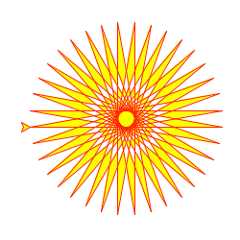
fromturtleimport*color('red','yellow')begin_fill()whileTrue:forward(200)left(170)ifabs(pos())<1:breakend_fill()done()
By combining together these and similar commands, intricate shapes and picturescan easily be drawn.
Theturtle module is an extended reimplementation of the same-namedmodule from the Python standard distribution up to version Python 2.5.
It tries to keep the merits of the old turtle module and to be (nearly) 100%compatible with it. This means in the first place to enable the learningprogrammer to use all the commands, classes and methods interactively when usingthe module from within IDLE run with the-n switch.
The turtle module provides turtle graphics primitives, in both object-orientedand procedure-oriented ways. Because it usestkinter for the underlyinggraphics, it needs a version of Python installed with Tk support.
The object-oriented interface uses essentially two+two classes:
TheTurtleScreen class defines graphics windows as a playground forthe drawing turtles. Its constructor needs atkinter.Canvas or aScrolledCanvas as argument. It should be used whenturtle isused as part of some application.
The functionScreen() returns a singleton object of aTurtleScreen subclass. This function should be used whenturtle is used as a standalone tool for doing graphics.As a singleton object, inheriting from its class is not possible.
All methods of TurtleScreen/Screen also exist as functions, i.e. as part ofthe procedure-oriented interface.
RawTurtle (alias:RawPen) defines Turtle objects which drawon aTurtleScreen. Its constructor needs a Canvas, ScrolledCanvasor TurtleScreen as argument, so the RawTurtle objects know where to draw.
Derived from RawTurtle is the subclassTurtle (alias:Pen),which draws on “the”Screen instance which is automaticallycreated, if not already present.
All methods of RawTurtle/Turtle also exist as functions, i.e. part of theprocedure-oriented interface.
The procedural interface provides functions which are derived from the methodsof the classesScreen andTurtle. They have the same names asthe corresponding methods. A screen object is automatically created whenever afunction derived from a Screen method is called. An (unnamed) turtle object isautomatically created whenever any of the functions derived from a Turtle methodis called.
To use multiple turtles on a screen one has to use the object-oriented interface.
Note
In the following documentation the argument list for functions is given.Methods, of course, have the additional first argumentself which isomitted here.
Most of the examples in this section refer to a Turtle instance calledturtle.
| Parameters: | distance – a number (integer or float) |
|---|
Move the turtle forward by the specifieddistance, in the direction theturtle is headed.
>>>turtle.position()(0.00,0.00)>>>turtle.forward(25)>>>turtle.position()(25.00,0.00)>>>turtle.forward(-75)>>>turtle.position()(-50.00,0.00)
| Parameters: | distance – a number |
|---|
Move the turtle backward bydistance, opposite to the direction theturtle is headed. Do not change the turtle’s heading.
>>>turtle.position()(0.00,0.00)>>>turtle.backward(30)>>>turtle.position()(-30.00,0.00)
| Parameters: | angle – a number (integer or float) |
|---|
Turn turtle right byangle units. (Units are by default degrees, butcan be set via thedegrees() andradians() functions.) Angleorientation depends on the turtle mode, seemode().
>>>turtle.heading()22.0>>>turtle.right(45)>>>turtle.heading()337.0
| Parameters: | angle – a number (integer or float) |
|---|
Turn turtle left byangle units. (Units are by default degrees, butcan be set via thedegrees() andradians() functions.) Angleorientation depends on the turtle mode, seemode().
>>>turtle.heading()22.0>>>turtle.left(45)>>>turtle.heading()67.0
| Parameters: |
|
|---|
Ify isNone,x must be a pair of coordinates or aVec2D(e.g. as returned bypos()).
Move turtle to an absolute position. If the pen is down, draw line. Donot change the turtle’s orientation.
>>>tp=turtle.pos()>>>tp(0.00,0.00)>>>turtle.setpos(60,30)>>>turtle.pos()(60.00,30.00)>>>turtle.setpos((20,80))>>>turtle.pos()(20.00,80.00)>>>turtle.setpos(tp)>>>turtle.pos()(0.00,0.00)
| Parameters: | x – a number (integer or float) |
|---|
Set the turtle’s first coordinate tox, leave second coordinateunchanged.
>>>turtle.position()(0.00,240.00)>>>turtle.setx(10)>>>turtle.position()(10.00,240.00)
| Parameters: | y – a number (integer or float) |
|---|
Set the turtle’s second coordinate toy, leave first coordinate unchanged.
>>>turtle.position()(0.00,40.00)>>>turtle.sety(-10)>>>turtle.position()(0.00,-10.00)
| Parameters: | to_angle – a number (integer or float) |
|---|
Set the orientation of the turtle toto_angle. Here are some commondirections in degrees:
| standard mode | logo mode |
|---|---|
| 0 - east | 0 - north |
| 90 - north | 90 - east |
| 180 - west | 180 - south |
| 270 - south | 270 - west |
>>>turtle.setheading(90)>>>turtle.heading()90.0
Move turtle to the origin – coordinates (0,0) – and set its heading toits start-orientation (which depends on the mode, seemode()).
>>>turtle.heading()90.0>>>turtle.position()(0.00,-10.00)>>>turtle.home()>>>turtle.position()(0.00,0.00)>>>turtle.heading()0.0
| Parameters: |
|
|---|
Draw a circle with givenradius. The center isradius units left ofthe turtle;extent – an angle – determines which part of the circleis drawn. Ifextent is not given, draw the entire circle. Ifextentis not a full circle, one endpoint of the arc is the current penposition. Draw the arc in counterclockwise direction ifradius ispositive, otherwise in clockwise direction. Finally the direction of theturtle is changed by the amount ofextent.
As the circle is approximated by an inscribed regular polygon,stepsdetermines the number of steps to use. If not given, it will becalculated automatically. May be used to draw regular polygons.
>>>turtle.home()>>>turtle.position()(0.00,0.00)>>>turtle.heading()0.0>>>turtle.circle(50)>>>turtle.position()(-0.00,0.00)>>>turtle.heading()0.0>>>turtle.circle(120,180)# draw a semicircle>>>turtle.position()(0.00,240.00)>>>turtle.heading()180.0
| Parameters: |
|
|---|
Draw a circular dot with diametersize, usingcolor. Ifsize isnot given, the maximum of pensize+4 and 2*pensize is used.
>>>turtle.home()>>>turtle.dot()>>>turtle.fd(50);turtle.dot(20,"blue");turtle.fd(50)>>>turtle.position()(100.00,-0.00)>>>turtle.heading()0.0
Stamp a copy of the turtle shape onto the canvas at the current turtleposition. Return a stamp_id for that stamp, which can be used to deleteit by callingclearstamp(stamp_id).
>>>turtle.color("blue")>>>turtle.stamp()11>>>turtle.fd(50)
| Parameters: | stampid – an integer, must be return value of previousstamp() call |
|---|
Delete stamp with givenstampid.
>>>turtle.position()(150.00,-0.00)>>>turtle.color("blue")>>>astamp=turtle.stamp()>>>turtle.fd(50)>>>turtle.position()(200.00,-0.00)>>>turtle.clearstamp(astamp)>>>turtle.position()(200.00,-0.00)
| Parameters: | n – an integer (orNone) |
|---|
Delete all or first/lastn of turtle’s stamps. Ifn is None, deleteall stamps, ifn > 0 delete firstn stamps, else ifn < 0 deletelastn stamps.
>>>foriinrange(8):...turtle.stamp();turtle.fd(30)1314151617181920>>>turtle.clearstamps(2)>>>turtle.clearstamps(-2)>>>turtle.clearstamps()
Undo (repeatedly) the last turtle action(s). Number of availableundo actions is determined by the size of the undobuffer.
>>>foriinrange(4):...turtle.fd(50);turtle.lt(80)...>>>foriinrange(8):...turtle.undo()
| Parameters: | speed – an integer in the range 0..10 or a speedstring (see below) |
|---|
Set the turtle’s speed to an integer value in the range 0..10. If noargument is given, return current speed.
If input is a number greater than 10 or smaller than 0.5, speed is setto 0. Speedstrings are mapped to speedvalues as follows:
Speeds from 1 to 10 enforce increasingly faster animation of line drawingand turtle turning.
Attention:speed = 0 means thatno animation takesplace. forward/back makes turtle jump and likewise left/right make theturtle turn instantly.
>>>turtle.speed()3>>>turtle.speed('normal')>>>turtle.speed()6>>>turtle.speed(9)>>>turtle.speed()9
Return the turtle’s current location (x,y) (as aVec2D vector).
>>>turtle.pos()(440.00,-0.00)
| Parameters: |
|
|---|
Return the angle between the line from turtle position to position specifiedby (x,y), the vector or the other turtle. This depends on the turtle’s startorientation which depends on the mode - “standard”/”world” or “logo”).
>>>turtle.goto(10,10)>>>turtle.towards(0,0)225.0
Return the turtle’s x coordinate.
>>>turtle.home()>>>turtle.left(50)>>>turtle.forward(100)>>>turtle.pos()(64.28,76.60)>>>print(round(turtle.xcor(),5))64.27876
Return the turtle’s y coordinate.
>>>turtle.home()>>>turtle.left(60)>>>turtle.forward(100)>>>print(turtle.pos())(50.00,86.60)>>>print(round(turtle.ycor(),5))86.60254
Return the turtle’s current heading (value depends on the turtle mode, seemode()).
>>>turtle.home()>>>turtle.left(67)>>>turtle.heading()67.0
| Parameters: |
|
|---|
Return the distance from the turtle to (x,y), the given vector, or the givenother turtle, in turtle step units.
>>>turtle.home()>>>turtle.distance(30,40)50.0>>>turtle.distance((30,40))50.0>>>joe=Turtle()>>>joe.forward(77)>>>turtle.distance(joe)77.0
| Parameters: | fullcircle – a number |
|---|
Set angle measurement units, i.e. set number of “degrees” for a full circle.Default value is 360 degrees.
>>>turtle.home()>>>turtle.left(90)>>>turtle.heading()90.0Change angle measurement unit to grad (also known as gon,grade, or gradian and equals 1/100-th of the right angle.)>>>turtle.degrees(400.0)>>>turtle.heading()100.0>>>turtle.degrees(360)>>>turtle.heading()90.0
Set the angle measurement units to radians. Equivalent todegrees(2*math.pi).
>>>turtle.home()>>>turtle.left(90)>>>turtle.heading()90.0>>>turtle.radians()>>>turtle.heading()1.5707963267948966
| Parameters: | width – a positive number |
|---|
Set the line thickness towidth or return it. If resizemode is set to“auto” and turtleshape is a polygon, that polygon is drawn with the same linethickness. If no argument is given, the current pensize is returned.
>>>turtle.pensize()1>>>turtle.pensize(10)# from here on lines of width 10 are drawn
| Parameters: |
|
|---|
Return or set the pen’s attributes in a “pen-dictionary” with the followingkey/value pairs:
This dictionary can be used as argument for a subsequent call topen()to restore the former pen-state. Moreover one or more of these attributescan be provided as keyword-arguments. This can be used to set several penattributes in one statement.
>>>turtle.pen(fillcolor="black",pencolor="red",pensize=10)>>>sorted(turtle.pen().items())[('fillcolor', 'black'), ('outline', 1), ('pencolor', 'red'), ('pendown', True), ('pensize', 10), ('resizemode', 'noresize'), ('shearfactor', 0.0), ('shown', True), ('speed', 9), ('stretchfactor', (1.0, 1.0)), ('tilt', 0.0)]>>>penstate=turtle.pen()>>>turtle.color("yellow","")>>>turtle.penup()>>>sorted(turtle.pen().items())[:3][('fillcolor', ''), ('outline', 1), ('pencolor', 'yellow')]>>>turtle.pen(penstate,fillcolor="green")>>>sorted(turtle.pen().items())[:3][('fillcolor', 'green'), ('outline', 1), ('pencolor', 'red')]
ReturnTrue if pen is down,False if it’s up.
>>>turtle.penup()>>>turtle.isdown()False>>>turtle.pendown()>>>turtle.isdown()True
Return or set the pencolor.
Four input formats are allowed:
Set pencolor to the RGB color represented byr,g, andb. Each ofr,g, andb must be in the range 0..colormode.
If turtleshape is a polygon, the outline of that polygon is drawn with thenewly set pencolor.
>>>colormode()1.0>>>turtle.pencolor()'red'>>>turtle.pencolor("brown")>>>turtle.pencolor()'brown'>>>tup=(0.2,0.8,0.55)>>>turtle.pencolor(tup)>>>turtle.pencolor()(0.2, 0.8, 0.5490196078431373)>>>colormode(255)>>>turtle.pencolor()(51.0, 204.0, 140.0)>>>turtle.pencolor('#32c18f')>>>turtle.pencolor()(50.0, 193.0, 143.0)
Return or set the fillcolor.
Four input formats are allowed:
Set fillcolor to the RGB color represented byr,g, andb. Each ofr,g, andb must be in the range 0..colormode.
If turtleshape is a polygon, the interior of that polygon is drawnwith the newly set fillcolor.
>>>turtle.fillcolor("violet")>>>turtle.fillcolor()'violet'>>>col=turtle.pencolor()>>>col(50.0, 193.0, 143.0)>>>turtle.fillcolor(col)>>>turtle.fillcolor()(50.0, 193.0, 143.0)>>>turtle.fillcolor('#ffffff')>>>turtle.fillcolor()(255.0, 255.0, 255.0)
Return or set pencolor and fillcolor.
Several input formats are allowed. They use 0 to 3 arguments asfollows:
Equivalent topencolor(colorstring1) andfillcolor(colorstring2)and analogously if the other input format is used.
If turtleshape is a polygon, outline and interior of that polygon is drawnwith the newly set colors.
>>>turtle.color("red","green")>>>turtle.color()('red', 'green')>>>color("#285078","#a0c8f0")>>>color()((40.0, 80.0, 120.0), (160.0, 200.0, 240.0))
See also: Screen methodcolormode().
Return fillstate (True if filling,False else).
>>>turtle.begin_fill()>>>ifturtle.filling():...turtle.pensize(5)...else:...turtle.pensize(3)
To be called just before drawing a shape to be filled.
Fill the shape drawn after the last call tobegin_fill().
>>>turtle.color("black","red")>>>turtle.begin_fill()>>>turtle.circle(80)>>>turtle.end_fill()
Delete the turtle’s drawings from the screen, re-center the turtle and setvariables to the default values.
>>>turtle.goto(0,-22)>>>turtle.left(100)>>>turtle.position()(0.00,-22.00)>>>turtle.heading()100.0>>>turtle.reset()>>>turtle.position()(0.00,0.00)>>>turtle.heading()0.0
Delete the turtle’s drawings from the screen. Do not move turtle. State andposition of the turtle as well as drawings of other turtles are not affected.
| Parameters: |
|
|---|
Write text - the string representation ofarg - at the current turtleposition according toalign (“left”, “center” or right”) and with the givenfont. Ifmove is true, the pen is moved to the bottom-right corner of thetext. By default,move isFalse.
>>>turtle.write("Home = ",True,align="center")>>>turtle.write((0,0),True)
Make the turtle invisible. It’s a good idea to do this while you’re in themiddle of doing some complex drawing, because hiding the turtle speeds up thedrawing observably.
>>>turtle.hideturtle()
ReturnTrue if the Turtle is shown,False if it’s hidden.
>>>turtle.hideturtle()>>>turtle.isvisible()False>>>turtle.showturtle()>>>turtle.isvisible()True
| Parameters: | name – a string which is a valid shapename |
|---|
Set turtle shape to shape with givenname or, if name is not given, returnname of current shape. Shape withname must exist in the TurtleScreen’sshape dictionary. Initially there are the following polygon shapes: “arrow”,“turtle”, “circle”, “square”, “triangle”, “classic”. To learn about how todeal with shapes see Screen methodregister_shape().
>>>turtle.shape()'classic'>>>turtle.shape("turtle")>>>turtle.shape()'turtle'
| Parameters: | rmode – one of the strings “auto”, “user”, “noresize” |
|---|
Set resizemode to one of the values: “auto”, “user”, “noresize”. Ifrmodeis not given, return current resizemode. Different resizemodes have thefollowing effects:
resizemode(“user”) is called byshapesize() when used with arguments.
>>>turtle.resizemode()'noresize'>>>turtle.resizemode("auto")>>>turtle.resizemode()'auto'
| Parameters: |
|
|---|
Return or set the pen’s attributes x/y-stretchfactors and/or outline. Setresizemode to “user”. If and only if resizemode is set to “user”, the turtlewill be displayed stretched according to its stretchfactors:stretch_wid isstretchfactor perpendicular to its orientation,stretch_len isstretchfactor in direction of its orientation,outline determines the widthof the shapes’s outline.
>>>turtle.shapesize()(1.0, 1.0, 1)>>>turtle.resizemode("user")>>>turtle.shapesize(5,5,12)>>>turtle.shapesize()(5, 5, 12)>>>turtle.shapesize(outline=8)>>>turtle.shapesize()(5, 5, 8)
| Parameters: | shear – number (optional) |
|---|
Set or return the current shearfactor. Shear the turtleshape according tothe given shearfactor shear, which is the tangent of the shear angle.Donot change the turtle’s heading (direction of movement).If shear is not given: return the current shearfactor, i. e. thetangent of the shear angle, by which lines parallel to theheading of the turtle are sheared.
>>>turtle.shape("circle")>>>turtle.shapesize(5,2)>>>turtle.shearfactor(0.5)>>>turtle.shearfactor()0.5
| Parameters: | angle – a number |
|---|
Rotate the turtleshape byangle from its current tilt-angle, but donotchange the turtle’s heading (direction of movement).
>>>turtle.reset()>>>turtle.shape("circle")>>>turtle.shapesize(5,2)>>>turtle.tilt(30)>>>turtle.fd(50)>>>turtle.tilt(30)>>>turtle.fd(50)
| Parameters: | angle – a number |
|---|
Rotate the turtleshape to point in the direction specified byangle,regardless of its current tilt-angle.Do not change the turtle’s heading(direction of movement).
>>>turtle.reset()>>>turtle.shape("circle")>>>turtle.shapesize(5,2)>>>turtle.settiltangle(45)>>>turtle.fd(50)>>>turtle.settiltangle(-45)>>>turtle.fd(50)
Deprecated since version 3.1.
| Parameters: | angle – a number (optional) |
|---|
Set or return the current tilt-angle. If angle is given, rotate theturtleshape to point in the direction specified by angle,regardless of its current tilt-angle. Donot change the turtle’sheading (direction of movement).If angle is not given: return the current tilt-angle, i. e. the anglebetween the orientation of the turtleshape and the heading of theturtle (its direction of movement).
>>>turtle.reset()>>>turtle.shape("circle")>>>turtle.shapesize(5,2)>>>turtle.tilt(45)>>>turtle.tiltangle()45.0
| Parameters: |
|
|---|
Set or return the current transformation matrix of the turtle shape.
If none of the matrix elements are given, return the transformationmatrix as a tuple of 4 elements.Otherwise set the given elements and transform the turtleshapeaccording to the matrix consisting of first row t11, t12 andsecond row t21, 22. The determinant t11 * t22 - t12 * t21 must not bezero, otherwise an error is raised.Modify stretchfactor, shearfactor and tiltangle according to thegiven matrix.
>>>turtle=Turtle()>>>turtle.shape("square")>>>turtle.shapesize(4,2)>>>turtle.shearfactor(-0.5)>>>turtle.shapetransform()(4.0, -1.0, -0.0, 2.0)
Return the current shape polygon as tuple of coordinate pairs. Thiscan be used to define a new shape or components of a compound shape.
>>>turtle.shape("square")>>>turtle.shapetransform(4,-1,0,2)>>>turtle.get_shapepoly()((50, -20), (30, 20), (-50, 20), (-30, -20))
| Parameters: |
|
|---|
Bindfun to mouse-click events on this turtle. Iffun isNone,existing bindings are removed. Example for the anonymous turtle, i.e. theprocedural way:
>>>defturn(x,y):...left(180)...>>>onclick(turn)# Now clicking into the turtle will turn it.>>>onclick(None)# event-binding will be removed
| Parameters: |
|
|---|
Bindfun to mouse-button-release events on this turtle. Iffun isNone, existing bindings are removed.
>>>classMyTurtle(Turtle):...defglow(self,x,y):...self.fillcolor("red")...defunglow(self,x,y):...self.fillcolor("")...>>>turtle=MyTurtle()>>>turtle.onclick(turtle.glow)# clicking on turtle turns fillcolor red,>>>turtle.onrelease(turtle.unglow)# releasing turns it to transparent.
| Parameters: |
|
|---|
Bindfun to mouse-move events on this turtle. Iffun isNone,existing bindings are removed.
Remark: Every sequence of mouse-move-events on a turtle is preceded by amouse-click event on that turtle.
>>>turtle.ondrag(turtle.goto)
Subsequently, clicking and dragging the Turtle will move it acrossthe screen thereby producing handdrawings (if pen is down).
Start recording the vertices of a polygon. Current turtle position is firstvertex of polygon.
Stop recording the vertices of a polygon. Current turtle position is lastvertex of polygon. This will be connected with the first vertex.
Return the last recorded polygon.
>>>turtle.home()>>>turtle.begin_poly()>>>turtle.fd(100)>>>turtle.left(20)>>>turtle.fd(30)>>>turtle.left(60)>>>turtle.fd(50)>>>turtle.end_poly()>>>p=turtle.get_poly()>>>register_shape("myFavouriteShape",p)
Create and return a clone of the turtle with same position, heading andturtle properties.
>>>mick=Turtle()>>>joe=mick.clone()
Return the Turtle object itself. Only reasonable use: as a function toreturn the “anonymous turtle”:
>>>pet=getturtle()>>>pet.fd(50)>>>pet<turtle.Turtle object at 0x...>
Return theTurtleScreen object the turtle is drawing on.TurtleScreen methods can then be called for that object.
>>>ts=turtle.getscreen()>>>ts<turtle._Screen object at 0x...>>>>ts.bgcolor("pink")
| Parameters: | size – an integer orNone |
|---|
Set or disable undobuffer. Ifsize is an integer an empty undobuffer ofgiven size is installed.size gives the maximum number of turtle actionsthat can be undone by theundo() method/function. Ifsize isNone, the undobuffer is disabled.
>>>turtle.setundobuffer(42)
Return number of entries in the undobuffer.
>>>whileundobufferentries():...undo()
To use compound turtle shapes, which consist of several polygons of differentcolor, you must use the helper classShape explicitly as describedbelow:
Create an empty Shape object of type “compound”.
Add as many components to this object as desired, using theaddcomponent() method.
For example:
>>>s=Shape("compound")>>>poly1=((0,0),(10,-5),(0,10),(-10,-5))>>>s.addcomponent(poly1,"red","blue")>>>poly2=((0,0),(10,-5),(-10,-5))>>>s.addcomponent(poly2,"blue","red")
Now add the Shape to the Screen’s shapelist and use it:
>>>register_shape("myshape",s)>>>shape("myshape")
Note
TheShape class is used internally by theregister_shape()method in different ways. The application programmer has to deal with theShape classonly when using compound shapes like shown above!
Most of the examples in this section refer to a TurtleScreen instance calledscreen.
| Parameters: | args – a color string or three numbers in the range 0..colormode or a3-tuple of such numbers |
|---|
Set or return background color of the TurtleScreen.
>>>screen.bgcolor("orange")>>>screen.bgcolor()'orange'>>>screen.bgcolor("#800080")>>>screen.bgcolor()(128.0, 0.0, 128.0)
| Parameters: | picname – a string, name of a gif-file or"nopic", orNone |
|---|
Set background image or return name of current backgroundimage. Ifpicnameis a filename, set the corresponding image as background. Ifpicname is"nopic", delete background image, if present. Ifpicname isNone,return the filename of the current backgroundimage.
>>>screen.bgpic()'nopic'>>>screen.bgpic("landscape.gif")>>>screen.bgpic()"landscape.gif"
Delete all drawings and all turtles from the TurtleScreen. Reset the nowempty TurtleScreen to its initial state: white background, no backgroundimage, no event bindings and tracing on.
Note
This TurtleScreen method is available as a global function only under thenameclearscreen. The global functionclear is a different onederived from the Turtle methodclear.
Reset all Turtles on the Screen to their initial state.
Note
This TurtleScreen method is available as a global function only under thenameresetscreen. The global functionreset is another onederived from the Turtle methodreset.
| Parameters: |
|
|---|
If no arguments are given, return current (canvaswidth, canvasheight). Elseresize the canvas the turtles are drawing on. Do not alter the drawingwindow. To observe hidden parts of the canvas, use the scrollbars. With thismethod, one can make visible those parts of a drawing which were outside thecanvas before.
>>>screen.screensize()(400, 300)>>>screen.screensize(2000,1500)>>>screen.screensize()(2000, 1500)
e.g. to search for an erroneously escaped turtle ;-)
| Parameters: |
|
|---|
Set up user-defined coordinate system and switch to mode “world” ifnecessary. This performs ascreen.reset(). If mode “world” is alreadyactive, all drawings are redrawn according to the new coordinates.
ATTENTION: in user-defined coordinate systems angles may appeardistorted.
>>>screen.reset()>>>screen.setworldcoordinates(-50,-7.5,50,7.5)>>>for_inrange(72):...left(10)...>>>for_inrange(8):...left(45);fd(2)# a regular octagon
| Parameters: | delay – positive integer |
|---|
Set or return the drawingdelay in milliseconds. (This is approximatelythe time interval between two consecutive canvas updates.) The longer thedrawing delay, the slower the animation.
Optional argument:
>>>screen.delay()10>>>screen.delay(5)>>>screen.delay()5
| Parameters: |
|
|---|
Turn turtle animation on/off and set delay for update drawings. Ifn is given, only each n-th regular screen update is reallyperformed. (Can be used to accelerate the drawing of complexgraphics.) When called without arguments, returns the currentlystored value of n. Second argument sets delay value (seedelay()).
>>>screen.tracer(8,25)>>>dist=2>>>foriinrange(200):...fd(dist)...rt(90)...dist+=2
Perform a TurtleScreen update. To be used when tracer is turned off.
See also the RawTurtle/Turtle methodspeed().
Set focus on TurtleScreen (in order to collect key-events). Dummy argumentsare provided in order to be able to passlisten() to the onclick method.
| Parameters: |
|
|---|
Bindfun to key-release event of key. Iffun isNone, event bindingsare removed. Remark: in order to be able to register key-events, TurtleScreenmust have the focus. (See methodlisten().)
>>>deff():...fd(50)...lt(60)...>>>screen.onkey(f,"Up")>>>screen.listen()
| Parameters: |
|
|---|
Bindfun to key-press event of key if key is given,or to any key-press-event if no key is given.Remark: in order to be able to register key-events, TurtleScreenmust have focus. (See methodlisten().)
>>>deff():...fd(50)...>>>screen.onkey(f,"Up")>>>screen.listen()
| Parameters: |
|
|---|
Bindfun to mouse-click events on this screen. Iffun isNone,existing bindings are removed.
Example for a TurtleScreen instance namedscreen and a Turtle instancenamed turtle:
>>>screen.onclick(turtle.goto)# Subsequently clicking into the TurtleScreen will>>># make the turtle move to the clicked point.>>>screen.onclick(None)# remove event binding again
Note
This TurtleScreen method is available as a global function only under thenameonscreenclick. The global functiononclick is another onederived from the Turtle methodonclick.
| Parameters: |
|
|---|
Install a timer that callsfun aftert milliseconds.
>>>running=True>>>deff():...ifrunning:...fd(50)...lt(60)...screen.ontimer(f,250)>>>f()### makes the turtle march around>>>running=False
| Parameters: |
|
|---|
Pop up a dialog window for input of a string. Parameter title isthe title of the dialog window, propmt is a text mostly describingwhat information to input.Return the string input. If the dialog is canceled, return None.
>>>screen.textinput("NIM","Name of first player:")
| Parameters: |
|
|---|
Pop up a dialog window for input of a number. title is the title of thedialog window, prompt is a text mostly describing what numerical informationto input. default: default value, minval: minimum value for imput,maxval: maximum value for inputThe number input must be in the range minval .. maxval if these aregiven. If not, a hint is issued and the dialog remains open forcorrection.Return the number input. If the dialog is canceled, return None.
>>>screen.numinput("Poker","Your stakes:",1000,minval=10,maxval=10000)
| Parameters: | mode – one of the strings “standard”, “logo” or “world” |
|---|
Set turtle mode (“standard”, “logo” or “world”) and perform reset. If modeis not given, current mode is returned.
Mode “standard” is compatible with oldturtle. Mode “logo” iscompatible with most Logo turtle graphics. Mode “world” uses user-defined“world coordinates”.Attention: in this mode angles appear distorted ifx/y unit-ratio doesn’t equal 1.
| Mode | Initial turtle heading | positive angles |
|---|---|---|
| “standard” | to the right (east) | counterclockwise |
| “logo” | upward (north) | clockwise |
>>>mode("logo")# resets turtle heading to north>>>mode()'logo'
| Parameters: | cmode – one of the values 1.0 or 255 |
|---|
Return the colormode or set it to 1.0 or 255. Subsequentlyr,g,bvalues of color triples have to be in the range 0..cmode.
>>>screen.colormode(1)>>>turtle.pencolor(240,160,80)Traceback (most recent call last):...TurtleGraphicsError:bad color sequence: (240, 160, 80)>>>screen.colormode()1.0>>>screen.colormode(255)>>>screen.colormode()255>>>turtle.pencolor(240,160,80)
Return the Canvas of this TurtleScreen. Useful for insiders who know what todo with a Tkinter Canvas.
>>>cv=screen.getcanvas()>>>cv<turtle.ScrolledCanvas object at ...>
Return a list of names of all currently available turtle shapes.
>>>screen.getshapes()['arrow', 'blank', 'circle', ..., 'turtle']
There are three different ways to call this function:
name is the name of a gif-file andshape isNone: Install thecorresponding image shape.
>>>screen.register_shape("turtle.gif")
Note
Image shapesdo not rotate when turning the turtle, so they do notdisplay the heading of the turtle!
name is an arbitrary string andshape is a tuple of pairs ofcoordinates: Install the corresponding polygon shape.
>>>screen.register_shape("triangle",((5,-3),(0,5),(-5,-3)))
name is an arbitrary string and shape is a (compound)Shapeobject: Install the corresponding compound shape.
Add a turtle shape to TurtleScreen’s shapelist. Only thusly registeredshapes can be used by issuing the commandshape(shapename).
Return the list of turtles on the screen.
>>>forturtleinscreen.turtles():...turtle.color("red")
Return the height of the turtle window.
>>>screen.window_height()480
Return the width of the turtle window.
>>>screen.window_width()640
Shut the turtlegraphics window.
Bind bye() method to mouse clicks on the Screen.
If the value “using_IDLE” in the configuration dictionary isFalse(default value), also enter mainloop. Remark: If IDLE with the-n switch(no subprocess) is used, this value should be set toTrue inturtle.cfg. In this case IDLE’s own mainloop is active also for theclient script.
Set the size and position of the main window. Default values of argumentsare stored in the configuration dictionary and can be changed via aturtle.cfg file.
| Parameters: |
|
|---|
>>>screen.setup(width=200,height=200,startx=0,starty=0)>>># sets window to 200x200 pixels, in upper left of screen>>>screen.setup(width=.75,height=0.5,startx=None,starty=None)>>># sets window to 75% of screen by 50% of screen and centers
| Parameters: | titlestring – a string that is shown in the titlebar of the turtlegraphics window |
|---|
Set title of turtle window totitlestring.
>>>screen.title("Welcome to the turtle zoo!")
| Parameters: | canvas – atkinter.Canvas, aScrolledCanvas or aTurtleScreen |
|---|
Create a turtle. The turtle has all methods described above as “methods ofTurtle/RawTurtle”.
Subclass of RawTurtle, has the same interface but draws on a defaultScreen object created automatically when needed for the first time.
| Parameters: | cv – atkinter.Canvas |
|---|
Provides screen oriented methods likesetbg() etc. that are describedabove.
Subclass of TurtleScreen, withfour methods added.
| Parameters: | master – some Tkinter widget to contain the ScrolledCanvas, i.e.a Tkinter-canvas with scrollbars added |
|---|
Used by class Screen, which thus automatically provides a ScrolledCanvas asplayground for the turtles.
| Parameters: | type_ – one of the strings “polygon”, “image”, “compound” |
|---|
Data structure modeling shapes. The pair(type_,data) must follow thisspecification:
| type_ | data |
|---|---|
| “polygon” | a polygon-tuple, i.e. a tuple of pairs of coordinates |
| “image” | an image (in this form only used internally!) |
| “compound” | None (a compound shape has to be constructed using theaddcomponent() method) |
| Parameters: |
|
|---|
Example:
>>>poly=((0,0),(10,-5),(0,10),(-10,-5))>>>s=Shape("compound")>>>s.addcomponent(poly,"red","blue")>>># ... add more components and then use register_shape()
SeeCompound shapes.
A two-dimensional vector class, used as a helper class for implementingturtle graphics. May be useful for turtle graphics programs too. Derivedfrom tuple, so a vector is a tuple!
Provides (fora,b vectors,k number):
The public methods of the Screen and Turtle classes are documented extensivelyvia docstrings. So these can be used as online-help via the Python helpfacilities:
When using IDLE, tooltips show the signatures and first lines of thedocstrings of typed in function-/method calls.
Callinghelp() on methods or functions displays the docstrings:
>>>help(Screen.bgcolor)Help on method bgcolor in module turtle:bgcolor(self, *args) unbound turtle.Screen method Set or return backgroundcolor of the TurtleScreen. Arguments (if given): a color string or three numbers in the range 0..colormode or a 3-tuple of such numbers. >>> screen.bgcolor("orange") >>> screen.bgcolor() "orange" >>> screen.bgcolor(0.5,0,0.5) >>> screen.bgcolor() "#800080">>>help(Turtle.penup)Help on method penup in module turtle:penup(self) unbound turtle.Turtle method Pull the pen up -- no drawing when moving. Aliases: penup | pu | up No argument >>> turtle.penup()
The docstrings of the functions which are derived from methods have a modifiedform:
>>>help(bgcolor)Help on function bgcolor in module turtle:bgcolor(*args) Set or return backgroundcolor of the TurtleScreen. Arguments (if given): a color string or three numbers in the range 0..colormode or a 3-tuple of such numbers. Example:: >>> bgcolor("orange") >>> bgcolor() "orange" >>> bgcolor(0.5,0,0.5) >>> bgcolor() "#800080">>>help(penup)Help on function penup in module turtle:penup() Pull the pen up -- no drawing when moving. Aliases: penup | pu | up No argument Example: >>> penup()
These modified docstrings are created automatically together with the functiondefinitions that are derived from the methods at import time.
There is a utility to create a dictionary the keys of which are the method namesand the values of which are the docstrings of the public methods of the classesScreen and Turtle.
| Parameters: | filename – a string, used as filename |
|---|
Create and write docstring-dictionary to a Python script with the givenfilename. This function has to be called explicitly (it is not used by theturtle graphics classes). The docstring dictionary will be written to thePython scriptfilename.py. It is intended to serve as a templatefor translation of the docstrings into different languages.
If you (or your students) want to useturtle with online help in yournative language, you have to translate the docstrings and save the resultingfile as e.g.turtle_docstringdict_german.py.
If you have an appropriate entry in yourturtle.cfg file this dictionarywill be read in at import time and will replace the original English docstrings.
At the time of this writing there are docstring dictionaries in German and inItalian. (Requests please toglingl@aon.at.)
The built-in default configuration mimics the appearance and behaviour of theold turtle module in order to retain best possible compatibility with it.
If you want to use a different configuration which better reflects the featuresof this module or which better fits to your needs, e.g. for use in a classroom,you can prepare a configuration fileturtle.cfg which will be read at importtime and modify the configuration according to its settings.
The built in configuration would correspond to the following turtle.cfg:
width=0.5height=0.75leftright=Nonetopbottom=Nonecanvwidth=400canvheight=300mode=standardcolormode=1.0delay=10undobuffersize=1000shape=classicpencolor=blackfillcolor=blackresizemode=noresizevisible=Truelanguage=englishexampleturtle=turtleexamplescreen=screentitle=PythonTurtleGraphicsusing_IDLE=False
Short explanation of selected entries:
There can be aturtle.cfg file in the directory whereturtle isstored and an additional one in the current working directory. The latter willoverride the settings of the first one.
TheLib/turtledemo directory contains aturtle.cfg file. You canstudy it as an example and see its effects when running the demos (preferablynot from within the demo-viewer).
There is a set of demo scripts in theturtledemo package. Thesescripts can be run and viewed using the supplied demo viewer as follows:
python-mturtledemo
Alternatively, you can run the demo scripts individually. For example,
python-mturtledemo.bytedesign
Theturtledemo package directory contains:
The demo scripts are:
| Name | Description | Features |
|---|---|---|
| bytedesign | complex classicalturtle graphics pattern | tracer(), delay,update() |
| chaos | graphs Verhulst dynamics,shows that computer’scomputations can generateresults sometimes against thecommon sense expectations | world coordinates |
| clock | analog clock showing timeof your computer | turtles as clock’shands, ontimer |
| colormixer | experiment with r, g, b | ondrag() |
| fractalcurves | Hilbert & Koch curves | recursion |
| lindenmayer | ethnomathematics(indian kolams) | L-System |
| minimal_hanoi | Towers of Hanoi | Rectangular Turtlesas Hanoi discs(shape, shapesize) |
| nim | play the classical nim gamewith three heaps of sticksagainst the computer. | turtles as nimsticks,event driven (mouse,keyboard) |
| paint | super minimalisticdrawing program | onclick() |
| peace | elementary | turtle: appearanceand animation |
| penrose | aperiodic tiling withkites and darts | stamp() |
| planet_and_moon | simulation ofgravitational system | compound shapes,Vec2D |
| round_dance | dancing turtles rotatingpairwise in oppositedirection | compound shapes, cloneshapesize, tilt,get_shapepoly, update |
| tree | a (graphical) breadthfirst tree (using generators) | clone() |
| wikipedia | a pattern from the wikipediaarticle on turtle graphics | clone(),undo() |
| yingyang | another elementary example | circle() |
Have fun!
24.2.cmd — Support for line-oriented command interpreters
Enter search terms or a module, class or function name.
