Creating and viewing access tokens
See Details
Table of contents
You cancreate andview access tokens from the website and command line interface (CLI).
Creating access tokens
Creating granular access tokens on the website
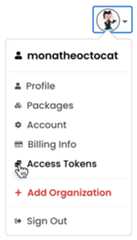
In the upper right corner of the page, click your profile picture, then clickAccess Tokens.
ClickGenerate New Token.

In theToken name field, enter a name for your token.
(Optional) In theDescription field, enter a description for your token.
(Optional) Check theBypass two-factor authentication checkbox if you want this token to bypass 2FA requirements for write actions.
- This setting is unchecked (false) by default
- By checking this box, the token will bypass 2FA for write actions even if 2FA is enabled at the account or package level
(Optional) In theAllowed IP Ranges field, enter IP address ranges to restrict your access token to. You must useCIDR notation to enter IP address ranges. To add more than one allowed IP range, clickAdd IP Range and enter an IP range in the new text field.

(Optional) In thePackages and scopes section, configure your token's access to packages and scopes.
- In thePermissions dropdown menu, selectNo access,Read-only, orRead and write.
- UnderSelect Packages, select either:
- All Packages to grant the token access to all packages the user account has access to.
- Only select packages and scopes to choose up to 50 specific packages or scopes to give the token access to. Then select specific packages or scopes from the dropdown menu.

(Optional) In theOrganizations section, configure your token's access to organizations.
- In thePermissions dropdown menu, selectNo access,Read-only, orRead and write.
- UnderSelect organizations, select the organizations you want to grant your token access to.

Note: When you give a token access to an organization, the token can only be used for managing organization settings and teams or users associated with the organization. It does not give the token the right to publish packages managed by the organization.
In theExpiration field, select a token expiration period from the dropdown menu. You can choose from predefined options or select Custom to specify a custom expiration date using the date picker.
Note: The date must be at least 1 day in the future.
Review the token summary, then clickGenerate Token.
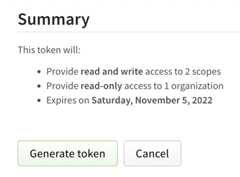
- Copy the token from the top of page.
Creating tokens with the CLI
Note: You cannot create granular access tokens from the CLI currently. You must use the website to generate these types of tokens. Support for creating granular access tokens vianpm token CLI command will be added in the future. For more information, see "Creating granular access tokens on the website."
Viewing access tokens
Note: Full tokens are never displayed, only the first and last four characters will be shown. You can only view a full token immediately after creation.
Viewing tokens on the website
To view all tokens associated with your account, in the upper right corner of the page, click your profile picture, then clickAccess Tokens.
Viewing tokens on the CLI
To view all tokens associated with your account, on the command line, run the following command:
npm token listToken attributes
- id: Use the token ID to refer to the token in commands.
- token: The first digits of the actual token.
- created: Date the token was created.
- CIDR whitelist: Restricts token use by IP address.


![dependabot[bot]](/image.pl?url=https%3a%2f%2fgithub.com%2fdependabot%5bbot%5d.png%3fsize%3d40&f=jpg&w=240)


