

Try Jupyter#
These sections describe a few ways to get started with some of the most-commonly used tools in the Jupyter ecosystem.
Try in Your Browser. No Installation Needed.#
Try Jupyter (https://try.jupyter.org) is a site for trying out the Jupyter Notebook, equipped with kernels for several different languages (Julia, R, C++, Scheme, Ruby) without installing anything.Click the link below to go to the page.
When running the examples on theTryJupyter site, you will get a temporary Jupyterserver running on mybinder.org which you can use to play around until you close yourbrowser session.
You can use this site to try a few of the major interactive computing interfaces created by the Jupyter community.A description of each is below.
Try the Classic Notebook interface#
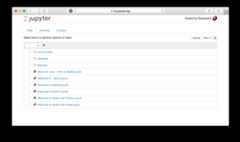
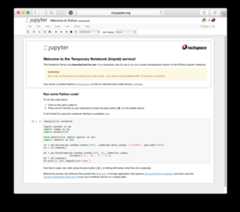
TheClassic Notebook interface is a document-oriented interface that allows you to create, view, and execute code in a Jupyter Notebook.
The example should look like this:
Notebook Dashboard
Notebook Editor
Try the JupyterLab interface#
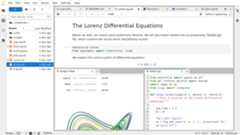
The Jupyter Lab interface is a more extensible and composable interactive computing interface for more complex workflows.
Here’s an example of what the JupyterLab interface looks like:
Next step: install Jupyter locally#
If you have tried Jupyter and like it, please use ourInstallation Guide to install Jupyter on your computer.