Create an experiment
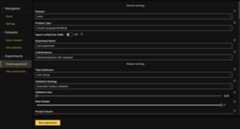
Follow the relevant steps below to create an experiment in H2O LLM Studio.
On the H2O LLM Studio left-navigation pane, clickCreate experiment. Alternatively, you can clickNew experiment on the Kebab menu of theView datasets page.
Select theDataset you want to use to fine-tune an LLM model.
Select theProblem type.
Provide a meaningfulExperiment name.
Define the parameters. The most important parameters are:
- LLM Backbone: This parameter determines the LLM architecture to use. It is the foundation model that you continue training. H2O LLM Studio has a predefined list of recommended foundation models available in the dropdown list. You can also type in the name of aHugging Face model that is not in the list, for example:
h2oai/h2o-danube2-1.8b-sftor the path of a local folder that has the model you would like to fine-tune. - Mask Prompt Labels: This option controls whether to mask the prompt labels during training and only train on the loss of the answer.
- Hyperparameters such asLearning rate,Batch size, and number of epochs determine the training process. You can refer to the tooltips that are shown next to each hyperparameter in the GUI to learn more about them.
- Evaluate Before Training: This option lets you evaluate the model before training, which can help you judge the quality of the LLM backbone before fine-tuning.
H2O LLM Studio provides several metric options for evaluating the performance of your model. In addition to the BLEU score, H2O LLM Studio also offers the GPT3.5 and GPT4 metrics that utilize the OpenAI API to determine whether the predicted answer is more favorable than the ground truth answer. To use these metrics, you can either export your OpenAI API key as an environment variable before starting LLM Studio, or you can specify it in theSettings menu within the UI.
noteH2O LLM Studio provides an overview of all the parameters you need to specify for your experiment. The default settings are suitable when you first start an experiment. To learn more about the parameters, seeExperiment settings.
- LLM Backbone: This parameter determines the LLM architecture to use. It is the foundation model that you continue training. H2O LLM Studio has a predefined list of recommended foundation models available in the dropdown list. You can also type in the name of aHugging Face model that is not in the list, for example:
ClickRun experiment.
Run an experiment on the OASST data via CLI
The steps below provide an example of how to to run an experiment onOASST data via the command line interface (CLI).
Get the training dataset (
train_full.csv),OpenAssistant Conversations Dataset OASST2 and place it into theexamples/data_oasst2folder; or download it directly using theKaggle API command given below.kaggle kernels output philippsinger/openassistant-conversations-dataset-oasst2 -p examples/data_oasst2/Go into the interactive shell or open a new terminal window. Install the dependencies first, if you have not installed them already.
make setup# installs all dependencies
make shell
Run the following command to run the experiment.
python llm_studio/train.py -Y examples/example_oasst2.yaml
After the experiment is completed, you can find all output artifacts in theexamples/output_oasst2 folder.You can then use theprompt.py script to chat with your model.
python llm_studio/prompt.py -e examples/output_oasst2
To publish the model to Hugging Face, use the following command:
python llm_studio/publish_to_hugging_face.py -p{path_to_experiment} -d{device} -a{api_key} -u{user_id} -m{model_name} -s{safe_serialization}
- Submit and view feedback for this page
- Send feedback about H2O LLM Studio | Docs tocloud-feedback@h2o.ai