Using workflow run logs
You can view, search, and download the logs for each job in a workflow run.
In this article
You can see whether a workflow run is in progress or complete from the workflow run page. You must be logged in to a GitHub account to view workflow run information, including for public repositories. For more information, seeAccess permissions on GitHub.
If the run is complete, you can see whether the result was a success, failure, canceled, or neutral. If the run failed, you can view and search the build logs to diagnose the failure and re-run the workflow. You can also view billable job execution minutes, or download logs and build artifacts.
GitHub Actions use the Checks API to output statuses, results, and logs for a workflow. GitHub creates a new check suite for each workflow run. The check suite contains a check run for each job in the workflow, and each job includes steps. GitHub Actions are run as a step in a workflow. For more information about the Checks API, seeREST API endpoints for checks.
Note
Ensure that you only commit valid workflow files to your repository. If.github/workflows contains an invalid workflow file, GitHub Actions generates a failed workflow run for every new commit.
Viewing logs to diagnose failures
If your workflow run fails, you can see which step caused the failure and review the failed step's build logs to troubleshoot. You can see the time it took for each step to run. You can also copy a permalink to a specific line in the log file to share with your team. Read access to the repository is required to perform these steps.
In addition to the steps configured in the workflow file, GitHub adds two additional steps to each job to set up and complete the job's execution. These steps are logged in the workflow run with the names "Set up job" and "Complete job".
For jobs run on GitHub-hosted runners, "Set up job" records details of the runner image, and includes a link to the list of preinstalled tools that were present on the runner machine.
On GitHub, navigate to the main page of the repository.
Under your repository name, click Actions.

In the left sidebar, click the workflow you want to see.
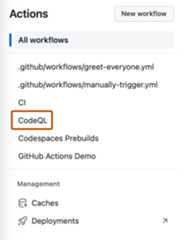
From the list of workflow runs, click the name of the run to see the workflow run summary.
UnderJobs or in the visualization graph, click the job you want to see.
Any failed steps are automatically expanded to display the results.
Optionally, to get a link to a specific line in the logs, click on the step's line number. You can then copy the link from the address bar of your web browser.
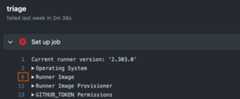


Searching logs
You can search the build logs for a particular step. When you search logs, only expanded steps are included in the results. Read access to the repository is required to perform these steps.
On GitHub, navigate to the main page of the repository.
Under your repository name, click Actions.
In the left sidebar, click the workflow you want to see.
From the list of workflow runs, click the name of the run to see the workflow run summary.
UnderJobs or in the visualization graph, click the job you want to see.
In the upper-right corner of the log output, in theSearch logs search box, type a search query.
Downloading logs
You can download the log files from your workflow run. You can also download a workflow's artifacts. For more information, seeStore and share data with workflow artifacts. Read access to the repository is required to perform these steps.
On GitHub, navigate to the main page of the repository.
Under your repository name, click Actions.
In the left sidebar, click the workflow you want to see.
From the list of workflow runs, click the name of the run to see the workflow run summary.
UnderJobs or in the visualization graph, click the job you want to see.
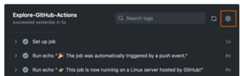
In the upper right corner of the log, select the dropdown menu, then clickDownload log archive.

Note
When you download the log archive for a workflow that was partially re-run, the archive only includes the jobs that were re-run. To get a complete set of logs for jobs that were run from a workflow, you must download the log archives for the previous run attempts that ran the other jobs.
Deleting logs
You can delete the log files from your workflow runs through the GitHub web interface or programmatically. Write access to the repository is required to perform these steps.
Deleting logs via the GitHub web interface
On GitHub, navigate to the main page of the repository.
Under your repository name, click Actions.
In the left sidebar, click the workflow you want to see.
From the list of workflow runs, click the name of the run to see the workflow run summary.
In the upper-right corner, select the dropdown menu, then clickDelete all logs.
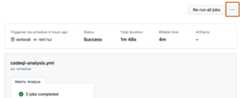
Review the confirmation prompt.

After deleting logs, theDelete all logs button is removed to indicate that no log files remain in the workflow run.
Deleting logs programmatically
You can use the following script to automatically delete all logs for a workflow. This can be a useful way to clean up logs for multiple workflow runs.
To run the example script below:
Copy the code example and save it to a file called
delete-logs.sh.Grant it the execute permission with
chmod +x delete-logs.sh.Run the following command, where
REPOSITORY_NAMEis the name of your repository andWORKFLOW_NAMEis the file name of your workflow.Shell ./delete-logs.sh REPOSITORY_NAME WORKFLOW_NAME
./delete-logs.sh REPOSITORY_NAME WORKFLOW_NAMEFor example, to delete all of the logs in the
monalisa/octocatrepository for the.github/workflows/ci.yamlworkflow, you would run./delete-logs.sh monalisa/octocat ci.yaml.
Example script
#!/usr/bin/env bash# Delete all logs for a given workflow# Usage: delete-logs.sh <repository> <workflow-name>set -oe pipefailREPOSITORY=$1WORKFLOW_NAME=$2# Validate argumentsif [[ -z "$REPOSITORY" ]]; then echo "Repository is required" exit 1fiif [[ -z "$WORKFLOW_NAME" ]]; then echo "Workflow name is required" exit 1fiecho "Getting all completed runs for workflow $WORKFLOW_NAME in $REPOSITORY"RUNS=$( gh api \ -H "Accept: application/vnd.github+json" \ -H "X-GitHub-Api-Version: 2022-11-28" \ "/repos/$REPOSITORY/actions/workflows/$WORKFLOW_NAME/runs" \ --paginate \ --jq '.workflow_runs[] | select(.conclusion != "") | .id')echo "Found $(echo "$RUNS" | wc -l) completed runs for workflow $WORKFLOW_NAME"# Delete logs for each runfor RUN in $RUNS; do echo "Deleting logs for run $RUN" gh api \ --silent \ --method DELETE \ -H "Accept: application/vnd.github+json" \ -H "X-GitHub-Api-Version: 2022-11-28" \ "/repos/$REPOSITORY/actions/runs/$RUN/logs" || echo "Failed to delete logs for run $RUN" # Sleep for 100ms to avoid rate limiting sleep 0.1done
#!/usr/bin/env bash# Delete all logs for a given workflow# Usage: delete-logs.sh <repository> <workflow-name>set -oe pipefailREPOSITORY=$1WORKFLOW_NAME=$2# Validate argumentsif [[ -z"$REPOSITORY" ]];thenecho"Repository is required"exit 1fiif [[ -z"$WORKFLOW_NAME" ]];thenecho"Workflow name is required"exit 1fiecho"Getting all completed runs for workflow$WORKFLOW_NAME in$REPOSITORY"RUNS=$( gh api \ -H"Accept: application/vnd.github+json" \ -H"X-GitHub-Api-Version: 2022-11-28" \"/repos/$REPOSITORY/actions/workflows/$WORKFLOW_NAME/runs" \ --paginate \ --jq'.workflow_runs[] | select(.conclusion != "") | .id')echo"Found$(echo"$RUNS" | wc -l) completed runs for workflow$WORKFLOW_NAME"# Delete logs for each runfor RUNin$RUNS;doecho"Deleting logs for run$RUN" gh api \ --silent \ --method DELETE \ -H"Accept: application/vnd.github+json" \ -H"X-GitHub-Api-Version: 2022-11-28" \"/repos/$REPOSITORY/actions/runs/$RUN/logs" ||echo"Failed to delete logs for run$RUN"# Sleep for 100ms to avoid rate limitingsleep 0.1doneViewing logs with GitHub CLI
Note
To learn more about GitHub CLI, seeAbout GitHub CLI.
To view the log for a specific job, use therun view subcommand. Replacerun-id with the ID of run that you want to view logs for. GitHub CLI returns an interactive menu for you to choose a job from the run. If you don't specifyrun-id, GitHub CLI returns an interactive menu for you to choose a recent run, and then returns another interactive menu for you to choose a job from the run.
gh run view RUN_ID --logYou can also use the--job flag to specify a job ID. Replacejob-id with the ID of the job that you want to view logs for.
gh run view --job JOB_ID --logYou can usegrep to search the log. For example, this command will return all log entries that contain the worderror.
gh run view --job JOB_ID --log | grep errorTo filter the logs for any failed steps, use--log-failed instead of--log.
gh run view --job JOB_ID --log-failed