Adding a workflow status badge
You can display a status badge in your repository to indicate the status of your workflows.
In this article
Note
Workflow badges in a private repository are not accessible externally, so you won't be able to embed them or link to them from an external site.
A status badge shows whether a workflow is currently failing or passing. A common place to add a status badge is in theREADME.md file of your repository, but you can add it to any web page you'd like. By default, badges display the status of your default branch. If there are no workflow runs on your default branch, it will display the status of the most recent run across all branches. You can display the status of a workflow run for a specific branch or event using thebranch andevent query parameters in the URL.

To add a workflow status badge to yourREADME.md file, first find the URL for the status badge you would like to display. Then you can use Markdown to display the badge as an image in yourREADME.md file. For more information about image markup in Markdown, seeBasic writing and formatting syntax.
Using the UI
You can create a workflow status badge directly on the UI using the workflow file name, branch parameter, and event parameter.
On GitHub, navigate to the main page of the repository.
Under your repository name, click Actions.

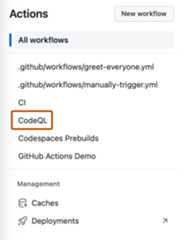
In the left sidebar, click the workflow you want to see.
On the right side of the page, next to the "Filter workflow runs" field, click to display a dropdown menu and clickCreate status badge.
Optionally, select a branch if you want to display the status badge for a branch different from the default branch.
Optionally, select the event that will trigger the workflow.
Click Copy status badge Markdown.
Copy the Markdown into your
README.mdfile.


Using the workflow file name
You can build the URL for a workflow status badge using the name of the workflow file:
https://github.com/OWNER/REPOSITORY/actions/workflows/WORKFLOW-FILE/badge.svgTo display the workflow status badge in yourREADME.md file, use the Markdown markup for embedding images. For more information about image markup in Markdown, seeBasic writing and formatting syntax.
For example, add the following Markdown to yourREADME.md file to add a status badge for a workflow with the file path.github/workflows/main.yml. TheOWNER of the repository is thegithub organization and theREPOSITORY name isdocs.
Using thebranch parameter
To display the status of a workflow run for a specific branch, add?branch=BRANCH-NAME to the end of the status badge URL.
For example, add the following Markdown to yourREADME.md file to display a status badge for a branch with the namefeature-1.
Using theevent parameter
To display the status of workflow runs triggered by thepush event, add?event=push to the end of the status badge URL.
For example, add the following Markdown to yourREADME.md file to display a badge with the status of workflow runs triggered by thepush event, which will show the status of the build for the current state of that branch.
