Flutter 3.41 is live! Check out theFlutter 3.41 blog post!
Layouts in Flutter
Learn how Flutter's layout mechanism works and how to build your app's layout.
Overview
#- Layouts in Flutter are built with widgets.
- Widgets are classes used to build UIs.
- Widgets are also used to build UI elements.
- Compose simple widgets to build complex widgets.
The core of Flutter's layout mechanism is widgets. In Flutter, almost everything is a widget—even layout models are widgets. The images, icons, and text that you see in a Flutter app are all widgets. But things you don't see are also widgets, such as the rows, columns, and grids that arrange, constrain, and align the visible widgets. You create a layout by composing widgets to build more complex widgets.
Conceptual example
# In the following example, the first screenshot displays three icons with labels and the second screenshot includes the visual layout for rows and columns. In the second screenshot,debugPaintSizeEnabled is set totrue so you can see the visual layout.


Here's a diagram of the widget tree for the previous example:
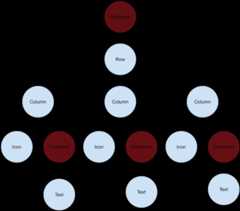
Most of this should look as you might expect, but you might be wondering about the containers (shown in pink).Container is a widget class that allows you to customize its child widget. Use aContainer when you want to add padding, margins, borders, or background color, to name some of its capabilities.
EachText widget is placed in aContainer to add margins. The entireRow is also placed in aContainer to add padding around the row.
The rest of the UI is controlled by properties. Set anIcon's color using itscolor property. Use theText.style property to set the font, its color, weight, and so on. Columns and rows have properties that allow you to specify how their children are aligned vertically or horizontally, and how much space the children should occupy.
Most of the screenshots in this tutorial are displayed withdebugPaintSizeEnabled set totrue so you can see the visual layout. For more information, seeDebugging layout issues visually.
Lay out a widget
#How do you lay out a single widget in Flutter? This section shows you how to create and display a simple widget. It also shows the entire code for a simple Hello World app.
In Flutter, it takes only a few steps to put text, an icon, or an image on the screen.
1. Select a layout widget
#Choose from a variety oflayout widgets based on how you want to align or constrain a visible widget, as these characteristics are typically passed on to the contained widget.
For example, you could use theCenter layout widget to center a visible widget horizontally and vertically:
Center(// Content to be centered here.)2. Create a visible widget
#Choose avisible widget for your app to contain visible elements, such astext,images, oricons.
For example, you could use theText widget display some text:
Text('Hello World')3. Add the visible widget to the layout widget
#All layout widgets have either of the following:
- A
childproperty if they take a single child—for example,CenterorContainer - A
childrenproperty if they take a list of widgets—for example,Row,Column,ListView, orStack.
Add theText widget to theCenter widget:
constCenter(child:Text('Hello World'),),4. Add the layout widget to the page
# A Flutter app is itself a widget, and most widgets have abuild() method. Instantiating and returning a widget in the app'sbuild() method displays the widget.
For a general app, you can add theContainer widget to the app'sbuild() method:
classMyAppextendsStatelessWidget{constMyApp({super.key});@overrideWidgetbuild(BuildContextcontext){returnContainer(decoration:constBoxDecoration(color:Colors.white),child:constCenter(child:Text('Hello World',textDirection:TextDirection.ltr,style:TextStyle(fontSize:32,color:Colors.black87),),),);}} By default, a general app doesn't include anAppBar, title, or background color. If you want these features in a general app, you have to build them yourself. This app changes the background color to white and the text to dark grey to mimic a Material app.
For aMaterial app, you can use aScaffold widget; it provides a default banner, background color, and has API for adding drawers, snack bars, and bottom sheets. Then you can add theCenter widget directly to thebody property for the home page.
classMyAppextendsStatelessWidget{constMyApp({super.key});@overrideWidgetbuild(BuildContextcontext){constStringappTitle='Flutter layout demo';returnMaterialApp(title:appTitle,home:Scaffold(appBar:AppBar(title:constText(appTitle)),body:constCenter(child:Text('Hello World'),),),);}}TheMaterial library implements widgets that followMaterial Design principles. When designing your UI, you can exclusively use widgets from the standardwidgets library, or you can use widgets from the Material library. You can mix widgets from both libraries, you can customize existing widgets, or you can build your own set of custom widgets.
To create aCupertino app, use theCupertinoApp andCupertinoPageScaffold widgets.
UnlikeMaterial, it doesn't provide a default banner or background color. You need to set these yourself.
To set default colors, pass in a configured
CupertinoThemeDatato your app'sthemeproperty.To add an iOS-styled navigation bar to the top of your app, add a
CupertinoNavigationBarwidget to thenavigationBarproperty of your scaffold. You can use the colors thatCupertinoColorsprovides to configure your widgets to match iOS design.To lay out the body of your app, set the
childproperty of your scaffold with the desired widget as its value, likeCenterorColumn.
To learn what other UI components you can add, check out theCupertino library.
classMyAppextendsStatelessWidget{constMyApp({super.key});@overrideWidgetbuild(BuildContextcontext){returnconstCupertinoApp(title:'Flutter layout demo',theme:CupertinoThemeData(brightness:Brightness.light,primaryColor:CupertinoColors.systemBlue,),home:CupertinoPageScaffold(navigationBar:CupertinoNavigationBar(backgroundColor:CupertinoColors.systemGrey,middle:Text('Flutter layout demo'),),child:Center(child:Column(mainAxisAlignment:MainAxisAlignment.center,children:[Text('Hello World')],),),),);}}TheCupertino library implements widgets that followApple's Human Interface Guidelines for iOS. When designing your UI, you can use widgets from the standardwidgets library or the Cupertino library. You can mix widgets from both libraries, you can customize existing widgets, or you can build your own set of custom widgets.
5. Run your app
#After you've added your widgets, run your app. When you runthe app, you should seeHello World.
App source code:

Lay out multiple widgets vertically and horizontally
# One of the most common layout patterns is to arrange widgets vertically or horizontally. You can use aRow widget to arrange widgets horizontally, and aColumn widget to arrange widgets vertically.
RowandColumnare two of the most commonly used layout patterns.RowandColumneach take a list of child widgets.- A child widget can itself be a
Row,Column, or other complex widget. - You can specify how a
RoworColumnaligns its children, both vertically and horizontally. - You can stretch or constrain specific child widgets.
- You can specify how child widgets use the
Row's orColumn's available space.
To create a row or column in Flutter, you add a list of children widgets to aRow orColumn widget. In turn, each child can itself be a row or column, and so on. The following example shows how it is possible to nest rows or columns inside of rows or columns.
This layout is organized as aRow. The row contains two children: a column on the left, and an image on the right:

The left column's widget tree nests rows and columns.

You'll implement some of Pavlova's layout code inNesting rows and columns.
Row andColumn are basic primitive widgets for horizontal and vertical layouts—these low-level widgets allow for maximum customization. Flutter also offers specialized, higher-level widgets that might be sufficient for your needs. For example, instead ofRow you might preferListTile, an easy-to-use widget with properties for leading and trailing icons, and up to 3 lines of text. Instead of Column, you might preferListView, a column-like layout that automatically scrolls if its content is too long to fit the available space. For more information, seeCommon layout widgets.
Aligning widgets
# You control how a row or column aligns its children using themainAxisAlignment andcrossAxisAlignment properties. For a row, the main axis runs horizontally and the cross axis runs vertically. For a column, the main axis runs vertically and the cross axis runs horizontally.


TheMainAxisAlignment andCrossAxisAlignment enums offer a variety of constants for controlling alignment.
When you add images to your project, you need to update thepubspec.yaml file to access them—this example usesImage.asset to display the images. For more information, see this example'spubspec.yaml file orAdding assets and images. You don't need to do this if you're referencing online images usingImage.network.
In the following example, each of the 3 images is 100 pixels wide. The render box (in this case, the entire screen) is more than 300 pixels wide, so setting the main axis alignment tospaceEvenly divides the free horizontal space evenly between, before, and after each image.
Row(mainAxisAlignment:MainAxisAlignment.spaceEvenly,children:[Image.asset('images/pic1.jpg'),Image.asset('images/pic2.jpg'),Image.asset('images/pic3.jpg'),],);
App source:row_column
Columns work the same way as rows. The following example shows a column of 3 images, each is 100 pixels high. The height of the render box (in this case, the entire screen) is more than 300 pixels, so setting the main axis alignment tospaceEvenly divides the free vertical space evenly between, above, and below each image.
Column(mainAxisAlignment:MainAxisAlignment.spaceEvenly,children:[Image.asset('images/pic1.jpg'),Image.asset('images/pic2.jpg'),Image.asset('images/pic3.jpg'),],);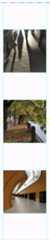
App source:row_column
Sizing widgets
#When a layout is too large to fit a device, a yellow and black striped pattern appears along the affected edge. Here is anexample of a row that is too wide:

Widgets can be sized to fit within a row or column by using theExpanded widget. To fix the previous example where the row of images is too wide for its render box, wrap each image with anExpanded widget.
Row(crossAxisAlignment:CrossAxisAlignment.center,children:[Expanded(child:Image.asset('images/pic1.jpg')),Expanded(child:Image.asset('images/pic2.jpg')),Expanded(child:Image.asset('images/pic3.jpg')),],);
App source:sizing
Perhaps you want a widget to occupy twice as much space as its siblings. For this, use theExpanded widgetflex property, an integer that determines the flex factor for a widget. The default flex factor is 1. The following code sets the flex factor of the middle image to 2:
Row(crossAxisAlignment:CrossAxisAlignment.center,children:[Expanded(child:Image.asset('images/pic1.jpg')),Expanded(flex:2,child:Image.asset('images/pic2.jpg')),Expanded(child:Image.asset('images/pic3.jpg')),],);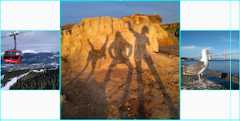
App source:sizing
Packing widgets
# By default, a row or column occupies as much space along its main axis as possible, but if you want to pack the children closely together, set itsmainAxisSize toMainAxisSize.min. The following example uses this property to pack the star icons together.
Row(mainAxisSize:MainAxisSize.min,children:[Icon(Icons.star,color:Colors.green[500]),Icon(Icons.star,color:Colors.green[500]),Icon(Icons.star,color:Colors.green[500]),constIcon(Icons.star,color:Colors.black),constIcon(Icons.star,color:Colors.black),],)
App source:pavlova
Nesting rows and columns
#The layout framework allows you to nest rows and columns inside of rows and columns as deeply as you need. Let's look at the code for the outlined section of the following layout:

The outlined section is implemented as two rows. The ratings row contains five stars and the number of reviews. The icons row contains three columns of icons and text.
The widget tree for the ratings row:

Theratings variable creates a row containing a smaller row of 5-star icons, and text:
finalstars=Row(mainAxisSize:MainAxisSize.min,children:[Icon(Icons.star,color:Colors.green[500]),Icon(Icons.star,color:Colors.green[500]),Icon(Icons.star,color:Colors.green[500]),constIcon(Icons.star,color:Colors.black),constIcon(Icons.star,color:Colors.black),],);finalratings=Container(padding:constEdgeInsets.all(20),child:Row(mainAxisAlignment:MainAxisAlignment.spaceEvenly,children:[stars,constText('170 Reviews',style:TextStyle(color:Colors.black,fontWeight:FontWeight.w800,fontFamily:'Roboto',letterSpacing:0.5,fontSize:20,),),],),);To minimize the visual confusion that can result from heavily nested layout code, implement pieces of the UI in variables and functions.
The icons row, below the ratings row, contains 3 columns; each column contains an icon and two lines of text, as you can see in its widget tree:

TheiconList variable defines the icons row:
constdescTextStyle=TextStyle(color:Colors.black,fontWeight:FontWeight.w800,fontFamily:'Roboto',letterSpacing:0.5,fontSize:18,height:2,);// DefaultTextStyle.merge() allows you to create a default text// style that is inherited by its child and all subsequent children.finaliconList=DefaultTextStyle.merge(style:descTextStyle,child:Container(padding:constEdgeInsets.all(20),child:Row(mainAxisAlignment:MainAxisAlignment.spaceEvenly,children:[Column(children:[Icon(Icons.kitchen,color:Colors.green[500]),constText('PREP:'),constText('25 min'),],),Column(children:[Icon(Icons.timer,color:Colors.green[500]),constText('COOK:'),constText('1 hr'),],),Column(children:[Icon(Icons.restaurant,color:Colors.green[500]),constText('FEEDS:'),constText('4-6'),],),],),),); TheleftColumn variable contains the ratings and icons rows, as well as the title and text that describes the Pavlova:
finalleftColumn=Container(padding:constEdgeInsets.fromLTRB(20,30,20,20),child:Column(children:[titleText,subTitle,ratings,iconList]),); The left column is placed in aSizedBox to constrain its width. Finally, the UI is constructed with the entire row (containing the left column and the image) inside aCard.
ThePavlova image is fromPixabay. You can embed an image from the net usingImage.network() but, for this example, the image is saved to an images directory in the project, added to thepubspec file, and accessed usingImages.asset(). For more information, seeAdding assets and images.
body:Center(child:Container(margin:constEdgeInsets.fromLTRB(0,40,0,30),height:600,child:Card(child:Row(crossAxisAlignment:CrossAxisAlignment.start,children:[SizedBox(width:440,child:leftColumn),mainImage,],),),),),The Pavlova example runs best horizontally on a wide device, such as a tablet. If you are running this example in the iOS simulator, you can select a different device using theHardware > Device menu. For this example, we recommend the iPad Pro. You can change its orientation to landscape mode usingHardware > Rotate. You can also change the size of the simulator window (without changing the number of logical pixels) usingWindow > Scale.
App source:pavlova
Common layout widgets
#Flutter has a rich library of layout widgets. Here are a few of those most commonly used. The intent is to get you up and running as quickly as possible, rather than overwhelm you with a complete list. For information on other available widgets, refer to theWidget catalog, or use the Search box in theAPI reference docs. Also, the widget pages in the API docs often make suggestions about similar widgets that might better suit your needs.
The following widgets fall into two categories: standard widgets from thewidgets library, and specialized widgets from theMaterial library. Any app can use the widgets library but only Material apps can use the Material Components library.
ScaffoldProvides a structured layout framework with slots for common Material Design app elements.
AppBarCreates a horizontal bar that's typically displayed at the top of a screen.
CardOrganizes related info into a box with rounded corners and a drop shadow.
ListTileOrganizes up to 3 lines of text, and optional leading and trailing icons, into a row.
CupertinoPageScaffoldProvides the basic layout structure for an iOS-style page.
CupertinoNavigationBarCreates an iOS-style navigation bar at the top of the screen.
CupertinoSegmentedControlCreates a segmented control for selecting.
CupertinoTabBarandCupertinoTabScaffoldCreates the characteristic iOS bottom tab bar.
Container
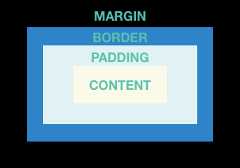
# Many layouts make liberal use ofContainers to separate widgets using padding, or to add borders or margins. You can change the device's background by placing the entire layout into aContainer and changing its background color or image.
Summary (Container)
#- Add padding, margins, borders
- Change background color or image
- Contains a single child widget, but that child can be a
Row,Column, or even the root of a widget tree
Examples (Container)
# This layout consists of a column with two rows, each containing 2 images. AContainer is used to change the background color of the column to a lighter grey.
Widget_buildImageColumn(){returnContainer(decoration:constBoxDecoration(color:Colors.black26),child:Column(children:[_buildImageRow(1),_buildImageRow(3)]),);}
AContainer is also used to add a rounded border and margins to each image:
Widget_buildDecoratedImage(intimageIndex)=>Expanded(child:Container(decoration:BoxDecoration(border:Border.all(width:10,color:Colors.black38),borderRadius:constBorderRadius.all(Radius.circular(8)),),margin:constEdgeInsets.all(4),child:Image.asset('images/pic$imageIndex.jpg'),),);Widget_buildImageRow(intimageIndex)=>Row(children:[_buildDecoratedImage(imageIndex),_buildDecoratedImage(imageIndex+1),],);You can find moreContainer examples in thetutorial.
App source:container
GridView
# UseGridView to lay widgets out as a two-dimensional list.GridView provides two pre-fabricated lists, or you can build your own custom grid. When aGridView detects that its contents are too long to fit the render box, it automatically scrolls.
Summary (GridView)
#- Lays widgets out in a grid
- Detects when the column content exceeds the render box and automatically provides scrolling
- Build your own custom grid, or use one of the provided grids:
GridView.countallows you to specify the number of columnsGridView.extentallows you to specify the maximum pixel width of a tile
When displaying a two-dimensional list where it's important which row and column a cell occupies (for example, it's the entry in the "calorie" column for the "avocado" row), useTable orDataTable.
Examples (GridView)
#

UsesGridView.count to create a grid that's 2 tiles wide in portrait mode, and 3 tiles wide in landscape mode. The titles are created by setting thefooter property for eachGridTile.
Dart code:grid_list_demo.dart
Widget_buildGrid()=>GridView.extent(maxCrossAxisExtent:150,padding:constEdgeInsets.all(4),mainAxisSpacing:4,crossAxisSpacing:4,children:_buildGridTileList(30),);// The images are saved with names pic0.jpg, pic1.jpg...pic29.jpg.// The List.generate() constructor allows an easy way to create// a list when objects have a predictable naming pattern.List<Widget>_buildGridTileList(intcount)=>List.generate(count,(i)=>Image.asset('images/pic$i.jpg'));ListView
#ListView, a column-like widget, automatically provides scrolling when its content is too long for its render box.
Summary (ListView)
#- A specialized
Columnfor organizing a list of boxes - Can be laid out horizontally or vertically
- Detects when its content won't fit and provides scrolling
- Less configurable than
Column, but easier to use and supports scrolling
Examples (ListView)
#
UsesListView to display a list of businesses usingListTiles. ADivider separates the theaters from the restaurants.
App source:grid_and_list

UsesListView to display theColors from theMaterial 2 Design palette for a particular color family.
Dart code:colors_demo.dart
Widget_buildList(){returnListView(children:[_tile('CineArts at the Empire','85 W Portal Ave',Icons.theaters),_tile('The Castro Theater','429 Castro St',Icons.theaters),_tile('Alamo Drafthouse Cinema','2550 Mission St',Icons.theaters),_tile('Roxie Theater','3117 16th St',Icons.theaters),_tile('United Artists Stonestown Twin','501 Buckingham Way',Icons.theaters,),_tile('AMC Metreon 16','135 4th St #3000',Icons.theaters),constDivider(),_tile('K\'s Kitchen','757 Monterey Blvd',Icons.restaurant),_tile('Emmy\'s Restaurant','1923 Ocean Ave',Icons.restaurant),_tile('Chaiya Thai Restaurant','272 Claremont Blvd',Icons.restaurant),_tile('La Ciccia','291 30th St',Icons.restaurant),],);}ListTile_tile(Stringtitle,Stringsubtitle,IconDataicon){returnListTile(title:Text(title,style:constTextStyle(fontWeight:FontWeight.w500,fontSize:20),),subtitle:Text(subtitle),leading:Icon(icon,color:Colors.blue[500]),);}Stack
# UseStack to arrange widgets on top of a base widget—often an image. The widgets can completely or partially overlap the base widget.
Summary (Stack)
#- Use for widgets that overlap another widget
- The first widget in the list of children is the base widget; subsequent children are overlaid on top of that base widget
- A
Stack's content can't scroll - You can choose to clip children that exceed the render box
Examples (Stack)
#
UsesStack to overlay aContainer (that displays itsText on a translucent black background) on top of aCircleAvatar. TheStack offsets the text using thealignment property andAlignments.
App source:card_and_stack

Widget_buildStack(){returnStack(alignment:constAlignment(0.6,0.6),children:[constCircleAvatar(backgroundImage:AssetImage('images/pic.jpg'),radius:100,),Container(decoration:constBoxDecoration(color:Colors.black45),child:constText('Mia B',style:TextStyle(fontSize:20,fontWeight:FontWeight.bold,color:Colors.white,),),),],);}Card
# ACard, from theMaterial library, contains related nuggets of information and can be composed of almost any widget, but is often used withListTile.Card has a single child, but its child can be a column, row, list, grid, or other widget that supports multiple children. By default, aCard shrinks its size to 0 by 0 pixels. You can useSizedBox to constrain the size of a card.
In Flutter, aCard features slightly rounded corners and a drop shadow, giving it a 3D effect. Changing aCard'selevation property allows you to control the drop shadow effect. Setting the elevation to 24, for example, visually lifts theCard further from the surface and causes the shadow to become more dispersed. For a list of supported elevation values, seeElevation in theMaterial guidelines. Specifying an unsupported value disables the drop shadow entirely.
Summary (Card)
#- Implements aMaterial card
- Used for presenting related nuggets of information
- Accepts a single child, but that child can be a
Row,Column, or other widget that holds a list of children - Displayed with rounded corners and a drop shadow
- A
Card's content can't scroll - From theMaterial library
Examples (Card)
#
ACard containing 3 ListTiles and sized by wrapping it with aSizedBox. ADivider separates the first and secondListTiles.
App source:card_and_stack

Widget_buildCard(){returnSizedBox(height:210,child:Card(child:Column(children:[ListTile(title:constText('1625 Main Street',style:TextStyle(fontWeight:FontWeight.w500),),subtitle:constText('My City, CA 99984'),leading:Icon(Icons.restaurant_menu,color:Colors.blue[500]),),constDivider(),ListTile(title:constText('(408) 555-1212',style:TextStyle(fontWeight:FontWeight.w500),),leading:Icon(Icons.contact_phone,color:Colors.blue[500]),),ListTile(title:constText('costa@example.com'),leading:Icon(Icons.contact_mail,color:Colors.blue[500]),),],),),);}ListTile
# UseListTile, a specialized row widget from theMaterial library, for an easy way to create a row containing up to 3 lines of text and optional leading and trailing icons.ListTile is most commonly used inCard orListView, but can be used elsewhere.
Summary (ListTile)
#- A specialized row that contains up to 3 lines of text and optional icons
- Less configurable than
Row, but easier to use - From theMaterial library
Examples (ListTile)
#
Constraints
#To fully understand Flutter's layout system, you need to learn how Flutter positions and sizes the components in a layout. For more information, seeUnderstanding constraints.
Videos
# The following videos, part of theFlutter in Focus series, explainStateless andStateful widgets.
Each episode of theWidget of the Week series focuses on a widget. Several of them include layout widgets.
Flutter Widget of the Week playlist
Other resources
#The following resources might help when writing layout code.
- Layout tutorial
Learn how to build a layout.
- Widget catalog
Describes many of the widgets available in Flutter.
- HTML/CSS Analogs in Flutter
For those familiar with web programming, this page maps HTML/CSS functionality to Flutter features.
- API reference docs
Reference documentation for all of the Flutter libraries.
- Adding assets and images
Explains how to add images and other assets to your app's package.
- Zero to One with Flutter
One person's experience writing their first Flutter app.
Unless stated otherwise, the documentation on this site reflects Flutter 3.38.6. Page last updated on 2025-10-28.View source orreport an issue.