Flutter 3.41 is live! Check out theFlutter 3.41 blog post!
Adding an iOS App Clip target
How to add an iOS App Clip target to your Flutter project.
Targeting iOS 16 increases the uncompressed IPA payload size limit to 15MB. Depending on the size of your app, you might hit the limit. (#71098).
This guide describes how to manually add another Flutter-rendering iOS App Clip target to your existing Flutter project oradd-to-app project.
This is an advanced guide and is best intended for audience with a working knowledge of iOS development.
To see a working sample, see theApp Clip sample on GitHub.
Step 1 - Open project
# Open your iOS Xcode project, such asios/Runner.xcworkspace for full-Flutter apps.
Step 2 - Add an App Clip target
#2.1
Click on your project in the Project Navigator to show the project settings.
Press+ at the bottom of the target list to add a new target.

2.2
Select theApp Clip type for your new target.

2.3
Enter your new target detail in the dialog.
SelectStoryboard for Interface.
Select the same language as your original target forLanguage.
(In other words, to simplify the setup, don't create a Swift App Clip target for an Objective-C main target, and vice versa.)

2.4
In the following dialog, activate the new scheme for the new target.

2.5
Back in the project settings, open theBuild Phases tab. DragEmbedded App Clips to aboveThin Binary.

Step 3 - Remove unneeded files
#3.1
In the Project Navigator, in the newly created App Clip group, delete everything exceptInfo.plist and<app clip target>.entitlements.
For add-to-app users, it's up to the reader to decide how much of this template to keep to invokeFlutterViewController orFlutterEngine APIs from this code later.

Move files to trash.
3.2
If you don't use theSceneDelegate.swift file, remove the reference to it in theInfo.plist.
Open theInfo.plist file in the App Clip group. Delete the entire dictionary entry forApplication Scene Manifest.

Step 4 - Share build configurations
#This step isn't necessary for add-to-app projects since add-to-app projects have their custom build configurations and versions.
4.1
Back in the project settings, select the project entry now rather than any targets.
In theInfo tab, under theConfigurations expandable group, expand theDebug,Profile, andRelease entries.
For each, select the same value from the drop-down menu for the App Clip target as the entry selected for the normal app target.
This gives your App Clip target access to Flutter's required build settings.
SetiOS Deployment Target to at least16.0 to take advantage of the 15MB size limit.

4.2
In the App Clip group'sInfo.plist file, set:
Build version string (short)to$(FLUTTER_BUILD_NAME)Bundle versionto$(FLUTTER_BUILD_NUMBER)
Step 5 - Share code and assets
#Option 1 - Share everything
#Assuming the intent is to show the same Flutter UI in the standard app as in the App Clip, share the same code and assets.
For each of the following:Main.storyboard,Assets.xcassets,LaunchScreen.storyboard,GeneratedPluginRegistrant.m, andAppDelegate.swift (andSupporting Files/main.m if using Objective-C), select the file, then in the first tab of the inspector, also include the App Clip target in theTarget Membership checkbox group.

Option 2 - Customize Flutter launch for App Clip
#In this case, do not delete everything listed inStep 3. Instead, use the scaffolding and theiOS add-to-app APIs to perform a custom launch of Flutter. For example to show acustom Flutter route.
Step 6 - Add App Clip associated domains
#This is a standard step for App Clip development. See theofficial Apple documentation.
6.1
Open the<app clip target>.entitlements file. Add anAssociated Domains Array type. Add a row to the array withappclips:<your bundle id>.

6.2
The same associated domains entitlement needs to be added to your main app, as well.
Copy the<app clip target>.entitlements file from your App Clip group to your main app group and rename it to the same name as your main target such asRunner.entitlements.
Open the file and delete theParent Application Identifiers entry for the main app's entitlement file (leave that entry for the App Clip's entitlement file).

6.3
Back in the project settings, select the main app's target, open theBuild Settings tab. Set theCode Signing Entitlements setting to the relative path of the second entitlements file created for the main app.

Step 7 - Integrate Flutter
#These steps are not necessary for add-to-app.
7.1
For the Swift target, set theObjective-C Bridging Header build setting toRunner/Runner-Bridging-Header.h
In other words, the same as the main app target's build settings.

7.2
Now open theBuild Phases tab. Press the+ sign and selectNew Run Script Phase.

Drag that new phase to below theDependencies phase.
Expand the new phase and add this line to the script content:
/bin/sh "$FLUTTER_ROOT/packages/flutter_tools/bin/xcode_backend.sh" buildUncheckBased on dependency analysis.
In other words, the same as the main app target's build phases.
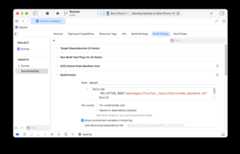
This ensures that your Flutter Dart code is compiled when running the App Clip target.
7.3
Press the+ sign and selectNew Run Script Phase again. Leave it as the last phase.
This time, add:
/bin/sh "$FLUTTER_ROOT/packages/flutter_tools/bin/xcode_backend.sh" embed_and_thinUncheckBased on dependency analysis.
In other words, the same as the main app target's build phases.
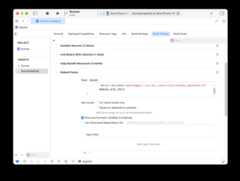
This ensures that your Flutter app and engine are embedded into the App Clip bundle.
Step 8 - Integrate plugins
#8.1
Open thePodfile for your Flutter project or add-to-app host project.
For full-Flutter apps, replace the following section:
target'Runner'douse_frameworks!use_modular_headers!flutter_install_all_ios_podsFile.dirname(File.realpath(__FILE__))endwith:
use_frameworks!use_modular_headers!flutter_install_all_ios_podsFile.dirname(File.realpath(__FILE__))target'Runner'target'<name of your App Clip target>' At the top of the file, also uncommentplatform :ios, '13.0' and set the version to the lowest of the two target's iOS Deployment Target.
For add-to-app, add to:
target'MyApp'doinstall_all_flutter_pods(flutter_application_path)endwith:
target'MyApp'doinstall_all_flutter_pods(flutter_application_path)endtarget'<name of your App Clip target>'install_all_flutter_pods(flutter_application_path)end8.2
From the command line, enter your Flutter project directory and then install the pod:
cd iospod installRun
#You can now run your App Clip target from Xcode by selecting your App Clip target from the scheme drop-down, selecting an iOS 16 or higher device and pressing run.

To test launching an App Clip from the beginning, also consult Apple's doc onTesting Your App Clip's Launch Experience.
Debugging, hot reload
# Unfortunatelyflutter attach cannot auto-discover the Flutter session in an App Clip due to networking permission restrictions.
You must then copy and paste it back into theflutter attach command to connect.
For example:
flutter attach --debug-uri <copied URI>Unless stated otherwise, the documentation on this site reflects Flutter 3.38.6. Page last updated on 2025-10-28.View source orreport an issue.