Flutter 3.41 is live! Check out theFlutter 3.41 blog post!
Swift Package Manager for app developers
How to use Swift Package Manager for native iOS or macOS dependencies
Flutter is migrating toSwift Package Manager to manage iOS and macOS native dependencies. Flutter's support of Swift Package Manager is under development. If you find a bug in Flutter's Swift Package Manager support,open an issue. Swift Package Manager support isoff by default. Flutter continues to support CocoaPods.
Flutter's Swift Package Manager integration has several benefits:
- Provides access to the Swift package ecosystem. Flutter plugins can use the growing ecosystem ofSwift packages.
- Simplifies Flutter installation. Xcode includes Swift Package Manager. You don't need to install Ruby and CocoaPods if your project uses Swift Package Manager.
How to turn on Swift Package Manager
#Flutter's Swift Package Manager support is turned off by default. To turn it on:
Upgrade to the latest Flutter SDK:
shflutter upgradeTurn on the Swift Package Manager feature:
shflutter config --enable-swift-package-manager
Using the Flutter CLI to run an appmigrates the project to add Swift Package Manager integration. This makes your project download the Swift packages that your Flutter plugins depend on. An app with Swift Package Manager integration requires Flutter version 3.24 or higher. To use an older Flutter version, you will need toremove Swift Package Manager integration from the app.
Flutter falls back to CocoaPods for dependencies that do not support Swift Package Manager yet.
How to turn off Swift Package Manager
#Plugin authors need to turn on and off Flutter's Swift Package Manager support for testing. App developers do not need to disable Swift Package Manager support, unless they are running into issues.
If you find a bug in Flutter's Swift Package Manager support,open an issue.
Disabling Swift Package Manager causes Flutter to use CocoaPods for all dependencies. However, Swift Package Manager remains integrated with your project. To remove Swift Package Manager integration completely from your project, follow theHow to remove Swift Package Manager integration instructions.
Turn off for a single project
# In the project'spubspec.yaml file, under theflutter section, setenable-swift-package-manager tofalse in theconfig subsection.
# The following section is specific to Flutter packages.flutter:config:enable-swift-package-manager:falseThis turns off Swift Package Manager for all contributors to this project.
If you were previously usingdisable-swift-package-manager: true, update yourpubspec.yaml to use the newconfig section format shown above. The old syntax is deprecated and will produce an error in Flutter 3.38 and later.
Turn off globally for all projects
#Run the following command:
flutter config --no-enable-swift-package-managerThis turns off Swift Package Manager for the current user.
If a project is incompatible with Swift Package Manager, all contributors need to run this command.
How to add Swift Package Manager integration
#Add to a Flutter app
#Once youturn on Swift Package Manager, the Flutter CLI tries to migrate your project the next time you run your app using the CLI. This migration updates your Xcode project to use Swift Package Manager to add Flutter plugin dependencies.
To migrate your project:
Run the iOS app using the Flutter CLI.
If your iOS project doesn't have Swift Package Manager integration yet, the Flutter CLI tries to migrate your project and outputs something like:
flutter runAdding Swift Package Manager integration...The automatic iOS migration modifies the
ios/Runner.xcodeproj/project.pbxprojandios/Runner.xcodeproj/xcshareddata/xcschemes/Runner.xcschemefiles.If the Flutter CLI's automatic migration fails, follow the steps inadd Swift Package Manager integration manually.
[Optional] To check if your project is migrated:
Run the app in Xcode.
Ensure thatRun Prepare Flutter Framework Script runs as a pre-action and that
FlutterGeneratedPluginSwiftPackageis a target dependency.
EnsureRun Prepare Flutter Framework Script runs as a pre-action
Once youturn on Swift Package Manager, the Flutter CLI tries to migrate your project the next time you run your app using the CLI. This migration updates your Xcode project to use Swift Package Manager to add Flutter plugin dependencies.
To migrate your project:
Run the macOS app using the Flutter CLI.
If your macOS project doesn't have Swift Package Manager integration yet, the Flutter CLI tries to migrate your project and outputs something like:
flutter run -d macosAdding Swift Package Manager integration...The automatic iOS migration modifies the
macos/Runner.xcodeproj/project.pbxprojandmacos/Runner.xcodeproj/xcshareddata/xcschemes/Runner.xcschemefiles.If the Flutter CLI's automatic migration fails, follow the steps inadd Swift Package Manager integration manually.
[Optional] To check if your project is migrated:
Run the app in Xcode.
Ensure thatRun Prepare Flutter Framework Script runs as a pre-action and that
FlutterGeneratedPluginSwiftPackageis a target dependency.EnsureRun Prepare Flutter Framework Script runs as a pre-action
Add to a Flutter appmanually
#Once youturn on Swift Package Manager, the Flutter CLI tries to migrate your project to use Swift Package Manager the next time you run your app using the CLI.
However, the Flutter CLI tool might be unable to migrate your project automatically if there are unexpected modifications.
If the automatic migration fails, use the steps below to add Swift Package Manager integration to a project manually.
Before migrating manually,file an issue; this helps the Flutter team improve the automatic migration process. Include the error message and, if possible, include a copy of the following files in your issue:
ios/Runner.xcodeproj/project.pbxprojios/Runner.xcodeproj/xcshareddata/xcschemes/Runner.xcscheme(or the xcsheme for the flavor used)
Step 1: Add FlutterGeneratedPluginSwiftPackage Package Dependency
#Open your app (
ios/Runner.xcworkspace) in Xcode.Navigate toPackage Dependencies for the project.

The project's package dependencies
Click theadd button.
In the dialog that opens, clickAdd Local....
Navigate to
ios/Flutter/ephemeral/Packages/FlutterGeneratedPluginSwiftPackageand clickAdd Package.Ensure that it's added to the
Runnertarget and clickAdd Package.
Ensure that the package is added to the
RunnertargetEnsure that
FlutterGeneratedPluginSwiftPackagewas added toFrameworks, Libraries, and Embedded Content.
Ensure that
FlutterGeneratedPluginSwiftPackagewas added toFrameworks, Libraries, and Embedded Content
Step 2: Add Run Prepare Flutter Framework Script Pre-Action
#The following steps must be completed for each flavor.
Go toProduct > Scheme > Edit Scheme.
Expand theBuild section in the left side bar.
ClickPre-actions.
Click theadd button and selectNew Run Script Action from the menu.
Click theRun Script title and change it to:
Run Prepare Flutter Framework ScriptChange theProvide build settings from to the
Runnerapp.Input the following in the text box:
sh"$FLUTTER_ROOT/packages/flutter_tools/bin/xcode_backend.sh" prepare
AddRun Prepare Flutter Framework Script build pre-action
Step 3: Run app
#Run the app in Xcode.
Ensure thatRun Prepare Flutter Framework Script runs as a pre-action and that
FlutterGeneratedPluginSwiftPackageis a target dependency.EnsureRun Prepare Flutter Framework Script runs as a pre-action
Ensure that the app runs on the command line with
flutter run.
Once youturn on Swift Package Manager, the Flutter CLI tries to migrate your project to use Swift Package Manager the next time you run your app using the CLI.
However, the Flutter CLI tool might be unable to migrate your project automatically if there are unexpected modifications.
If the automatic migration fails, use the steps below to add Swift Package Manager integration to a project manually.
Before migrating manually,file an issue; this helps the Flutter team improve the automatic migration process. Include the error message and, if possible, include a copy of the following files in your issue:
macos/Runner.xcodeproj/project.pbxprojmacos/Runner.xcodeproj/xcshareddata/xcschemes/Runner.xcscheme(or the xcscheme for the flavor used)
Step 1: Add FlutterGeneratedPluginSwiftPackage Package Dependency
#Open your app (
macos/Runner.xcworkspace) in Xcode.Navigate toPackage Dependencies for the project.
The project's package dependencies
Click theadd button.
In the dialog that opens, click theAdd Local....
Navigate to
macos/Flutter/ephemeral/Packages/FlutterGeneratedPluginSwiftPackageand click theAdd Package.Ensure that it's added to the Runner Target and clickAdd Package.
Ensure that the package is added to the
RunnertargetEnsure that
FlutterGeneratedPluginSwiftPackagewas added toFrameworks, Libraries, and Embedded Content.Ensure that
FlutterGeneratedPluginSwiftPackagewas added toFrameworks, Libraries, and Embedded Content
Step 2: Add Run Prepare Flutter Framework Script Pre-Action
#The following steps must be completed for each flavor.
Go toProduct > Scheme > Edit Scheme.
Expand theBuild section in the left side bar.
ClickPre-actions.
Click theadd button and selectNew Run Script Action from the menu.
Click theRun Script title and change it to:
Run Prepare Flutter Framework ScriptChange theProvide build settings from to the
Runnertarget.Input the following in the text box:
sh"$FLUTTER_ROOT"/packages/flutter_tools/bin/macos_assemble.sh prepareAddRun Prepare Flutter Framework Script build pre-action
Step 3: Run app
#Run the app in Xcode.
Ensure thatRun Prepare Flutter Framework Script runs as a pre-action and that
FlutterGeneratedPluginSwiftPackageis a target dependency.Ensure
Run Prepare Flutter Framework Scriptruns as a pre-actionEnsure that the app runs on the command line with
flutter run.
Add to an existing app (add-to-app)
#Flutter's Swift Package Manager support doesn't work with add-to-app scenarios.
To keep current on status updates, consultflutter#146957.
Add to a custom Xcode target
#Your Flutter Xcode project can have customXcode targets to build additional products, like frameworks or unit tests. You can add Swift Package Manager integration to these custom Xcode targets.
Follow the steps inHow to add Swift Package Manager integration to a projectmanually.
InStep 1, list item 6 use your custom target instead of theFlutter target.
InStep 2, list item 6 use your custom target instead of theFlutter target.
How to remove Swift Package Manager integration
#To add Swift Package Manager integration, the Flutter CLI migrates your project. This migration updates your Xcode project to add Flutter plugin dependencies.
To undo this migration:
Clean your project:
shflutter cleanOpen your app (
ios/Runner.xcworkspaceormacos/Runner.xcworkspace) in Xcode.Navigate toPackage Dependencies for the project.
Click the
FlutterGeneratedPluginSwiftPackagepackage, then click theremove button.
The
FlutterGeneratedPluginSwiftPackageto removeNavigate toFrameworks, Libraries, and Embedded Content for the
Runnertarget.Click
FlutterGeneratedPluginSwiftPackage, then click theremove button.
The
FlutterGeneratedPluginSwiftPackageto removeGo toProduct > Scheme > Edit Scheme.
Expand theBuild section in the left side bar.
ClickPre-actions.
ExpandRun Prepare Flutter Framework Script.
Click thedelete button.
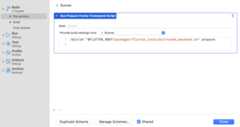
The build pre-action to remove
How to use a Swift Package Manager Flutter plugin that requires a higher OS version
#If a Swift Package Flutter Manager plugin requires a higher OS version than the project, you might get an error like this:
Target Integrity (Xcode): The package product 'plugin_name_ios' requires minimum platform version 14.0 for the iOS platform, but this target supports 12.0To use the plugin:
Open your app (
ios/Runner.xcworkspaceormacos/Runner.xcworkspace) in Xcode.Increase your app's targetMinimum Deployments.

The target'sMinimum Deployments setting
If you updated your iOS app'sMinimum Deployments, regenerate the iOS project's configuration files:
shflutter build ios --config-onlyIf you updated your macOS app'sMinimum Deployments, regenerate the macOS project's configuration files:
shflutter build macos --config-only
Unless stated otherwise, the documentation on this site reflects Flutter 3.38.6. Page last updated on 2025-12-08.View source orreport an issue.