Installing
This guide will show how to install the Arduino-ESP32 support.
Before Installing
We recommend you install the support using your favorite IDE, but other options are available depending on your operating system.To install Arduino-ESP32 support, you can use one of the following options.
Note
Users in China might have troubles with connection and download speeds using GitHub. Please use our Jihulab mirror as the repository source:
https://jihulab.com/esp-mirror/espressif/arduino-esp32.git
Installing using Arduino IDE

This is the way to install Arduino-ESP32 directly from the Arduino IDE.
Note
For overview of SoC’s support, take a look onSupported Soc’s table where you can find if the particular chip is under stable or development release.
Stable release link:
https://espressif.github.io/arduino-esp32/package_esp32_index.json
Development release link:
https://espressif.github.io/arduino-esp32/package_esp32_dev_index.json
Users in China might have troubles with connection and download speeds using the links above. Please use our Jihulab mirror:
Stable release link:
https://jihulab.com/esp-mirror/espressif/arduino-esp32/-/raw/gh-pages/package_esp32_index_cn.json
Development release link:
https://jihulab.com/esp-mirror/espressif/arduino-esp32/-/raw/gh-pages/package_esp32_dev_index_cn.json
Note
Starting with the Arduino IDE version 1.6.4, Arduino allows installation of third-party platformpackages using Boards Manager. We have packages available for Windows, macOS, and Linux.
To start the installation process using the Boards Manager, follow these steps:
Install the current upstream Arduino IDE at the 1.8 level or later. The current version is at thearduino.cc website.
Start Arduino and open the Preferences window.

Enter one of the release links above intoAdditional Board Manager URLs field. You can add multiple URLs, separating them with commas.

Open Boards Manager from Tools > Board menu and installesp32 platform (and do not forget to select your ESP32 board from Tools > Board menu after installation).Users in China must select the package version with the “-cn” suffix and perform updates manually.Automatic updates are not supported in this region, as they target the default package without the “-cn” suffix, resulting in download failures.

Restart Arduino IDE.
Windows (manual installation)
Warning
Arduino ESP32 core v2.x.x cannot be used on Windows 8.x x86 (32 bits), Windows 7 or earlier. The Windows 32 bits OS is no longer supported by this toolchain.
The Arduino ESP32 v1.0.6 still works on WIN32. You might want to install python 3.8.x because it is the latest release supported by Windows 7.
Steps to install Arduino ESP32 support on Windows:
Step 1
Download and install the latest Arduino IDE
WindowsInstallerfrom [arduino.cc](https://www.arduino.cc/en/Main/Software)Download and install Git from [git-scm.com](https://git-scm.com/download/win)
Start
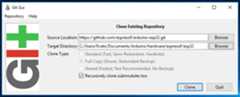
GitGUIand do the following steps:
Select
CloneExistingRepository

- Select source and destination
Sketchbook Directory: Usually
C:/Users/[YOUR_USER_NAME]/Documents/Arduinoand is listed underneath the “Sketchbook location” in Arduino preferences.Source Location:
https://github.com/espressif/arduino-esp32.gitTarget Directory:
[ARDUINO_SKETCHBOOK_DIR]/hardware/espressif/esp32Click
Cloneto start cloning the repository
Step 2
Step 3
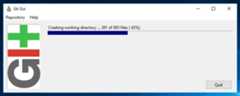
open aGit Bash session pointing to
[ARDUINO_SKETCHBOOK_DIR]/hardware/espressif/esp32and execute`gitsubmoduleupdate--init--recursive`Open
[ARDUINO_SKETCHBOOK_DIR]/hardware/espressif/esp32/toolsand double-clickget.exe
Step 4
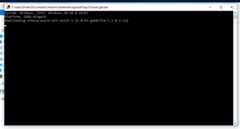
When
`get.exe`finishes, you should see the following files in the directory
Step 5
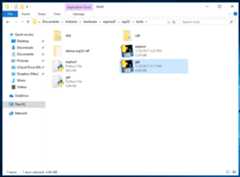
Plug your ESP32 board and wait for the drivers to install (or install manually any that might be required)
Start Arduino IDE
Select your board in
Tools>BoardmenuSelect the COM port that the board is attached to
Compile and upload (You might need to hold the boot button while uploading)
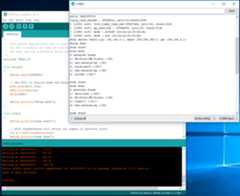
How to update to the latest code
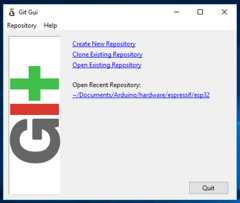
Start
GitGUIand you should see the repository underOpenRecentRepository. Click on it!
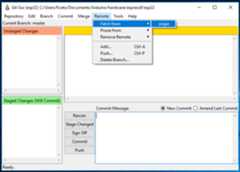
From menu
RemoteselectFetchfrom>origin
Wait for git to pull any changes and close
GitGUIOpen
[ARDUINO_SKETCHBOOK_DIR]/hardware/espressif/esp32/toolsand double-clickget.exe
Linux

Debian/Ubuntu
Install latest Arduino IDE fromarduino.cc.
Open Terminal and execute the following command (copy -> paste and hit enter):
sudousermod-a-Gdialout$USER&&\sudoapt-getinstallgit&&\wgethttps://bootstrap.pypa.io/get-pip.py&&\sudopython3get-pip.py&&\sudopip3installpyserial&&\mkdir-p~/Arduino/hardware/espressif&&\cd~/Arduino/hardware/espressif&&\gitclonehttps://github.com/espressif/arduino-esp32.gitesp32&&\cdesp32/tools&&\python3get.py
Restart Arduino IDE.
If you have Arduino installed to ~/, modify the installation as follows, beginning atmkdir -p ~/Arduino/hardware:
cd~/Arduino/hardwaremkdir-pespressif&&\cdespressif&&\gitclonehttps://github.com/espressif/arduino-esp32.gitesp32&&\cdesp32/tools&&\python3get.py
Fedora
Install the latest Arduino IDE fromarduino.cc.
Note
Command$sudodnf-yinstallarduino will most likely install an older release.
Open Terminal and execute the following command (copy -> paste and hit enter):
sudousermod-a-Gdialout$USER&&\sudodnfinstallgitpython3-pippython3-pyserial&&\mkdir-p~/Arduino/hardware/espressif&&\cd~/Arduino/hardware/espressif&&\gitclonehttps://github.com/espressif/arduino-esp32.gitesp32&&\cdesp32/tools&&\pythonget.py
Restart Arduino IDE.
openSUSE
Install the latest Arduino IDE fromarduino.cc.
Open Terminal and execute the following command (copy -> paste and hit enter):
sudousermod-a-Gdialout$USER&&\if[`python--version2>&1|grep'2.7'|wc-l`="1"];then\sudozypperinstallgitpython-pippython-pyserial;\else\sudozypperinstallgitpython3-pippython3-pyserial;\fi&&\mkdir-p~/Arduino/hardware/espressif&&\cd~/Arduino/hardware/espressif&&\gitclonehttps://github.com/espressif/arduino-esp32.gitesp32&&\cdesp32/tools&&\pythonget.py
Restart Arduino IDE.
macOS
Install the latest Arduino IDE fromarduino.cc.
Open Terminal and execute the following command (copy -> paste and hit enter):
mkdir-p~/Documents/Arduino/hardware/espressif&&\cd~/Documents/Arduino/hardware/espressif&&\gitclonehttps://github.com/espressif/arduino-esp32.gitesp32&&\cdesp32/tools&&\pythonget.py
Where~/Documents/Arduino represents your sketch book location as per “Arduino” > “Preferences” > “Sketchbook location” (in the IDE once started). Adjust the command above accordingly.
If you get the error below, install through the command line dev tools withxcode-select –install and try the command above again:
xcrun:error:invalidactivedeveloperpath(/Library/Developer/CommandLineTools),missingxcrunat:/Library/Developer/CommandLineTools/usr/bin/xcrun
Run the command:
xcode-select--install
Try
python3instead ofpythonif you get the error:IOError:[Errnosocketerror][SSL:TLSV1_ALERT_PROTOCOL_VERSION]tlsv1alertprotocolversion(_ssl.c:590)when runningpythonget.pyIf you get the following error when running
pythonget.py:urllib.error.URLError:<urlopenerrorSSL:CERTIFICATE_VERIFY_FAILED, go toMacintoshHD>Applications>Python3.6folder(oranyotherpythonversion), and run the following scripts: Install Certificates.command and Update Shell Profile.commandRestart Arduino IDE.