

Code with Gemini Code Assist
Provide guidance to help you solve problems with your code.
Generate code for your project.
Receive inline suggestions while you're coding.
Learnhow and when Gemini for Google Cloud uses your data.
To help youcomply with any license requirements for your code,Gemini Code Assist provides source citations when its suggestionsdirectly quote at length from a specific source. To learn more about how andwhen Gemini cites sources, seeHow Gemini helps you generate code and cites sources.Code customizationlets you get code suggestions based on your organization's private codebasedirectly from Gemini Code Assist. Learnhow to configure code customization.
This document is intended for developers of all skill levels. It assumes youhave working knowledge of Cloud Workstations and are familiar with Google Cloud.If you prefer, you can also explore Gemini Code Assist inVS Code,IntelliJ, andCloud Shell Editor.
Before you begin
Make sure that you have the Cloud Workstations Admin IAM role on the project so that you can create workstation configurations.
Set up your workstation if you haven't already, and make sure to selectBase Editor (Code-OSS) in the configuration.
Important: To use Gemini Code Assist, you must selectBase Editor (Code-OSS) when creating your workstation configuration.- Before testing Gemini Code Assist capabilities in your code file, make sure your file's coding language is supported. For more information on supported coding languages, seeSupported coding languages.
Connect to Google Cloud and select a project
In this section, you'll connect to Google Cloud and select aGoogle Cloud project with the Gemini for Google Cloud API enabled inyour workstation.
If you select a Google Cloud project without theGemini for Google Cloud API enabled, you receive a notification that gives youthe option to enable the API from the IDE. SelectEnable the API in thenotification window to enable the API for your project. For more information,seeSet up Gemini Code Assist for a project.
Tip: You can define theGEMINI_DEFAULT_PROJECT environment variable in your workstation configuration to automatically set the Gemini for Google Cloud API project in all workstations.To connect to Google Cloud inyour workstation,follow these steps:
In the Google Cloud console, launch yourworkstation.
In the activity bar of your workstation, clicksparkGemini Code Assist.
Follow the prompts to sign in to Gemini Code Assist, if you'renot signed in already.
If prompted to allow Cloud Workstations to open the externalwebsite, clickOpen.
To sign into your account, follow the prompts.
If prompted to make sure that you downloaded this app from Google, clickSign in.
A new tab opens in your browser, displaying your verification code to signinto Cloud Code.
Copy the verification code and paste it into your terminal where it saysEnter authorization code, and then pressEnter (for Windows andLinux) orReturn (for macOS).
You're now connected to Google Cloud. Gemini is ready touse.
Chat with Gemini Code Assist
As an early-stage technology, Gemini for Google Cloud products can generate output that seems plausible but is factually incorrect. We recommend that you validate all output from Gemini for Google Cloud products before you use it. For more information, seeGemini for Google Cloud and responsible AI.
In this section, learn how to open theGemini Code Assist pane andchat with Gemini Code Assist to get your code explained.
To begin chatting with Gemini, follow these steps:
Open a source file.
In the activity bar of your workstation, clicksparkGemini Code Assist.
In theGemini Code Assist pane, enter the prompt
Explain this code tomeand clicksendSend.Gemini uses your file as context foryour prompt and responds with an explanation of your code.
To focus on a specific block of code, select that block in your open filebefore entering your prompt.
Reset chat history
Gemini Code Assist uses the chat history for additional contextwhen responding to your prompts.
If your chat history is no longer relevant to what you're trying to achieve, youcan reset the chat history: in theGemini Code Assist pane, clickdeleteReset Chat.
Note: The chat history automatically resets when you switch the workspace orexit your workstation.Generate code with prompts
The following sections show you how to use Gemini Code Assist togenerate code with the example promptFunction to create a Cloud Storagebucket inside a file. You can also select a part of your codeand then prompt Gemini Code Assist for help through the chatfeature, and receive and accept or reject code suggestions while you code.
Prompt Gemini Code Assist in a file
In a source file, on a new line, enter the comment
Function tocreate a Cloud Storage bucket, and then pressEnter(for Windows and Linux) orReturn (for macOS).To generate code, pressControl+Enter (for Windows and Linux) orControl+Return (for macOS).
Next to your prompt text in your file, Gemini Code Assistgenerates the code in the form of ghost text.
Optional: To accept the generated code, pressTab.
Optional: Change keyboard shortcut for generating code
If the default keyboard shortcut for generating code isn't working as outlinedin the previous section, you can change the keyboard shortcut by following thesesteps:
In your workstation, clickmenuMenu, and then navigate toFile>Preferences>Keyboard Shortcuts.
In the list of keyboard shortcuts, search forCloud Code: Generate Code.
ClickCloud Code: Generate Code, and then clickeditChange Keybinding.
In the dialog that appears, enter your own shortcut.
PressEnter (for Windows and Linux) orReturn (formacOS).
You can now use your newly assigned keyboard shortcut to generate code withGemini.
Prompt Gemini Code Assist with selected code using chat
Gemini Code Assist can perform tasks or answer your questionsbased on the code that you select. To get generated code that's based on aprompt with selected code, follow these steps:
In the activity bar, clicksparkGemini Code Assistto open theGemini Code Assist Chat pane.
In a source file, select a block of code.
In theGemini Code Assist Chat text field, enter a prompt for theselected code.
For example, select a function in your code and enter the prompt
Writea unit test for this function.Gemini uses your selected code as reference andresponds to your prompt.
Get inline suggestions while you code
While you write code, Gemini Code Assist makes inline codesuggestions that you can either accept or ignore. To try this feature, followthese steps:
In a source file, on a new line, start writing a function.For example, if you're in a Python file, write
def. Geminisuggests code in the form of ghost text.To accept the code suggestion from Gemini Code Assist, pressTab. Otherwise, to ignore the suggestion, pressEsc orcontinue writing your code.
Optional: Disable inline suggestions
If you prefer to disable inline suggestions in Gemini Code Assist,follow these steps:
In your workstation, selectmenuMenu, and thennavigate toFile>Preferences>Settings.
On theUser tab of theSettings dialog, navigate toExtensions>Cloud Code.
Scroll until you find theCloudcode: Gemini Code Assist: InlineSuggestions: Enable Auto list, and then selectOff.
This turns off the inline suggestions. You can still pressControl+Enter (for Windows and Linux) orControl+Return(for macOS) to manually trigger inline suggestions.
Optional: Exclude files from context with an .aiexclude file
You can exclude files from being considered by Gemini Code Assistfor context by creating an.aiexclude file. An.aiexclude file follows thesimilar syntax as a.gitignore file, with the following differences:
- An empty or nonexistent
.aiexcludefile blocks no files in its directory andall sub-directories. - An
.aiexcludefile doesn't support negation, where you prefix patterns withan exclamation point (!). - An
.aiexcludefile matches greedily on the*character. This will matchindiscriminately on directories and files. This.aiexcludefile doesn'tdifferentiate between**or*with regards to folders or files.
Only a single.aiexclude file is supported currently. To configure your.aiexclude file, create a file titled.aiexclude in the root of yourworkspace folder. If you want to place this file outside of the workspace root,or rename the file, the path may be set in the VS Code settings under"Context Exclusion File". The path value provided in this setting will resolverelative to the root folder of your open workspace.
Examples
The following examples demonstrate how you can configure an.aiexclude file:
Block all files named
apikeys.txtat or below the workspace directory:apikeys.txtBlock all files with the
.keyfile extension at or below the workspacedirectory:*.keyBlock only the apikeys.txtfile at the same directory as the
.aiexcludefile,but not any subdirectories:/apikeys.txtBlock all files in the directory
my/sensitive/dirand all subdirectories.The path should be relative to the workspace root directory.my/sensitive/dir/*
Disable code suggestions that match cited sources
Gemini provides citation information when it directly quotes atlength from another source, such as publicly available source code.For more information, seeHow and when Gemini cites sources.
To prevent code that matches cited sources from being suggested, you can modifythegeminicodeassist.recitation.maxCitedLength setting to0 in asettings.json file:
"geminicodeassist.recitation.maxCitedLength":0Use smart actions
To help you be more productive while minimizing context switching,Gemini Code Assist provides AI-poweredsmart actions directlyin your source code editor. When you select code in your editor, you can viewand select from a list of actions relevant to your context.
To use smart actions, follow these steps:
In a source file, select a block of code.
Next to the selected code block, clicklightbulbShow Code Actions.
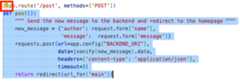
Select an action such asGenerate unit tests.
Gemini generates a response that's based on the action youselected.
Use code transformation
Gemini Code Assist providescode Transformation, which allowsyou to select a portion of code in a file and request modifications toyour existing code through prompts in natural language, using an inline textbox.
With code Transformation, you can do the following:
- Generate comment lines to document your code
- Troubleshoot code with issues
- Improve code readability
- Make code more efficient
You can also view context sources of a generated response in theGemini:Chat pane.
Prompt Gemini Code Assist with the inline text box
The inline text box allows you to interact withGemini Code Assist directly in your code.
To open the inline text box and prompt Gemini, follow thesesteps:
In a source file, pressControl+I (for Windows andLinux) orCommand+I (for macOS).
Enter a prompt, like
Write a function to create a Cloud Storage bucket, andpressEnter (for Windows and Linux) orReturn (for macOS).Gemini Code Assist generates the code based on your prompt.
View diff of refactored code
With the diff view built into the inline text box, you can see the changes thatGemini suggests and your original code. You can then accept ordiscard the suggested changes.
To view the diff of refactored code from the inline text box, perform thefollowing steps:
In a source file, select a function and open the inline text box by pressingControl+I (for Windows and Linux) orCommand+I (formacOS).
Enter a prompt, like
Add commentsand pressEnter (for Windowsand Linux) orReturn (for macOS).When Gemini generates the code changes to your selectedfunction, the diff view appears.
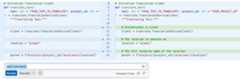
To accept or discard the changes, clickAccept orDiscard.
View context sources of a generated response
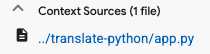
The context display feature lists your project files (thecontext sources)that were used as reference to generate responses to your prompts. Knowing whichfiles were used as references helps you to refine your prompts and get morespecific responses. Context sources are shown every time you useGemini chat.
To view the context sources of the generated response, in theGemini: Chatpane, scroll until you see theContext Sources snippet. Expand the snippetto see all of the context sources.
Use smart commands
Smart commands are commands that you can use in the inline text box toperform specific actions to your code.
To get an explanation of an entire source file with the/explainsmart command, follow these steps:
In a file, open the inline text box by pressingControl+I (for Windows and Linux) orCommand+I(for macOS).
Press/ to view the list of smart commands and their descriptions.
Select
/explain.Gemini generates an explanation of the entire file in theinline text box.
Optional: If you want to view the generated response in theGemini: Chatpane, clickView in Chat.
View prompt history
Accessing your prompt history saves you time when you want to reuse promptsin a large source file.
To access your prompt history, in your file, open the inline text box bypressingControl+I (for Windows and Linux) orCommand+I(for macOS) and then pressControl+Up arrow (for Windows and Linux)orCommand+Up arrow (for macOS). This allows you to cycle throughyour older prompts and re-use them when needed.
Enhance code readability for non-native English speakers
If you're a non-native English speaker who relies on translation applications,you can use the inline text box to generate comments in other languages.
To convert English comments to another language or add new comments in anotherlanguage, follow these steps:
In a source file, select the code that you want to add comments to.
Open the inline text box by pressingControl+I (for Windows andLinux) orCommand+I (for macOS).
Enter a prompt, like
Add spanish commentsand pressEnter (forWindows and Linux) orReturn (for macOS).Gemini generates comments in the language that you specifiedin your prompt and views the diff of these suggestions.
To accept or discard these changes to your code, clickAccept orDiscard.
Test other example prompts
After reading through theGenerate code with prompts section of thisdocument, try some of the following example prompts.
Get an explanation of code
- In a source file, select a function that you want explained.
In theGemini Code Assist pane, enter the prompt
Explain this code to me.Gemini uses your selected code as a reference andresponds with an explanation of the selected function.
Generate test plans
- In a source file, select the code that you want to add unit testsfor.
- In theGemini Code Assist pane, enter the prompt
Write unit tests for my code.
Get help with debugging code
- In a source file, select the code that you want to debug.
- In theGemini Code Assist pane, enter the prompt
Help me debug my code.
Make your code more readable
- In a source file, select the code that you want to make morereadable.
In theGemini Code Assist pane, enter the prompt
Make my code more readable.If you prefer to focus on a specific part of your code, then select thepreferred part of code before prompting Gemini.
Known issues
The following sections outline the known issues ofGemini Code Assist.
License recitation warnings don't persist across sessions
If license recitation warnings don't persist across sessions, refer to thepersistent logs:
ClickmenuMenu>View>Output.
SelectGemini Code Assist - Citations.
Connectivity issues in the Gemini Code Assist output window
If you see a connection error or other connectivity problems in theGemini Code Assist output window, try the following:
Configure your firewall to allow access to
oauth2.googleapis.comandcloudaicompanion.googleapis.com.Configure your firewall to allow communication over HTTP/2, which gRPC uses.
You can use thegrpc-health-probe tool to test connectivity. A successfulcheck results in the following output:
$ grpc-health-probe -addr cloudaicompanion.googleapis.com:443 -tlserror: this server does not implement the grpc health protocol(grpc.health.v1.Health): GRPC target method can't be resolved
An unsuccessful check results in the following output:
timeout: failed to connect service "cloudaicompanion.googleapis.com:443" within 1s
To obtain more details, run the following beforegrpc-health-probe:
export GRPC_GO_LOG_SEVERITY_LEVEL=infoGemini Code Assist and JetBrains Gateway
Gemini Code Assist does not run through JetBrains Gateway. As a result,Gemini Code Assist does not run on Cloud Workstations IDEsthat require JetBrains Gateway to connect.
'Activate Gemini Code Assist' still appears after selecting Gemini Code Assist project
If youselected your project per the instructions in thisguide, which includes enabling the Gemini for Google Cloud API, then there may bean issue with the LS server.
To find out more details about your issue, perform the following actions:
In the status bar, clicksparkGemini Code Assistand then selectSend feedback.
ClickShow for any of the log files to see more details and to helptroubleshoot the issue.
Leave feedback
To leave feedback of your experience, follow these steps:
In the status bar, clickGemini Code Assist, and then in theQuickPick menu, selectSend feedback.
In the form, fill out theTitle andComments fields.
To share your Skaffold or AI Companion logs,select theSend Skaffold logs orSend AI Companion logs option.
ClickSubmit Feedback.
What's next
- Learn how towrite better prompts.
Except as otherwise noted, the content of this page is licensed under theCreative Commons Attribution 4.0 License, and code samples are licensed under theApache 2.0 License. For details, see theGoogle Developers Site Policies. Java is a registered trademark of Oracle and/or its affiliates.
Last updated 2026-02-19 UTC.