

VPC Service Controls audit logging
This document describes the audit logs created by VPC Service Controls as part ofCloud Audit Logs.
Overview
Google Cloud services write audit logs to help you answer the questions, "Whodid what, where, and when?" within your Google Cloud resources.
Your Google Cloud projects contain only the audit logs for resources that aredirectly within the Google Cloud project. Other Google Cloud resources,such as folders, organizations, and billing accounts, contain the audit logs forthe entity itself.
For a general overview of Cloud Audit Logs, seeCloud Audit Logs overview. For a deeper understandingof the audit log format, seeUnderstand audit logs.
Available audit logs
The following types of audit logs are available for VPC Service Controls:
Policy Denied audit logs
Identifies when a user orservice account is denied access because of a security policy violation. The service name and method name in Policy Denied audit logs indicate the names of the resource that the user or service account was denied access to.
You can't disable Policy Denied audit logs. However, you can add the following to the exclusion filter on your
_Defaultsink to exclude Policy Denied audit logs:LOG_ID("cloudaudit.googleapis.com/policy"). You can also disable the_Defaultsink for Cloud Logging, which prevents logs from being routed to the_Defaultbucket.
For fuller descriptions of the audit log types, seeTypes of audit logs.
Audited operations
The following table summarizes which API operations correspond to each audit logtype in VPC Service Controls:
| Audit logs category | VPC Service Controls methods |
|---|---|
| Policy Denied audit logs | The methods of the services that integrate with VPC Service Controls are supported. |
Audit log record content
Each audit log record contains information that can be divided into two majorcategories: the information about the original call, and information aboutsecurity policy violations. It is filled by VPC Service Controls API as follows:
| Audit log field | Description |
|---|---|
serviceName | The service to which access is restricted by a service perimeter. The request to this service has violated a VPC Service Controls check and resulted in the creation of this audit log. |
methodName | The name of the method call that resulted in the security policy violation described in the record. Often,methodName is the method associated with the Google Cloud service specified in theserviceName field. |
authenticationInfo.principalEmail | The email address of the user or service account that issued the request. Some email addresses might be redacted. For more information, seeCaller identities in audit logs. |
resourceName | The Google Cloud resource specified in the original request from the client. TheresourceName can be a project, folder, organization, or a resource like a Google Cloud bucket. |
requestMetadata.callerIp | The IP address of the caller. If the call originated from the internet, then If the call originated from a Compute Engine VM, then If the call originated from within Google's internal production network, then the value in this field is |
request_metadata.caller_network | The name of the network of the caller. This value is set only if the network host project belongs to the same Google Cloud organization or project that the accessed resource belongs to. For more information, seeVPC networks. |
status | The overall status of handling an operation described in the record. |
metadata | The information about the security policy violation. |
metadata.resourceNames | The names of resources involved in the security policy violation described in the record. |
metadata.dryRun | A boolean value that isTrue if the audit log is for a dry run policy check. For more information, seeDry run mode for service perimeters. |
metadata.vpcServiceControlsTroubleshootToken | A troubleshooting token that lets you diagnose the violation using theviolation analyzer. |
metadata.vpcServiceControlsUniqueId | The Unique Identifier of the VPC Service Controls violation described in the record. |
metadata.violationReason | The reason for the violation. For example,RESOURCE_NOT_IN_SAME_SERVICE_PERIMETER means that the resources being accessed don't belong to the same service perimeter. |
metadata.securityPolicyInfo | The name of the service perimeter for which the violation occurred and the unique identifier of the organization to which the perimeter belongs. |
metadata.egressViolations | An egress violation usually occurs when a request fails because the source is protected by a service perimeter and the target resource is outside the perimeter. The source can be a project or a VPC network. |
metadata.ingressViolations | The violation type. Often, this violation occurs if the request is trying to access a target resource that is protected by a service perimeter. The source can be either a project or a VPC network. This field contains a structure that explains the ingress violation. |
metadata.servicePerimeter | The name of the service perimeter that's involved in the violation. |
metadata.source | This field contains the source of the request, which can either be a project or a VPC network. |
metadata.targetResource | The resource that the request targeted, which caused the violation. This field can be a project. |
metadata.targetResourcePermissions | The list of IAM permissions that are required to access the target resource. To resolve the violation, configure ingress or egress rules to allow theIAM roles containing these permissions. If the required IAM permission is unknown or from an unsupported service or method, VPC Service Controls logs |
metadata.accessLevels | All matching access levels under the organization that belongs to the same access policy. These access levels might not be specified in the violated perimeter and thus can causeNO_MATCHING_ACCESS_LEVEL violation. |
metadata.intermediateServices | The list of the services involved in the request chain. This field is empty for user-initiated requests. |
metadata.deviceState | The state of the device that creates the request when the device policy is enabled. The default value for this field isUnknown. |
Audit log format
Audit log entries include the following objects:
The log entry itself, which is an object of type
LogEntry.Useful fields include the following:- The
logNamecontains the resource ID and audit log type. The resourceis a project, folder, organization, or billing account. - The
resourcecontains the target of the audited operation. - The
timeStampcontains the time of the audited operation. - The
protoPayloadcontains the audited information.
- The
The audit logging data, which is an
AuditLogobject held intheprotoPayloadfield of the log entry.- The
@typefield is set to"type.googleapis.com/google.cloud.audit.AuditLog". - The
serviceNamefield identifies the service that wrote theaudit log. The format of this field is service specific.
- The
Optional service-specific audit information, which is a service-specificobject. For earlier integrations, this object is held in the
serviceDatafield of theAuditLogobject; later integrations use themetadatafield.
For other fields in these objects, and how to interpret them, reviewUnderstand audit logs.
Log name
Cloud Audit Logs log names include resource identifiers indicating theGoogle Cloud project or other Google Cloud entity that owns the auditlogs, and whether the log contains Admin Activity, Data Access, Policy Denied,or System Event audit logging data.
The following are the audit log names, including variables for the resourceidentifiers:
projects/PROJECT_ID/logs/cloudaudit.googleapis.com%2Factivity projects/PROJECT_ID/logs/cloudaudit.googleapis.com%2Fdata_access projects/PROJECT_ID/logs/cloudaudit.googleapis.com%2Fsystem_event projects/PROJECT_ID/logs/cloudaudit.googleapis.com%2Fpolicy folders/FOLDER_ID/logs/cloudaudit.googleapis.com%2Factivity folders/FOLDER_ID/logs/cloudaudit.googleapis.com%2Fdata_access folders/FOLDER_ID/logs/cloudaudit.googleapis.com%2Fsystem_event folders/FOLDER_ID/logs/cloudaudit.googleapis.com%2Fpolicy billingAccounts/BILLING_ACCOUNT_ID/logs/cloudaudit.googleapis.com%2Factivity billingAccounts/BILLING_ACCOUNT_ID/logs/cloudaudit.googleapis.com%2Fdata_access billingAccounts/BILLING_ACCOUNT_ID/logs/cloudaudit.googleapis.com%2Fsystem_event billingAccounts/BILLING_ACCOUNT_ID/logs/cloudaudit.googleapis.com%2Fpolicy organizations/ORGANIZATION_ID/logs/cloudaudit.googleapis.com%2Factivity organizations/ORGANIZATION_ID/logs/cloudaudit.googleapis.com%2Fdata_access organizations/ORGANIZATION_ID/logs/cloudaudit.googleapis.com%2Fsystem_event organizations/ORGANIZATION_ID/logs/cloudaudit.googleapis.com%2Fpolicy
/logs/ must be URL-encoded. Theforward-slash character,/, must be written as%2F.Service name
VPC Service Controls audit logs use the service names of theservices that integrate with VPC Service Controls.
For a list of all the Cloud Logging API service names and their correspondingmonitored resource type, seeMap services to resources.
Resource types
VPC Service Controls audit logs use the resource types supported by the services that integrate with VPC Service Controls.
For a list of all the Cloud Logging monitored resource types and descriptiveinformation, seeMonitored resource types.
Caller identities
The IP address of the caller is held in theRequestMetadata.caller_ip field oftheAuditLog object. Logging might redact certaincaller identities and IP addresses.
For information about what information is redacted in audit logs, seeCaller identities in audit logs.
Enable audit logging
Admin Activity audit logs are always enabled; you can't disable them.
Permissions and roles
IAM permissions and roles determine your ability toaccess audit logs data in Google Cloud resources.
When deciding whichLogging-specific permissions and rolesapply to your use case, consider the following:
The Logs Viewer role (
roles/logging.viewer) gives you read-only access toAdmin Activity, Policy Denied, and System Event audit logs. If you have justthis role, you cannot view Data Access audit logs that are in the_Defaultbucket.The Private Logs Viewer role
(roles/logging.privateLogViewer) includes thepermissions contained inroles/logging.viewer, plus the ability to readData Access audit logs in the_Defaultbucket.Note that if these private logs are stored in user-defined buckets, then anyuser who has permissions to read logs in those buckets can read the privatelogs. For more information about log buckets, seeRouting and storage overview.
For more information about the IAM permissions and roles thatapply to audit logs data, seeAccess control with IAM.
View logs
You can query for all audit logs or you can query for logs by theiraudit log name. The audit log name includes theresource identifierof the Google Cloud project, folder, billing account, ororganization for which you want to view audit logging information.Your queries can specify indexedLogEntry fields.For more information about querying your logs, seeBuild queries in the Logs Explorer
The Logs Explorer lets you view filter individual log entries. If you wantto use SQL to analyze groups of log entries, then use theLog Analyticspage. For more information, see:
Most audit logs can be viewed in Cloud Logging by using theGoogle Cloud console, the Google Cloud CLI, or the Logging API.However, for audit logs related to billing, you can only use theGoogle Cloud CLI or the Logging API.
Console
In the Google Cloud console, you can use the Logs Explorerto retrieve your audit log entries for your Google Cloud project, folder,or organization:
Note: You can't view audit logs for Cloud Billing accounts in theGoogle Cloud console. You must use the API or the gcloud CLI.In the Google Cloud console, go to theLogs Explorer page:
If you use the search bar to find this page, then select the result whose subheading isLogging.
Select an existing Google Cloud project, folder, or organization.
To display all audit logs, enter either of the following queriesinto the query-editor field, and then clickRun query:
logName:"cloudaudit.googleapis.com"
protoPayload."@type"="type.googleapis.com/google.cloud.audit.AuditLog"
To display the audit logs for a specific resource and audit log type,in theQuery builder pane, do the following:
InResource type, select the Google Cloud resource whoseaudit logs you want to see.
InLog name, select the audit log type that you want to see:
- For Admin Activity audit logs, selectactivity.
- For Data Access audit logs, selectdata_access.
- For System Event audit logs, selectsystem_event.
- For Policy Denied audit logs, selectpolicy.
ClickRun query.
If you don't see these options, then there aren't any audit logs ofthat type available in the Google Cloud project, folder, ororganization.
If you're experiencing issues when trying to view logs in theLogs Explorer, see thetroubleshootinginformation.
For more information about querying by using the Logs Explorer, seeBuild queries in the Logs Explorer.
gcloud
The Google Cloud CLI provides a command-line interface to theLogging API. Supply a valid resource identifier in each of the lognames. For example, if your query includes aPROJECT_ID, then theproject identifier you supply must refer to the currently selectedGoogle Cloud project.
To read your Google Cloud project-level audit log entries, runthe following command:
gcloud logging read "logName : projects/PROJECT_ID/logs/cloudaudit.googleapis.com" \ --project=PROJECT_ID
To read your folder-level audit log entries, run the following command:
gcloud logging read "logName : folders/FOLDER_ID/logs/cloudaudit.googleapis.com" \ --folder=FOLDER_ID
To read your organization-level audit log entries, run the followingcommand:
gcloud logging read "logName : organizations/ORGANIZATION_ID/logs/cloudaudit.googleapis.com" \ --organization=ORGANIZATION_ID
To read your Cloud Billing account-level audit log entries, run the following command:
gcloud logging read "logName : billingAccounts/BILLING_ACCOUNT_ID/logs/cloudaudit.googleapis.com" \ --billing-account=BILLING_ACCOUNT_ID
Add the--freshness flagto your command to read logs that are more than 1 day old.
For more information about using the gcloud CLI, seegcloud logging read.
REST
When building your queries, supply a valid resource identifier in each ofthe log names. For example, if your query includes aPROJECT_ID,then the project identifier you supply must refer to the currently selectedGoogle Cloud project.
For example, to use the Logging API to view your project-levelaudit log entries, do the following:
Go to theTry this API section in the documentation for the
entries.listmethod.Put the following into theRequest body part of theTry thisAPI form. Clicking thisprepopulated formautomatically fills the request body, but you need to supply a validPROJECT_ID in each of the log names.
{ "resourceNames": [ "projects/PROJECT_ID" ], "pageSize": 5, "filter": "logName : projects/PROJECT_ID/logs/cloudaudit.googleapis.com"}ClickExecute.
Sample queries
To use the sample queries in the following table, complete these steps:
Replace the variables in the query expression with your own projectinformation, then copy the expression using the clipboard iconcontent_copy.
In the Google Cloud console, go to theLogs Explorer page:
If you use the search bar to find this page, then select the result whose subheading isLogging.
EnableShow query to open the query-editor field, then paste theexpression into the query-editor field:
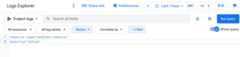
ClickRun query. Logs that match your query are listed in theQueryresults pane.
To find audit logs for VPC Service Controls, use the following queries in theLogs Explorer:
| Query description | Expression |
|---|---|
| Violation details based on a denial ID | log_id("cloudaudit.googleapis.com/policy")severity=ERRORresource.type="audited_resource"protoPayload.metadata."@type"="type.googleapis.com/google.cloud.audit.VpcServiceControlAuditMetadata"protoPayload.metadata.vpcServiceControlsUniqueId="UNIQUE_ID" Replace |
| Violations for an IP address | log_id("cloudaudit.googleapis.com/policy")severity=ERRORresource.type="audited_resource"protoPayload.metadata."@type"="type.googleapis.com/google.cloud.audit.VpcServiceControlAuditMetadata"protoPayload.requestMetadata.callerIp="IP_ADDRESS" Replace |
| Violations for a service | log_id("cloudaudit.googleapis.com/policy")severity=ERRORresource.type="audited_resource"protoPayload.metadata."@type"="type.googleapis.com/google.cloud.audit.VpcServiceControlAuditMetadata"protoPayload.serviceName="SERVICE_NAME" Replace |
| Access level change made to a perimeter | logName="organizations/ORGANIZATION_ID/logs/cloudaudit.googleapis.com%2Factivity"severity=NOTICEprotoPayload.serviceName="accesscontextmanager.googleapis.com"protoPayload.methodName="google.identity.accesscontextmanager.v1.AccessContextManager.UpdateServicePerimeter"-protoPayload.metadata.previousState:"ACCESS_LEVEL"protoPayload.request.servicePerimeter.status.accessLevels:"ACCESS_LEVEL" Replace |
| Perimeter CRUD operations | logName="organizations/ORGANIZATION_ID/logs/cloudaudit.googleapis.com%2Factivity"severity=NOTICEprotoPayload.serviceName="accesscontextmanager.googleapis.com"protoPayload.methodName=~"google.identity.accesscontextmanager.v1.AccessContextManager.*ServicePerimeter"protoPayload.request.servicePerimeter.name=~".*PERIMETER_NAME$" PERIMETER_NAME with the name of the perimeter. |
| Access level CRUD operations | logName="organizations/ORGANIZATION_ID/logs/cloudaudit.googleapis.com%2Factivity"severity=NOTICEprotoPayload.serviceName="accesscontextmanager.googleapis.com"protoPayload.methodName=~"google.identity.accesscontextmanager.v1.AccessContextManager.*AccessLevel"protoPayload.request.accessLevel.name=~".*ACCESS_LEVEL$" |
| Create and update operations for ingress rules | logName="organizations/ORGANIZATION_ID/logs/cloudaudit.googleapis.com%2Factivity"protoPayload.serviceName="accesscontextmanager.googleapis.com"protoPayload.methodName=~"google.identity.accesscontextmanager.v1.AccessContextManager.*ServicePerimeter"protoPayload.request.servicePerimeter.status.ingressPolicies:"*" |
| Create and update operations for egress rules | logName="organizations/ORGANIZATION_ID/logs/cloudaudit.googleapis.com%2Factivity"protoPayload.serviceName="accesscontextmanager.googleapis.com"protoPayload.methodName=~"google.identity.accesscontextmanager.v1.AccessContextManager.*ServicePerimeter"protoPayload.request.servicePerimeter.status.egressPolicies:"*" |
Route audit logs
You canroute audit logs to supporteddestinations in the same way that you can route other kinds of logs. Here aresome reasons you might want to route your audit logs:
To keep audit logs for a longer period of time or to use more powerfulsearch capabilities, you can route copies of your audit logs toCloud Storage, BigQuery, or Pub/Sub. UsingPub/Sub, you can route to other applications, otherrepositories, and to third parties.
To manage your audit logs across an entire organization, you can createaggregated sinks that canroute logs from any or all Google Cloud projects in the organization.
For instructions about routing logs, seeRoute logs to supported destinations.
Pricing
For more information about pricing, see the Cloud Logging sections in theGoogle Cloud Observability pricing page.
Except as otherwise noted, the content of this page is licensed under theCreative Commons Attribution 4.0 License, and code samples are licensed under theApache 2.0 License. For details, see theGoogle Developers Site Policies. Java is a registered trademark of Oracle and/or its affiliates.
Last updated 2025-12-17 UTC.