

Subject customization
Imagen 3 Customization's subject customization helps you generate newimages from a text prompt and a reference image that you provide. The referenceimage that you provide helps guide new image generation.
Note: For more information aboutimagen-3.0-capability-001 model requests, see theimagen-3.0-capability-001 model API reference.Use cases
Imagen 3 Customization offers free-style prompting, which can give theimpression that it can do more than it is trained to do. The following sectionsdescribe intended use cases for Imagen 3 Customization, andnon-exhaustive examples of unintended use cases.
We recommend using Imagen 3 Customization for the intended use cases, aswe've trained the model on those use cases and expect good results for them.Conversely, while you can push the model to do things outside of the intendeduse cases, we don't expect good results.
Intended use cases
The following are use cases intended for Imagen 3 Customization subjectcustomization:
- Stylize a photo of a person
- Stylize a photo of a person, and preserve the person's facial expressions
- (Low success) Place a product, such as a couch or a cookie, into differentscenes with different product angles.
- Generate variations of a product that doesn't preserve exact details
- Stylize a photo of a person, while preserving facial expression
Examples of unintended use cases
The following are a non-exhaustive list of use cases thatImagen 3 Customization isn't trained to do, and produces poor resultsfor:
- Place two or more people in different scenes while preserving theiridentities
- Place two or more people in different scenes while preserving theiridentities and specifying the style of the output image using an exampleimage as input for the style.
- Stylize a photo of two or more people while preserving their identities
- Place a pet into different scenes while preserving its identity
- Stylize a photo of a pet and turn it into a drawing
- Stylize a photo of a pet and turn it into a drawing, while preserving orspecifying the style of the image (such as water color)
- Place a pet and a person into a different scene, preserving the identitiesof both.
- Stylize a photo of a pet and one or more people and turn it into a drawing
- Place a two products into different scenes with different product angles
- Place a product, such as a cookie or a couch, into different scenes withdifferent product angles, and following a specific image style (such asphotorealistic with specific colors, lighting styles, or animation)
- Place a product into a different scene, while preserving the specificcomposition of the scene as specified by a control image
- Place two products into different scenes with different product angles,using a specific image as input (such as photorealistic with specificcolors, lighting styles, or animation)
- Place two products into different scenes, while preserving the specificcomposition of the scene as specified by a control image
Subject customization examples
The following sections depict supported cases for Imagen 3 Customizationsubject customization:
Person customization
| Sample Input | Sample Output |
|---|---|
|  |
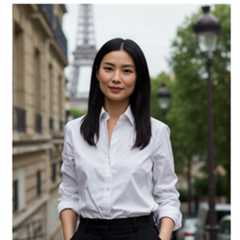
1 Reference input image generated using Imagen 3image generation from the prompt:portrait of a woman in paris. she's wearingblack pants and a white shirt.
Product customization
| Sample Input | Sample Output |
|---|---|
|  |

View Imagen for Editing and Customization model card
Before you begin
- Sign in to your Google Cloud account. If you're new to Google Cloud, create an account to evaluate how our products perform in real-world scenarios. New customers also get $300 in free credits to run, test, and deploy workloads.
In the Google Cloud console, on the project selector page, select or create a Google Cloud project.
Roles required to select or create a project
- Select a project: Selecting a project doesn't require a specific IAM role—you can select any project that you've been granted a role on.
- Create a project: To create a project, you need the Project Creator role (
roles/resourcemanager.projectCreator), which contains theresourcemanager.projects.createpermission.Learn how to grant roles.
Verify that billing is enabled for your Google Cloud project.
Enable the Vertex AI API.
Roles required to enable APIs
To enable APIs, you need the Service Usage Admin IAM role (
roles/serviceusage.serviceUsageAdmin), which contains theserviceusage.services.enablepermission.Learn how to grant roles.In the Google Cloud console, on the project selector page, select or create a Google Cloud project.
Roles required to select or create a project
- Select a project: Selecting a project doesn't require a specific IAM role—you can select any project that you've been granted a role on.
- Create a project: To create a project, you need the Project Creator role (
roles/resourcemanager.projectCreator), which contains theresourcemanager.projects.createpermission.Learn how to grant roles.
Verify that billing is enabled for your Google Cloud project.
Enable the Vertex AI API.
Roles required to enable APIs
To enable APIs, you need the Service Usage Admin IAM role (
roles/serviceusage.serviceUsageAdmin), which contains theserviceusage.services.enablepermission.Learn how to grant roles.Set up authentication for your environment.
Select the tab for how you plan to use the samples on this page:
Console
When you use the Google Cloud console to access Google Cloud services and APIs, you don't need to set up authentication.
REST
To use the REST API samples on this page in a local development environment, you use the credentials you provide to the gcloud CLI.
Install the Google Cloud CLI. After installation,initialize the Google Cloud CLI by running the following command:
gcloudinit
If you're using an external identity provider (IdP), you must first sign in to the gcloud CLI with your federated identity.
For more information, seeAuthenticate for using REST in the Google Cloud authentication documentation.
Subject customization
To see an example of Imagen 3 Customization, run the "Imagen 3 Customized Images" notebook in one of the following environments:
Open in Colab |Open in Colab Enterprise |Openin Vertex AI Workbench |View on GitHub
 Open in Colab
 Open in Colab Enterprise
 Openin Vertex AI Workbench
 View on GitHub
You can provide reference images of subject types when you useImagen 3 Customization. Specifically, few-shot prompting withImagen 3 Customization supports the following subjects: product, person,and animal companion. The subject you choose affects how you form yourgeneration request.
The prompt you use with Imagen 3 Customization might affect the quality of yourgenerated images. The following sections describe recommended prompt templatesand samples to send customization requests.
Person customization
The following table describes prompt templates that we recommend as a startingpoint when writing person customization prompts:
| Use case | Reference images | Prompt template | Example |
|---|---|---|---|
| Person image stylization with face mesh input | Subject image (1) Facemesh control image (1) | Generate an image ofSUBJECT_DESCRIPTION [1] with thefacemesh from the control image [2].${PROMPT} | Generate an image ofthe person [1] with thefacemesh from the control image [2].The person should be looking straight ahead with a neutral expression. The background should be a ... |
| Person image stylization without face mesh input | Subject image (1-4) | Create an image aboutSUBJECT_DESCRIPTION [1] to match the description: a portrait ofSUBJECT_DESCRIPTION [1]${PROMPT} | Create an image abouta woman with short hair[1] to match the description: a portrait ofa woman with short hair[1]in 3d-cartoon style with blurred background. A cute and lovely character, smile face, looking at the camera, pastel color tone, high quality, 4k, masterpiece, super details, skin texture, texture mapping, soft shadows, soft realistic lighting, vibrant colors |
| Person image stylization without face mesh input | Subject image (1-4) | Create aSTYLE_DESCRIPTION [2] image aboutSUBJECT_DESCRIPTION [1] to match the description: a portrait ofSUBJECT_DESCRIPTION [1]STYLE_PROMPT | Create a3d-cartoon style [2] image abouta woman with short hair [1] to match the description: a portrait ofa woman with short hair [1]in 3d-cartoon style with blur background. A Cute and lovely character, smile face. see the camera, pastel color tone, high quality, 4k, masterpiece, super details, skin texture, texture mapping, Soft shadows, soft realistic lighting, vibrant colors |
| Person image stylization with face mesh input | Subject image (1-3) Facemesh control image (1) | Create an image aboutSUBJECT_DESCRIPTION [1] in the pose of theCONTROL_IMAGE [2] to match the description: a portrait ofSUBJECT_DESCRIPTION [1]${PROMPT} | Create an image abouta woman with short hair [1] in the pose of thecontrol image [2] to match the description: a portrait ofa woman with short hair [1]in 3d-cartoon style with blur background. A Cute and lovely character, smile face. See the camera, pastel color tone, high quality, 4k, masterpiece, super details, skin texture, texture mapping, Soft shadows, soft realistic lighting, vibrant colors |
| Person image stylization with face mesh input | Subject image (1-3) Facemesh control image (1) | Create aSTYLE_DESCRIPTION [3] image aboutSUBJECT_DESCRIPTION [1] in the pose of theCONTROL_IMAGE [2] to match the description: a portrait ofSUBJECT_DESCRIPTION [1]${PROMPT} | Create a3d-cartoon style [3] image abouta woman with short hair [1] in the pose of thecontrol image [2] to match the description: a portrait ofa woman with short hair [1]in 3d-cartoon style with blur background. A Cute and lovely character, smile face. See the camera, pastel color tone, high quality, 4k, masterpiece, super details, skin texture, texture mapping, Soft shadows, soft realistic lighting, vibrant colors |
We recommend that the face in your reference image has the following properties:
- Is centered and occupies at least half of the whole image
- Is rotated in frontal view in all directions (roll, pitch, and yaw)
- Isn't occluded by objects, such as sunglasses or masks
Use the following samples to send a customization request with person referenceimages used to guide image generation. You can send this type of request with orwithout a face mesh control image to further guide image generation.
REST
For more information aboutimagen-3.0-capability-001 model requests, see theimagen-3.0-capability-001 model API reference.
This sample shows you how to specify a face mesh control area to guidegeneration, but you can also omit the control reference object("referenceType": "REFERENCE_TYPE_CONTROL") and Imagenwill automatically detect a face mesh control area.
Before using any of the request data, make the following replacements:
- PROJECT_ID: Your Google Cloudproject ID.
- LOCATION: Your project's region. For example,
us-central1,europe-west2, orasia-northeast3. For a list of available regions, seeGenerative AI on Vertex AI locations. - TEXT_PROMPT: The text prompt guides what images the model generates. To use Imagen 3 Customization, include the
referenceIdof the reference image or images you provide in the format[$referenceId]. For example:- The following text prompt is for a request that has two reference images with
"referenceId": 1. Both images have an optional description of"subjectDescription": "man with short hair". Additionally, there is a control face mesh image specified with"referenceId": 2:Create an image about aman with short hair [1] in the pose of control image[2] to match the description: A pencil style sketch of a full-body portrait of aman with short hair [1] with hatch-cross drawing, hatch drawing of portrait with 6B and graphite pencils, white background, pencil drawing, high quality, pencil stroke, looking at camera, natural human eyes
- The following text prompt is for a request that has two reference images with
"referenceId": The ID of the reference image, or the ID for a series of reference images that correspond to the same subject or style. In this example the two reference images are of the same person, so they share the samereferenceId(1) and the control face mesh image has a distinctreferenceId(2). The generated image will follow the face structure of the face mesh extracted from the reference image and will improve the face appearance following. Only one face mesh control is supported.- BASE64_REFERENCE_IMAGE: A reference image to guide image generation. The image must be specified as abase64-encoded byte string.
- SUBJECT_DESCRIPTION: Optional. A text description of the reference image you can then use in the
promptfield. For example:"prompt": "a full-body portrait of aman with short hair [1] with hatch-cross drawing", [...], "subjectDescription": "man with short hair"
- IMAGE_COUNT: The number of generated images. Accepted integer values: 1-4. Default value: 4.
HTTP method and URL:
POST https://LOCATION-aiplatform.googleapis.com/v1/projects/PROJECT_ID/locations/LOCATION/publishers/google/models/imagen-3.0-capability-001:predict
Request JSON body:
{ "instances": [ { "prompt": "TEXT_PROMPT", "referenceImages": [ { "referenceType": "REFERENCE_TYPE_SUBJECT", "referenceId":1, "referenceImage": { "bytesBase64Encoded": "BASE64_REFERENCE_IMAGE" }, "subjectImageConfig": { "subjectDescription": "SUBJECT_DESCRIPTION", "subjectType": "SUBJECT_TYPE_PERSON" } }, { "referenceType": "REFERENCE_TYPE_SUBJECT", "referenceId":1, "referenceImage": { "bytesBase64Encoded": "BASE64_REFERENCE_IMAGE" }, "subjectImageConfig": { "subjectDescription": "SUBJECT_DESCRIPTION", "subjectType": "SUBJECT_TYPE_PERSON" } }, { "referenceType": "REFERENCE_TYPE_CONTROL", "referenceId":2, "referenceImage": { "bytesBase64Encoded": "BASE64_REFERENCE_IMAGE" }, "controlImageConfig": { "controlType": "CONTROL_TYPE_FACE_MESH", "enableControlImageComputation": true } } ] } ], "parameters": { "sampleCount":IMAGE_COUNT }}To send your request, choose one of these options:
curl
Note: The following command assumes that you have logged in to thegcloud CLI with your user account by runninggcloud init orgcloud auth login , or by usingCloud Shell, which automatically logs you into thegcloud CLI . You can check the currently active account by runninggcloud auth list. Save the request body in a file namedrequest.json, and execute the following command:
curl -X POST \
     -H "Authorization: Bearer $(gcloud auth print-access-token)" \
     -H "Content-Type: application/json; charset=utf-8" \
     -d @request.json \
     "https://LOCATION-aiplatform.googleapis.com/v1/projects/PROJECT_ID/locations/LOCATION/publishers/google/models/imagen-3.0-capability-001:predict"
PowerShell
Note: The following command assumes that you have logged in to thegcloud CLI with your user account by runninggcloud init orgcloud auth login . You can check the currently active account by runninggcloud auth list. Save the request body in a file namedrequest.json, and execute the following command:
$cred = gcloud auth print-access-token
$headers = @{ "Authorization" = "Bearer $cred" }

Invoke-WebRequest `
    -Method POST `
    -Headers $headers `
    -ContentType: "application/json; charset=utf-8" `
    -InFile request.json `
    -Uri "https://LOCATION-aiplatform.googleapis.com/v1/projects/PROJECT_ID/locations/LOCATION/publishers/google/models/imagen-3.0-capability-001:predict" | Select-Object -Expand Content
"sampleCount": 2. The response returns two prediction objects, with the generated image bytes base64-encoded.{ "predictions": [ { "bytesBase64Encoded": "BASE64_IMG_BYTES", "mimeType": "image/png" }, { "mimeType": "image/png", "bytesBase64Encoded": "BASE64_IMG_BYTES" } ]}Python
fromgoogleimportgenaifromgoogle.genai.typesimport(ControlReferenceConfig,ControlReferenceImage,EditImageConfig,Image,SubjectReferenceConfig,SubjectReferenceImage,)client=genai.Client()# TODO(developer): Update and un-comment below line# output_gcs_uri = "gs://your-bucket/your-prefix"# Create subject and control reference images of a photograph stored in Google Cloud Storage# using https://storage.googleapis.com/cloud-samples-data/generative-ai/image/person.pngsubject_reference_image=SubjectReferenceImage(reference_id=1,reference_image=Image(gcs_uri="gs://cloud-samples-data/generative-ai/image/person.png"),config=SubjectReferenceConfig(subject_description="a headshot of a woman",subject_type="SUBJECT_TYPE_PERSON",),)control_reference_image=ControlReferenceImage(reference_id=2,reference_image=Image(gcs_uri="gs://cloud-samples-data/generative-ai/image/person.png"),config=ControlReferenceConfig(control_type="CONTROL_TYPE_FACE_MESH"),)image=client.models.edit_image(model="imagen-3.0-capability-001",prompt=""" a portrait of a woman[1] in the pose of the control image[2]in a watercolor style by a professional artist, light and low-contrast stokes, bright pastel colors, a warm atmosphere, clean background, grainy paper, bold visible brushstrokes, patchy details """,reference_images=[subject_reference_image,control_reference_image],config=EditImageConfig(edit_mode="EDIT_MODE_DEFAULT",number_of_images=1,safety_filter_level="BLOCK_MEDIUM_AND_ABOVE",person_generation="ALLOW_ADULT",output_gcs_uri=output_gcs_uri,),)# Example response:# gs://your-bucket/your-prefixprint(image.generated_images[0].image.gcs_uri)Product customization
The following table describes prompt templates that we recommend as a startingpoint when writing product customization prompts:
| Reference images | Prompt template | Example |
|---|---|---|
| Subject image (1-4) | Create an image aboutSUBJECT_DESCRIPTION [1] to match the description:${PROMPT} | Create an image aboutLuxe Elixir hair oil, golden liquid in glass bottle [1] to match the description:A close-up, high-key image of a woman's hand holdingLuxe Elixir hair oil, golden liquid in glass bottle [1] against a pure white background. The woman's hand is well-lit and the focus is sharp on the bottle, with a shallow depth of field blurring the background and emphasizing the product. The lighting is soft and diffused, creating a subtle glow around the bottle and hand. The overall composition is simple and elegant, highlighting the product's luxurious appeal. |
| Subject image (1-4) | Generate an image of aSUBJECT_DESCRIPTION but${PROMPT} | Generate an image of aSeiko watch [1] butin blue. |
Use the following samples to send a customization request with productreference images used to guide image generation.
Console
- In the Google Cloud console, go to theVertex AI> Media Studiopage.
Go to Media Studio - In theModel section of theParameters pane, selectImagen 3 if not already selected.
- Optional. Choose anAspect ratio other than 1:1 (default).
- Optional. Change theNumber of results.
- Optional. Provide aNegative prompt to guide the model on what to avoid generating.
- Optional. Change anyAdvanced options.
- In thetext prompt field (Write your prompt...), clickAdd reference.
- In theAdd reference pane, choose theReference type:Subject - product.
- In theReference images section, clickUpload
- Choose a locally-stored image and clickOpen.
- Optional. Provide aDescription for the reference image.
- ClickDone.
- Optional. To add more reference images, clickAdd an image and upload another image.
- After you add all your reference images, clickAdd reference.
All the reference images you add in that pane have the same reference number. Use this reference number when you add the text prompt.
- In thetext prompt field (Write your prompt...), add a text prompt that includes the reference number or numbers for the reference images. For example:
- bright white room, theproduct [1] on a glass table
- theanimal [1] standing on a wide open field with a forest in the distance
- a black and white portrait of theperson [1] on a city street infilm noir style [2]
REST
For more information aboutimagen-3.0-capability-001 model requests, see theimagen-3.0-capability-001 model API reference.
Before using any of the request data, make the following replacements:
- PROJECT_ID: Your Google Cloudproject ID.
- LOCATION: Your project's region. For example,
us-central1,europe-west2, orasia-northeast3. For a list of available regions, seeGenerative AI on Vertex AI locations. - TEXT_PROMPT: The text prompt guides what images the model generates. To use Imagen 3 Customization, include the
referenceIdof the reference image or images you provide in the format[$referenceId]. For example:- Create an image aboutLuxe Elixir hair oil, golden liquid in glass bottle [1] to match the description: A close-up, high-key image of a woman's hand holdingLuxe Elixir hair oil, golden liquid in glass bottle [1] against a pure white background. The woman's hand is well-lit and the focus is sharp on the bottle, with a shallow depth of field blurring the background and emphasizing the product.
"referenceId": The ID of the reference image, or the ID for a series of reference images that correspond to the same subject or style. In this example the two reference images are of the same product, so they share the samereferenceId(1).- BASE64_REFERENCE_IMAGE: A reference image to guide image generation. The image must be specified as abase64-encoded byte string.
- SUBJECT_DESCRIPTION: Optional. A text description of the reference image you can then use in the
promptfield. For example:"prompt": "Luxe Elixir hair oil, golden liquid in glass bottle [1] against a pure white background.", [...], "subjectDescription": "Luxe Elixir hair oil, golden liquid in glass bottle"
- IMAGE_COUNT: The number of generated images. Accepted integer values: 1-4. Default value: 4.
HTTP method and URL:
POST https://LOCATION-aiplatform.googleapis.com/v1/projects/PROJECT_ID/locations/LOCATION/publishers/google/models/imagen-3.0-capability-001:predict
Request JSON body:
{ "instances": [ { "prompt": "TEXT_PROMPT", "referenceImages": [ { "referenceType": "REFERENCE_TYPE_SUBJECT", "referenceId":1, "referenceImage": { "bytesBase64Encoded": "BASE64_REFERENCE_IMAGE" }, "subjectImageConfig": { "subjectType": "SUBJECT_TYPE_PRODUCT", "subjectDescription": "SUBJECT_DESCRIPTION" } }, { "referenceType": "REFERENCE_TYPE_SUBJECT", "referenceId":1, "referenceImage": { "bytesBase64Encoded": "BASE64_REFERENCE_IMAGE" }, "subjectImageConfig": { "subjectType": "SUBJECT_TYPE_PRODUCT", "subjectDescription": "SUBJECT_DESCRIPTION" } } ] } ], "parameters": { "sampleCount":IMAGE_COUNT }}To send your request, choose one of these options:
curl
Note: The following command assumes that you have logged in to thegcloud CLI with your user account by runninggcloud init orgcloud auth login , or by usingCloud Shell, which automatically logs you into thegcloud CLI . You can check the currently active account by runninggcloud auth list. Save the request body in a file namedrequest.json, and execute the following command:
curl -X POST \
     -H "Authorization: Bearer $(gcloud auth print-access-token)" \
     -H "Content-Type: application/json; charset=utf-8" \
     -d @request.json \
     "https://LOCATION-aiplatform.googleapis.com/v1/projects/PROJECT_ID/locations/LOCATION/publishers/google/models/imagen-3.0-capability-001:predict"
PowerShell
Note: The following command assumes that you have logged in to thegcloud CLI with your user account by runninggcloud init orgcloud auth login . You can check the currently active account by runninggcloud auth list. Save the request body in a file namedrequest.json, and execute the following command:
$cred = gcloud auth print-access-token
$headers = @{ "Authorization" = "Bearer $cred" }

Invoke-WebRequest `
    -Method POST `
    -Headers $headers `
    -ContentType: "application/json; charset=utf-8" `
    -InFile request.json `
    -Uri "https://LOCATION-aiplatform.googleapis.com/v1/projects/PROJECT_ID/locations/LOCATION/publishers/google/models/imagen-3.0-capability-001:predict" | Select-Object -Expand Content
"sampleCount": 2. The response returns two prediction objects, with the generated image bytes base64-encoded.{ "predictions": [ { "bytesBase64Encoded": "BASE64_IMG_BYTES", "mimeType": "image/png" }, { "mimeType": "image/png", "bytesBase64Encoded": "BASE64_IMG_BYTES" } ]}Product usage
To view usage standards and content restrictions associated withImagen on Vertex AI, see theusage guidelines.
Model versions
There are multiple image generation models that you can use. For moreinformation, seeImagenmodels.
What's next
Read articles about Imagen and other Generative AI on Vertex AIproducts:
- A developer's guide to getting started with Imagen 3 onVertex AI
- New generative media models and tools, built with and for creators
- New in Gemini: Custom Gems and improved image generation withImagen 3
- Google DeepMind: Imagen 3 - Our highest quality text-to-image model
Except as otherwise noted, the content of this page is licensed under theCreative Commons Attribution 4.0 License, and code samples are licensed under theApache 2.0 License. For details, see theGoogle Developers Site Policies. Java is a registered trademark of Oracle and/or its affiliates.
Last updated 2025-12-15 UTC.