

Recontextualize product images
Preview
This product or feature is a Generative AI Preview offering, subject to the "Pre-GA Offerings Terms" of theGoogle Cloud Service Specific Terms, as well as the Additional Terms for Generative AI Preview Products. For this Generative AI Preview offering, Customers may elect to use it for production or commercial purposes, or disclose Generated Output to third-parties, and may process personal data as outlined in theCloud Data Processing Addendum, subject to the obligations and restrictions described in the agreement under which you access Google Cloud. Pre-GA products are available "as is" and might have limited support. For more information, see thelaunch stage descriptions.
Imagen product recontext on Vertex AI lets you edit product images into different scenes orbackgrounds. You provide images of a product and an optional prompt, andImagen product recontext generates images of your product inrecontextualized in new scenes or backgrounds.
To request access to Imagen product recontext, complete theVertex AI -Generative Media for Marketing AccessRequestform.
Supported product types
Imagen product recontext supports the following product types:
- Appliances
- Business and industrial
- Clothing
- Electronics
- Furniture
- Garden and yard
- Hardware
- Health and beauty
- Jewelry
- Pets
- Shoes
- Sporting goods
- Toys and games
- Vehicles
Product recontextualization example
The following shows an example use case for product recontextualization:
| Sample Inputs | Sample Outputs | Prompt used |
|---|---|---|
 |  | On a cluttered workbench in a rainy, neon-lit cyberpunk alley, with holographic advertisements flickering in the background. |
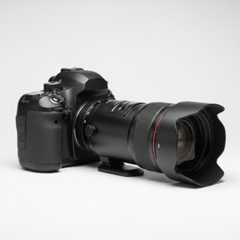 | 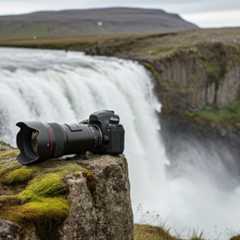 | Placed on a mossy rock on the edge of a cliff, overlooking a massive, powerful waterfall in a dramatic, overcast Icelandic landscape. |
 |  | Resting on a white cafe table in Santorini, with a cup of coffee, overlooking the Aegean Sea and iconic blue-domed buildings. |
Try Imagen product recontext in a Colab
Before you begin
- Sign in to your Google Cloud account. If you're new to Google Cloud, create an account to evaluate how our products perform in real-world scenarios. New customers also get $300 in free credits to run, test, and deploy workloads.
In the Google Cloud console, on the project selector page, select or create a Google Cloud project.
Roles required to select or create a project
- Select a project: Selecting a project doesn't require a specific IAM role—you can select any project that you've been granted a role on.
- Create a project: To create a project, you need the Project Creator role (
roles/resourcemanager.projectCreator), which contains theresourcemanager.projects.createpermission.Learn how to grant roles.
Verify that billing is enabled for your Google Cloud project.
Enable the Vertex AI API.
Roles required to enable APIs
To enable APIs, you need the Service Usage Admin IAM role (
roles/serviceusage.serviceUsageAdmin), which contains theserviceusage.services.enablepermission.Learn how to grant roles.In the Google Cloud console, on the project selector page, select or create a Google Cloud project.
Roles required to select or create a project
- Select a project: Selecting a project doesn't require a specific IAM role—you can select any project that you've been granted a role on.
- Create a project: To create a project, you need the Project Creator role (
roles/resourcemanager.projectCreator), which contains theresourcemanager.projects.createpermission.Learn how to grant roles.
Verify that billing is enabled for your Google Cloud project.
Enable the Vertex AI API.
Roles required to enable APIs
To enable APIs, you need the Service Usage Admin IAM role (
roles/serviceusage.serviceUsageAdmin), which contains theserviceusage.services.enablepermission.Learn how to grant roles.Set up authentication for your environment.
To use the REST API samples on this page in a local development environment, you use the credentials you provide to the gcloud CLI.
Install the Google Cloud CLI. After installation,initialize the Google Cloud CLI by running the following command:
gcloudinit
If you're using an external identity provider (IdP), you must first sign in to the gcloud CLI with your federated identity.
For more information, seeAuthenticate for using REST in the Google Cloud authentication documentation.
Generate product images in different scenes
REST
Before using any of the request data, make the following replacements:
REGION: The region that your project is located in. For more information about supported regions, seeGenerative AI on Vertex AI locations.PROJECT_ID: Your Google Cloud project ID.TEXT_PROMPT: Optional. A text prompt to guide the images that the model generates.BASE64_SUBJECT_IMAGE: A base64-encoded image of the subject image.PERSON_SETTING: Optional: A string value that controls the type of person or face generation that the model allows. You can use the following values forpersonGeneration:"allow_adult": Allows generation of adults only, except for celebrity generation. Celebrity generation isn't allowed for any setting. This is the default setting."allow_all": Allows generation of people of all ages, except for celebrity generation. Celebrity generation is not allowed for any setting."dont_allow": Doesn't allow generation of people or faces in generated output.
SAFETY_SETTING: Optional: A string value that controls the safety filter threshold for generated images. You can use the following values to select your safety setting:"block_low_and_above": The most stringent safety threshold."block_low_and_above"filters the largest number of generated images."block_medium_and_above": The medium safety threshold, which balances filtering for potentially harmful and safe content."block_medium_and_above"is the default safety setting."block_only_high": The lowest safety threshold, which reduces the number of requests blocked due to safety filter. Using"block_only_high"safety threshold might increase the number of objectionable images generated by the model.
WATERMARK_SETTING: Optional: A boolean. When this values is set totrue, the model adds a digital watermark that you can use to verify the generated image. The default value istrue.IMAGE_COUNT: The number of images to generate. The accepted range of values is1-4.PROMPT_SETTING: Optional: A boolean. When this value is set totrue, the model uses enhanced prmopts. The default value istrue.
HTTP method and URL:
POST https://REGION-aiplatform.googleapis.com/v1/projects/PROJECT_ID/locations/REGION/publishers/google/models/imagen-product-recontext-preview-06-30:predict
Request JSON body:
{ "instances": [ { "prompt": "TEXT_PROMPT", "productImages": [ { "image": { "bytesBase64Encoded": "BASE64_SUBJECT_IMAGE" }, } ] } ], "parameters": { "personGeneration":PERSON_SETTING, "safetySetting":SAFETY_SETTING, "addWatermark":WATERMARK_SETTING, "sampleCount":IMAGE_COUNT, "enhancePrompt":PROMPT_SETTING }}To send your request, choose one of these options:
curl
Note: The following command assumes that you have logged in to thegcloud CLI with your user account by runninggcloud init orgcloud auth login , or by usingCloud Shell, which automatically logs you into thegcloud CLI . You can check the currently active account by runninggcloud auth list. Save the request body in a file namedrequest.json, and execute the following command:
curl -X POST \
     -H "Authorization: Bearer $(gcloud auth print-access-token)" \
     -H "Content-Type: application/json; charset=utf-8" \
     -d @request.json \
     "https://REGION-aiplatform.googleapis.com/v1/projects/PROJECT_ID/locations/REGION/publishers/google/models/imagen-product-recontext-preview-06-30:predict"
PowerShell
Note: The following command assumes that you have logged in to thegcloud CLI with your user account by runninggcloud init orgcloud auth login . You can check the currently active account by runninggcloud auth list. Save the request body in a file namedrequest.json, and execute the following command:
$cred = gcloud auth print-access-token
$headers = @{ "Authorization" = "Bearer $cred" }

Invoke-WebRequest `
    -Method POST `
    -Headers $headers `
    -ContentType: "application/json; charset=utf-8" `
    -InFile request.json `
    -Uri "https://REGION-aiplatform.googleapis.com/v1/projects/PROJECT_ID/locations/REGION/publishers/google/models/imagen-product-recontext-preview-06-30:predict" | Select-Object -Expand Content
{ "predictions": [ { "mimeType": "image/png", "bytesBase64Encoded": "BASE64_IMG_BYTES" }, { "bytesBase64Encoded": "BASE64_IMG_BYTES", "mimeType": "image/png" } ]}Except as otherwise noted, the content of this page is licensed under theCreative Commons Attribution 4.0 License, and code samples are licensed under theApache 2.0 License. For details, see theGoogle Developers Site Policies. Java is a registered trademark of Oracle and/or its affiliates.
Last updated 2025-12-15 UTC.