

Generate images using text prompts with Imagen on Vertex AI
You can use Imagen on Vertex AI to generate new images from a text prompt.Supported interfaces include the Google Cloud console and the Vertex AI API.
For more information about writing text prompts for image generation and editing,see theprompt guide.
View Imagen for Generation model card
Try image generation (Vertex AI Studio)
Before you begin
- Sign in to your Google Cloud account. If you're new to Google Cloud, create an account to evaluate how our products perform in real-world scenarios. New customers also get $300 in free credits to run, test, and deploy workloads.
In the Google Cloud console, on the project selector page, select or create a Google Cloud project.
Roles required to select or create a project
- Select a project: Selecting a project doesn't require a specific IAM role—you can select any project that you've been granted a role on.
- Create a project: To create a project, you need the Project Creator role (
roles/resourcemanager.projectCreator), which contains theresourcemanager.projects.createpermission.Learn how to grant roles.
Verify that billing is enabled for your Google Cloud project.
Enable the Vertex AI API.
Roles required to enable APIs
To enable APIs, you need the Service Usage Admin IAM role (
roles/serviceusage.serviceUsageAdmin), which contains theserviceusage.services.enablepermission.Learn how to grant roles.In the Google Cloud console, on the project selector page, select or create a Google Cloud project.
Roles required to select or create a project
- Select a project: Selecting a project doesn't require a specific IAM role—you can select any project that you've been granted a role on.
- Create a project: To create a project, you need the Project Creator role (
roles/resourcemanager.projectCreator), which contains theresourcemanager.projects.createpermission.Learn how to grant roles.
Verify that billing is enabled for your Google Cloud project.
Enable the Vertex AI API.
Roles required to enable APIs
To enable APIs, you need the Service Usage Admin IAM role (
roles/serviceusage.serviceUsageAdmin), which contains theserviceusage.services.enablepermission.Learn how to grant roles.Set up authentication for your environment.
Select the tab for how you plan to use the samples on this page:
Console
When you use the Google Cloud console to access Google Cloud services and APIs, you don't need to set up authentication.
Python
To use the Python samples on this page in a local development environment, install and initialize the gcloud CLI, and then set up Application Default Credentials with your user credentials.
Install the Google Cloud CLI.
If you're using an external identity provider (IdP), you must first sign in to the gcloud CLI with your federated identity.
If you're using a local shell, then create local authentication credentials for your user account:
gcloudauthapplication-defaultlogin
You don't need to do this if you're using Cloud Shell.
If an authentication error is returned, and you are using an external identity provider (IdP), confirm that you have signed in to the gcloud CLI with your federated identity.
For more information, see Set up ADC for a local development environment in the Google Cloud authentication documentation.
REST
To use the REST API samples on this page in a local development environment, you use the credentials you provide to the gcloud CLI.
Install the Google Cloud CLI.
If you're using an external identity provider (IdP), you must first sign in to the gcloud CLI with your federated identity.
For more information, seeAuthenticate for using REST in the Google Cloud authentication documentation.
Generate images with text
You can generate novel images using only descriptive text as an input. Thefollowing samples show you basic instructions to generate images.
Important:imagen-4.0-fast-generate-001 may generate undesireableresults if the prompt is complex and you use enhanced prompts. To fix this,avoid usingHelp me write in Google Cloud console, or setenhancePrompt tofalse.Console
1. In the Google Cloud console, go to theVertex AI> Media Studio page.<a href="https://console.cloud.google.com/vertex-ai/studio/media/generate;tab=image"target="console" track-name="consoleLink" track-type="task">Go to MediaStudio</a>ClickImagen. The Imagen Media Studio image generation page is displayed.
Optional: In theSettings pane, configure the following settings:
Model: Choose a model from the available options.
For more information about available models, seeImagenmodels
Aspect ratio: Choose an aspect ratio from the available options.
Number of results: Adjust the slider or enter a value between1 and4.
Output resolution: Choose a resolution from the available options.
Optional: In theAdvanced options section, select aRegion togenerate your images in.
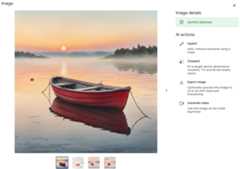
In theWrite your prompt box, enter your text prompt that describesthe images to generate. For example,small boat on water in the morningwatercolor illustration.
For more information about writing effective prompts, seePromptand image attributeguide.
ClickGenerate.
A digital watermark is automatically added to generated images. You can'tdisable digital watermark for image generation using the Google Cloud console.
You can select an image to view in theImage detail window.Watermarked images contain a
Python
Install
pip install --upgrade google-genai
To learn more, see the SDK reference documentation.
Set environment variables to use the Gen AI SDK with Vertex AI:
# Replace the `GOOGLE_CLOUD_PROJECT` and `GOOGLE_CLOUD_LOCATION` values# with appropriate values for your project.exportGOOGLE_CLOUD_PROJECT=GOOGLE_CLOUD_PROJECTexportGOOGLE_CLOUD_LOCATION=globalexportGOOGLE_GENAI_USE_VERTEXAI=True
generate_images method on theImageGenerationModel and save generated images locally. Youthen can optionally use theshow() method in a notebook toshow you the generated images. For more information on model versions andfeatures, seeImagenmodels.fromgoogleimportgenaifromgoogle.genai.typesimportGenerateImagesConfigclient=genai.Client()# TODO(developer): Update and un-comment below line# output_file = "output-image.png"image=client.models.generate_images(model="imagen-4.0-generate-001",prompt="A dog reading a newspaper",config=GenerateImagesConfig(image_size="2K",),)image.generated_images[0].image.save(output_file)print(f"Created output image using{len(image.generated_images[0].image.image_bytes)} bytes")# Example response:# Created output image using 1234567 bytesREST
Before using any of the request data, make the following replacements:
- REGION: The region that your project is located in. For more information about supported regions, seeGenerative AI on Vertex AI locations.
- PROJECT_ID: Your Google Cloudproject ID.
MODEL_VERSION: The Imagen model version to use. For more information about available models, seeImagen models.
- TEXT_PROMPT: The text prompt that guides what images the model generates. This field is required for both generation and editing.
- IMAGE_COUNT: The number of images to generate. The accepted range of values is
1to4. - ADD_WATERMARK: boolean. Optional. Whether to enable a watermark for generated images. Any image generated when the field is set to
truecontains a digitalSynthID that you can use to verify a watermarked image. If you omit this field, the default value oftrueis used; you must set the value tofalseto disable this feature. You can use theseedfield to get deterministic output only when this field is set tofalse. - ASPECT_RATIO: string. Optional. A generation mode parameter that controls aspect ratio. Supported ratio values and their intended use:
1:1(default, square)3:4(Ads, social media)4:3(TV, photography)16:9(landscape)9:16(portrait)
- ENABLE_PROMPT_REWRITING: boolean. Optional. A parameter to use an LLM-based prompt rewriting feature to deliver higher quality images that better reflect the original prompt's intent. Disabling this feature may impact image quality and prompt adherence. Default value:
true. - INCLUDE_RAI_REASON: boolean. Optional. Whether to enable theResponsible AI filtered reason code in responses with blocked input or output. Default value:
true. - INCLUDE_SAFETY_ATTRIBUTES: boolean. Optional. Whether to enable rounded Responsible AI scores for a list of safety attributes in responses for unfiltered input and output. Safety attribute categories:
"Death, Harm & Tragedy","Firearms & Weapons","Hate","Health","Illicit Drugs","Politics","Porn","Religion & Belief","Toxic","Violence","Vulgarity","War & Conflict". Default value:false. - MIME_TYPE: string. Optional. The MIME type of the content of the image. Available values:
image/jpegimage/gifimage/pngimage/webpimage/bmpimage/tiffimage/vnd.microsoft.icon
- COMPRESSION_QUALITY: integer. Optional. Only applies to JPEG output files. The level of detail the model preserves for images generated in JPEG file format. Values:
0to100, where a higher number means more compression. Default:75. - PERSON_SETTING: string. Optional. The safety setting that controls the type of people or face generation the model allows. Available values:
allow_adult(default): Allow generation of adults only, except for celebrity generation. Celebrity generation is not allowed for any setting.dont_allow: Disable the inclusion of people or faces in generated images.
- SAFETY_SETTING: string. Optional. A setting that controls safety filter thresholds for generated images. Available values:
block_low_and_above: The highest safety threshold, resulting in the largest amount of generated images that are filtered. Previous value:block_most.block_medium_and_above(default): A medium safety threshold that balances filtering for potentially harmful and safe content. Previous value:block_some.block_only_high: A safety threshold that reduces the number of requests blocked due to safety filters. This setting might increase objectionable content generated by Imagen. Previous value:block_few.
- SEED_NUMBER: integer. Optional. Any non-negative integer you provide to make output images deterministic. Providing the same seed number always results in the same output images. If the model you're using supports digital watermarking, you must set
"addWatermark": falseto use this field. Accepted integer values:1-2147483647. - OUTPUT_STORAGE_URI: string. Optional. The Cloud Storage bucket to store the output images. If not provided, base64-encoded image bytes are returned in the response. Sample value:
gs://image-bucket/output/.
Additional optional parameters
Use the following optional variables depending on your use case. Add some or all of the following parameters in the"parameters": {} object. This list shows common optional parameters and isn't meant to be exhaustive. For more information about optional parameters, seeImagen API reference: Generate images.
"parameters": { "sampleCount":IMAGE_COUNT, "addWatermark":ADD_WATERMARK, "aspectRatio": "ASPECT_RATIO", "enhancePrompt":ENABLE_PROMPT_REWRITING, "includeRaiReason":INCLUDE_RAI_REASON, "includeSafetyAttributes":INCLUDE_SAFETY_ATTRIBUTES, "outputOptions": { "mimeType": "MIME_TYPE", "compressionQuality":COMPRESSION_QUALITY }, "personGeneration": "PERSON_SETTING", "safetySetting": "SAFETY_SETTING", "seed":SEED_NUMBER, "storageUri": "OUTPUT_STORAGE_URI"}HTTP method and URL:
POST https://REGION-aiplatform.googleapis.com/v1/projects/PROJECT_ID/locations/REGION/publishers/google/models/MODEL_VERSION:predict
Request JSON body:
{ "instances": [ { "prompt": "TEXT_PROMPT" } ], "parameters": { "sampleCount":IMAGE_COUNT }}To send your request, choose one of these options:
curl
Note: The following command assumes that you have logged in to thegcloud CLI with your user account by runninggcloud init orgcloud auth login , or by usingCloud Shell, which automatically logs you into thegcloud CLI . You can check the currently active account by runninggcloud auth list. Save the request body in a file namedrequest.json, and execute the following command:
curl -X POST \
     -H "Authorization: Bearer $(gcloud auth print-access-token)" \
     -H "Content-Type: application/json; charset=utf-8" \
     -d @request.json \
     "https://REGION-aiplatform.googleapis.com/v1/projects/PROJECT_ID/locations/REGION/publishers/google/models/MODEL_VERSION:predict"
PowerShell
Note: The following command assumes that you have logged in to thegcloud CLI with your user account by runninggcloud init orgcloud auth login . You can check the currently active account by runninggcloud auth list. Save the request body in a file namedrequest.json, and execute the following command:
$cred = gcloud auth print-access-token
$headers = @{ "Authorization" = "Bearer $cred" }

Invoke-WebRequest `
    -Method POST `
    -Headers $headers `
    -ContentType: "application/json; charset=utf-8" `
    -InFile request.json `
    -Uri "https://REGION-aiplatform.googleapis.com/v1/projects/PROJECT_ID/locations/REGION/publishers/google/models/MODEL_VERSION:predict" | Select-Object -Expand Content
"sampleCount": 2. The response returns two prediction objects, with the generatedimage bytes base64-encoded.{"predictions":[{"bytesBase64Encoded":"BASE64_IMG_BYTES","mimeType":"image/png"},{"mimeType":"image/png","bytesBase64Encoded":"BASE64_IMG_BYTES"}]}
If you use a model that supports prompt enhancement, the response includes anadditionalprompt field with the enhanced prompt used forgeneration:
{ "predictions": [ { "mimeType": "MIME_TYPE", "prompt": "ENHANCED_PROMPT_1", "bytesBase64Encoded": "BASE64_IMG_BYTES_1" }, { "mimeType": "MIME_TYPE", "prompt": "ENHANCED_PROMPT_2", "bytesBase64Encoded": "BASE64_IMG_BYTES_2" } ]}What's next
Read articles about Imagen and other Generative AI on Vertex AIproducts:
- A developer's guide to getting started with Imagen 3 onVertex AI
- New generative media models and tools, built with and for creators
- New in Gemini: Custom Gems and improved image generation withImagen 3
- Google DeepMind: Imagen 3 - Our highest quality text-to-image model
Except as otherwise noted, the content of this page is licensed under theCreative Commons Attribution 4.0 License, and code samples are licensed under theApache 2.0 License. For details, see theGoogle Developers Site Policies. Java is a registered trademark of Oracle and/or its affiliates.
Last updated 2025-12-15 UTC.