

Remove objects from an image using inpaint
This page describes how to remove objects from an image using a mask area, aprocess also known as inpainting. You can provide your own mask or letImagen generate one for you.
Content removal example
To see an example of Imagen 3 Editing, run the "Imagen 3 Image Editing" notebook in one of the following environments:
Open in Colab |Open in Colab Enterprise |Openin Vertex AI Workbench |View on GitHub
 Open in Colab
 Open in Colab Enterprise
 Openin Vertex AI Workbench
 View on GitHub
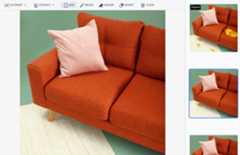
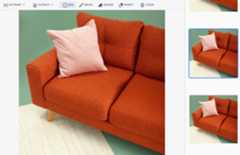
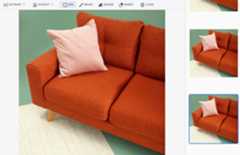
The following example uses inpainting and an image mask to remove content froman existing image:
Inputs
Base image* to edit | Mask area specified using tools in the Google Cloud console | Text prompt |
|---|---|---|
 | 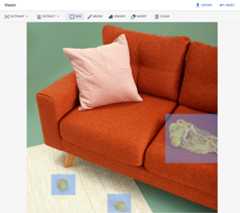 | Prompt: Remove selected objects from the image |
*Image credit:Inside Weather onUnsplash.
Output after specifying a mask area in the Google Cloud console
 |  |  |
View Imagen for Editing and Customization model card
Before you begin
- Sign in to your Google Cloud account. If you're new to Google Cloud, create an account to evaluate how our products perform in real-world scenarios. New customers also get $300 in free credits to run, test, and deploy workloads.
In the Google Cloud console, on the project selector page, select or create a Google Cloud project.
Roles required to select or create a project
- Select a project: Selecting a project doesn't require a specific IAM role—you can select any project that you've been granted a role on.
- Create a project: To create a project, you need the Project Creator role (
roles/resourcemanager.projectCreator), which contains theresourcemanager.projects.createpermission.Learn how to grant roles.
Verify that billing is enabled for your Google Cloud project.
Enable the Vertex AI API.
Roles required to enable APIs
To enable APIs, you need the Service Usage Admin IAM role (
roles/serviceusage.serviceUsageAdmin), which contains theserviceusage.services.enablepermission.Learn how to grant roles.In the Google Cloud console, on the project selector page, select or create a Google Cloud project.
Roles required to select or create a project
- Select a project: Selecting a project doesn't require a specific IAM role—you can select any project that you've been granted a role on.
- Create a project: To create a project, you need the Project Creator role (
roles/resourcemanager.projectCreator), which contains theresourcemanager.projects.createpermission.Learn how to grant roles.
Verify that billing is enabled for your Google Cloud project.
Enable the Vertex AI API.
Roles required to enable APIs
To enable APIs, you need the Service Usage Admin IAM role (
roles/serviceusage.serviceUsageAdmin), which contains theserviceusage.services.enablepermission.Learn how to grant roles.Set up authentication for your environment.
Select the tab for how you plan to use the samples on this page:
Console
When you use the Google Cloud console to access Google Cloud services and APIs, you don't need to set up authentication.
Python
To use the Python samples on this page in a local development environment, install and initialize the gcloud CLI, and then set up Application Default Credentials with your user credentials.
Install the Google Cloud CLI.
If you're using an external identity provider (IdP), you must first sign in to the gcloud CLI with your federated identity.
If you're using a local shell, then create local authentication credentials for your user account:
gcloudauthapplication-defaultlogin
You don't need to do this if you're using Cloud Shell.
If an authentication error is returned, and you are using an external identity provider (IdP), confirm that you have signed in to the gcloud CLI with your federated identity.
For more information, see Set up ADC for a local development environment in the Google Cloud authentication documentation.
REST
To use the REST API samples on this page in a local development environment, you use the credentials you provide to the gcloud CLI.
Install the Google Cloud CLI.
If you're using an external identity provider (IdP), you must first sign in to the gcloud CLI with your federated identity.
For more information, seeAuthenticate for using REST in the Google Cloud authentication documentation.
Remove with a defined mask area
Use the following samples to specify inpainting to remove content. In thesesamples you specify a base image, a text prompt, and a mask area to modifythe base image.
Console
1. In the Google Cloud console, go to theVertex AI> Media Studio page.<a href="https://console.cloud.google.com/vertex-ai/studio/media/generate;tab=image"target="console" track-name="consoleLink" track-type="task">Go to MediaStudio</a>ClickUpload. In the displayed file dialog, select a file to upload.
ClickInpaint.
In theParameters panel, clickInpaint (Remove).
Do one of the following:
Upload your own mask:
Create a mask on your computer.
ClickUpload mask. In the displayed dialog, select a mask to upload.
Define your own mask: in the editing toolbar, use the mask tools (box,brush, ormasked_transitionsinvert tool) to specify the area or areas to add content to.
Optional: In theParameters panel, adjust the following options:
Model: the Imagen model to use
Number of results: the number of result to generate
Negative prompt: items to avoid generating
In the prompt field, enter a prompt to modify the image.
ClickGenerate.
Python
Install
pip install --upgrade google-genai
To learn more, see the SDK reference documentation.
Set environment variables to use the Gen AI SDK with Vertex AI:
# Replace the `GOOGLE_CLOUD_PROJECT` and `GOOGLE_CLOUD_LOCATION` values# with appropriate values for your project.exportGOOGLE_CLOUD_PROJECT=GOOGLE_CLOUD_PROJECTexportGOOGLE_CLOUD_LOCATION=us-central1exportGOOGLE_GENAI_USE_VERTEXAI=True
fromgoogleimportgenaifromgoogle.genai.typesimport(RawReferenceImage,MaskReferenceImage,MaskReferenceConfig,EditImageConfig,)client=genai.Client()# TODO(developer): Update and un-comment below line# output_file = "output-image.png"raw_ref=RawReferenceImage(reference_image=Image.from_file(location="test_resources/fruit.png"),reference_id=0,)mask_ref=MaskReferenceImage(reference_id=1,reference_image=Image.from_file(location="test_resources/fruit_mask.png"),config=MaskReferenceConfig(mask_mode="MASK_MODE_USER_PROVIDED",mask_dilation=0.01,),)image=client.models.edit_image(model="imagen-3.0-capability-001",prompt="",reference_images=[raw_ref,mask_ref],config=EditImageConfig(edit_mode="EDIT_MODE_INPAINT_REMOVAL",),)image.generated_images[0].image.save(output_file)print(f"Created output image using{len(image.generated_images[0].image.image_bytes)} bytes")# Example response:# Created output image using 1234567 bytesREST
Before using any of the request data, make the following replacements:
- PROJECT_ID: Your Google Cloudproject ID.
- LOCATION: Your project's region. For example,
us-central1,europe-west2, orasia-northeast3. For a list of available regions, seeGenerative AI on Vertex AI locations. prompt: For image outpainting you can provide an empty string to create the edited images. If you choose to provide a prompt, use a description of the masked area for best results. For example, "a blue sky" instead of "insert a blue sky".referenceType: AReferenceImageis an image that provides additional context for image editing. A normal RGB raw reference image (REFERENCE_TYPE_RAW) is required for editing use cases. At most one raw reference image may exist in one request. The output image has the same height and width as raw reference image. A mask reference image (REFERENCE_TYPE_MASK) is required for masked editing use cases. If a raw reference image is present, the mask image has to be the same height and width as the raw reference image. If the mask reference image is empty andmaskModeis not set toMASK_MODE_USER_PROVIDED, the mask is computed based on the raw reference image.- B64_BASE_IMAGE: The base image to edit or upscale. The image must be specified as abase64-encoded byte string. Size limit: 10 MB.
- B64_OUTPAINTING_MASK: The black and white image you want to use as a mask layer to edit the original image. The mask should be same resolution as input image. The output image will be the same resolution as the input image. This mask image must be specified as abase64-encoded byte string. Size limit: 10 MB.
- MASK_DILATION - float. The percentage of image width to dilate this mask by. A value of
0.03is recommended for outpainting. Setting"dilation": 0.0might result in obvious borders at the extension point, or might cause a white border effect. - EDIT_STEPS - integer. The number of sampling steps for the base model. For outpainting, start at
35steps. Increase steps if the quality doesn't meet your requirements. - EDIT_IMAGE_COUNT - The number of edited images. Accepted integer values: 1-4. Default value: 4.
HTTP method and URL:
POST https://LOCATION-aiplatform.googleapis.com/v1/projects/PROJECT_ID/locations/LOCATION/publishers/google/models/imagen-3.0-capability-001:predict
Request JSON body:
{ "instances": [ { "prompt": "", "referenceImages": [ { "referenceType": "REFERENCE_TYPE_RAW", "referenceId": 1, "referenceImage": { "bytesBase64Encoded": "B64_BASE_IMAGE" } }, { "referenceType": "REFERENCE_TYPE_MASK", "referenceId": 2, "referenceImage": { "bytesBase64Encoded": "B64_OUTPAINTING_MASK" }, "maskImageConfig": { "maskMode": "MASK_MODE_USER_PROVIDED", "dilation":MASK_DILATION } } ] } ], "parameters": { "editConfig": { "baseSteps":EDIT_STEPS }, "editMode": "EDIT_MODE_OUTPAINT", "sampleCount":EDIT_IMAGE_COUNT }}To send your request, choose one of these options:
curl
Note: The following command assumes that you have logged in to thegcloud CLI with your user account by runninggcloud init orgcloud auth login , or by usingCloud Shell, which automatically logs you into thegcloud CLI . You can check the currently active account by runninggcloud auth list. Save the request body in a file namedrequest.json, and execute the following command:
curl -X POST \
     -H "Authorization: Bearer $(gcloud auth print-access-token)" \
     -H "Content-Type: application/json; charset=utf-8" \
     -d @request.json \
     "https://LOCATION-aiplatform.googleapis.com/v1/projects/PROJECT_ID/locations/LOCATION/publishers/google/models/imagen-3.0-capability-001:predict"
PowerShell
Note: The following command assumes that you have logged in to thegcloud CLI with your user account by runninggcloud init orgcloud auth login . You can check the currently active account by runninggcloud auth list. Save the request body in a file namedrequest.json, and execute the following command:
$cred = gcloud auth print-access-token
$headers = @{ "Authorization" = "Bearer $cred" }

Invoke-WebRequest `
    -Method POST `
    -Headers $headers `
    -ContentType: "application/json; charset=utf-8" `
    -InFile request.json `
    -Uri "https://LOCATION-aiplatform.googleapis.com/v1/projects/PROJECT_ID/locations/LOCATION/publishers/google/models/imagen-3.0-capability-001:predict" | Select-Object -Expand Content
"sampleCount": 2. The response returns two prediction objects, with the generated image bytes base64-encoded.{ "predictions": [ { "bytesBase64Encoded": "BASE64_IMG_BYTES", "mimeType": "image/png" }, { "mimeType": "image/png", "bytesBase64Encoded": "BASE64_IMG_BYTES" } ]}Remove with automatic mask detection
Use the following samples to specify inpainting to remove content. In thesesamples you specify a base image and a text prompt. Imagenautomatically detects and creates a mask area to modify the base image.
Console
1. In the Google Cloud console, go to theVertex AI> Media Studio page.<a href="https://console.cloud.google.com/vertex-ai/studio/media/generate;tab=image"target="console" track-name="consoleLink" track-type="task">Go to MediaStudio</a>ClickUpload. In the displayed file dialog, select a file to upload.
ClickInpaint.
In theParameters panel, clickInpaint (Remove).
In the editing toolbar, click
Select one of the mask extraction options:
Background elements: detects the background elements and creates a mask around them.
Foreground elements: detects the foreground objects and creates a mask around them.
background_replacePeople: detects people and creates a mask around them.
Optional: In theParameters panel, adjust the following options:
Model: the Imagen model to use
Number of results: the number of result to generate
Negative prompt: items to avoid generating
In the prompt field, enter a new prompt to modify the image.
ClicksendGenerate.
Python
Install
pip install --upgrade google-genai
To learn more, see the SDK reference documentation.
Set environment variables to use the Gen AI SDK with Vertex AI:
# Replace the `GOOGLE_CLOUD_PROJECT` and `GOOGLE_CLOUD_LOCATION` values# with appropriate values for your project.exportGOOGLE_CLOUD_PROJECT=GOOGLE_CLOUD_PROJECTexportGOOGLE_CLOUD_LOCATION=us-central1exportGOOGLE_GENAI_USE_VERTEXAI=True
fromgoogleimportgenaifromgoogle.genai.typesimport(RawReferenceImage,MaskReferenceImage,MaskReferenceConfig,EditImageConfig,)client=genai.Client()# TODO(developer): Update and un-comment below line# output_file = "output-image.png"raw_ref=RawReferenceImage(reference_image=Image.from_file(location="test_resources/fruit.png"),reference_id=0,)mask_ref=MaskReferenceImage(reference_id=1,reference_image=None,config=MaskReferenceConfig(mask_mode="MASK_MODE_FOREGROUND",),)image=client.models.edit_image(model="imagen-3.0-capability-001",prompt="",reference_images=[raw_ref,mask_ref],config=EditImageConfig(edit_mode="EDIT_MODE_INPAINT_REMOVAL",),)image.generated_images[0].image.save(output_file)print(f"Created output image using{len(image.generated_images[0].image.image_bytes)} bytes")# Example response:# Created output image using 1234567 bytesREST
Before using any of the request data, make the following replacements:
- PROJECT_ID: Your Google Cloudproject ID.
- LOCATION: Your project's region. For example,
us-central1,europe-west2, orasia-northeast3. For a list of available regions, seeGenerative AI on Vertex AI locations. prompt: For best results, omit a prompt andnegativePromptwhen you use inpainting for removal.- B64_BASE_IMAGE: The base image to edit or upscale. The image must be specified as abase64-encoded byte string. Size limit: 10 MB.
- MASK_MODE - A string that sets the type of automatic mask creation the model uses. Available values:
MASK_MODE_BACKGROUND: Automatically generates a mask using background segmentation. Use this setting for modifying background content.MASK_MODE_FOREGROUND: Automatically generates a mask using foreground segmentation. Use this setting to modify foreground content, such as removing these foreground objects (removal using inpainting).MASK_MODE_SEMANTIC: Automatically generates a mask using semantic segmentation based on thesegmentation classes you specify in themaskImageConfig.maskClassesarray. For example:"maskImageConfig": { "maskMode": "MASK_MODE_SEMANTIC", "maskClasses": [175, 176], // bicycle, car "dilation": 0.01 }
- MASK_DILATION - float. The percentage of image width to dilate this mask by. A value of
0.01is recommended to compensate for imperfect input masks. - EDIT_STEPS - integer. The number of sampling steps for the base model. For inpainting removal, start at
12steps. Increase steps to upper limit of75if the quality doesn't meet your requirements. Increasing steps also increases request latency. - EDIT_IMAGE_COUNT - The number of edited images. Accepted integer values: 1-4. Default value: 4.
HTTP method and URL:
POST https://LOCATION-aiplatform.googleapis.com/v1/projects/PROJECT_ID/locations/LOCATION/publishers/google/models/imagen-3.0-capability-001:predict
Request JSON body:
{ "instances": [ { "prompt": "", "referenceImages": [ { "referenceType": "REFERENCE_TYPE_RAW", "referenceId": 1, "referenceImage": { "bytesBase64Encoded": "B64_BASE_IMAGE" } }, { "referenceType": "REFERENCE_TYPE_MASK", "referenceId": 2, "maskImageConfig": { "maskMode": "MASK_MODE", "dilation":MASK_DILATION } } ] } ], "parameters": { "editConfig": { "baseSteps":EDIT_STEPS }, "editMode": "EDIT_MODE_INPAINT_REMOVAL", "sampleCount":EDIT_IMAGE_COUNT }}To send your request, choose one of these options:
curl
Note: The following command assumes that you have logged in to thegcloud CLI with your user account by runninggcloud init orgcloud auth login , or by usingCloud Shell, which automatically logs you into thegcloud CLI . You can check the currently active account by runninggcloud auth list. Save the request body in a file namedrequest.json, and execute the following command:
curl -X POST \
     -H "Authorization: Bearer $(gcloud auth print-access-token)" \
     -H "Content-Type: application/json; charset=utf-8" \
     -d @request.json \
     "https://LOCATION-aiplatform.googleapis.com/v1/projects/PROJECT_ID/locations/LOCATION/publishers/google/models/imagen-3.0-capability-001:predict"
PowerShell
Note: The following command assumes that you have logged in to thegcloud CLI with your user account by runninggcloud init orgcloud auth login . You can check the currently active account by runninggcloud auth list. Save the request body in a file namedrequest.json, and execute the following command:
$cred = gcloud auth print-access-token
$headers = @{ "Authorization" = "Bearer $cred" }

Invoke-WebRequest `
    -Method POST `
    -Headers $headers `
    -ContentType: "application/json; charset=utf-8" `
    -InFile request.json `
    -Uri "https://LOCATION-aiplatform.googleapis.com/v1/projects/PROJECT_ID/locations/LOCATION/publishers/google/models/imagen-3.0-capability-001:predict" | Select-Object -Expand Content
"sampleCount": 2. The response returns two prediction objects, with the generated image bytes base64-encoded.{ "predictions": [ { "bytesBase64Encoded": "BASE64_IMG_BYTES", "mimeType": "image/png" }, { "mimeType": "image/png", "bytesBase64Encoded": "BASE64_IMG_BYTES" } ]}Limitations
The following sections explain limitations of Imagen's removeobjects feature.
Modified pixels
Pixels generated by the model that aren't in the mask are generated at themodel's resolution (for example, 1024x1024) and aren't guaranteed to beidentical to the input. This might result in minor changes to the generatedimage.
For perfect image preservation, we recommend blending the generated image withthe input image using the mask. Blending is typically required if the inputimage resolution is 2K or higher.
Removal limitation
Small objects adjacent to the mask might also be removed. For best results,make the mask as precise as possible.
Removing large areas of the sky in outdoor images might result in unwantedartifacts. For best results, we recommend providing a prompt.
What's next
Read articles about Imagen and other Generative AI on Vertex AIproducts:
- A developer's guide to getting started with Imagen 3 onVertex AI
- New generative media models and tools, built with and for creators
- New in Gemini: Custom Gems and improved image generation withImagen 3
- Google DeepMind: Imagen 3 - Our highest quality text-to-image model
Except as otherwise noted, the content of this page is licensed under theCreative Commons Attribution 4.0 License, and code samples are licensed under theApache 2.0 License. For details, see theGoogle Developers Site Policies. Java is a registered trademark of Oracle and/or its affiliates.
Last updated 2025-12-15 UTC.