

Controlled Customization
Controlled Customization lets you to create new images based on a source imageor a source image signal (canny edge or scribble). This pageshows you how to send two types of Controlled Customization requests:
Imagen 3 Controlled Customization (GA feature)
Imagen 2 Controlled Customization - canny edge or scribble source image signal(Preview feature)
Use cases
Imagen 3 Controlled Customization offers free-style prompting, which can giveyou the impression that the model can do more than it is trained to do. Thefollowing sections describe use cases and examples forImagen 3 Controlled Customization.
The model has been trained on use cases that we provide, and we expect goodresults when you use Imagen 3 Controlled Customization. If you push the model torespond in unexpected ways, we don't expect good results.
Examples of intended use cases
The following are use cases that Imagen 3 Controlled Customization is trained todo and produces good results for:
Generate an image that follows the prompt and the canny edge controlimages.
Generate an image that follows the prompt and the scribble images.
Stylize a photo of a person while preserving the facial expression.
Examples of unintended use cases
The following are use cases that Imagen 3 Controlled Customization isn't trainedto do and produces poor results for:
Generate an image using a style specified in the prompt.
Generate an image from text that follows a specific style provided by areference image, with some level of control on the image composition using acontrol image.
Generate an image from text that follows a specific style provided by areference image, with some level of control on the image composition using acontrol scribble.
Generate an image from text that follows a specific style provided by thereference image, with some level of control on the image composition using acontrol image. The person in the image has a specific facial expression.
Stylize a photo of two or more people, and preserve their facialexpressions.
Stylize a photo of a pet, and turn it into a drawing. Preserve or specifythe composition of the image (for example, watercolor).
Before you begin
- Sign in to your Google Cloud account. If you're new to Google Cloud, create an account to evaluate how our products perform in real-world scenarios. New customers also get $300 in free credits to run, test, and deploy workloads.
In the Google Cloud console, on the project selector page, select or create a Google Cloud project.
Roles required to select or create a project
- Select a project: Selecting a project doesn't require a specific IAM role—you can select any project that you've been granted a role on.
- Create a project: To create a project, you need the Project Creator role (
roles/resourcemanager.projectCreator), which contains theresourcemanager.projects.createpermission.Learn how to grant roles.
Verify that billing is enabled for your Google Cloud project.
Enable the Vertex AI API.
Roles required to enable APIs
To enable APIs, you need the Service Usage Admin IAM role (
roles/serviceusage.serviceUsageAdmin), which contains theserviceusage.services.enablepermission.Learn how to grant roles.In the Google Cloud console, on the project selector page, select or create a Google Cloud project.
Roles required to select or create a project
- Select a project: Selecting a project doesn't require a specific IAM role—you can select any project that you've been granted a role on.
- Create a project: To create a project, you need the Project Creator role (
roles/resourcemanager.projectCreator), which contains theresourcemanager.projects.createpermission.Learn how to grant roles.
Verify that billing is enabled for your Google Cloud project.
Enable the Vertex AI API.
Roles required to enable APIs
To enable APIs, you need the Service Usage Admin IAM role (
roles/serviceusage.serviceUsageAdmin), which contains theserviceusage.services.enablepermission.Learn how to grant roles.Set up authentication for your environment.
Select the tab for how you plan to use the samples on this page:
Console
When you use the Google Cloud console to access Google Cloud services and APIs, you don't need to set up authentication.
REST
To use the REST API samples on this page in a local development environment, you use the credentials you provide to the gcloud CLI.
Install the Google Cloud CLI. After installation,initialize the Google Cloud CLI by running the following command:
gcloudinit
If you're using an external identity provider (IdP), you must first sign in to the gcloud CLI with your federated identity.
For more information, seeAuthenticate for using REST in the Google Cloud authentication documentation.
Customization prompt writing
The prompt you use with Imagen 3 Customization might affect the qualityof your generated images. Use the following prompt templates as a startingpoint for writing customization prompts. You might need to send several requeststo get your targeted output.
| Use case | Reference images | Prompt template | Example |
|---|---|---|---|
| Controlled customization | Scribble map (1) | Generate an image that aligns with thescribble map [1] to match the description:${STYLE_PROMPT} ${PROMPT}. | Generate an image that aligns with thescribble map [1] to match the description:The image should be in the style of an impressionistic oil painting with relaxed brushstrokes. It possesses a naturally-lit ambience and noticeable brushstrokes. A side-view of a car. The car is parked on a wet, reflective road surface, with city lights reflecting in the puddles. |
| Controlled customization | Canny control image (1) | Generate an image aligning with theedge map [1] to match the description:${STYLE_PROMPT} ${PROMPT} | Generate an image aligning with theedge map [1] to match the description: The image should be in the style of an impressionistic oil painting, with relaxed brushstrokes. It posses a naturally-lit ambience and noticeable brushstrokes. A side-view of a car. The car is parked on a wet, reflective road surface, with city lights reflecting in the puddles. |
| Person image stylization with FaceMesh input | Subject image (1-3) FaceMesh control image (1) | Create an image aboutSUBJECT_DESCRIPTION [1] in the pose of theCONTROL_IMAGE [2] to match the description: a portrait ofSUBJECT_DESCRIPTION [1]${PROMPT} | Create an image abouta woman with short hair [1] in the pose of thecontrol image [2] to match the description: a portrait ofa woman with short hair [1]in 3D-cartoon style with a blurred background. A cute and lovely character, with a smiling face, facing the camera, pastel color tone, high quality, 4k, masterpiece, super details, skin texture, texture mapping, soft shadows, soft realistic lighting, vibrant colors |
| Person image stylization with FaceMesh input | Subject image (1-3) FaceMesh control image (1) | Create a${STYLE_PROMPT} image aboutSUBJECT_DESCRIPTION [1] in the pose of theCONTROL_IMAGE [2] to match the description: a portrait ofSUBJECT_DESCRIPTION [1]${PROMPT} | Create a3D-cartoon style image abouta woman with short hair [1] in the pose of thecontrol image [2] to match the description: a portrait ofa woman with short hair [1]in 3D-cartoon style with a blurred background. A cute and lovely character with a smiling face, facing the camera, pastel color tone, high quality, 4k, masterpiece, super details, skin texture, texture mapping, soft shadows, soft realistic lighting, vibrant colors |
Send a Imagen 3 Controlled Customization request
To see an example of Imagen 3 Customization, run the "Imagen 3 Customized Images" notebook in one of the following environments:
Open in Colab |Open in Colab Enterprise |Openin Vertex AI Workbench |View on GitHub
 Open in Colab
 Open in Colab Enterprise
 Openin Vertex AI Workbench
 View on GitHub
Use the following samples to send a Imagen 3 Controlled Customization request:
REST
Before using any of the request data, make the following replacements:
- PROJECT_ID: Your Google Cloudproject ID.
- LOCATION: Your project's region. For example,
us-central1,europe-west2, orasia-northeast3. For a list of available regions, seeGenerative AI on Vertex AI locations. When a regional API endpoint is used, the region from the endpoint's URL determines where the request is processed, and thisLOCATIONin the resource path is ignored if it conflicts. - TEXT_PROMPT: The text prompt guides what images the model generates. To use Imagen 3 Controlled Customization, include the
referenceIdof the control reference image you provide in the format[$referenceId]. For example:- Generate an image aligning with the scribble map[1] to match the description:[image description].
- BASE64_CONTROL_IMAGE: The base control image (sketch). The image must be specified as abase64-encoded byte string.
ForCONTROL_TYPE_SCRIBBLE: The expected scribble control image has black background and white scribble line.
ForCONTROL_TYPE_CANNY: The expected canny edge control image has black background and white canny edges.
- CONTROL_TYPE: The type of the control signal. Use
CONTROL_TYPE_CANNYfor canny edge. UseCONTROL_TYPE_SCRIBBLEfor scribble. enableControlImageComputation: Set tofalseif you provide your own control image. In this case,B64_BASE_IMAGEshould be the control signal image. Set totrueif you want to let Imagen compute the control image from the reference image. In this case,B64_BASE_IMAGEshould be the raw RGB image.- IMAGE_COUNT: The number of generated images. Accepted integer values: 1-4. Default value: 4.
HTTP method and URL:
POST https://LOCATION-aiplatform.googleapis.com/v1/projects/PROJECT_ID/locations/LOCATION/publishers/google/models/imagen-3.0-capability-001:predict
Request JSON body:
{ "instances": [ { "prompt": "TEXT_PROMPT", "referenceImages": [ { "referenceType": "REFERENCE_TYPE_CONTROL", "referenceId":1, "referenceImage": { "bytesBase64Encoded": "BASE64_CONTROL_IMAGE" }, "controlImageConfig": { "controlType": "CONTROL_TYPE", "enableControlImageComputation":false } } ] } ], "parameters": { "sampleCount":IMAGE_COUNT }}To send your request, choose one of these options:
curl
Note: The following command assumes that you have logged in to thegcloud CLI with your user account by runninggcloud init orgcloud auth login , or by usingCloud Shell, which automatically logs you into thegcloud CLI . You can check the currently active account by runninggcloud auth list. Save the request body in a file namedrequest.json, and execute the following command:
curl -X POST \
     -H "Authorization: Bearer $(gcloud auth print-access-token)" \
     -H "Content-Type: application/json; charset=utf-8" \
     -d @request.json \
     "https://LOCATION-aiplatform.googleapis.com/v1/projects/PROJECT_ID/locations/LOCATION/publishers/google/models/imagen-3.0-capability-001:predict"
PowerShell
Note: The following command assumes that you have logged in to thegcloud CLI with your user account by runninggcloud init orgcloud auth login . You can check the currently active account by runninggcloud auth list. Save the request body in a file namedrequest.json, and execute the following command:
$cred = gcloud auth print-access-token
$headers = @{ "Authorization" = "Bearer $cred" }

Invoke-WebRequest `
    -Method POST `
    -Headers $headers `
    -ContentType: "application/json; charset=utf-8" `
    -InFile request.json `
    -Uri "https://LOCATION-aiplatform.googleapis.com/v1/projects/PROJECT_ID/locations/LOCATION/publishers/google/models/imagen-3.0-capability-001:predict" | Select-Object -Expand Content
"sampleCount": 2. The response returns two prediction objects, with the generated image bytes base64-encoded.{ "predictions": [ { "bytesBase64Encoded": "BASE64_IMG_BYTES", "mimeType": "image/png" }, { "mimeType": "image/png", "bytesBase64Encoded": "BASE64_IMG_BYTES" } ]}Python
Scribble
fromgoogleimportgenaifromgoogle.genai.typesimport(ControlReferenceConfig,ControlReferenceImage,EditImageConfig,Image,)client=genai.Client()# TODO(developer): Update and un-comment below line# output_gcs_uri = "gs://your-bucket/your-prefix"# Create a reference image out of an existing scribble image signal# using https://storage.googleapis.com/cloud-samples-data/generative-ai/image/car_scribble.pngcontrol_reference_image=ControlReferenceImage(reference_id=1,reference_image=Image(gcs_uri="gs://cloud-samples-data/generative-ai/image/car_scribble.png"),config=ControlReferenceConfig(control_type="CONTROL_TYPE_SCRIBBLE"),)image=client.models.edit_image(model="imagen-3.0-capability-001",prompt="an oil painting showing the side of a red car[1]",reference_images=[control_reference_image],config=EditImageConfig(edit_mode="EDIT_MODE_CONTROLLED_EDITING",number_of_images=1,safety_filter_level="BLOCK_MEDIUM_AND_ABOVE",person_generation="ALLOW_ADULT",output_gcs_uri=output_gcs_uri,),)# Example response:# gs://your-bucket/your-prefixprint(image.generated_images[0].image.gcs_uri)Canny edge
fromgoogleimportgenaifromgoogle.genai.typesimport(ControlReferenceConfig,ControlReferenceImage,EditImageConfig,Image,)client=genai.Client()# TODO(developer): Update and un-comment below line# output_gcs_uri = "gs://your-bucket/your-prefix"# Create a reference image out of an existing canny edge image signal# using https://storage.googleapis.com/cloud-samples-data/generative-ai/image/car_canny.pngcontrol_reference_image=ControlReferenceImage(reference_id=1,reference_image=Image(gcs_uri="gs://cloud-samples-data/generative-ai/image/car_canny.png"),config=ControlReferenceConfig(control_type="CONTROL_TYPE_CANNY"),)image=client.models.edit_image(model="imagen-3.0-capability-001",prompt="a watercolor painting of a red car[1] driving on a road",reference_images=[control_reference_image],config=EditImageConfig(edit_mode="EDIT_MODE_CONTROLLED_EDITING",number_of_images=1,safety_filter_level="BLOCK_MEDIUM_AND_ABOVE",person_generation="ALLOW_ADULT",output_gcs_uri=output_gcs_uri,),)# Example response:# gs://your-bucket/your-prefixprint(image.generated_images[0].image.gcs_uri)Send an Imagen 2 Controlled Customization request
Preview This Imagen feature is a Preview offering, subject to the "Pre-GA Offerings Terms" of theGoogle Cloud Service Specific Terms. Pre-GA products and features may have limited support, and changes to pre-GA products and features may not be compatible with other pre-GA versions. For more information, see thelaunch stage descriptions. Further, by using this Imagen feature, you agree to the Generative AI Previewterms and conditions ("Preview Terms").
| Input image | Other parameters | Output image |
|---|---|---|
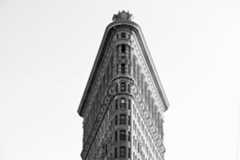 | Prompt: "digital art version" Negative prompt: "black and white" Guide image type: Standard RGB Control condition: canny edge Imagen Control scale: 0.95 |  |
 (canny edge detection applied). | Prompt: "digital art version" Negative prompt: "black and white" Guide image type: canny edge Imagen Control scale: 0.95 |  |
Use the following samples to send a Imagen 2 Controlled Customization request:
REST
Before using any of the request data, make the following replacements:
- PROJECT_ID: Your Google Cloudproject ID.
- TEXT_PROMPT: The text prompt that guides what images the model generates. This field is required for both generation and editing.
- B64_BASE_IMAGE: The base image to edit or upscale. The image must be specified as abase64-encoded byte string. Size limit: 10 MB.
- EDIT_IMAGE_COUNT: The number of edited images. Default value:4.
- NEGATIVE_PROMPT: A negative prompt to help generate the images. For example: "animals" (removes animals), "blurry" (makes the image clearer), "text" (removes text), or "cropped" (removes cropped images).
- CONDITION:
string. The type of control image signal provided. Values:cannyEdgesorscribble. - CONTROL_SCALE:
float. The strength of the control image signal. Values:0.0-1.0. Default value:0.95. Recommended range:0.9-1.0. - SAMPLING_STEPS:
integer. The number of sampling steps. Values:1-30. Default:16. - COMPUTE_CONDITION_MAP:
boolean. Whether to compute a condition map from your base input image. When set tofalse, the service expects the input image to be a scribble or canny edges, and the image is provided directly to the model. When set totrue, the service expects the input image to be an RGB image, and the service computes canny edges or scribble information from your input image based onconditionName. The service then provides the processed condition map to the model for image editing. When you provide scribble images, they should have a black background and white lines depict the object to be generated. Default:false.
HTTP method and URL:
POST https://us-central1-aiplatform.googleapis.com/v1/projects/PROJECT_ID/locations/us-central1/publishers/google/models/imagen-2.0-edit-preview-0627:predict
Request JSON body:
{ "instances": [ { "prompt": "TEXT_PROMPT", "image": { "bytesBase64Encoded": "B64_BASE_IMAGE" } } ], "parameters": { "sampleCount":EDIT_IMAGE_COUNT, "negativePrompt": "NEGATIVE_PROMPT", "controlPluginConfig": { "conditions": [ { "conditionName": "CONDITION", "controlScale":CONTROL_SCALE, "samplingSteps":SAMPLING_STEPS, "computeConditionMap":COMPUTE_CONDITION_MAP } ] } }}To send your request, choose one of these options:
curl
Note: The following command assumes that you have logged in to thegcloud CLI with your user account by runninggcloud init orgcloud auth login , or by usingCloud Shell, which automatically logs you into thegcloud CLI . You can check the currently active account by runninggcloud auth list. Save the request body in a file namedrequest.json, and execute the following command:
curl -X POST \
     -H "Authorization: Bearer $(gcloud auth print-access-token)" \
     -H "Content-Type: application/json; charset=utf-8" \
     -d @request.json \
     "https://us-central1-aiplatform.googleapis.com/v1/projects/PROJECT_ID/locations/us-central1/publishers/google/models/imagen-2.0-edit-preview-0627:predict"
PowerShell
Note: The following command assumes that you have logged in to thegcloud CLI with your user account by runninggcloud init orgcloud auth login . You can check the currently active account by runninggcloud auth list. Save the request body in a file namedrequest.json, and execute the following command:
$cred = gcloud auth print-access-token
$headers = @{ "Authorization" = "Bearer $cred" }

Invoke-WebRequest `
    -Method POST `
    -Headers $headers `
    -ContentType: "application/json; charset=utf-8" `
    -InFile request.json `
    -Uri "https://us-central1-aiplatform.googleapis.com/v1/projects/PROJECT_ID/locations/us-central1/publishers/google/models/imagen-2.0-edit-preview-0627:predict" | Select-Object -Expand Content
"sampleCount": 2. The response returns two prediction objects, with the generated image bytes base64-encoded.{ "predictions": [ { "bytesBase64Encoded": "BASE64_IMG_BYTES", "mimeType": "image/png" }, { "mimeType": "image/png", "bytesBase64Encoded": "BASE64_IMG_BYTES" } ]}Product usage
To view usage standards and content restrictions associated withImagen on Vertex AI, see theusage guidelines.
Model versions
There are multiple image generation models that you can use. For moreinformation, seeImagenmodels.
What's next
Read articles about Imagen and other Generative AI on Vertex AIproducts:
- A developer's guide to getting started with Imagen 3 onVertex AI
- New generative media models and tools, built with and for creators
- New in Gemini: Custom Gems and improved image generation withImagen 3
- Google DeepMind: Imagen 3 - Our highest quality text-to-image model
Except as otherwise noted, the content of this page is licensed under theCreative Commons Attribution 4.0 License, and code samples are licensed under theApache 2.0 License. For details, see theGoogle Developers Site Policies. Java is a registered trademark of Oracle and/or its affiliates.
Last updated 2026-02-19 UTC.