

Back up and restore files by using Cloud Storage
This page describes how to use Cloud Storage to back up and restore fileson your Vertex AI Workbench instance.
Overview
This guide describes two ways to use Cloud Storage to help youback up and restore files on your Vertex AI Workbench instance:
Mount a Cloud Storage bucket toyour Vertex AI Workbench instance.
Export your files to Cloud Storageand then restore them.
Before you begin
- Sign in to your Google Cloud account. If you're new to Google Cloud, create an account to evaluate how our products perform in real-world scenarios. New customers also get $300 in free credits to run, test, and deploy workloads.
In the Google Cloud console, on the project selector page, select or create a Google Cloud project.
Roles required to select or create a project
- Select a project: Selecting a project doesn't require a specific IAM role—you can select any project that you've been granted a role on.
- Create a project: To create a project, you need the Project Creator role (
roles/resourcemanager.projectCreator), which contains theresourcemanager.projects.createpermission.Learn how to grant roles.
Verify that billing is enabled for your Google Cloud project.
Enable the Notebooks API.
Roles required to enable APIs
To enable APIs, you need the Service Usage Admin IAM role (
roles/serviceusage.serviceUsageAdmin), which contains theserviceusage.services.enablepermission.Learn how to grant roles.In the Google Cloud console, on the project selector page, select or create a Google Cloud project.
Roles required to select or create a project
- Select a project: Selecting a project doesn't require a specific IAM role—you can select any project that you've been granted a role on.
- Create a project: To create a project, you need the Project Creator role (
roles/resourcemanager.projectCreator), which contains theresourcemanager.projects.createpermission.Learn how to grant roles.
Verify that billing is enabled for your Google Cloud project.
Enable the Notebooks API.
Roles required to enable APIs
To enable APIs, you need the Service Usage Admin IAM role (
roles/serviceusage.serviceUsageAdmin), which contains theserviceusage.services.enablepermission.Learn how to grant roles.
Required roles
To get the permissions that you need to mount a Cloud Storage bucket to a Vertex AI Workbench instance, ask your administrator to grant you the following IAM roles:
- Notebooks Runner (
roles/notebooks.runner) on the project - Storage Object User (
roles/storage.objectUser) on the Vertex AI Workbench instance's service account
For more information about granting roles, seeManage access to projects, folders, and organizations.
You might also be able to get the required permissions throughcustom roles or otherpredefined roles.
Mount a Cloud Storage bucket
Vertex AI Workbench instances include a Cloud Storage integrationthat lets you mount a Cloud Storage bucket. This means you canbrowse the contents of the bucket and work with compatible files from withinthe JupyterLab interface.
You can access any of the Cloud Storage buckets and files thatyour instance has access to within the same project asyour Vertex AI Workbench instance.
Note: Your Vertex AI Workbench instance's access toCloud Storage is determined by the single user or service accountthat you used to grant access to your instance. For example,if you granted a specific service account access to your instance,you must also grant that service account access to theCloud Storage buckets that you want to use in JupyterLab.Required permission for enabling shared storage mounting
To enable shared storage mounting in your Vertex AI Workbench instance,ask your administrator to grant your Vertex AI Workbench instance'sservice account thestorage.buckets.list permission on the project.
Thestorage.buckets.list permission is required for theMount shared storage button to appear in the JupyterLab interface of yourVertex AI Workbench instance.
Create a bucket and a Vertex AI Workbench instance
You must have access to at least one Cloud Storage bucket in thesame project as your Vertex AI Workbench instance.- If you need to create a Cloud Storage bucket, seeCreate a bucket.
- If you haven't already,create a Vertex AI Workbench instance in the same project as your Cloud Storage bucket.
Open JupyterLab
In the Google Cloud console, go to theInstances page.
Next to your Vertex AI Workbench instance's name, clickOpen JupyterLab.
Your Vertex AI Workbench instance opens JupyterLab.
Mount the Cloud Storage bucket
To mount and then access a Cloud Storage bucket, do the following:
In JupyterLab, make sure the File Browser tab is selected.
In the left sidebar, click the Mount shared storage button. If you don't see the button, drag the right side of the sidebar to expand the sidebar until you see the button.
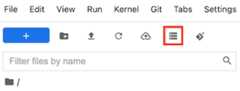
In theBucket name field, enter the Cloud Storage bucket name that you want to mount.
ClickMount.
Your Cloud Storage bucket appears as a folder in theFile browser tab of the left sidebar. Double-click the folder to open it and browse the contents.
 Mount shared storage button. If you don't see the button, drag the right side of the sidebar to expand the sidebar until you see the button.
Export to and restore files from Cloud Storage
This section describes how to export files to Cloud Storage andrestore files located in a Cloud Storage bucket.
Export to Cloud Storage
In the Google Cloud console, go to theInstances page.
Next to your Vertex AI Workbench instance's name, clickOpen JupyterLab.
Your Vertex AI Workbench instance opens JupyterLab.
In JupyterLab, make sure the File Browser tab is selected.
In the left sidebar, click the Export to GCS button. If you don't see the button, drag the right side of the sidebar to expand the sidebar until you see the button.
In theProvide export location dialog, enter a Cloud Storage bucket name that you want to export files to. If you need to create a Cloud Storage bucket, seeCreate a bucket.
Vertex AI Workbench opens a new notebook that includes code for exporting your instance's files to Cloud Storage.
Run the code in this cell.
 Export to GCS button. If you don't see the button, drag the right side of the sidebar to expand the sidebar until you see the button.
Restore files from Cloud Storage
To restore a file to your Vertex AI Workbench instance, you can usegcloud storage cp to copy the file.
Run the following code in a cell of one of your instance's notebooks:
!gcloudstoragecpURI/home/jupyter/FILE_NAME
Replace the following:
URI: the gsutil URI of the file that you want tocopy, for example:gs://BUCKET_NAME/ZONE/INSTANCE_ID/FILE_NAMEFILE_NAME: the name of the file to copy
For more information, seeDownload the object from yourbucket.
What's next
Except as otherwise noted, the content of this page is licensed under theCreative Commons Attribution 4.0 License, and code samples are licensed under theApache 2.0 License. For details, see theGoogle Developers Site Policies. Java is a registered trademark of Oracle and/or its affiliates.
Last updated 2025-12-15 UTC.