

Manage features through metadata
This page describes how to manage some Vertex AI Workbench instance featuresby modifying the instance's metadata key-value pairs.
Metadata keys
For information about features and their respective metadata keys,see the following table.
| Feature | Description | Metadata key | Accepted values and defaults |
|---|---|---|---|
| Enables Cloud Storage FUSE on a container image | Mounts | container-allow-fuse |
|
| nbconvert | Lets you export and download notebooks as a different file type. | notebook-disable-nbconvert |
|
| Delete to trash | Uses the operating system's trash behavior when deleting from JupyterLab. | notebook-enable-delete-to-trash |
|
| Dataproc | Enables access to Dataproc kernels. For more information, seeCreate a Dataproc-enabled instance. | disable-mixer |
|
| Idle shutdown | Enables idle shutdown. For more information, seeIdle shutdown. | idle-timeout-seconds | An integer representing the idle time in seconds. The default value is10800 seconds (180 minutes). |
| Guest attributes | Enables guest attributes. Required for running idle shutdown. For more information, seeRequirements for running idle shutdown. | enable-guest-attributes | true (default): Enables guest attributes.false: Turns off guest attributes. |
| Scheduled OS patches | Schedules automatic OS updates of the instance. This enables Debian'sunattended upgrade service and only applies to VM-based images. | install-unattended-upgrades |
|
| Custom Jupyter user | Specifies the name of the default Jupyter user. This setting determines the name of the folder for your notebooks. For example, instead of the default | jupyter-user | A string. The default value isjupyter. |
| File downloading | Lets you download files from JupyterLab. | notebook-disable-downloads |
|
| Root access | Enables root access. | notebook-disable-root |
|
| Terminal access | Enables terminal access. | notebook-disable-terminal |
|
| Scheduled upgrades | Schedules automatic upgrades of the instance. | notebook-upgrade-schedule | The weekly or monthly schedule that you set, inunix-cron format, for example,00 19 * * MON means weekly on Monday, at 1900 hours Greenwich Mean Time (GMT). This feature is off by default. |
| Post-startup script | Runs a custom script after other startup scripts have completed. For details on the execution order, seeStartup script execution order. | post-startup-script | The URI of a post-startup script in Cloud Storage, for example:gs://bucket/hello.sh. This feature is off by default. |
| Post-startup script behavior | Defines when and how the post-startup script runs. | post-startup-script-behavior |
|
| Report event health | Checks health every 30 seconds for VM metrics. | report-event-health |
|
| Enable JupyterLab 4 or switch to JupyterLab 3 | Enable JupyterLab 3. JupyterLab 4 is enabled, by default. | enable-jupyterlab4 |
|
Startup script execution order
If you use multiple startup scripts for your Vertex AI Workbench instance, they run in the following order:
startup-script: Runs first during each boot after the initial boot.startup-script-url: Runs second during each boot after the initial boot.workbench-startup-scripts: Runs after the Compute Engine boot scripts (startup-scriptandstartup-script-url) complete.post-startup-script: Runs after theworkbench-startup-scriptscomplete.
Note that for thepost-startup-script metadata key, you must provide the script as a Cloud Storage URI. You cannot provide the script content directly as the value.
Metadata managed by Compute Engine
Some of the metadata keys are predefined by Compute Engine. For moreinformation, seePredefined metadatakeys.
Protected metadata keys
Some metadata keys are reserved for system use only. If you assignvalues to these metadata keys, the new values will be overwritten by thesystem values.
Reserved metadata keys include and are not limited to:
data-disk-urienable-osloginframeworknotebooks-apinotebooks-api-versionnvidia-driver-gcs-pathproxy-urlrestrictionshutdown-scripttitleversion
Create an instance with specific metadata
You can create a Vertex AI Workbench instance with specific metadataby using the Google Cloud console, the Google Cloud CLI,Terraform, or the Notebooks API.
Console
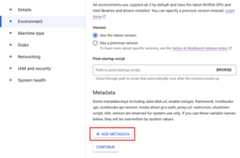
When you create a Vertex AI Workbench instance, you can addmetadata in theEnvironment section ofAdvanced options.
gcloud
When you create a Vertex AI Workbench instance, you can addmetadata by using the following command:
gcloudworkbenchinstancescreateINSTANCE_NAME--metadata=KEY=VALUE
Terraform
To add metadata, create the resource with metadata key-value pairs.
To learn how to apply or remove a Terraform configuration, seeBasic Terraform commands.
resource "google_workbench_instance" "default" { name = "workbench-instance-example" location = "us-central1-a" gce_setup { machine_type = "n1-standard-1" vm_image { project = "cloud-notebooks-managed" family = "workbench-instances" } metadata = { key = "value" } }}Notebooks API
Use theinstances.createmethod with metadata values to manage the corresponding features.
Update an instance's metadata
You can update the metadata of a Vertex AI Workbench instanceby using the Google Cloud console, the Google Cloud CLI,Terraform, or the Notebooks API.
Console
To update the metadata of a Vertex AI Workbench instance,do the following:
In the Google Cloud console, go to theInstances page.
In the list of instances, click the name of the instance that you wantto update.
On theInstance details page, clickSoftware and security.
In theMetadata section, update the metadata key-value pairs thatyou want to change.
ClickSubmit.
gcloud
You can update the metadata on a Vertex AI Workbench instanceby using the following command:
gcloudworkbenchinstancesupdateINSTANCE_NAME--metadata=KEY=VALUE
Terraform
You can change the metadata key-value pairs to managethe corresponding features on Vertex AI Workbench instances.
To learn how to apply or remove a Terraform configuration, seeBasic Terraform commands.
resource "google_workbench_instance" "default" { name = "workbench-instance-example" location = "us-central1-a" gce_setup { machine_type = "n1-standard-1" vm_image { project = "cloud-notebooks-managed" family = "workbench-instances" } metadata = { key = "updated_value" } }}Notebooks API
Use theinstances.patchmethod with metadata values andgce_setup.metadata in theupdateMaskto manage the corresponding features.
Remove metadata from an instance
You can remove metadata from a Vertex AI Workbench instanceby using the Google Cloud console, the Google Cloud CLI,Terraform, or the Notebooks API.
Console
To remove metadata from a Vertex AI Workbench instance,do the following:
In the Google Cloud console, go to theInstances page.
In the list of instances, click the name of the instance that you wantto modify.
On theInstance details page, clickSoftware and security.
In theMetadata section, to the right of a key-value pair thatyou want to delete, click Delete.
ClickSubmit.
gcloud
You can remove metadata from a Vertex AI Workbench instanceby using the following command:
gcloudworkbenchinstancesupdateINSTANCE_NAME--metadata=KEYTerraform
You can remove metadata key-value pairs to manage thecorresponding features of a Vertex AI Workbench instance.
To learn how to apply or remove a Terraform configuration, seeBasic Terraform commands.
resource "google_workbench_instance" "default" { name = "workbench-instance-example" location = "us-central1-a" gce_setup { machine_type = "n1-standard-1" vm_image { project = "cloud-notebooks-managed" family = "workbench-instances" } metadata = { } }}Notebooks API
Use theinstances.patchmethod with the metadata value set to an empty string andgce_setup.metadata in theupdateMask to remove thecorresponding feature.
Except as otherwise noted, the content of this page is licensed under theCreative Commons Attribution 4.0 License, and code samples are licensed under theApache 2.0 License. For details, see theGoogle Developers Site Policies. Java is a registered trademark of Oracle and/or its affiliates.
Last updated 2025-12-17 UTC.