

Scale Ray clusters on Vertex AI
Ray clusters on Vertex AI offer two scaling options:autoscaling andmanual scaling.Autoscaling lets the cluster automatically adjust the number of worker nodesbased on the resources the Ray tasks and actors require. If you run a heavy workload and are unsure of the resources needed, autoscaling is recommended. Manualscaling gives users more granular control of the nodes.
Autoscaling can reduce workload costs but adds node launch overhead and can betricky to configure. If you are new to Ray, start with non-autoscaling clusters,and use the manual scaling feature.
Note: Manual scaling has a limitation due to VPC peering. Google recommendsusing aPrivate Service Connect interfacewhen you implement a private VPC network.Autoscaling
Enable a Ray cluster's autoscaling feature by specifying the minimum replicacount (min_replica_count) and maximum replica count (max_replica_count) ofa worker pool.
Note the following:
- Configure the autoscaling specification of all worker pools.
- Custom upscaling and downscaling speed is not supported. For default values,seeUpscaling and downscaling speedin the Ray documentation.
Set worker pool autoscaling specification
Use the Google Cloud console orVertex AI SDK for Pythonto enable a Ray cluster's autoscaling feature.
Ray on Vertex AI SDK
fromgoogle.cloudimportaiplatformimportvertex_rayfromvertex_rayimportAutoscalingSpecautoscaling_spec=AutoscalingSpec(min_replica_count=1,max_replica_count=3,)head_node_type=Resources(machine_type="n1-standard-16",node_count=1,)worker_node_types=[Resources(machine_type="n1-standard-16",accelerator_type="NVIDIA_TESLA_T4",accelerator_count=1,autoscaling_spec=autoscaling_spec,)]# Create the Ray cluster on Vertex AICLUSTER_RESOURCE_NAME=vertex_ray.create_ray_cluster(head_node_type=head_node_type,worker_node_types=worker_node_types,...)
Console
In accordance with theOSS Ray best practice recommendation, setting the logical CPU count to 0 on the Ray head node is enforced in order to avoid running any workload on the head node.
In the Google Cloud console, go to the Ray on Vertex AI page.
ClickCreate cluster to open theCreate cluster panel.
For each step in theCreate cluster panel, review or replace thedefault cluster information. ClickContinue to complete each step:
- ForName and region, specify aName and choose a locationfor your cluster.
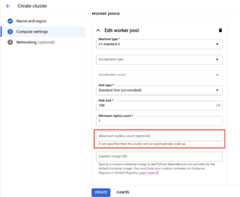
ForCompute settings, specify the configuration of the Ray clusteron the head node, including its machine type, accelerator type andcount, disk type and size, and replica count. Optionally, add a customimage URI to specify a custom container image to add Pythondependencies not provided by the default container image. SeeCustom image.
UnderAdvanced options, you can:
- Specify your own encryption key.
- Specify acustom service account.
- If you don't need to monitor the resource statistics of your workload during training, disable the metrics collection.
To create a cluster with an autoscaling worker pool, provide a valuefor the worker pool's maximum replica count.
ClickCreate.
Manual scaling
As your workloads surge or decrease on your Ray clusters on Vertex AI,manually scale the number of replicas to match demand. For example, if you haveexcess capacity, scale down your worker pools to save costs.
Limitations with VPC Peering
When you scale clusters, you can change only the number of replicas in yourexisting worker pools. For example, you can't add or remove worker pools fromyour cluster or change the machine type of your worker pools. Also, the numberof replicas for your worker pools can't be lower than one.
If you use a VPC peering connection to connect to your clusters,a limitation exists on the maximum number of nodes. The maximum number of nodesdepends on the number of nodes the cluster had when you created the cluster. Formore information, seeMax number of nodes calculation. This maximumnumber includes not just your worker pools but also your head node. If you usethe default network configuration, the number of nodes can't exceed the upperlimits as described in thecreate clustersdocumentation.
Subnet allocation best practices
When deploying Ray on Vertex AI using private services access (PSA),it's crucial to ensure that your allocated IP address range is sufficientlylarge and contiguous to accommodate the maximum number of nodes your clustermight scale to. IP exhaustion can occur if the IP range reserved for your PSAconnection is too small or fragmented, leading to deployment failures.
As an alternative, we recommend deploying Ray on Vertex AI with aPrivate Service Connect Interface, which reduces IP consumption to a /28 subnet.
Private Service Access monitoring
As a best practice useNetwork Analyzera diagnostic tool within Google Cloud's Network Intelligence Center that automatically monitorsyour Virtual Private Cloud (VPC) network configurations to detect misconfigurations andsuboptimal settings. Network Analyzer operates continuously, whichproactively runs tests and generates insights to help you identify, diagnose,and resolve network issues before they impact service availability.
Network Analyzer has the ability to monitor subnets used forPrivate Service Access (PSA) and provides specific insights related to them.This is a critical function for managing services like Cloud SQL,Memorystore, and Vertex AI, which use PSA.
The primary way Network Analyzer monitors PSA subnets is by providingIP address utilization insights for the allocated ranges.
PSA Range Utilization: Network Analyzer actively tracks theallocation percentage of IP addresses within the dedicated CIDR blocks thatyou've allocated for PSA. This is important because when you create a managedservice (such as Vertex AI), Google creates a service producerVPC and a subnet within it, drawing an IP range from your allocated block.
Proactive Alerts: If the IP address utilization for a PSA allocated rangeexceeds a certain threshold (for example, 75%), Network Analyzergenerates a warning insight. This proactively alerts you to potential capacityissues, giving you time to expand the allocated IP range before you run out ofavailable addresses for new service resources.
Private Service Access subnet updates
For Ray on Vertex AI deployments, Google recommends allocating a/16 or /17 CIDR block for your PSA connection. This provides a large enoughcontiguous block of IP addresses to support significant scaling, accommodatingup to 65,536 or 32,768 unique IP addresses, respectively. This helps preventIP exhaustion even with large Ray clusters.
If you exhaust your allocated IP address space, Google Cloud returns this error:
Failed to create subnetwork. Couldn't find free blocks in allocated IP ranges.
It's recommended that youexpand the current subnet range or allocate a range that accommodates future growth.
Maximum number of nodes calculation
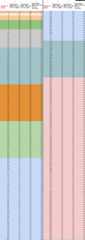
If you use private services access (VPC peering) to connect toyour nodes, use the following formulas to check that you don't exceed themaximum number of nodes (M), assumingf(x) = min(29, (32 -ceiling(log2(x))):
f(2 * M) = f(2 * N)f(64 * M) = f(64 * N)f(max(32, 16 + M)) = f(max(32, 16 + N))
The maximum total number of nodes in the Ray on Vertex AI cluster you canscale up to (M) depends on the initial total number of nodes you set up (N).After you create the Ray on Vertex AI cluster, you can scale the totalnumber of nodes to any amount betweenP andM inclusive, whereP is thenumber of pools in your cluster.
The initial total number of nodes in the cluster and the scaling up targetnumber must be in the same color block.
Update replica count
Use the Google Cloud console or Vertex AI SDK for Python to update your workerpool's replica count. If your cluster includes multiple worker pools, you canindividually change each of their replica counts in a single request.
Ray on Vertex AI SDK
importvertexaiimportvertex_rayvertexai.init()cluster=vertex_ray.get_ray_cluster("CLUSTER_NAME")# Get the resource name.cluster_resource_name=cluster.cluster_resource_name# Create the new worker poolsnew_worker_node_types=[]forworker_node_typeincluster.worker_node_types:worker_node_type.node_count=REPLICA_COUNT# new worker pool sizenew_worker_node_types.append(worker_node_type)# Make update callupdated_cluster_resource_name=vertex_ray.update_ray_cluster(cluster_resource_name=cluster_resource_name,worker_node_types=new_worker_node_types,)
Console
In the Google Cloud console, go to the Ray on Vertex AI page.
From the list of clusters, click the cluster to modify.
On theCluster details page, clickEdit cluster.
In theEdit cluster pane, select the worker pool to update and thenmodify the replica count.
ClickUpdate.
Wait a few minutes for your cluster to update. When the update iscomplete, you can see the updated replica count on theCluster detailspage.
ClickCreate.
Except as otherwise noted, the content of this page is licensed under theCreative Commons Attribution 4.0 License, and code samples are licensed under theApache 2.0 License. For details, see theGoogle Developers Site Policies. Java is a registered trademark of Oracle and/or its affiliates.
Last updated 2025-12-15 UTC.