

Develop an application on the Ray cluster on Vertex AI
Connect to the Ray cluster on Vertex AI through Ray Clientusing the version oftheVertex AI SDK for Pythonthat includes the functionality of theRay Client.Use this option if you prefer an interactive Python development environment.
Use the Vertex AI SDK for Python within the Colab Enterprisenotebook in the Google Cloud console.
Use the Vertex AI SDK for Python within a Python session, shell, or Jupyternotebook.
Write a Python script and submit the script to the Ray cluster on Vertex AIusing theRay JobsAPI.If you prefer to submit jobs programmatically, use this option.
Connect to a Ray cluster through Ray Client
To use the interactive Ray client, connect to your Ray cluster onVertex AI. The connecting environment's network depends on the cluster'snetwork configuration. No restrictions apply to the connecting environmentas long as the cluster has public internet access. That is, you didn't specify a VPC networkduring cluster creation. If, however, thecluster is on a private VPC network that peers with Vertex AI, theconnecting environment must be on the same VPC network as the cluster.
The Ray version on the client side must match the cluster's Ray version.pip install "google-cloud-aiplatform[ray]"installs Ray version 2.47 on the client side by default. If thecluster'sRay version is older than, for example, 2.42, then usepip install ray==2.42.0 to match theclient side's Ray version to the cluster's Ray version.
Console
In accordance with theOSS Ray best practice recommendation, setting the logical CPU count to 0 on the Ray head node is enforced in order to avoid running any workload on the head node.
In the Google Cloud console, go to the Ray on Vertex AI page.
In the row for the cluster you created, clickOpen in Colab Enterprise.
The Colab Enterprise notebook opens. Follow the instructions on how to usethe Vertex AI SDK for Python to connect to the Ray cluster on Vertex AI.
If a dialog screen asks you to enable APIs, clickEnable.
If you're connecting to the cluster for the first time, then clickConnect. If you're reconnecting to the cluster, thenReconnect.The notebook takes a few minutes to connect to the Runtime.
Click the+CREATE to create a new notebook.
Click
 to open the Ray on Vertex AI panel.
Existing clusters display.Select a cluster and clickCONNECT.
Code appears in your open notebook that connects to your chosen cluster.Other actions (Optional): To open the Ray on Vertex AI clusterlist page, clickManage clusters in the Ray on Vertex AI panel.
- Select a cluster and clickmore actions menu.
More options appear: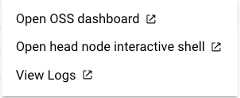
- Select a cluster and clickmore actions menu.
Run theGetting started code cell to import the Vertex AI SDK for Pythonand connect to the Ray cluster on Vertex AI.
Python
In accordance with theOSS Ray best practice recommendation, setting the logical CPU count to 0 on the Ray head node is enforced in order to avoid running any workload on the head node.
From an interactive Python environment:
importray# Necessary even if aiplatform.* symbol is not directly used in your program.fromgoogle.cloudimportaiplatformimportvertex_rayimportvertexaivertexai.init()# The CLUSTER_RESOURCE_NAME is the one returned from vertex_ray.create_ray_cluster.CLUSTER_RESOURCE_NAME='projects/{}/locations/{}/persistentResources/{}'.format(PROJECT_ID,LOCATION,CLUSTER_NAME)ray.init('vertex_ray://{}'.format(CLUSTER_RESOURCE_NAME))
Where:
LOCATION: The location you specify for your Ray cluster on Vertex AI.
PROJECT_ID: Your Google Cloud project ID. Find theproject ID in the Google Cloud consolewelcomepage.
CLUSTER_NAME: The name of your Ray cluster on Vertex AI,specified when you create the cluster. Go to theGoogle Cloud console to view the list ofcluster names for a project.
You get output similar to the following:
Python version: 3.10.12Ray version: 2.47Vertex SDK version: 1.46.0Dashboard: xxxx-dot-us-central1.aiplatform-training.googleusercontent.com
Use theDashboard URL to access the Ray dashboard from a browser. TheURI is in the format ofhttps://xxxx-dot-us-central1.aiplatform-training.googleusercontent.com/.The dashboard shows submitted jobs, the number of GPU or CPUs, and disk space ofeach machine in the cluster.
After you connect to the Ray cluster on Vertex AI, developa Ray program the same way you develop one for a normal OSS Ray backend.
@ray.remotedefsquare(x):print(x)returnx*x# Launch four parallel square tasks.futures=[square.remote(i)foriinrange(4)]print(ray.get(futures))# Returns [0, 1, 4, 9]
Develop an application using the Ray Jobs API
This section describes how to submit a Python program to theRay cluster on Vertex AI using theRay Jobs API.
Write a Python script
Develop your application as a Python script in any text editor. For example,place the following script in amy_script.py file:
@ray.remote for proper parallelization.importrayimporttime@ray.remotedefhello_world():return"hello world"@ray.remotedefsquare(x):print(x)time.sleep(100)returnx*xray.init()# No need to specify address="vertex_ray://...."print(ray.get(hello_world.remote()))print(ray.get([square.remote(i)foriinrange(4)]))
Submit a Ray job using the Ray Jobs API
Submit a Ray job using Python, the Ray Jobs CLI, or the publicRaydashboard address.
Note: All content within theworking_dir directory is sent to the Ray cluster, which may cause a timeout if the directory is too large. We recommend that you specify aworking_dir directory that contains only the files that you want to send.Python - cluster resource name
Submit a Ray job using a Python environment:
importrayimportvertex_rayfromray.job_submissionimportJobSubmissionClientfromgoogle.cloudimportaiplatform# Necessary even if aiplatform.* symbol is not directly used in your program.CLUSTER_RESOURCE_NAME='projects/{}/locations/REGION/persistentResources/{}'.format(PROJECT_ID,CLUSTER_NAME)client=JobSubmissionClient("vertex_ray://{}".format(CLUSTER_RESOURCE_NAME))job_id=client.submit_job(# Entrypoint shell command to executeentrypoint="python my_script.py",# Path to the local directory that contains the my_script.py file.runtime_env={"working_dir":"./directory-containing-my-script","pip":["numpy","setuptools<70.0.0","xgboost","ray==CLUSTER_RAY_VERSION",# pin the Ray version to the same version as the cluster]})# Ensure that the Ray job has been created.print(job_id)
Where:
REGION: The region you specify for your Ray cluster on Vertex AI.
PROJECT_ID: Your Google Cloud project number. Find theproject ID in the Google Cloud consolewelcomepage.
CLUSTER_NAME: The name of your Ray cluster on Vertex AI,specified when you created the cluster. Go to theGoogle Cloud console to view the list ofcluster names for a project.
CLUSTER_RAY_VERSION: Pin the Ray version to the same versionas the cluster. For example, 2.47.1.
Python - Ray dashboard
The Ray dashboard address is accessible from outside the VPC, including the public internet.Note thatvertex_ray is required to obtain authentication automatically.
fromray.job_submissionimportJobSubmissionClientimportvertex_rayDASHBOARD_ADDRESS=DASHBOARD_ADDRESSclient=JobSubmissionClient("vertex_ray://{}".format(DASHBOARD_ADDRESS),)job_id=client.submit_job(# Entrypoint shell command to executeentrypoint="python my_script.py",# Path to the local directory that contains the my_script.py fileruntime_env={"working_dir":"./directory-containing-my-script","pip":["numpy","setuptools<70.0.0","xgboost","ray==CLUSTER_RAY_VERSION",# pin the Ray version to the same version as the cluster]})print(job_id)
Where:
DASHBOARD_ADDRESS: The Ray dashboard address for your cluster. Findthe dashboard addressusing the Vertex AI SDK for Python.
Ray Jobs CLI
Use the Ray Jobs CLI commands only within the peered VPCnetwork.
$rayjobsubmit--working-dir./--addressvertex_ray://{CLUSTER_RESOURCE_NAME}--pythonmy_script.py
After submitting a long running Ray Job, if you want to monitor your job statususingclient.get_job_status(job_id), re-instantiateJobSubmissionClient(client = JobSubmissionClient("vertex_ray://{}".format(CLUSTER_RESOURCE_NAME))) to refresh the authentication token.
Support for VPC peering and custom service account
Ray on Vertex AI supports Ray Client and Ray Jobs API(JobSubmissionClient) in a public network for default service agent and customservice accounts.
The following table shows Ray on Vertex AI support for VPC peering when you create the Ray cluster with the VPC network:
| VPC peering | Default service agent | Custom service account |
|---|---|---|
| Ray Client (interactive mode) | Yes | No |
| Ray JobSubmissionClient | Yes | Yes |
VPC Service Controls (VPC-SC) requires additional configurations.SeePrivate and public connectivity for more details.
Use Network File System (NFS) in your Ray code
If you set anNFS mount whencreating the Ray cluster, read and write those NFS volumes in yourapplication code.
RayClient
This section shows you how to use Network File System (NFS) in your Ray code.
Initialize the RayClient in a Python environment
importrayfromgoogle.cloudimportaiplatformimportvertex_rayaiplatform.init(project=PROJECT_ID,location=REGION)ray.init(address='vertex_ray://projects/{}/locations/us-central1/persistentResources/{}'.format(PROJECT_NUMBER,PERSISTENT_RESOURCE_ID))
Run job script
importrayimportloggingimportosimportsys@ray.remotedefmain():logging.info("list all files in mounted folder")returnos.listdir("/mnt/nfs/test")print(''.join(ray.get(main.remote())))
Submit a Ray job using Python, the Ray Jobs CLI, or the public Raydashboard address. For more information,seeDevelop an application on the Ray cluster on Vertex AI).
What's next
Except as otherwise noted, the content of this page is licensed under theCreative Commons Attribution 4.0 License, and code samples are licensed under theApache 2.0 License. For details, see theGoogle Developers Site Policies. Java is a registered trademark of Oracle and/or its affiliates.
Last updated 2025-12-15 UTC.