

Create a Ray cluster on Vertex AI
To see an example of getting started with Gemma on Ray on Vertex AI, run the "Get started with Gemma on Ray on Vertex AI" notebook in one of the following environments:
Open in Colab |Open in Colab Enterprise |Openin Vertex AI Workbench |View on GitHub
 Open in Colab
 Open in Colab Enterprise
 Openin Vertex AI Workbench
 View on GitHub
This document provides instructions for setting up aRay cluster on Vertex AI to meet various needs. For example, tobuild your image, seeCustom image. Someenterprises can use private networking. This document coversPrivate Service Connect interface for Ray on Vertex AI.Another use case involves accessing remote files as if they were local(seeRay on Vertex AI Network File System).
Overview
Topics covered here include:
- creating a Ray cluster on Vertex AI
- managing the lifecycle of a Ray cluster
- creating a custom image
- setting up Private and public connectivity (VPC)
- using Private Service Connect interface for Ray on Vertex AI
- setting up Ray on Vertex AI Network File System (NFS)
- setting up a Ray Dashboard and Interactive Shell with VPC-SC + VPC Peering
Create a Ray cluster
You can use the Google Cloud console or theVertex AI SDK for Pythonto createa Ray cluster. A cluster can have up to 2,000 nodes. An upper limitof 1,000 nodes exists within oneworker pool.No limit exists on the number of workerpools, but a large number of worker pools, such as 1,000 workerpools with one node each, can negatively affect cluster performance.
Before you begin, read theRay onVertex AI overview andset up all the prerequisite tools you need.
A Ray cluster on Vertex AI might take 10-20 minutes to start upafter you create the cluster.
Console
In accordance with theOSS Ray best practice recommendation, setting the logical CPU count to 0 on the Ray head node is enforced in order to avoid running any workload on the head node.
In the Google Cloud console, go to the Ray on Vertex AI page.
ClickCreate Cluster to open theCreate Cluster panel.
For each step in theCreate Cluster panel, review or replace thedefault cluster information. ClickContinue to complete each step:
ForName and region, specify aName and choose aLocationfor your cluster.
ForCompute settings, specify the configuration of theRay cluster on the Vertex AI's head node, including itsmachine type, acceleratortype and count, disk type and size, and replica count. Optionally,add a custom image URI to specify a custom container imageto add Python dependencies not provided by the default containerimage. SeeCustom image.
UnderAdvanced options, you can:
- Specify your own encryption key.
- Specify acustom service account.
- Disable metrics collection, if you don't need to monitor theresource stats of your workload during training.
(Optional) To deploy a private endpoint for your cluster, therecommended method is to use Private Service Connect.For further details, seePrivate Service Connect interface for Ray on Vertex AI.
ClickCreate.
Ray on Vertex AI SDK
In accordance with theOSS Ray best practice recommendation, setting the logical CPU count to 0 on the Ray head node is enforced in order to avoid running any workload on the head node.
Note: Configuring the head node as a GPU node and using it for running theactual training workload is not recommended. Instead, create the head nodeas a CPU node with a recommended machine type n1-standard-16 (or larger),and use worker nodes as GPU nodes for training and running their code.From an interactive Python environment, use the following to create theRay cluster on Vertex AI:
importrayimportvertex_rayfromgoogle.cloudimportaiplatformfromvertex_rayimportResourcesfromvertex_ray.util.resourcesimportNfsMount# Define a default CPU cluster, machine_type is n1-standard-16, 1 head node and 1 worker nodehead_node_type=Resources()worker_node_types=[Resources()]# Or define a GPU cluster.head_node_type=Resources(machine_type="n1-standard-16",node_count=1,custom_image="us-docker.pkg.dev/my-project/ray-custom.2-9.py310:latest",# Optional. When not specified, a prebuilt image is used.)worker_node_types=[Resources(machine_type="n1-standard-16",node_count=2,# Must be >= 1accelerator_type="NVIDIA_TESLA_T4",accelerator_count=1,custom_image="us-docker.pkg.dev/my-project/ray-custom.2-9.py310:latest",# When not specified, a prebuilt image is used.)]# Optional. Create cluster with Network File System (NFS) setup.nfs_mount=NfsMount(server="10.10.10.10",path="nfs_path",mount_point="nfs_mount_point",)aiplatform.init()# Initialize Vertex AI to retrieve projects for downstream operations.# Create the Ray cluster on Vertex AICLUSTER_RESOURCE_NAME=vertex_ray.create_ray_cluster(head_node_type=head_node_type,network=NETWORK,#Optionalworker_node_types=worker_node_types,python_version="3.10",# Optionalray_version="2.47",# Optionalcluster_name=CLUSTER_NAME,# Optionalservice_account=SERVICE_ACCOUNT,# Optionalenable_metrics_collection=True,# Optional. Enable metrics collection for monitoring.labels=LABELS,# Optional.nfs_mounts=[nfs_mount],# Optional.)
Where:
CLUSTER_NAME: A name for the Ray cluster on Vertex AIthat must be unique across your project.
NETWORK: (Optional) The full name of your VPCnetwork, in the format of
projects/PROJECT_ID/global/networks/VPC_NAME.To set a private endpoint instead of a public endpoint for your cluster,specify a VPC network to use with Ray on Vertex AI.For more information, seePrivate and public connectivity.VPC_NAME: Optional: The VPC on which the VMoperates.
PROJECT_ID: Your Google Cloud project ID. You can findthe project ID on the Google Cloud consolewelcomepage.
SERVICE_ACCOUNT: Optional: The service account to run Rayapplications on the cluster. Grantrequired roles.
LABELS: (Optional) The labels with user-defined metadata usedto organize Ray clusters. Label keys and values can be no longer than 64characters (Unicode codepoints), and can only contain lowercase letters,numeric characters, underscores and dashes. International charactersare allowed. Seehttps://goo.gl/xmQnxf for moreinformation and examples of labels.
ray start orray up to create a Ray clusteron Vertex AI. Vertex AImanages the provisioning of the machines and Ray cluster.You should see the following output until the status changes toRUNNING:
[Ray on Vertex AI]: Cluster State = State.PROVISIONINGWaiting for cluster provisioning; attempt 1; sleeping for 0:02:30 seconds...[Ray on Vertex AI]: Cluster State = State.RUNNING
Note the following:
The first node is the head node.
TPU machine types aren't supported.
Lifecycle management
During the lifecycle of a Ray cluster on Vertex AI, each actionassociates with a state. The following table summarizes the billing status andmanagement option for each state.Thereference documentationprovides a definition for each of these states.
| Action | State | Billed? | Delete action available? | Cancel action available? |
|---|---|---|---|---|
| The user creates a cluster | PROVISIONING | No | No | No |
| The user manually scales up or down | UPDATING | Yes, per the real-time size | Yes | No |
| The cluster runs | RUNNING | Yes | Yes | Not applicable - you can delete |
| The cluster autoscales up or down | UPDATING | Yes, per the real-time size | Yes | No |
| The user deletes the cluster | STOPPING | No | No | Not applicable - already stopping |
| The cluster enters an Error state | ERROR | No | Yes | Not applicable - you can delete |
| Not applicable | STATE_UNSPECIFIED | No | Yes | Not applicable |
Custom Image (Optional)
Prebuilt images align with mostuse cases. If you want to build your image,use the Ray on Vertex AI prebuilt images as a base image. SeetheDocker documentationfor how to build your images from a base image.
Note: For details about the available Ray on Vertex AI prebuilt containerimages, seeSupported versions of Ray on Vertex AI.These base images include an installation of Python, Ubuntu, and Ray.They also include dependencies such as:
- python-json-logger
- google-cloud-resource-manager
- ca-certificates-java
- libatlas-base-dev
- liblapack-dev
- g++, libio-all-perl
- libyaml-0-2.
Private and public connectivity
By default, Ray on Vertex AI creates a public, secure endpoint forinteractive development with theRay Clienton Ray clusters on Vertex AI.Use public connectivity for development or ephemeraluse cases. This public endpoint is accessible through the internet. Onlyauthorized users who have, at a minimum,Vertex AI user role permissionson the Ray cluster's user project can access the cluster.
If you require a private connection to your cluster or if you useVPC Service Controls, VPC peering is supported for Rayclusters on Vertex AI. Clusters with a private endpoint are onlyaccessible from a client within a VPC network that is peered withVertex AI.
To set up private connectivity with VPC Peering for Ray on Vertex AI,select a VPC network when you create your cluster. The VPC network requiresaprivate services connection betweenyour VPC network and Vertex AI.If you use Ray on Vertex AI in the console, you can set up yourprivate services access connection whencreating the cluster.
If you want to use VPC Service Controls and VPC peering with Ray clusters onVertex AI, extra set up is required to use the Ray dashboard and interactive shell.Follow the instructions covered inRay Dashboard and Interactive Shell with VPC-SC + VPC Peeringto configure the interactive shell setup with VPC-SC and VPC Peering inyour user project.
After you create your Ray cluster on Vertex AI, you can connect to thehead node using theVertex AI SDK for Python.The connecting environment, suchas a Compute Engine VM or Vertex AI Workbench instance, must be inthe VPC network that is peered with Vertex AI. Note thata private services connection has a limited number of IP addresses,which could result inIP address exhaustion. Therefore, we recommend using private connections for long-running clusters.
Private Service Connect interface for Ray on Vertex AI
To use Private Service Connect interface egress, follow the instructionsprovided below. If VPC Service Controls is not enabled, clusters withPrivate Service Connect interface egress use the secure public endpointfor ingress with Ray Client.
If VPC Service Controls is enabled, Private Service Connect interfaceingress is used by default with Private Service Connect interface egress.To connect with the Ray Client or submit jobs from a notebook for a clusterwith Private Service Connect interface ingress, make sure thatthe notebook is within the user project VPC and subnetwork.For more details on how to set up VPC Service Controls, seeVPC Service Controls with Vertex AI.
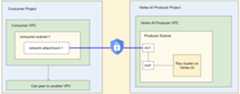
Enable Private Service Connect interface
Follow thesetting up your resources guideto set up your Private Service Connect interface. After settingup your resources, you're ready to enable Private Service Connectinterface on your Ray cluster on Vertex AI.
Console
While creating your cluster and after specifyingName and region andCompute settings, theNetworking option appears.
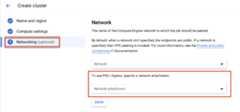
Set up a network attachment by doing one of the following:
- Use theNETWORK_ATTACHMENT_NAME name that you specified when settingup your resources for Private Service Connect.
- Create a new network attachment by clicking theCreate network attachmentbutton that appears in the drop-down.
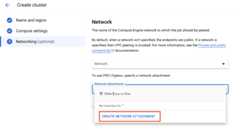
ClickCreate network attachment.
In the subtask that appears, specify a name, network, and subnetworkfor the new network attachment.
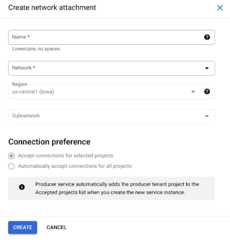
ClickCreate.
Ray on Vertex AI SDK
The Ray on Vertex AI SDK is a part of the Vertex AI SDK for Python. Tolearn how to install or update the Vertex AI SDK for Python,seeInstall the Vertex AI SDK for Python.For more information, see theVertex AI SDK for Python API reference documentation.
fromgoogle.cloudimportaiplatformimportvertex_ray# Initializationaiplatform.init()# Create a default cluster with network attachment configurationpsc_config=vertex_ray.PscIConfig(network_attachment=NETWORK_ATTACHMENT_NAME)cluster_resource_name=vertex_ray.create_ray_cluster(psc_interface_config=psc_config,)
Where:
- NETWORK_ATTACHMENT_NAME: The name you specified when setting upyour resources for Private Service Connect on your user project.
Ray on Vertex AI Network File System (NFS)
To make remote files available to your cluster, mount Network File System (NFS)shares. Your jobs can then access remote files as if they were local, whichenables high throughput and low latency.
VPC setup
Two options exist for setting up VPC:
- Create a Private Service Connect interface Network Attachment. (Recommended)
- Set up VPC Network Peering.
Set up your NFS instance
Note: If you use athird-party NFS solutionyou can skip this step.For more details on how to create a Filestore instance,seeCreate an instance. Ifyou use the Private Service Connect interface method,you don't have to select private service access mode when creating the filestore.
Use the Network File System (NFS)
To use the Network File System, specify either anetwork or anetwork attachment (recommended).
Console
In the Networking step of the create page, after specifying either anetworkor anetwork attachment. To do this, clickAdd NFS mountunder the Network File System (NFS) section and specify an NFS mount(server, path and mount point).
Field Description serverThe IP address of your NFS server. This must be a private address in your VPC. pathThe NFS share path. This must be an absolute path that begins with /.mountPointThe local mount point. This must be a valid UNIX directory name. For example, if the local mount point is sourceData, then specify the path/mnt/nfs/ sourceDatafrom your training VM instance.For more information, seeWhere to specify compute resources.
Specify a server, path, and mount point.
Note: You can mount more than one NFS share. ClickAdd NFS mountto specify another NFS share.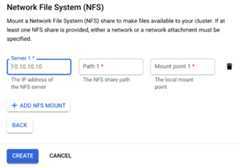
ClickCreate. This creates the Ray cluster.
Ray Dashboard and Interactive Shell with VPC-SC + VPC Peering
Configure
peered-dns-domains.{VPC_NAME=NETWORK_NAMEREGION=LOCATIONgcloudservicespeered-dns-domainscreatetraining-cloud\--network=$VPC_NAME\--dns-suffix=$REGION.aiplatform-training.cloud.google.com.# Verifygcloudbetaservicespeered-dns-domainslist--network$VPC_NAME;}
NETWORK_NAME: Change to peered network.
LOCATION: Desired location (for example,
us-central1).
Configure
DNS managed zone.{PROJECT_ID=PROJECT_IDZONE_NAME=$PROJECT_ID-aiplatform-training-cloud-google-comDNS_NAME=aiplatform-training.cloud.google.comDESCRIPTION=aiplatform-training.cloud.google.comgclouddnsmanaged-zonescreate$ZONE_NAME\--visibility=private\--networks=https://www.googleapis.com/compute/v1/projects/$PROJECT_ID/global/networks/$VPC_NAME\--dns-name=$DNS_NAME\--description="Training$DESCRIPTION"}
PROJECT_ID: Your project ID. You can find these IDs in the Google Cloud consolewelcome page.
Record DNS transaction.
{gclouddnsrecord-setstransactionstart--zone=$ZONE_NAMEgclouddnsrecord-setstransactionadd\--name=$DNS_NAME.\--type=A199.36.153.4199.36.153.5199.36.153.6199.36.153.7\--zone=$ZONE_NAME\--ttl=300gclouddnsrecord-setstransactionadd\--name=*.$DNS_NAME.\--type=CNAME$DNS_NAME.\--zone=$ZONE_NAME\--ttl=300gclouddnsrecord-setstransactionexecute--zone=$ZONE_NAME}
Submit a training job with the interactive shell + VPC-SC + VPC Peering enabled.
Shared Responsibility
Securing your workloads on Vertex AI is a shared responsibility. While Vertex AI regularly upgrades infrastructure configurations to address security vulnerabilities, Vertex AI doesn't automatically upgrade your existing Ray on Vertex AI clusters and persistent resources to avoid preempting running workloads. Therefore, you're responsible for tasks such as the following:
- Periodically delete and recreate your Ray on Vertex AI clusters and persistent resources to use the latest infrastructure versions. Vertex AI recommends recreating your clusters and persistent resources at least once every 30 days.
- Properly configure any custom images you use.
For more information, seeShared responsibility.
What's next
Except as otherwise noted, the content of this page is licensed under theCreative Commons Attribution 4.0 License, and code samples are licensed under theApache 2.0 License. For details, see theGoogle Developers Site Policies. Java is a registered trademark of Oracle and/or its affiliates.
Last updated 2025-12-15 UTC.