

Run monitoring jobs
Preview
This product or feature is subject to the "Pre-GA Offerings Terms" in the General Service Terms section of theService Specific Terms. Pre-GA products and features are available "as is" and might have limited support. For more information, see thelaunch stage descriptions.
When you run a job, Model Monitoring v2 consumes data from your target and baseline datasets,calculates metrics, and potentially generates alerts. Model Monitoring v2 offers on-demandjobs for ad hoc monitoring or scheduled jobs for continuous monitoring. Nomatter which option you choose, each job is a single batch execution.
For more information about monitoring objectives and supported models, seeModel Monitoring v2 overview andSet up model monitoring.
Run a job on demand
Run a one-time monitoring job. Set the target and baseline datasets as well asthe monitoring specs for the objectives to monitor. Your configuration overridesany defaults, if set, that are defined by the model monitor.
Console
In the Google Cloud console, go to theMonitoring page.
Click the model monitor that you want to run a monitoring job for.
On the model monitor details page, clickRun now to configure themonitoring job.
Configure your job or use the defaults as defined in the model monitor.
ClickRun.
Python SDK
fromvertexai.resources.previewimportml_monitoringFEATURE_THRESHOLDS={"culmen_length_mm":0.001,"body_mass_g":0.002,}FEATURE_DRIFT_SPEC=ml_monitoring.spec.DataDriftSpec(categorical_metric_type="l_infinity",numeric_metric_type="jensen_shannon_divergence",default_categorical_alert_threshold=0.001,default_numeric_alert_threshold=0.002,feature_alert_thresholds=FEATURE_THRESHOLDS,)PREDICTION_OUTPUT_DRIFT_SPEC=ml_monitoring.spec.DataDriftSpec(categorical_metric_type="l_infinity",numeric_metric_type="jensen_shannon_divergence",default_categorical_alert_threshold=0.001,default_numeric_alert_threshold=0.001,)FEATURE_ATTRIBUTION_SPEC=ml_monitoring.spec.FeatureAttributionSpec(default_alert_threshold=0.0003,feature_alert_thresholds={"cnt_ad_reward":0.0001},)EXPLANATION_SPEC=ExplanationSpec(parameters=ExplanationParameters({"sampled_shapley_attribution":{"path_count":2}}),metadata=ExplanationMetadata(inputs={"cnt_ad_reward":ExplanationMetadata.InputMetadata({"input_tensor_name":"cnt_ad_reward","encoding":"IDENTITY","modality":"numeric"}),...},...))TRAINING_DATASET=ml_monitoring.spec.MonitoringInput(gcs_uri=TRAINING_URI,data_format="csv")TARGET_DATASET=ml_monitoring.spec.MonitoringInput(table_uri=BIGQUERY_URI)model_monitoring_job=my_model_monitor.run(display_name=JOB_DISPLAY_NAME,baseline_dataset=TRAINING_DATASET,target_dataset=TARGET_DATASET,tabular_objective_spec=ml_monitoring.spec.TabularObjective(# Optional: set to monitor input feature drift.feature_drift_spec=FEATURE_DRIFT_SPEC,# Optional: set to monitor prediction output drift.prediction_output_drift_spec=PREDICTION_OUTPUT_DRIFT_SPEC,# Optional: set to monitor feature attribution drift.feature_attribution_spec=FEATURE_ATTRIBUTION_SPEC),# Optional: additional configurations to override default values.explanation_config=EXPLANATION_SPEC,notification_spec=NOTIFICATION_SPEC,output_spec=OUTPUT_SPEC)
Schedule continuous runs
You can set one or more schedule runs for a model monitor. To use continuousmonitoring with time specifications, your dataset must have a timestamp columnso that Model Monitoring v2 can retrieve the data from the specified time range.
Console
In the Google Cloud console, go to theMonitoring page.
Click the model monitor that you want to configure continuous monitoringfor.
ClickSchedule a recurring run.
Set your target and baseline datasets and then clickContinue.
Set the objectives to monitor, their thresholds, notification settings whenan alert is generated.
ClickContinue.
Configure a schedule for recurring jobs:
- Specify a name for the scheduler.
- ForStart time, specify when the first job will start.
- ForFrequency, use acron expression to set the frequency,and then set the time zone.
- ForEnds, specify when the scheduler ends.
ClickCreate.
Python SDK
To set the frequency of monitoring jobs, use acron expression.
my_model_monitoring_schedule=my_model_monitor.create_schedule(display_name=SCHEDULE_DISPLAY_NAME,# Every day at 0:00(midnight)cron='"0 * * * *"',baseline_dataset=ml_monitoring.spec.MonitoringInput(endpoints=[ENDPOINT_RESOURCE_NAME],offset="24h",window="24h",),target_dataset=ml_monitoring.spec.MonitoringInput(endpoints=[ENDPOINT_RESOURCE_NAME],window="24h"),tabular_objective_spec=ml_monitoring.spec.TabularObjective(# Optional: set to monitor input feature drift.feature_drift_spec=FEATURE_DRIFT_SPEC,# Optional: set to monitor prediction output drift.prediction_output_drift_spec=PREDICTION_OUTPUT_DRIFT_SPEC,# Optional: set to monitor feature attribution drift.feature_attribution_spec=FEATURE_ATTRIBUTION_SPEC),# Optional: additional configurations to override default values.explanation_config=EXPLANATION_SPEC,output_spec=OUTPUT_SPEC,notification_spec=NOTIFICATION_SPEC,)
Pause or resume a schedule
You can pause and resume a schedule to skip or temporarily halt monitoring jobruns.
Console
In the Google Cloud console, go to theMonitoring page.
Click the model monitor that contains the schedule to modify.
On the details page, go to theSchedules tab.
Click the schedule to modify.
ClickPause orResume to pause or resume the schedule.
Python SDK
# Pause schedulemy_model_monitor.pause_schedule(my_monitoring_schedule.name)# Resume schedulemy_model_monitor.resume_schedule(my_monitoring_schedule.name)
Delete a schedule
Delete a schedule if you're not using it. Your existing data remains as well asany previously created jobs.
Console
In the Google Cloud console, go to theMonitoring page.
Click the model monitor that contains the schedule to modify.
On the details page, go to theSchedules tab.
Click the schedule to modify.
ClickDelete andDelete again to confirm.
Python SDK
my_model_monitor.delete_schedule(my_monitoring_schedule.name)
Analyze monitoring job results
You can use the Google Cloud console to visualize the data distributions foreach monitoring objective and learn which changes led to drift over time.
The visualizations show a histogram comparing the data distribution between thetarget and the baseline data. Based on your level of tolerance, you might,for example, decide to adjust your feature generation pipeline or retrain themodel.
View job details
View details about a monitoring job run such as a list of monitored features andwhich features generated an alert.
Console
In the Google Cloud console, go to theMonitoring page.
Click the model monitor that contains the job to analyze.
On theMonitor details page, click theRuns tab.
From the list of runs, click a run to view its details such as all thefeatures included in a run.
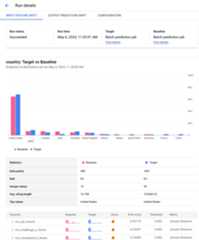
The following example shows a distribution comparison for thecountryfeature from batch prediction jobs. The Google Cloud console alsoprovide details about the comparison depending on the metric, such as thenumber of unique values, mean value, and the standard deviation.
View feature details
View information about a feature and a list of monitoring jobs that include thefeature.
Console
In the Google Cloud console, go to theMonitoring page.
Click the model monitor that contains the jobs to analyze.
In theOverview tab, you can view a summary, which includes trends indrift for all monitored objectives if you have continuous monitoringset up. You can also dive deeper into particular objectives to see detailssuch as the monitored feature names and a list of monitoring runs.
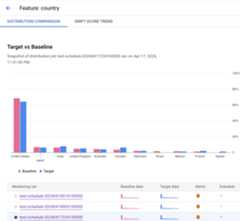
The following example shows a distribution comparison for thecountryfeature. After the histogram, you can see which runs generated an alert orselect another monitoring job that includes monitoring data for thisfeature.
Except as otherwise noted, the content of this page is licensed under theCreative Commons Attribution 4.0 License, and code samples are licensed under theApache 2.0 License. For details, see theGoogle Developers Site Policies. Java is a registered trademark of Oracle and/or its affiliates.
Last updated 2025-12-15 UTC.