

Configure visualization settings for AutoML image classification
Preview
This feature is subject to the "Pre-GA Offerings Terms" in the General Service Terms section of theService Specific Terms. Pre-GA features are available "as is" and might have limited support. For more information, see thelaunch stage descriptions.
Vertex Explainable AI provides built-in visualization capabilities for your image data.You can configure visualizations for AutoML image classificationmodels.
When you request an explanation on an image classification model, you get thepredicted class along with an image overlay showing which pixels(integrated gradients) or regions (integrated gradients or XRAI) contributed tothe prediction.
The following images show visualizations on a husky image. The leftvisualization uses the integrated gradients method and highlights areas ofpositive attribution. The right visualization uses an XRAI method with a colorgradient indicating areas of lesser (blue) and greater (yellow) influence inmaking a positive prediction.
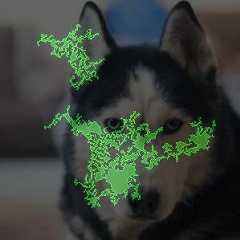
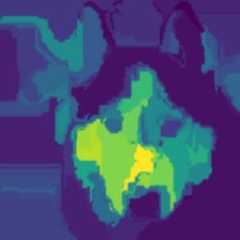
The type of data you're working with can influence whether you use anintegrated gradients or XRAI approach to visualizing your explanations.
- XRAI tends to be better with natural images and provides a better high-levelsummary of insights, like showing that positive attribution is related to theshape of a dog's face.
- Integrated gradients (IG) tends to provide details at the pixel level and isuseful for uncovering more granular attributions.
Learn more about the attribution methods in the Vertex Explainable AIOverview page.
Getting started
Configure visualization when youtrain an AutoML model that supports Vertex Explainable AIandenable explanations when you deploy the model.
Visualization options
The default and recommended settings depend on the attribution method(integrated gradients or XRAI). The following list describes configurationoptions and how you might use them. For a full list of options, see theAPI reference for theVisualization message.
type: The type of visualization used:OUTLINESorPIXELS. Only specifythis field if you are using integrated gradients; you can't specify it if youare using XRAI.For integrated gradients, the field defaults to
OUTLINES, which showsregions of attribution. To show per-pixel attribution, set the field toPIXELS.polarity: The directionality of the highlighted attributions.positiveisset by default, which highlights areas with the highest positiveattributions. This means highlighting pixels thatwere most influential to the model's positive prediction.Setting polarity tonegativehighlights areas that lead the model to notpredicting the positive class. Using a negative polarity can be useful fordebugging your model by identifying false negative regions. You can also setpolarity tobothwhich shows positive and negative attributions.clip_percent_upperbound: Excludes attributions above the specifiedpercentilefrom the highlighted areas. Using the clip parameters together can be usefulfor filtering out noise and making it easier to see areas of strongattribution.clip_percent_lowerbound: Excludes attributions below the specifiedpercentilefrom the highlighted areas.color_map: The color scheme used for the highlighted areas. Default ispink_greenfor integrated gradients, which shows positive attributions ingreen and negative in pink. For XRAI visualizations, the color map is agradient. The XRAI default isviridiswhich highlights the most influentialregions in yellow and the least influential in blue.For a full list of possible values, see theAPI reference for the
Visualizationmessage.overlay_type: How the original image is displayed in the visualization.Adjusting the overlay can help increase visual clarity if the original imagemakes it difficult to view the visualization.For a full list of possible values, see theAPI reference for the
Visualizationmessage.
Example configurations
To get started, here are sampleVisualization configurations that you can useas a starting point and images that show a range of settings applied.
Integrated gradients
For integrated gradients, you may need to adjust the clip values if theattribution areas are too noisy.
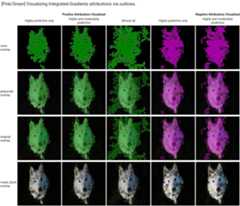
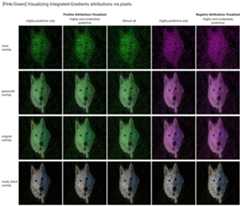
visualization:{"type":"OUTLINES","polarity":"positive","clip_percent_lowerbound":70,"clip_percent_upperbound":99.9,"color_map":"pink_green","overlay_type":"grayscale"}The following are two visualizations using both theoutlines andpixelstypes. The columns labeled "Highly predictive only," "Moderately predictive,"and "Almost all" are examples of clipping at different levels that can helpfocus your visualization.
XRAI
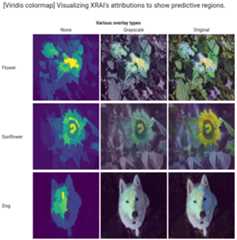
For XRAI visualizations, we recommend starting with no clip values forXRAI because the overlay uses a gradient to show areas of high and lowattribution.
visualization:{"clip_percent_lowerbound":0,"clip_percent_upperbound":100,"color_map":"viridis","overlay_type":"grayscale"}The following image is an XRAI visualization using the default viridis color mapand a range of overlay types. The areas in yellow indicate the mostinfluential regions that contributed positively to the prediction.
What's next
- UseGetting explanations to getpredictions with explanations from your model.
- For details about improving Vertex Explainable AI results forAutoML image classification models, readImproving explanations.
Except as otherwise noted, the content of this page is licensed under theCreative Commons Attribution 4.0 License, and code samples are licensed under theApache 2.0 License. For details, see theGoogle Developers Site Policies. Java is a registered trademark of Oracle and/or its affiliates.
Last updated 2025-12-15 UTC.