

Set up Vertex AI TensorBoard
The following are required to setup Vertex AI TensorBoard:
- Create a service account with required permissions.
- Create a Cloud Storage bucket to store Vertex AI TensorBoard logs.
- Create a Vertex AI TensorBoard instance.
Create a service account with required permissions
The Vertex AI TensorBoard integration with custom training requiresattaching a service account.
Note: If you already have a service account that you use for custom training, you can skip this step. Make sure the service account has theStorage Admin role (roles/storage.admin) andVertex AI User role. (roles/aiplatform.user) associated with it.Create a service account:
gcloud--project=PROJECT_IDiamservice-accountscreateUSER_SA_NAMEReplace the following:
PROJECT_ID: the ID of the project in which you'recreating a service account.USER_SA_NAME: a unique name for the serviceaccount you're creating.
The new service account is used by the Vertex AI Training Service toaccess Google Cloud services and resources.Use the following commands to grant these roles if needed:
Note: You need at least project level setIamPolicy permission to runthese commands. For details, seeRequired Permissions for details.SA_EMAIL="USER_SA_NAME@PROJECT_ID.iam.gserviceaccount.com"gcloudprojectsadd-iam-policy-bindingPROJECT_ID\--member="serviceAccount:${SA_EMAIL}"\--role="roles/storage.admin"gcloudprojectsadd-iam-policy-bindingPROJECT_ID\--member="serviceAccount:${SA_EMAIL}"\--role="roles/aiplatform.user"
Create a Cloud Storage bucket to store Vertex AI TensorBoard logs
A Cloud Storage bucket is required to store the Vertex AI TensorBoardlogs your training script generates. The bucket must beregionalthat is, not multi-region or dual-region, and the following resources mustbe in same region:
- Cloud Storage bucket
- Vertex AI training job
- Vertex AI TensorBoard instance
You can use an existing bucket instead of following the bucket creation stepdescribed here. When using an existing bucket, the location of the bucket hasto be the same location yourVertex AI TensorBoard instance was created in.
GCS_BUCKET_NAME="PROJECT_ID-tensorboard-logs-LOCATION_ID"gcloudstoragebucketscreate"gs://${GCS_BUCKET_NAME}"--location=LOCATION_IDReplaceLOCATION_ID with the location that yourVertex AI TensorBoard instance was created in, for exampleus-central1.
GCS_BUCKET_NAME is used tocreate a custom training job with REST.
Create a Vertex AI TensorBoard instance
A Vertex AI TensorBoard instance, which is a regionalized resourcestoring your Vertex AI TensorBoard experiments, must be presentbefore experiments can be visualized. There are two options. You can eitheruse a default instance, or manually create one. Youcan create multipleinstances within a project and region, however most users only need a singleinstance.
Use the default Vertex AI TensorBoard instance
A default TensorBoard instance is automatically created when initializing aVertex AIexperiment. This backing TensorBoard is associated with the Vertex AI experiment and is used with all subsequent Vertex AI Experiments runs. Thetensorboard_resource_name can be reterived directly from the experiment. This is the easiest way to get started with Vertex AI TensorBoard and should meet most users needs.
Vertex AI SDK for Python
Create a Vertex AI TensorBoard experiment with a default instance using the Vertex AI SDK for Python. Retrieve thetensorboard_resource_name from the experiment. Seeinit andExperiment in the Vertex AI SDK reference documentation.
Python
fromgoogle.cloudimportaiplatformdefcreate_experiment_default_tensorboard_sample(experiment_name:str,experiment_description:str,project:str,location:str,):aiplatform.init(experiment=experiment_name,experiment_description=experiment_description,project=project,location=location,)tensorboard=aiplatform.Experiment(experiment_name).get_backing_tensorboard_resource()print(f"Tensorboard resource name:{tensorboard.name}")experiment_name: The name of your experiment.experiment_description: A description of your experiment.project: ThePROJECT_IDof project that you want to create the TensorBoard instance in.location: The location to create your TensorBoard instance in. Vertex AI TensorBoard location is regional. Be sure toselect a region that supports Vertex AI TensorBoard.
Manually create a Vertex AI TensorBoard instance
You can manually create a Vertex AI TensorBoard. This is useful for users more comfortable with the Google Cloud console, users that need a CMEK enabled TensorBoard (seeCMEK), or users who want to use multiple TensorBoards. This instance can then be specified directly when initializing a Vertex AI experiment, starting an Experiment Run, or configuring thetraining code.
Vertex AI SDK for Python
Create a Vertex AI TensorBoard instance using the Vertex AI SDK for Python.
Python
defcreate_tensorboard_sample(project:str,location:str,display_name:Optional[str]=None,):aiplatform.init(project=project,location=location)tensorboard=aiplatform.Tensorboard.create(display_name=display_name,project=project,location=location,)aiplatform.init(project=project,location=location,experiment_tensorboard=tensorboard)returntensorboardproject: ThePROJECT_IDof the project that you want to create the TensorBoard instance in.display_name: A descriptive name for the Vertex AI TensorBoard instance.location: The location to create your TensorBoard instance in. Vertex AI TensorBoard location is regional. Be sure toselect a region that supports Vertex AI TensorBoard
Google Cloud CLI
Use Google Cloud CLI to create a Vertex AI TensorBoard instance.
- Install the gcloud CLI
- Initialize the Google Cloud CLI by running
gcloud init. - To confirm installation, explore the commands.
gcloud ai tensorboards --help
The commands includecreate,describe,list,update, anddelete. If needed, you canfollow these steps to set default values for your project and location before proceeding. - Authenticate to the gcloud CLI.
gcloud auth application-default login - Create a Vertex AI TensorBoard instance by providing a project name and a display name. This step might take a few minutes to complete for the first time in a project. Make note of the Vertex AI TensorBoard instance name (for example:
projects/123/locations/us-central1/tensorboards/456) that is printed at the end of the following command. You will need it in the later steps.gcloud ai tensorboards create --display-nameDISPLAY_NAME \ --projectPROJECT_NAME
Replace the following:PROJECT_NAME: The project that you want to create the TensorBoard instance in.DISPLAY_NAME: A descriptive name for the TensorBoard instance.
Google Cloud console
If you want your Vertex AI TensorBoard data encrypted, you must enable theCMEK key when creating the instance.
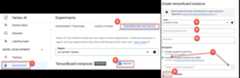
Follow these steps to create a Vertex AI TensorBoard CMEK enabled instance using the Google Cloud console.
- If you're new to Vertex AI or starting a new project,set up your project and development environment.
- In the Vertex AI section of the Google Cloud console, go to theExperiments page.
Go to the Experiments page - Navigate to theTensorBoard Instances tab.
- ClickCreate at the top of the page.
- Select a location from theRegion drop-down list.
- (Optional) Add a description.
- (Optional) UnderEncryption, selectCustomer-managed encryption key (CMEK) and select a customer-managed key.
- ClickCreate to create your TensorBoard instance.
Terraform
The following sample uses thegoogle_vertex_ai_tensorboard Terraform resource to create a non-encrypted Vertex AI TensorBoard instance.
To learn how to apply or remove a Terraform configuration, seeBasic Terraform commands.
Terraform
resource"google_vertex_ai_tensorboard""default"{display_name="vertex-ai-tensorboard-sample-name"region="us-central1"}Delete a TensorBoard instance
Deleting a TensorBoard instance deletes that TensorBoard and all associatedTensorBoard experiments and TensorBoard runs. TheVertex AI Experiments the instance is associated with isn't deleted.
To delete a Vertex AI Experiments and it's associatedVertex AI TensorBoard experiments, seeDelete an experiment.
Vertex AI SDK for Python
Delete a Vertex AI TensorBoard instance using the Vertex AI SDK for Python.
Python
def delete_tensorboard_instance_sample( tensorboard_resource_name: str, project: str, location: str,): aiplatform.init(project=project, location=location) tensorboard = aiplatform.Tensorboard( tensorboard_name=tensorboard_resource_name ) tensorboard.delete()tensorboard_resource_name: Provide theTensorBoard Resource name.project: ThePROJECT_IDyour TensorBoard instance is in.location: The location that your TensorBoard instance is in.
Google Cloud console
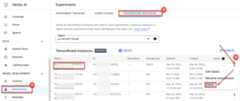
Follow these steps to delete a Vertex AI TensorBoard instance using the Google Cloud console.
- In the Vertex AI section of the Google Cloud console, go to theExperiments page.
Go to the Experiments page - Select theTensorBoard Instances tab. A list TensorBoard instances appears.
- Select and clickDelete
Relevant terms
These terms, "TensorBoard resource name", and "TensorBoard instance ID" arereferenced in numerous samples.
TensorBoard resource name
The TensorBoard Resource name is used to fully identify theVertex AI TensorBoard instance. The format is as follows:
projects/PROJECT_ID_OR_NUMBER/locations/REGION/tensorboards/TENSORBOARD_INSTANCE_ID
The TensorBoard resource name is printed in the log messages when createdusing gcloud CLI or Vertex AI SDK, or can be created byproviding the appropriate values for the placeholders.
Vertex AI SDK for Python
The TensorBoard resource name can be retrieved from an Vertex AI Experiments using the Vertex AI SDK.
Python
fromgoogle.cloudimportaiplatformdefget_experiment_backing_tensorboard_sample(experiment_name:str,project:str,location:str,):backing_tensorboard=aiplatform.Experiment(project=project,location=location,experiment_name=experiment_name).get_backing_tensorboard_resource()returnbacking_tensorboard.nameexperiment_name: The name of your experiment.project: ThePROJECT_IDof your experiment.location: The location your experiment is located in.
TensorBoard instance ID
The TensorBoard instance ID is a generated ID value associated with aTensorBoard instance. To find theTENSORBOARD_INSTANCE_ID, go to theExperiments page Vertex AI section of the Google Cloud console, andselect theTensorBoard Instances tab.
You can also retrieve the instance ID from theTensorBoard resource name.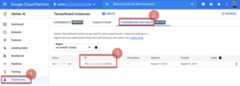
Except as otherwise noted, the content of this page is licensed under theCreative Commons Attribution 4.0 License, and code samples are licensed under theApache 2.0 License. For details, see theGoogle Developers Site Policies. Java is a registered trademark of Oracle and/or its affiliates.
Last updated 2025-12-15 UTC.