

Create a Colab Enterprise notebook by using the Google Cloud console
Learn how to create a Colab Enterprise notebook and run its codeon a default runtime by using the Google Cloud console.This page also describes how to rename, import, and delete a notebook.
Before you begin
- Sign in to your Google Cloud account. If you're new to Google Cloud, create an account to evaluate how our products perform in real-world scenarios. New customers also get $300 in free credits to run, test, and deploy workloads.
In the Google Cloud console, on the project selector page, select or create a Google Cloud project.
Roles required to select or create a project
- Select a project: Selecting a project doesn't require a specific IAM role—you can select any project that you've been granted a role on.
- Create a project: To create a project, you need the Project Creator role (
roles/resourcemanager.projectCreator), which contains theresourcemanager.projects.createpermission.Learn how to grant roles.
Verify that billing is enabled for your Google Cloud project.
Enable the Vertex AI, Dataform, and Compute Engine APIs.
Roles required to enable APIs
To enable APIs, you need the Service Usage Admin IAM role (
roles/serviceusage.serviceUsageAdmin), which contains theserviceusage.services.enablepermission.Learn how to grant roles.In the Google Cloud console, on the project selector page, select or create a Google Cloud project.
Roles required to select or create a project
- Select a project: Selecting a project doesn't require a specific IAM role—you can select any project that you've been granted a role on.
- Create a project: To create a project, you need the Project Creator role (
roles/resourcemanager.projectCreator), which contains theresourcemanager.projects.createpermission.Learn how to grant roles.
Verify that billing is enabled for your Google Cloud project.
Enable the Vertex AI, Dataform, and Compute Engine APIs.
Roles required to enable APIs
To enable APIs, you need the Service Usage Admin IAM role (
roles/serviceusage.serviceUsageAdmin), which contains theserviceusage.services.enablepermission.Learn how to grant roles.
Required roles
To get the permissions that you need to create a Colab Enterprise notebook and run the notebook's code on a runtime, ask your administrator to grant you the Colab Enterprise User (roles/aiplatform.colabEnterpriseUser) IAM role on the project. For more information about granting roles, seeManage access to projects, folders, and organizations.
You might also be able to get the required permissions throughcustom roles or otherpredefined roles.
One or more of the required roles includes thedataform.repositories.list permission. Users who are granted thedataform.repositories.list permission or theCode Creator (roles/dataform.codeCreator) role in a project can list the names of code assets in that project by using the Dataform API or the Dataform command-line interface (CLI). Non-administrators using BigQuery Studio can only see code assets that they created or that were shared with them.Create a notebook
To create a Colab Enterprise notebookby using the Google Cloud console:In the Google Cloud console, go to the Colab EnterpriseMy notebooks page.
In theRegion menu, select the region where you want to create your notebook.
Click New notebook.
Vertex AI creates and opens your notebook.
When you finish the tasks that are described in this document, you can avoid continued billing by deleting the resources that you created. For more information, seeClean up.
Run code in a default runtime
To run a Colab Enterprise notebook's code on the default runtime, do the following:
In the Google Cloud console, go to the Colab EnterpriseMy notebooks page.
In theRegion menu, select the region that contains your notebook.
Click the notebook that you want to open.
Hold the pointer over the code cell that you want to run, and then click the Run cell button.
If this is your first time connecting to a runtime with end-user credentials enabled, aSign in dialog appears.
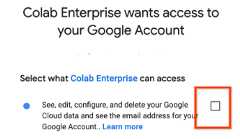
The default runtime has end-user credentials enabled to make it easier torun code that interacts with Google Cloud.To grant Colab Enterprise access to your user credentials, complete the following steps:
In theSign in dialog, click your user account.
SelectSee, edit, configure, and delete your Google Cloud data... to grant Colab Enterprise access to your user credentials.
ClickContinue.
 Run cell button.
After your runtime starts, Colab Enterprise connects to the runtime and runs the code in the cell.
Rename your notebook
To rename a Colab Enterprise notebook:In the Google Cloud console, go to the Colab EnterpriseMy notebooks page.
In theRegion menu, select the region that contains your notebook.
Next to the notebook that you want to rename, click theActions menu, and then selectRename.
In theRename notebook dialog, change the name of the notebook, and then clickRename.
Import a notebook
To import a notebook into Colab Enterprise:In the Google Cloud console, go to the Colab EnterpriseMy notebooks page.
In theRegion menu, select the region where you want to import your notebook.
Click Import.
In theImport notebooks dialog, select anImport source.
If you selected:
- Your computer, navigate to and select a notebook file to import.
- Cloud Storage, navigate to and select a notebook in Cloud Storage.
- URL, enter the URL of the notebook file to import.
To add another notebook, click Add notebook.
After you've added the notebooks that you want to import, clickImport.
Colab Enterprise imports your notebook files.
Clean up
To avoid incurring charges to your Google Cloud account for the resources used on this page, follow these steps.
To avoid incurring charges to your Google Cloud account for the resourcesused in this tutorial, either delete the project that contains the resources,or keep the project and delete the individual resources.
Delete your notebook
In the Google Cloud console, go to the Colab EnterpriseMy notebooks page.
In theRegion menu, select the region that contains the notebook that you want to delete.
Next to the notebook that you want to delete, click theActions menu, and then select Delete notebook.
In theDelete notebook dialog, clickConfirm.
What's next
Read theIntroduction toColab Enterprise.
To find a notebook that can help you get your project started quickly,see thenotebook gallery.
Except as otherwise noted, the content of this page is licensed under theCreative Commons Attribution 4.0 License, and code samples are licensed under theApache 2.0 License. For details, see theGoogle Developers Site Policies. Java is a registered trademark of Oracle and/or its affiliates.
Last updated 2026-02-19 UTC.