

Collect Prometheus metrics
This document describes the configuration and use of an Ops Agentmetrics receiver that you can use to collect metrics from Prometheus onCompute Engine. This document also describes anexample that you can use to try the receiver.
Users of Google Kubernetes Engine have been able to collectPrometheus metrics by usingGoogle Cloud Managed Service for Prometheus.The Ops Agent Prometheus receiver gives users of Compute Engine thesame capability.
You can use all of the tools provided by Cloud Monitoring, including PromQL, to view and analyze the data collected by the Prometheus receiver.For example, you can useMetrics Explorer,as described inGoogle Cloud console forMonitoring, to query your data.You can also create Cloud Monitoringdashboards andalerting policies to monitor your Prometheus metrics.We recommend using PromQL as the query language for your Prometheus metrics.
You can also view your Prometheus metrics in interfaces outsideCloud Monitoring, like thePrometheus UI andGrafana.
Choose the right receiver
Before you decide to use the Prometheus receiver, determine ifthere is already an Ops Agent integration for the application youare using. For information on the existing integrations with the Ops Agent,seeMonitoring third-party applications.If there is an existing integration, we recommend using it. For moreinformation, seeChoosing an existing integration.
We recommend using the Ops Agent Prometheus receiver when the followingare true:
You have experience using Prometheus, rely on the Prometheus standard,and understand how factors like scraping interval and cardinality canaffect your costs. For more information, seeChoosing the Prometheusreceiver.
The software you are monitoring isn't already part of theset ofexisting Ops Agent integrations.
Existing integrations
The Ops Agent provides integrations for a number ofthird-party applications.These integrations provide the following for you:
- A set of selected
workload.googleapis.commetrics for the application - A dashboard for visualizing the metrics.
The metrics ingested by using an existing integrationare subject to byte-based pricing for agent-collected metrics. For informationabout this pricing, seeGoogle Cloud Observability pricing.The number and types of the metrics is known in advance, and you canuse that information to estimate costs.
For example, if you are using theApache Web Server (httpd) integration, the Ops Agentcollectsfive scalar metrics; each data point counts as8 bytes. If you keepthe Ops Agent default sampling frequency of 60 seconds, the numberof bytes ingested per day is 57,600 * the number of hosts:
- 8 (bytes) * 1440 (minutes per day) * 5 (metrics) *n (hosts), or
- 57,600 *n (hosts)
For more information about estimating costs,seePricing examples based on bytes ingested.
The Prometheus receiver
When you use the Ops Agent to collect Prometheus metrics, the followingapply:
The number and cardinality of metrics emitted by your application areunder your control. There is no curated set of metrics. How much datayou ingest is determined by the configuration of your Prometheus applicationand the Ops Agent Prometheus receiver.
Metrics are ingested into Cloud Monitoring as
prometheus.googleapis.commetrics. These metrics are classified as a type of "custom" metrics wheningested into Cloud Monitoring and are subject to thequotas and limits for custom metrics.You must design and create any Cloud Monitoring dashboards you need,based on the set of metrics you are ingesting and on your business needs.For information about creating dashboards, seeDashboards and charts.
Pricing for metric ingestion is based on the number of samples ingested.To estimate your costs when using the Prometheus receiver, you need todetermine the number of samples you are likely to collect during abilling cycle. The estimate is based on the following factors:
- Number of scalar metrics; each value is one sample
- Number of distribution metrics; each histogram counts as (2 + number ofbuckets in the histogram) samples
- Sampling frequency of each metric
- Number of hosts from which the metrics are sampled
For more information about pricing, seeGoogle Cloud Observability pricing. For examples, seePricing examples based on samples ingested.
Prerequisites
To collect Prometheus metrics by using the Prometheus receiver, you mustinstall the Ops Agent version2.25.0 or higher.
The Ops Agent receiver requires an endpoint that emits Prometheus metrics.Therefore, your application must either provide such an endpoint directly oruse a Prometheus library or exporter to expose an endpoint.Many libraries and language frameworks like Spring and DropWizard, orapplications like StatsD, DogStatsD, and Graphite, that emit non-Prometheusmetrics can use Prometheus client libraries or exporters to emitPrometheus-style metrics. For example, to emit Prometheus metrics:
- Spring users can use theSpring Metricslibrary.
- StatsD users can use the
statsd_exporterpackage. - Graphite users can use the
graphite_exporterpackage.
When Prometheus metrics are emitted by an application, directly or by usinga library or exporter, the metrics can then be collected by anOps Agent configured with a Prometheus receiver.
Configure the Ops Agent
The Ops Agentconfiguration model typically involvesdefining the following:
- Receivers, which determine which metrics are collected.
- Processors, which describe how the Ops Agent can modify the metrics.
- Pipelines, which link receivers and processors together into aservice.
The configuration for ingesting Prometheus metrics is slightlydifferent: there are no processors involved.
Configuration for Prometheus metrics
Configuring the Ops Agent to ingest Prometheus metrics differs fromthe usual configuration as follows:
You don't create an Ops Agent processor for Prometheus metrics. ThePrometheus receiver supports nearly all of the configuration optionsspecified by the Prometheus
scrape_configspecification, including relabelingoptions.Instead of using an Ops Agent processor, any metrics processing is done byusing the
relabel_configsandmetric_relabel_configssections of the scape config, as specified in the Prometheus receiver.For more information, seeRelabeling: Modifying the data beingscraped.You define the Prometheus pipeline in terms of the Prometheus receiver only.You don't specify any processors. You also can't use any non-Prometheusreceivers in the pipeline for Prometheus metrics.
The majority of the receiver configuration is the specification of scrape-configoptions. Omitting those options for brevity, the following shows the structureof an Ops Agent configuration that uses a Prometheus receiver. You specify thevalues of theRECEIVER_ID andPIPELINE_ID.
metrics: receivers:RECEIVER_ID: type: prometheus config: scrape_configs: [... omitted for brevity ...] service: pipelines:PIPELINE_ID: receivers: [RECEIVER_ID]
The following section describes the Prometheus receiver in more detail.For a functional example of a receiver and pipeline,seeAdd the Ops Agent receiver and pipeline.
The Prometheus receiver
To specify a receiver for Prometheus metrics, you create a metricsreceiver of typeprometheus and specify a set ofscrape_config options.The receiver supports all of the Prometheusscrape_config options,with the exception of the following:
- The service-discovery sections,
*_sd_config. - The
honor_labelssetting.
Therefore, you can copy over existing scrape configs and use them for theOps Agent with little or no modification.
The full structure of the Prometheus receiver is shown in the following:
metrics: receivers: prom_application: type: prometheus config: scrape_configs: - job_name: 'STRING' # must be unique across all Prometheus receivers scrape_interval: # duration, like 10m or 15s scrape_timeout: # duration, like 10m or 15s metrics_path: # resource path for metrics, default = /metrics honor_timestamps: # boolean, default = false scheme: # http or https, default = http params: -STRING:STRING basic_auth: username:STRING password:SECRET password_file:STRING authorization: type:STRING # default = Bearer credentials:SECRET credentials_file:FILENAME oauth2:OAUTH2 # See Prometheusoauth2 follow_redirects: # boolean, default = true enable_http2: # boolean, default = true tls_config:TLS_CONFIG # See Prometheustls_config proxy_url:STRING static_configs:STATIC_CONFIG # See Prometheusstatic_config relabel_configs:RELABEL_CONFIG # See Prometheusrelabel_config metric_relabel_configs:METRIC_RELABEL_CONFIGS # See Prometheusmetric_relabel_configs
For examples of relabeling configs, seeAdditional receiverconfiguration.
Example: Configure the Ops Agent for Prometheus
This section shows an example of how to configure the Ops Agent to collectPrometheus metrics from an application. This example uses the Prometheuscommunity-provided JSON Exporter(json_exporter), whichexposes Prometheus metrics on port 7979.
Setting up the example requires the following resources, whichyou might have to install:
gitcurlmakepython3- Go language, version 1.19 or higher
Create or configure your application
To obtain and run the JSON Exporter, use the following procedure:
Clone the
json_exporterrepository and check out the exporter byrunning the following commands:git clone https://github.com/prometheus-community/json_exporter.gitcd json_exportergit checkout v0.5.0
Build the exporter by running the following command:
make build
Start the Python HTTP server by running the following command:
python3 -m http.server 8000 &
Start the JSON Exporter by running the following command:
./json_exporter --config.file examples/config.yml &
Query the JSON Exporter to verify that it is running and exposingmetrics on port 7979:
curl "http://localhost:7979/probe?module=default&target=http://localhost:8000/examples/data.json"
If the query was successful, then you see output that resembles thefollowing:
# HELP example_global_value Example of a top-level global value scrape in the json# TYPE example_global_value untypedexample_global_value{environment="beta",location="planet-mars"} 1234# HELP example_value_active Example of sub-level value scrapes from a json# TYPE example_value_active untypedexample_value_active{environment="beta",id="id-A"} 1example_value_active{environment="beta",id="id-C"} 1# HELP example_value_boolean Example of sub-level value scrapes from a json# TYPE example_value_boolean untypedexample_value_boolean{environment="beta",id="id-A"} 1example_value_boolean{environment="beta",id="id-C"} 0# HELP example_value_count Example of sub-level value scrapes from a json# TYPE example_value_count untypedexample_value_count{environment="beta",id="id-A"} 1example_value_count{environment="beta",id="id-C"} 3In this output, the strings like
example_value_activeare the metricnames, with labels and values in braces. The data value followsthe label set.
Add the Ops Agent receiver and pipeline
To configure the Ops Agent to ingest metrics from the JSON Exporterapplication, you must modify the agent's configuration to add aPrometheus receiver and pipeline. For the JSON Exporter example,use the following procedure:
Edit the Ops Agent configuration file,
/etc/google-cloud-ops-agent/config.yaml, and add the following Prometheusreceiver and pipeline entries:metrics: receivers: prometheus: type: prometheus config: scrape_configs: - job_name: 'json_exporter' scrape_interval: 10s metrics_path: /probe params: module: [default] target: [http://localhost:8000/examples/data.json] static_configs: - targets: ['localhost:7979'] service: pipelines: prometheus_pipeline: receivers: - prometheus
If you have other configuration entries in this file already, add the Prometheus receiver and pipeline to the existing
metricsandserviceentries. For more information, seeMetrics configurations.For examples of relabeling configs in the receiver, seeAdditional receiver configuration.
scrape_interval field is 10 seconds. If you specify a value less than 10 seconds, then a value of 10 seconds is used instead.Restart the Ops Agent
To apply your configuration changes, you must restart the Ops Agent.
LINUX
To restart the agent, run the following command on your instance:
sudo service google-cloud-ops-agent restart
To confirm that the agent restarted, run the following command andverify that the components "Metrics Agent" and "Logging Agent" started:
sudo systemctl status google-cloud-ops-agent"*"
Windows
Connect to your instance using RDP or a similar tool and login to Windows.
Open a PowerShell terminal with administrator privileges by right-clickingthe PowerShell icon and selectingRun as Administrator.
To restart the agent, run the following PowerShell command:
Restart-Service google-cloud-ops-agent -Force
To confirm that the agent restarted, run the following command andverify that the components "Metrics Agent" and "Logging Agent" started:
Get-Service google-cloud-ops-agent*
Prometheus metrics in Cloud Monitoring
You can use the tools provided by Cloud Monitoring with the datacollected by the Prometheus receiver. For example, you can chart data by usingMetrics Explorer, as described inGoogle Cloud console for Monitoring.The following sections describe the query tools available inCloud Monitoring with Metrics Explorer:
You can create Cloud Monitoring dashboards and alerting policiesfor your metrics. For information about dashboards and thetypes of charts you can use, seeDashboards and charts.For information about alerting policies, seeUsing alertingpolicies.
You can also view your metrics in other interfaces, like the PrometheusUI and Grafana. For information about setting up these interfaces, see thefollowing sections in the Google Cloud Managed Service for Prometheus documentation:
Use PromQL
PromQL is the recommended query language for metrics ingested by using thePrometheus receiver.
The simplest way to verify that your Prometheus data is being ingestedis to use the Cloud Monitoring Metrics Explorer pagein the Google Cloud console:
In the Google Cloud console, go to theleaderboard Metrics explorer page:
If you use the search bar to find this page, then select the result whose subheading isMonitoring.
In the toolbar of thequery-builder pane, select the button whose name is eithercode MQL orcode PromQL.
Verify thatPromQL is selectedin theLanguage toggle. The language toggle is in the same toolbar thatlets you format your query.
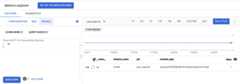
Enter the following query into the editor,and then clickRun query:
up
If your data is being ingested, then you see a chart like the following:
If you are running theJSON Exporter example,then you can also issue queries like the following:
Query all data for a specific exported metric by name, for example:
example_value_count
The following shows a chart for the
example_value_count, includinglabels defined by the JSON Exporter application and labels added bythe Ops Agent: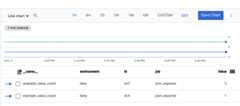
Query data for an exported metric that originated in a specificnamespace. The value of the
namespacelabel is the Compute Engineinstance ID, a long number like5671897148133813325, assigned to theVM. A query looks like the following:example_value_count{namespace="INSTANCE_ID"}Query data that matches a specific regular expression. The JSONExporter emits metrics with an
idlabel that has values likeid-A,id-B,id-C. To filter for any metrics with anidlabel matchingthis pattern, use the following query:example_value_count{id=~"id.*"}
For more information about using PromQL in Metrics Explorer andCloud Monitoring charts,seePromQL in Cloud Monitoring.
View metric usage and diagnostics in Cloud Monitoring
The Cloud MonitoringMetrics Management page provides informationthat can help you control the amount you spend on billable metricswithout affecting observability. TheMetrics Management page reports thefollowing information:
- Ingestion volumes for both byte- and sample-based billing, across metric domains and for individual metrics.
- Data about labels and cardinality of metrics.
- Number of reads for each metric.
- Use of metrics in alerting policies and custom dashboards.
- Rate of metric-write errors.
You can also use theMetrics Management page toexclude unneeded metrics,eliminating the cost of ingesting them.
To view theMetrics Management page, do the following:
In the Google Cloud console, go to the Metrics management page:
If you use the search bar to find this page, then select the result whose subheading isMonitoring.
- In the toolbar, select your time window. By default, theMetrics Management page displays information about the metrics collected in the previous one day.
For more information about theMetrics Management page, seeView and manage metric usage.
Theprometheus_target resource
In Cloud Monitoring, time-series data is written against a monitored-resourcetype. For Prometheus metrics, the monitored-resource type isprometheus_target. Monitoring queries forPrometheus metricsthat are not written in PromQLmust specify this resource type.
Theprometheus_target resource has the following labels, which you canuse for filtering and manipulating queried data:
project_id: The identifier of the Google Cloud project, likemy-project,in which the Ops Agentis running.location: The Google Cloud or AWS region in whichthe Ops Agent is running; for example,us-east1-a(Google Cloud)oraws:us-east-1a(AWS).cluster: Always__gce__for Prometheus metrics collected by using theOps Agent.namespace: The Compute Engine instance ID of the VM on which theOps Agent is running.job: The value of thejob_namefield in the receiver configuration.instance: The instance label of the Prometheus target, taken from thereceiver configuration; defaults to the target.
The values for these labels are set during collection. The values ofthenamespace,location, andcluster labels are immutable. Ifthe metrics scraped from your application also have these labels, theOps Agent prefixes the scraped labels with the stringexported_.
Relabeling: Modifying the data being scraped
You can use relabeling to modify the label set of the scrape targetor its metrics before the target is scraped. If you have multiplesteps in a relabeling config, they are applied in the order in which theyappear in the configuration file.
The Ops Agent creates a set of meta labels (labels prefixed with thestring__meta_. These meta labels recordinformation about theCompute Engine instance on which the Ops Agentis running. Labels prefixed with the__ string, including the meta labels,are available only during relabeling. You can use relabeling to capture thevalues of these labels in labels that are scraped.
Metric relabeling is applied to samples; it is the last step beforeingestion. You can use metric relabeling to drop time seriesthat you don't need to ingest; dropping these time series reducesthe number of samples ingested, which can lower costs.
For more information about relabeling, see the Prometheus documentationforrelabel_config andmetric_relabel_configs.
Compute Engine meta labels available during relabeling
When the Ops Agent scrapes metrics, it includes a set of meta labels whosevalues are based on the configuration of the Compute Engine VM on whichthe agent is running. You can use these labels and the Prometheus receiver'srelabel_configs section to add additional metadata to your metrics aboutthe VM from which they were ingested. For an example, seeAdditional receiver configuration.
The following meta labels are available on targets for you to use in therelabel_configs section:
__meta_gce_instance_id: the numeric ID of the Compute Engine instance (local)__meta_gce_instance_name: the name of the Compute Engine instance (local);the Ops Agent automatically places this value in themutableinstance_namelabel on your metrics.__meta_gce_machine_type: full or partial URL of the machine type of theinstance; the Ops Agent automatically places this value in themutablemachine_typelabel on your metrics.__meta_gce_metadata_NAME: each metadata item of the instance__meta_gce_network: the network URL of the instance__meta_gce_private_ip: the private IP address of the instance__meta_gce_interface_ipv4_NAME: IPv4 address of each named interface__meta_gce_project: the Google Cloud project in which the instance is running (local)__meta_gce_public_ip: the public IP address of the instance, if present__meta_gce_tags: comma separated list of instance tags__meta_gce_zone: the Compute Engine zone URL in which the instance is running
The values of these labels are set when the Ops Agent starts. If you modifythe values, then you have to restart the Ops Agent to refresh the values.
Additional receiver configuration
This section provides examples that use therelabel_configs andmetric_relabel_configs sections of the Prometheus receiver to modifythe number and structure of the metrics ingested. This section also includesa modified version of the receiver for the JSON Exporter example that usesthe relabeling options.
Add VM metadata
You can use therelabel_configs section to add labels to metrics.For example, the following uses a meta label,__meta_gce_zone,provided by the Ops Agent to create a metric label,zone, thatis preserved after relabeling, becausezone does not havethe__ prefix.
For a list of available meta labels, seeCompute Engine meta labelsavailable during relabeling. Some of themeta labels are relabelled for you by the default Ops Agent configuration.
relabel_configs: - source_labels: [__meta_gce_zone] regex: '(.+)' replacement: '${1}' target_label: zoneThe Prometheus receiver shown inExample: Configure the Ops Agent forPrometheus includes the addition of this label.
Drop metrics
You can use themetrics_relabel_configs section to drop metrics thatyou do not want to ingest; this pattern is useful for cost containment.For example, you can use the following pattern to drop any metric witha namesthat matchesMETRIC_NAME_REGEX_1 orMETRIC_NAME_REGEX_2:
metric_relabel_configs: - source_labels: [ __name__ ] regex: 'METRIC_NAME_REGEX_1' action: drop - source_labels: [ __name__ ] regex: 'METRIC_NAME_REGEX_2' action: drop
Add static labels
You can use themetrics_relabel_configs section to add static labels toall metrics ingested by the Prometheus receiver. You can use the followingpattern to add labelsstaticLabel1 andstaticLabel2 to all ingested metrics:
metric_relabel_configs: - source_labels: [ __address__ ] action: replace replacement: 'STATIC_VALUE_1' target_label: staticLabel1 - source_labels: [ __address__ ] action: replace replacement: 'STATIC_VALUE_2' target_label: staticLabel2
The following version of the Prometheus receiver for the JSON Exporterexample uses these configuration patterns to do the following:
- Set the
zonelabel from the value of the__meta_gce_zonemeta label provided by the Ops Agent. - Drop the exporter's
example_global_valuemetric. - Add the
staticLabellabel with the value "A static value" to all ingestedmetrics.
metrics: receivers: prometheus: type: prometheus config: scrape_configs: - job_name: 'json_exporter' scrape_interval: 10s metrics_path: /probe params: module: [default] target: [http://localhost:8000/examples/data.json] static_configs: - targets: ['localhost:7979'] relabel_configs: - source_labels: [__meta_gce_zone] regex: '(.+)' replacement: '${1}' target_label: zone metric_relabel_configs: - source_labels: [ __name__ ] regex: 'example_global_value' action: drop - source_labels: [ __address__ ] action: replace replacement: 'A static value' target_label: staticLabelExcept as otherwise noted, the content of this page is licensed under theCreative Commons Attribution 4.0 License, and code samples are licensed under theApache 2.0 License. For details, see theGoogle Developers Site Policies. Java is a registered trademark of Oracle and/or its affiliates.
Last updated 2026-02-19 UTC.