

Instrument a LangGraph ReAct Agent with OpenTelemetry
Preview
This feature is subject to the "Pre-GA Offerings Terms" in the General Service Terms section of theService Specific Terms. Pre-GA features are available "as is" and might have limited support. For more information, see thelaunch stage descriptions.
This document outlines the steps to instrument aLangGraph ReAct Agent with OpenTelemetry, enabling collecting telemetry fromthe agent. User prompts and agent responses and choices are includedin the telemetry as attributes attached to spans. Agent responses are alsoincluded in the log entries that are correlated with spans containinggenerative AI events. The instructions in this document applywhen the agent uses Langchain's ChatVertexAI to call a Gemini model.
Applications that use the LangGraph ReAct Agent can't collect prompts andresponses that contain multimodal data. However, you can collect these promptsand responses, and the multimodal data they contain, when you build yourAI agent with theAgent Development Kit (ADK) framework.For more information, seeCollect and view multimodal prompts and responses.
Instrument your generative AI application to collect telemetry
To instrument your generative AI application to collect log, metric, and tracedata, do the following:
- Install OpenTelemetry packages
- Configure OpenTelemetry to collect and send telemetry
- Trace the invocation of the generative AI agent
Install OpenTelemetry packages
Add the following OpenTelemetry instrumentation and exporter packages:
pipinstall'opentelemetry-instrumentation-vertexai>=2.0b0'\'opentelemetry-instrumentation-sqlite3'\'opentelemetry-exporter-gcp-logging'\'opentelemetry-exporter-gcp-monitoring'\'opentelemetry-exporter-otlp-proto-grpc'Log and metric data is sent to your Google Cloud project by using theCloud Logging API or the Cloud Monitoring API. Theopentelemetry-exporter-gcp-logging andopentelemetry-exporter-gcp-monitoring libraries invokeendpoints in those APIs.
Trace data is sent to Google Cloud by using theTelemetry (OTLP) API, which implements theOpenTelemetry OTLP Protocol.Theopentelemetry-exporter-otlp-proto-grpc libraryinvokes the Telemetry (OTLP) API endpoint.
Your trace data is stored in a format that isgenerally consistent with the proto files defined by theOpenTelemetry OTLP Protocol. However, fields might be converted from anOpenTelemetry-specific data type to a JSON data type before storage.To learn more about the storage format,seeSchema for trace data.
Configure OpenTelemetry to collect and send telemetry
Within the initialization code of your LangGraph agent, configure OpenTelemetry tocapture and send telemetry to your Google Cloud project:
To view the full sample, clickmore_vertMore,and then selectView on GitHub.
defsetup_opentelemetry()->None:credentials,project_id=google.auth.default()resource=Resource.create(attributes={SERVICE_NAME:"langgraph-sql-agent",# The project to send spans to"gcp.project_id":project_id,})# Set up OTLP authrequest=google.auth.transport.requests.Request()auth_metadata_plugin=AuthMetadataPlugin(credentials=credentials,request=request)channel_creds=grpc.composite_channel_credentials(grpc.ssl_channel_credentials(),grpc.metadata_call_credentials(auth_metadata_plugin),)# Set up OpenTelemetry Python SDKtracer_provider=TracerProvider(resource=resource)tracer_provider.add_span_processor(BatchSpanProcessor(OTLPSpanExporter(credentials=channel_creds,endpoint="https://telemetry.googleapis.com:443/v1/traces",)))trace.set_tracer_provider(tracer_provider)logger_provider=LoggerProvider(resource=resource)logger_provider.add_log_record_processor(BatchLogRecordProcessor(CloudLoggingExporter()))logs.set_logger_provider(logger_provider)event_logger_provider=EventLoggerProvider(logger_provider)events.set_event_logger_provider(event_logger_provider)reader=PeriodicExportingMetricReader(CloudMonitoringMetricsExporter())meter_provider=MeterProvider(metric_readers=[reader],resource=resource)metrics.set_meter_provider(meter_provider)# Load instrumentorsSQLite3Instrumentor().instrument()VertexAIInstrumentor().instrument()Trace the invocation of the generative AI agent
To trace the execution of the LangGraph agent invocation,create a custom span around the agent invocation:
To view the full sample, clickmore_vertMore,and then selectView on GitHub.
# Invoke the agent within a spanwithtracer.start_as_current_span("invoke agent"):result=agent.invoke({"messages":[prompt]},config=config)You might want to include the previous code in key places in yourapplication code.
To learn more about adding custom spans and metrics, seeAdd custom traces and metrics to your app.
Run the sample
This sample is a LangGraph agent instrumented with OpenTelemetry to send traces andlogs with generative AI prompts and responses, and metrics to yourGoogle Cloud project.
LangGraph agent persona
The LangGraph agent is defined as a SQL expert that has full access to anephemeral SQLite database. The agent is implemented with theLangGraph prebuilt ReAct Agent and accesses the database,which is initially empty, using theSQLDatabaseToolkit.
Before you begin
- Sign in to your Google Cloud account. If you're new to Google Cloud, create an account to evaluate how our products perform in real-world scenarios. New customers also get $300 in free credits to run, test, and deploy workloads.
Install the Google Cloud CLI.
If you're using an external identity provider (IdP), you must first sign in to the gcloud CLI with your federated identity.
Toinitialize the gcloud CLI, run the following command:
gcloudinit
Create or select a Google Cloud project.
Roles required to select or create a project
- Select a project: Selecting a project doesn't require a specific IAM role—you can select any project that you've been granted a role on.
- Create a project: To create a project, you need the Project Creator role (
roles/resourcemanager.projectCreator), which contains theresourcemanager.projects.createpermission.Learn how to grant roles.
Create a Google Cloud project:
gcloud projects createPROJECT_ID
Replace
PROJECT_IDwith a name for the Google Cloud project you are creating.Select the Google Cloud project that you created:
gcloud config set projectPROJECT_ID
Replace
PROJECT_IDwith your Google Cloud project name.
Verify that billing is enabled for your Google Cloud project.
Enable the Vertex AI, Telemetry,Cloud Logging, Cloud Monitoring, and Cloud Trace APIs:
Roles required to enable APIs
To enable APIs, you need the Service Usage Admin IAM role (
roles/serviceusage.serviceUsageAdmin), which contains theserviceusage.services.enablepermission.Learn how to grant roles.gcloudservicesenableaiplatform.googleapis.com
telemetry.googleapis.com logging.googleapis.com monitoring.googleapis.com cloudtrace.googleapis.com Install the Google Cloud CLI.
If you're using an external identity provider (IdP), you must first sign in to the gcloud CLI with your federated identity.
Toinitialize the gcloud CLI, run the following command:
gcloudinit
Create or select a Google Cloud project.
Roles required to select or create a project
- Select a project: Selecting a project doesn't require a specific IAM role—you can select any project that you've been granted a role on.
- Create a project: To create a project, you need the Project Creator role (
roles/resourcemanager.projectCreator), which contains theresourcemanager.projects.createpermission.Learn how to grant roles.
Create a Google Cloud project:
gcloud projects createPROJECT_ID
Replace
PROJECT_IDwith a name for the Google Cloud project you are creating.Select the Google Cloud project that you created:
gcloud config set projectPROJECT_ID
Replace
PROJECT_IDwith your Google Cloud project name.
Verify that billing is enabled for your Google Cloud project.
Enable the Vertex AI, Telemetry,Cloud Logging, Cloud Monitoring, and Cloud Trace APIs:
Roles required to enable APIs
To enable APIs, you need the Service Usage Admin IAM role (
roles/serviceusage.serviceUsageAdmin), which contains theserviceusage.services.enablepermission.Learn how to grant roles.gcloudservicesenableaiplatform.googleapis.com
telemetry.googleapis.com logging.googleapis.com monitoring.googleapis.com cloudtrace.googleapis.com If you run the sample in the Cloud Shell, on Google Cloudresources, or on a local development environment, then the permissions listedin this section are sufficient. For production applications, typically aservice account provides the credentials to write log, metric, and tracedata.
To get the permissions that you need to for the sample application to write log, metric, and trace data, ask your administrator to grant you the following IAM roles on your project:
- Cloud Telemetry Traces Writer (
roles/telemetry.tracesWriter) - Logs Writer (
roles/logging.logWriter) - Monitoring Metric Writer (
roles/monitoring.metricWriter) - Vertex AI User (
roles/aiplatform.user)
- Cloud Telemetry Traces Writer (
Run sample
To run the sample, do the following:
In the Cloud Shell, issue the following command:
gitclonehttps://github.com/GoogleCloudPlatform/opentelemetry-operations-python.gitGo to the sample directory:
cdopentelemetry-operations-python/samples/langgraph-sql-agentConfigure environment variables:
# Capture GenAI prompts and responsesexportOTEL_INSTRUMENTATION_GENAI_CAPTURE_MESSAGE_CONTENT=true# Capture application logs automaticallyexportOTEL_PYTHON_LOGGING_AUTO_INSTRUMENTATION_ENABLED=trueCreate a virtual environment and run the sample:
python-mvenvvenv/sourcevenv/bin/activatepipinstall-rrequirements.txtpythonmain.pyThe application displays a message similar to the following:
Starting agent using ephemeral SQLite DB.To create a database, enter a value at theTalk to the SQL agent >>prompt, and then pressEnter.
The actions taken by the agent are then displayed on your Cloud Shell.
The following illustrates sample interactions between a user and theapplication:
Talk to the SQL agent >> Create a new table to hold weather data.👤 User: Create a new table to hold weather data.🤖 Agent: Okay, I'll create a table to hold weather data. First, I need to decide on the schema for the table. I'll include columns for date, location, temperature, humidity, and precipitation.CREATE TABLE weather ( date DATE, location VARCHAR(255), temperature REAL, humidity REAL, precipitation REAL);🤖 Agent: I have created the weather table.👤 User: Add altitude to the table.🤖 AgentALTER TABLE weather ADD COLUMN altitude REAL;To exit, enter
Ctrl-C.
The actions performed by generative AI agents aren't deterministic, soyou might see a different response for the same prompt.
View the traces, metrics, and logs
This section describes how can view generative AI events.
Before you begin
To get the permissions that you need to view your log, metric, and trace data, ask your administrator to grant you the following IAM roles on your project:
- Logs Viewer (
roles/logging.viewer) - Monitoring Viewer (
roles/monitoring.viewer) - Cloud Trace User (
roles/cloudtrace.user)
For more information about granting roles, seeManage access to projects, folders, and organizations.
You might also be able to get the required permissions throughcustom roles or otherpredefined roles.
View telemetry
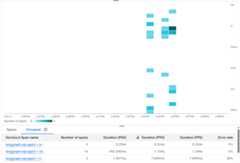
To view the generative AI events, use theTrace Explorer page:
In the Google Cloud console, go to theTrace explorer page:
You can also find this page by using the search bar.
In the toolbar, selectAdd filter, selectSpan name, and thenselect
invoke agent.TheRun sample section included an example execution wheretwo prompts are sent to application. The following illustrates theTrace Explorer page after filtering the data:
If you've never used Cloud Trace before, then Google Cloud Observability needs tocreate a database to store your trace data. The creation of the databasecan take a few minutes and during that period, no trace data is availableto view.
To explore your span and log data, in theSpans table, select a span.
TheDetails page opens. This page displays the associated trace and itsspans. The table on the page displays detailed information for thespan you selected. This information includes the following:
TheInputs/Outputs tab displays events forgenerative AI agents. To learn more about these events, seeView generative AI events.
The following screenshot illustrates a trace, where one span has thename
invoke_agent. That span invokes Gemini.The Gemini span includesgenerative AI events: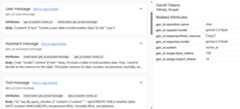
TheLogs & Events tab lists log entries and events that areassociated with the span. If you want to view the log data inthe Logs Explorer, then in the toolbar of this tab, selectView logs.
The log data includes the response of the LangGraph agent. For example,for the sample run, the JSON payload includes the following content:
{ logName: "projects/my-project/logs/otel_python_inprocess_log_name_temp" jsonPayload: { message: { role: "model" content: [ 0: { text: "Okay, I'll create a table to hold weather data. First, I need to decide on the schema for the table. I'll include columns for date, location, temperature, humidity, and precipitation. CREATE TABLE weather ( date DATE, location VARCHAR(255), temperature REAL, humidity REAL, precipitation REAL ); " } ] } index: 0 }...}
The sample is instrumented to send metric data to your Google Cloud project, but itdoesn't generate any metrics.
Except as otherwise noted, the content of this page is licensed under theCreative Commons Attribution 4.0 License, and code samples are licensed under theApache 2.0 License. For details, see theGoogle Developers Site Policies. Java is a registered trademark of Oracle and/or its affiliates.
Last updated 2025-12-17 UTC.