

Identify transactions that might cause high latencies
This page describes how to use Lock insights and Transaction insights toidentify transactions that lead to high latencies.
Overview
To ensure the consistency of multiple concurrent transactions,Spanner useslocks tocontrol access to the data. Lock contention occurs when many transactionsrequire frequent access to the same lock, leading to high latencies. Without avisual interface, it can be tedious to identify the problematic transactionsthat lead to a high number of lock contention issues.
Spanner operations acquire locks when the operations are part ofaread-write transaction.Read-only transactions don't acquire locks.
Spanner helps you identify transactions that lead to high latencies byguiding you through the following steps:
- Check for a spike in latencies using Spanner Monitoring.
- Check for lock contention issues using Lock insights.
- Identify problematic transactions using Transaction insights.
Pricing
There is no additional cost for Lock insights or Transaction insights.
Region configurations
Lock insights and Transaction insights are available in both regional andmulti-region configurations.
Data retention
The maximum data retention for the data that's shown on the Lock insightsand Transaction insights dashboards is 30 days. For graphs, data is retrieved fromSPANNER_SYS.* tables, which have a maximum retention period of 30 days.
For more information about these tables and data retention, seeLockstatistics andTransactionstatistics.
Required roles
You need different IAM roles and permissions depending on whether you are an IAM user or a fine-grained access control user.
Identity and Access Management (IAM) user
To get the permissions that you need to view the Lock and Transaction insights page, ask your administrator to grant you the following IAM roles on the instance:
- All:
- Cloud Spanner Viewer (
roles/spanner.viewer) - Cloud Spanner Database Reader (
roles/spanner.databaseReader)
- Cloud Spanner Viewer (
roles/spanner.databaseReader) role are required to view the Lock and Transaction insights page:spanner.databases.beginReadOnlyTransactionspanner.databases.selectspanner.sessions.create
Fine-grained access control user
If you are a fine-grained access control user, ensure that you:
- Have theCloud SpannerViewer(
roles/spanner.viewer)- Only have fine-grained access control privileges and are granted the
spanner_sys_readersystem role or one of its member roles.
- Only have fine-grained access control privileges and are granted the
- Select the
spanner_sys_readeror a member roles as your current systemrole on the database overview page.
spanner.databases.select, the Google Cloud console assumes you are anIAM user. You cannot select thespanner_sys_reader on thedatabase overview page as an IAM user.For more information, seeAbout fine-grained access control andFine-grained access control system roles.
Check for a spike in latencies using Spanner Monitoring
You can use Cloud Monitoring toset alerts for metrics that exceed specifiedthresholds for all requests.
If you get an alert that indicates a spike in the latencies for an instance, youcan confirm it on theSpannerMonitoring dashboard, which shows charts forvarious important metrics. TheLatency chart helps you view high latenciesat the 50th and 99th percentiles.
To confirm a spike in write latencies at the 99th percentile, follow thesesteps:
In the Google Cloud console, go to theSpanner Instances page.
Click the name of the instance.
The Google Cloud console displays an overview of the instance.
ClickMonitoring on the navigation menu.
The Google Cloud console displays charts of data for the instance.
On theLatency chart, setFunction to
WriteandPercentile to99th.Check the refreshed chart to check if it shows any spikes.
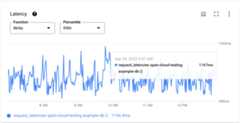
If you observe that CPU utilization is not spiking and errors spike inoperations per second, it's probable that latency spikes are due to the lockcontentions.
Check for lock contention issues using Lock insights
The Lock insights dashboard helps you view the lock wait time in aninstance or a selected database. It can help you confirm if high latencies aredue to lock contentions.
Check for high lock wait time
To check for high lock wait time, follow these steps:
ClickLock insights on the navigation menu.
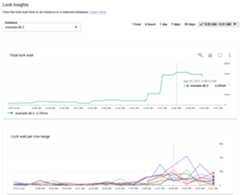
The Google Cloud console displays theTotal lock wait chart, whichshows the lock wait time for each database in the instance.
The data shown is for
1 hourby default, as the time selector at theupper-right corner of the Lock insights dashboard shows. To see datafor a wider range, select another option, such as1 day.For more information, seeWorking withcharts.
From theDatabases selector at the top, select the database that showsthe highest lock wait time.
TheTotal lock wait chart refreshes to show data only for the selecteddatabase.
Additionally, another chart,Lock wait per row range, displays graphsfor lock wait time byrowranges.
Note: An increase in total lock wait time without corresponding entries inthetopN queries table, might becaused by locks from internal Spanner system tables (forexample, for session management operations).Click the graph and drag horizontally to expand the hour where a latencyspike is visible.
Analyze the lock wait data
TheLock Insights table shows the following columns from theSPANNER_SYS.LOCK_STATS systemtables:
- Row range start key: The row key where the lock conflict occurred. Whenthe conflict involves a range of rows, the value represents the start key of therange. A plus sign (
+) signifies a range. - Lock wait: The total lock wait time visually represented on a horizontalbar. By default, the table uses this column for sorts and shows the rowrange start key with the highest lock wait time at the top.
- Lock wait (seconds): The cumulative lock wait time of lock conflictsrecorded for all columns in the row key range, in seconds.
- Lock wait (%): The wait time of the lock conflicts recorded for allcolumns in the row key range as a percentage of the total lock wait time forall row key ranges in the database.
To correlate the data on theLock wait per row range chart with the data inthe table, select a line. The related row appears highlighted. Conversely,select the checkbox for a row in the table to see the related line on the chart.
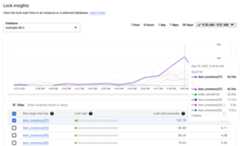
To filter the data in the table, do the following:
Click in the field next toFilter.
Select a property, select an operator, and specify a value.
The table shows data matching the filter.
View sample lock requests
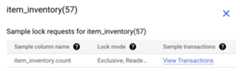
TheSample lock requests panel shows details about sample lock requests fromcontending transactions.
Note: TheSample lock requests panel is enabled only for GoogleSQL-dialect databases andnot for PostgreSQL-dialect databases.To view sample lock request information for a row range start key, click therelated link in the table.
The table shows the following columns of information:
- Sample column name: The column that encountered the lock conflict on therow key range.
- Lock mode: The requestedlockmode.
- View transactions: A link to theTransaction insights page, whichshows the transactions that might be contending for locks.
Identify contending transactions using Transaction insights
The Transaction insights dashboard helps you view the latency in transactions onan instance or a selected database. It can help you identify the transactionsthat might be leading to high latencies due to lock contentions.
View the latencies of transactions
To view the latency of transactions, follow these steps:
ClickTransaction insights on the left navigation.
From theDatabases selector at the top, select the database that showsthe highest lock wait time.
Alternatively, in the Lock insights dashboard, clickViewtransactions to filter transactions reading or writing to a specificsample column.
The data shown is for
1 hourby default, as the time selector at theupper-right corner of the Transaction insights dashboard shows.
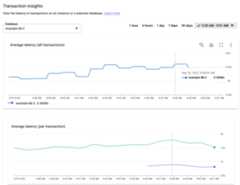
The dashboard shows the following charts:
TheAverage latency (all transactions) chart displays the latency forall transactions in the instance.
TheAverage latency (per transaction) chart displays the latency foreach transaction for the selected database.
Analyze the transaction data
You can view and analyze data for each transaction in the table below thecharts. The table shows metrics data from theSPANNER_SYS.TXN_STATSsystem tables in the following columns:
- Fingerprint: The hash of the transaction tag, if it exists. Otherwise,the hash is calculated based on the operations involved in the transaction.The value is a link that leads to theTransaction Details page.
- Transaction tag: The optionaltransaction tagfor the transaction. Statistical data for multiple transactions that have thesame tag string is grouped in a single row with the
TRANSACTION_TAGlabelmatching the tag string. - Tables affected: The tables affected by the transaction.
- Table.column Read: The columns that the transaction read from.
- Table.column Written: The columns that the transaction wrote to.
- Avg latency (seconds): Average seconds taken to perform the transaction.By default, the table is sorted by this column in descending order.
To correlate the data on theAverage latency (per transaction) chart withthe data in the table, select a line on the chart. The corresponding row in thetable appears highlighted.
To filter the data in the table, do the following:
Click next toFilter.
Select a property, select an operator, and specify a value.
The table shows data matching the filter.
Note: When you reach the Transaction insights page by clicking theView transactions link on the Lock insights page, the table appearswith filters already applied.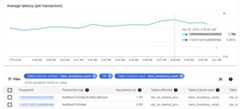
View detailed information about a transaction
To view detailed information about a transaction, such as the one showing thehighest latency, click theFingerprint link on the respective row in thetable.
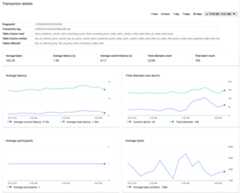
TheTransaction details page appears. Besides the details table at the top,it shows the following information:
A bar showing numeric values for each of these metrics:
- Average bytes: The average number of bytes written by thetransaction.
- Average latency: The average seconds taken from the first operationof the transaction to commit or abort.
- Average commit latency: The average seconds taken to perform thecommit operation.
- Total attempt count: The total number of transaction attempts.
- Total abort count: The total number of transaction attempts thatwere aborted, including those that are aborted before calling thetransaction's commit method.
Charts depicting these values.
Additionally, theAverage participants chart shows the average number ofparticipantsin each commit attempt.
Investigate if the transaction shape can be optimized to reduce latencies.Consider applying the recommended practices toreduce lockcontention.
What's Next
Except as otherwise noted, the content of this page is licensed under theCreative Commons Attribution 4.0 License, and code samples are licensed under theApache 2.0 License. For details, see theGoogle Developers Site Policies. Java is a registered trademark of Oracle and/or its affiliates.
Last updated 2025-12-15 UTC.