

Monitor instances with system insights
This document describes how to use the system insights dashboard to monitorSpanner instances and databases.
About system insights
The system insights dashboard displays scorecards and charts with respect to aselected instance or database, and provides measures of latencies, CPUutilization, storage, throughput, and other performance statistics. You can viewcharts for selectable time periods, ranging from the past 1 hour to thepast 30 days.
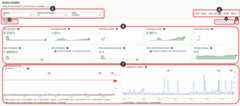
The system insights dashboard includes the following sections, with numberscorresponding to the following UI screenshot:
- Insight selectors: Select the databases,instance partitions, andregions that populate the dashboard. System insights shows instancepartitions and region selections when multiple instance partitions orregions are available in the instance.
- Time range filter: Filter statistics by a time range, such ashours, days, or a custom range.
- Dashboard selector: Select user-customized views, or reset systeminsights to the defaultpredefined view.
- Annotations: Select insight alert event types toannotate charts.
- Customize dashboards: Customize the appearance, placement, and contentof dashboard widgets and the system insights dashboard. Thisdocument describes the predefined dashboard presentation.
- Scorecards: Display statistics at a point of time, over theselected period.
- Charts: Display charts of CPU utilization, throughput, latencies,storage use, and more. Insight alerts set byAnnotationsappear on charts with bell icons.
Required roles
To get the permissions that you need to view or modify insights dashboards, including custom dashboards, ask your administrator to grant you the following IAM roles on the project:
- To create and edit custom dashboards:Monitoring Dashboard Configuration Editor (
roles/monitoring.dashboardEditor) - To open and view Metrics Explorer charts:Monitoring Dashboard Configuration Viewer (
roles/monitoring.dashboardViewer) - To create and edit Metrics Explorer alerts:Monitoring Editor (
roles/monitoring.editor)
For more information about granting roles, seeManage access to projects, folders, and organizations.
These predefined roles contain the permissions required to view or modify insights dashboards, including custom dashboards. To see the exact permissions that are required, expand theRequired permissions section:
Required permissions
The following permissions are required to view or modify insights dashboards, including custom dashboards:
- To create custom dashboards:
monitoring.dashboards.create - To edit custom dashboards:
monitoring.dashboards.update - To view custom dashboards:
monitoring.dashboards.get, monitoring.dashboards.list
You might also be able to get these permissions withcustom roles or otherpredefined roles.
Customize the system insights dashboard
The system insights dashboard is a predefined dashboard that you cancustomize to display the information that is most important to you. You can addnew charts, change the layout, and filter the data to focus on specificresources.
Changes to the system insights dashboard are non-destructive, and can be resetby setting thedashboard selector toPredefined.
Modify the dashboard
To modify the dashboard, clickCustomize dashboards.The following options are available to you:
- Add a widget: In the dashboard toolbar, clickAdd widget, select thewidget you want to add, and then configure it.
- Edit a widget: Hover over a widget to show its toolbar, then clickEdit. You can change the widget'stype and customize the data it displays.
- Clone a widget: Hover over a widget to show its toolbar,clickMore chart options,thenClone widget.
- Delete a widget: Hover over a widget to show its toolbar,clickMore chart options,thenDelete widget.
- Change the layout: You can drag widgets to reposition them and dragtheir corners to resize them.
- Name the custom view: You can set the custom view name in theCustom view name box.
- Save the dashboard: You can save the custom view by clickingSave. You canalso quit without saving by clickingExit edit mode.
System insights scorecards, charts, and metrics
The system insights dashboard provides the following charts and metrics to showan instance's current and historical status. Most charts and metrics areavailable at the instance level. You can also view many charts and metrics for asingle database within an instance.
Available Scorecards
| Name | Description |
|---|---|
| CPU utilization | Total CPU use within an instance orselected database. In a dual-region ormulti-region instance, this metric representsthe mean of CPU utilization across regions. |
| Latency (p99) | P99 latency (99th percentile) for read andwrite operations within an instance orselected database, representing the timewithin which 99% of these operations complete. |
| Latency (p50) | P50 latency (50th percentile) for read andwrite operations within an instance orselected database, representing the timewithin which 50% of these operations complete. |
| Throughput | Amount of uncompressed data that was readfrom, or written to the instance or databaseeach second. This value is measured inbinary bytes, such as KiB, MiB, or GiB. |
| Operations per second | Number of operations per second (rate) ofread and writes within an instance orselected database. |
| Storage utilization | At the instance level it is the totalstorage utilization percentage within aninstance. At the database level this isthe total storage used for the selecteddatabase. |
Available charts and metrics
The following is a chart for a sample metric, CPU utilization by operation type:
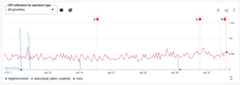
The toolbar on each chart provides the following standard options. Someelements are hidden unless you hold the pointer over the chart.
To zoom into a particular section of a chart, drag your pointer across thesection that you want to view. This action sets a custom time range, which youcan adjust or revert with the time range filter.
To view a description of the chart and its data, clickhelp.
To view the filters and groupings that are applied to the chart, clickinfo.
To create an alert based on the chart's data, clickadd_alert.
To explore the data in the chart, clickquery_stats.
To view additional chart options, clickmore_vertMore chart options.
To view a chart in full-screen mode, clickView in full screen.You can exit full screen by clickingCancel or pressingEsc.
To expand or collapse the chart legend, clickExpand/Collapse chart legend.
To download the chart, clickDownload, and then select a downloadformat.
To change the visual format of the chart, clickMode, and then select aview mode.
To view the metric inMetrics Explorer,clickView in Metrics Explorer. You can view otherSpanner metrics in the Metrics Explorer after selectingtheSpanner Database resource type.
The following table describes the charts that appear by default on the systeminsights dashboard. The metric type for each chart is listed. The metric typestrings follow this prefix:spanner.googleapis.com/.Metrictypedescribes measurements that can be collected from a monitored resource.
| Chart name and metric type | Description | Available for instances | Available for databases |
|---|---|---|---|
Dual-region quorum health timeline instance/dual_region_quorum_availability | This chart is only shown fordual-region instance configurations. It shows the health of three quorums: the dual-region quorum ( Global), and the single region quorum in each region (for example,Sydney andMelbourne).It shows an orange bar in the timeline when there is a service disruption. You can hover over the bar to see the start and end times of the disruption. Use this chart alongside the error rates and latency metrics to help you make self-managed, when-to-failover decisions in the case of regional failures. For more information, seeFailover and failback. To failover and failback manually, seeChange dual-region quorum. | done | done |
CPU utilization by priority instance/cpu/utilization_by_priority | The percentage of the instance's CPU resources for high, medium,low, or all tasks by priority. These tasks include requests that youinitiate and maintenance tasks that Spanner must completepromptly. For dual-region or multi-region instances, metrics are grouped by the regionand priority. Learn more about high-priority tasks. Learn more about CPU utilization. | done | close |
CPU utilization by region instance/cpu/utilization_by_priority | Utilization of CPU in the selected instance or database, grouped by region. | done | done |
CPU utilization by database instance/cpu/utilization_by_priority | Utilization of CPU in the selected instance, grouped by database and region. | done | close |
CPU utilization by user/system instance/cpu/utilization_by_priority | Utilization of CPU in the selected instance or database, grouped byuser and system tasks, and by priority. | done | done |
CPU utilization by operation type instance/cpu/utilization_by_operation_type | A stacked chart of CPU utilization as a percentage of theinstance's CPU resources, grouped by user-initiated operations suchas reads, writes, and commits. Use this metric to get a detailedbreakdown of CPU usage and to troubleshoot further, as explained inInvestigate high CPU utilization. You can further filter by priority of the tasks using theoption list. For dual-region or multi-region instances, metrics in the line chart show themean percentage among regions. | done | done |
CPU utilization (rolling 24-hour average) instance/cpu/smoothed_utilization | A rolling average of totalCPUSpanner utilization, as a percentage of the instance's CPUresources, for each database. Each data point is an average for the previous 24hours. | done | close |
Latency api/request_latencies | The amount of time that Spanner took to handle a read or writerequest. Thismeasurement begins when the Spanner receives a request, and itends when the Spanner starts to send a response. You can view latency metrics for the 50th and 99th percentilelatencies by using the option list. | close | done |
Latency by database api/request_latencies | The amount of time that Spanner took to handle a read or writerequest, grouped by database. Thismeasurement begins when Spanner receives a request, and it endswhen Spanner starts to send a response. You can view metrics for the 50th and 99th percentile latency byusing the view list on this chart. | done | close |
Latency by API method api/request_latencies | The amount of time that Spanner took to handle a request, groupedby Spanner API methods. This measurement begins whenSpanner receives a request, and it ends whenSpanner starts to send a response. You can view metrics for the 50th and 99th percentile latenciesby using the view list on this chart. | close | done |
Transaction latency api/request_latencies_by_transaction_type | The amount of time that Spanner took to process a transaction.You can select to view metrics for read-write and read-only typetransactions. The major difference between the Latency chart and theTransaction latency chart is that the Transaction latency chartlets you see the leader involvement for the read-only type. Reads thatinvolve the leader might experience higher latency. You can use thischart to evaluate if you should use stale reads without communicatingwith the leader, assuming thetimestamp boundis at least 15 seconds. For read-write transactions, theleader is always involved in the transaction, so the data shown onthe chart always includes the time it took for the request to reachthe leader and receive a response. The location corresponds to the region of theCloud Spanner API frontend. You can view metrics for the 50th and 99th percentile latenciesby using the view list on this chart. | close | done |
Transaction latency by database api/request_latencies_by_transaction_type | The amount of time that Spanner took to process a transaction. The major difference between the Latency chart and theTransaction latency by database chart is that the Transaction latencyby database chart lets you see the leader involvement for theread-only type. Reads that involve the leader might experience higher latency.You can use this chart to evaluate if you should use stale reads withoutcommunicating with the leader, assuming thetimestamp boundis at least 15 seconds. For read-write transactions, theleader is always involved in the transaction, so the data shown onthe chart always includes the time it took for the request to reachthe leader and receive a response. The location corresponds to the region of theCloud Spanner API frontend. You can view metrics for the 50th and 99th percentile latenciesby using the view list on this chart. | done | close |
Transaction latency by API method api/request_latencies_by_transaction_type | The amount of time that Spanner took to process a transaction. The major difference between the Latency chart and theTransaction latency by API method chart is that the Transactionlatency by API method chart lets you see the leaderinvolvement for the read-only type. Reads which involve the leader mightexperience higher latency. You can use this chart to evaluate if youshould use stale reads without communicating with the leader,assuming thetimestamp boundis at least 15 seconds. For read-write transactions, theleader is always involved in the transaction so the data shown on thechart always include the time it took for the request to reach theleader and receive a response. The location corresponds to the region of theCloud Spanner API frontend. | close | done |
Operations per second api/api_request_count | The number of read and write operations that Spanner performs persecond, or the number of Spanner server errorsper second. You can choose which operations to view in this chart:
| close | done |
Operations per second by database api/api_request_count | The number of read and write operations that Spanner performs persecond, or the number of Spanner server errorsper second. This chart is grouped by database. You can choose which operations to view in this chart:
| done | close |
Operations per second by API method api/api_request_count | The number of operations that Spanner performed persecond, grouped by Spanner API method | close | done |
Throughput api/sent_bytes_count(read) api/received_bytes_count(write) | The amount of uncompressed data read from and writtento the database each second. This value is measured in binarybytes, such as KiB, MiB, or GiB. Read throughput includes requests and responses for methods inthereadAPI and for SQL queries. It also includes requests and responsesfor DML statements. Write throughput includes requests and responses to commit datathrough themutation API.It excludes requests and responses for DML statements. | close | done |
Throughput by database api/sent_bytes_count(read) api/received_bytes_count(write) | The amount of uncompressed data read from and writtento the instance each second, grouped by database. This value is measured inbinary bytes, such as KiB, MiB, or GiB. Read throughput includes requests and responses for methods inthereadAPI and for SQL queries. It also includes requests and responsesfor DML statements. Write throughput includes requests and responses to commit datathrough themutation API.It excludes requests and responses for DML statements. | done | close |
Throughput by API method api/sent_bytes_count(read) api/received_bytes_count(write) | The amount of uncompressed data that was read from, or writtento, the instance or database each second, grouped by API method. This value ismeasured in binary bytes, such as KiB, MiB, or GiB. Read throughput includes requests and responses for methods inthereadAPI and for SQL queries. It also includes requests and responsesfor DML statements. Write throughput includes requests and responses to commit datathrough themutation API.It excludes requests and responses for DML statements. | close | done |
Total storage instance/storage/used_bytes | The amount of data that is stored in the database.This value is measured in binary bytes, such as KiB, MiB, or GiB. | close | done |
Total database storage by database instance/storage/used_bytes | The amount of data that is stored in the instance, grouped bydatabase.This value is measured in binary bytes, such as KiB, MiB, or GiB. | done | close |
Total backup storage instance/backup/used_bytes | The amount of data that is stored in the backups that areassociated with the database. This value ismeasured in binary bytes, such as KiB, MiB, or GiB. | close | done |
Lock wait time lock_stat/total/lock_wait_time | Lock wait time for a transaction is the time needed to acquire alock on a resource held by another transaction. Total lock wait time forlockconflicts is recorded for the entire database. | close | done |
Lock wait time by database lock_stat/total/lock_wait_time | Lock wait time for a transaction is the time needed to acquire alock on a resource held by another transaction, grouped by database. Total lock wait time forlockconflicts is recorded for the entire instance. | done | close |
Total backup storage by database instance/backup/used_bytes | The amount of data that is stored in the backups that are associated with theinstance, grouped by database. This value is measured in binarybytes, such as KiB, MiB, or GiB. | done | close |
Compute capacity instance/processing_units instance/nodes | Thecompute capacityis the amount of processing units or nodes available inan instance. You can choose to display the capacity in processingunits or in nodes. | done | close |
Leader distribution instance/leader_percentage_by_region | For dual-region or multi-region instances, you can view the number of databaseswith the majority of leaders (>=50%) in a given region. Under theRegions list menu, if you select a specificregion, the chart shows the total number of databases within thatinstance that have the selected region as the leader region. If youselectAll regions under theRegions list menu, the chart shows one line foreach region, and each line shows the total number of databases in theinstance that has that region as its leader region. For databases in a dual-region or multi-region instance, you can view thepercentage of leaders grouped by region. For example, if a database has fiveleaders, one in us-west1 and four inus-east1 at apoint-in-time, the "All regions" chart shows two lines (one per region). Oneline forus-west1 is at 20%, and the other line forus-east1 is at 80%. The us-west1 chart shows onesingle line at 20%, and the us-east1 chart shows one single line at 80%.Note that if a database was recently created or a leader regionwas recently modified, the charts might not stabilize rightaway. This chart is only available for dual-region and multi-region instances. | done | done |
Peak split CPU usage score instance/peak_split_peak | The maximum peak split CPU usage observed across all splits in a database.This metric shows the percentage of the processing unit resources that arebeing used on a split. A percentage of over 50% is a warm split, which meansthat the split is using half of the host server's processing unit resources. Apercentage of 100% is a hot split, which is a split that's using the majority ofthe host server's processing unit resources. Spanner usesload-based splitting to resolve hotspots and balance the load. However,Spanner might not be able to balance the load, even aftermultiple attempts at splitting, due to problematic patterns in the application.Hence, hotspots that lasts for at least 10 minutes might needfurther troubleshooting and could potentially require application changes. Formore information, seeFind hotspots in splits. | done | done |
Remote service calls query_stat/total/remote_service_calls_count | Count of remote service calls, grouped by the service and response codes. Responds with an HTTP response code, such as 200 or 500. | done | done |
Latency: Remote service calls query_stat/total/remote_service_calls_latencies | The latency of the remote service calls, grouped by service. You can view latency metrics for the 50th and 99th percentile latenciesby using the option list. | done | done |
Remote service processed rows query_stat/total/remote_service_processed_rows_count | Count of rows processed by a remote service, grouped by the servicer andresponse codes. Responds with an HTTP response code, such as 200 or 500. | done | done |
Latency: Remote service rows query_stat/total/remote_service_processed_rows_latencies | Count of rows processed by a remote service, grouped by the service andresponse codes. You can view latency metrics for the 50th and 99th percentilelatencies by using the option list. | done | done |
Remote service network bytes query_stat/total/remote_service_network_bytes_sizes | Network bytes exchanged with the remote service, grouped by service anddirection. This value is measured in binary bytes, such as KiB, MiB, or GiB. Direction refers to traffic being sent or received. You can view metrics for the 50th and 99th percentile of network bytesexchange by using the option list. | done | done |
Micro service calls query_stat/total/remote_service_calls_count | Number of micro service calls, grouped by micro service and response code. | done | done |
Latency: Micro service calls query_stat/total/remote_service_calls_latencies | Latencies of micro service calls, grouped by micro service. | done | done |
Database storage by table (none) | The amount of data that is stored in the instance or database, grouped by tablesin the selected database.This value is measured in binary bytes, such as KiB, MiB, or GiB. This chart obtains its data by querying SPANNER_SYS.TABLE_SIZES_STATS_1HOUR. For more information, seeTable sizes statistics. | close | done |
Most-used tables by operations (none) | The 15 most used tables and indexes in the instance or database, determined bythe number of read or write or delete operations. This chart obtains its data by querying the table operations statistics tables.For more information, seeTable operations statistics. | close | done |
Least-used tables by operations (none) | The 15 least used tables and indexes in the instance or database, determined bythe number of read or write or delete operations. This chart obtains its data by querying the table operations statistics tables.For more information, seeTable operations statistics. | close | done |
Managed autoscaler charts and metrics
In addition to the options shown in the previous section, when an instance hasmanaged autoscaler enabled, the compute capacity chart has theView Logs button. When you click this button, it displays logs from themanaged autoscaler.
The following metrics are available for instances that have the managedautoscaler enabled.
| Metric name and type | Description |
|---|---|
| Compute capacity | With nodes selected. |
instance/autoscaling/min_node_count | Minimum number of nodes autoscaler is configured to allocate to the instance. |
instance/autoscaling/max_node_count | Maximum number of nodes autoscaler is configured to allocate to the instance. |
instance/autoscaling/recommended_node_count_for_cpu | Recommended number of nodes based on the CPU usage of the instance. |
instance/autoscaling/recommended_node_count_for_storage | Recommended number of nodes based on the storage usage of the instance. |
| Compute capacity | With processing units selected. |
instance/autoscaling/min_processing_units | Minimum number of processing units autoscaler is configured to allocate to the instance. |
instance/autoscaling/max_processing_units | Maximum number of processing units autoscaler is configured to allocate to the instance. |
instance/autoscaling/recommended_processing_units_for_cpu | Recommended number of processing units. This recommendation is based on the previous CPU usage of the instance. |
instance/autoscaling/recommended_processing_units_for_storage | Recommended number of processing units to use. This recommendation is based on the previous storage usage of the instance. |
| CPU utilization by priority | |
instance/autoscaling/high_priority_cpu_utilization_target | High priority CPU utilization target to use for autoscaling. |
| Total storage | With processing units selected. |
instance/storage/limit_bytes | Storage limit for the instance in bytes. |
instance/autoscaling/storage_utilization_target | Storage utilization target to use for autoscaling. |
Tiered storage charts and metrics
The following metrics are available for instances that usetiered storage.
| Metric name and type | Description |
|---|---|
| instance/storage/used_bytes | Total bytes of data stored on SSD and HDD storage. |
| instance/storage/combined/limit_bytes | Combined SSD and HDD storage limits. |
| instance/storage/combined/limit_per_processing_unit | Combined SSD and HDD storage limit for each processing unit. |
| instance/storage/combined/utilization | Combined SSD and HDD storage used, compared to the combined storage limit. |
| instance/disk_load | HDD load use. |
Data retention
The maximum data retention for most metrics on the system insights dashboard is6 weeks. However, for theDatabase storage by table chart, the data is consumed from theSPANNER_SYS.TABLE_SIZES_STATS_1HOURtable (instead of Spanner), which has a maximum retention of 30 days.SeeData retentionto learn more.
View the system insights dashboard
To view the system insights page, you need the following Identity and Access Management(IAM) permissions in addition to theSpannerpermissions andSpanner permissions at the instance and database levels:
spanner.databases.beginReadOnlyTransactionspanner.databases.selectspanner.sessions.create
For more information about Spanner IAMpermissions, seeAccess control with IAM.
If you enablemanaged autoscaler on yourinstance, you also needlogging.logEntries.list,logging.logs.list, andlogging.logServices.list permissions to view managed autoscaler logs.
For more information about this permission, seePredefined roles.
To view the system insights dashboard, follow these steps:
In the Google Cloud console, open the list of Spannerinstances.
Do one of the following:
To see metrics for an instance, click the name of the instance that youwant to learn about, then clickSystem insights in the navigation menu.
To see metrics for a database, click the name of the instance,select a database, then clickSystem insights in the navigation menu.
Optional: To view historical data for a different time period, find thebuttons at the top right of the page, then click the time period that you wantto view.
Optional: To control what data appears in the chart, click one of thelists in the chart. For example, if the instance uses adual-region or multi-region configuration, some charts provide alist to view data for a specific region. Not all charts have viewlists.
What's next
- Understand theCPU utilization andlatencymetrics for Spanner.
- Set up customized charts and alerts withMonitoring.
- Get details abouttypes of Spanner instances.
Except as otherwise noted, the content of this page is licensed under theCreative Commons Attribution 4.0 License, and code samples are licensed under theApache 2.0 License. For details, see theGoogle Developers Site Policies. Java is a registered trademark of Oracle and/or its affiliates.
Last updated 2025-12-15 UTC.