

Insert and modify data using the Google Cloud console
The Google Cloud console provides an interface for inserting, editing, and deletingdata in a Spanner table.
Find a table
To get started, select to view a Spanner table in theGoogle Cloud console.
Go to theSpanner page in the Google Cloud console.
Click the name of an instance. The instance overview page is displayed.
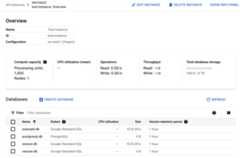
Under theDatabases list on this page, click the name of a database.
UnderTables, click the name of a table.
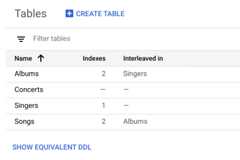
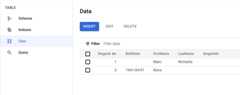
In the left pane of the Google Cloud console, clickData.
Insert data
Note: Spanner Studio (formerly labeledQuery in the Google Cloud console)supports SQL, DML, and DDL operations in a single editor. For more information,seeManage your data using the Google Cloud console.On the table'sData page, clickInsert.
The Google Cloud console displays the table's Spanner Studio pagewith a new query tab containing template
INSERTandSELECTstatementsthat you edit to insert a row in the table and view the result of thatinsertion.Edit the
INSERTstatement to the values you want, and edit theSELECTstatement'sWHEREclause to match the primary key value of the row you areinserting.SeeINSERT statement andLiterals for information about the syntaxSpanner supports.
ClickRun.
Spanner runs the statements.
Edit data
On the table'sData page, select the row you want toedit, then clickEdit.
The Google Cloud console displays the table'sSpanner Studio pagewith a new query tab containing template
UPDATEandSELECTstatementsthat you edit to update the row in the table and view the result of thatupdate.Note that theWHEREclauses of both statements denote the row you selectedto edit.Edit the
UPDATEstatement to reflect the updates you want to make.SeeUPDATE statement andLiterals for information about the syntaxSpanner supports.
ClickRun.
Spanner runs the statements.
Delete data
Note: Deleting a row will also delete its child rows if the child rows haveONDELETE CASCADE enabled. However, if the child rows do not have this settingenabled, you will first have to delete all the child rows in order to delete theparent row.On the table'sData page, select one or more rows that you want to delete,then clickDelete.
Need help finding a row? Type its primary key into the filter box.
In the dialog that appears after you clickDelete, clickCONFIRM.
The Google Cloud console displays the data from your table, which nolonger contains the deleted rows.
For an interactive example of inserting and modifying data in a Spannertable, see theQuickstart using the console.
Except as otherwise noted, the content of this page is licensed under theCreative Commons Attribution 4.0 License, and code samples are licensed under theApache 2.0 License. For details, see theGoogle Developers Site Policies. Java is a registered trademark of Oracle and/or its affiliates.
Last updated 2025-12-15 UTC.