

Use the Spanner index advisor
This page describes the Spanner index advisor and how you can view andapply its index recommendations. The index advisor is available forGoogleSQL-dialect databases and PostgreSQL-dialect databases.
The Spanner index advisor analyzes your queries to recommend newor altered indexes that can improve your query performance. You can view theindex advisor's recommendations in the Google Cloud console using either of thefollowing approaches:
- Run a query and view itsquery execution plan
- Use the SpannerQuery insights dashboard
To view theCREATE INDEX andALTER INDEX recommendations, you canuse the Google Cloud console.
For more information about Spanner indexes, seeSecondary indexes.
Limitations
Spanner index advisor has the following limitations:
Only provides
CREATE INDEXandALTER INDEXrecommendations. Doesn'tprovideDROP INDEXrecommendations for existing indexes.An index recommendation is only shown if it provides a noticeable performancebenefit.
If you are afine-grained access control user or if you don'thave DDL access, you can't execute index recommendation DDL statements. Youcan copy and save the recommendation.
Use the query execution plan
To view and apply index advisor recommendations from a query's execution plan,follow these steps.
View recommendations
To view the query execution plan, run a query in the Google Cloud console:
Go to the SpannerInstances page inGoogle Cloud console.
Select the instance that contains the database that you want to query.
Select the name of the database you want to query.
In the navigation menu, clickSpanner Studio.
Open a new SQL editor tab.
In the editor pane, enter your SQL query.
ClickRun.
After the query has finished running, to see the query execution plan, clicktheExplanation tab.
The information panel shows detailed information about the query. IfSpanner determines that a new or altered index can improveyour query performance, then an index recommendations card is displayed.
To view the index recommendation DDL statement, in theIndex recommendationcard, clickView details to view the index.
Apply recommendations
The Spanner index recommendation provides completeCREATE INDEXandALTER INDEX DDL statements for recommended indexes.
To apply the index advisor's recommendation, copy and run the index advisor'sDDL statement into the Spanner Studio editor exactly as presented.
In theIndex recommendation pane, select the checkbox next to the DDLstatements that you want to copy.
ClickCopy to new tab.
In the new Spanner Studio editor tab, run the copied DDL statement.
Use the Query insights dashboard
To view and apply index advisor recommendations from the Query insightsdashboard, follow these steps.
View recommendations
Go to the SpannerInstances page inGoogle Cloud console.
Select the name of the instance containing the database you want to query.
Select the name of the database you want to query.
In the navigation menu, clickQuery insights.
View theTopN queries and tags table.
The table shows aRecommendation column. If Spannerdetermines that a new or altered index can improve your query performance,then an index recommendation is displayed. To view what this lookslike in the Google Cloud console, seeIdentify a potentially problematic query or request tag.
To view the index recommendation DDL statement, clickIndex recommendation.
Apply recommendations
The Spanner index recommendation provides completeCREATE INDEXandALTER INDEX DDL statements for recommended indexes.
To apply the index advisor's recommendation, copy and run the index advisor'sDDL statement into the Spanner Studio editor exactly as presented.
In theIndex recommendation pane, select the DDL statements you want tocopy.
Spanner generates recommendations for TopN queries every 12hours for the TopN queries executed in the preceding 12 hours. TheIndex recommendation pane displays a record of how long ago it was lastrefreshed.
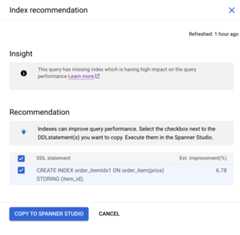
ClickCopy to Spanner Studio.Google Cloud console displays theSpanner Studio editor.
If you are a fine-grained access control user, you don't see theCopy toSpanner Studio button, and you can't run the DDL statement.
In the Spanner Studio editor, run the copied DDL statement.
What's next
Learn more about Spannersecondary indexes.
Learn moreSQL best practices.
Learn how toTroubleshoot performance regressions.
Except as otherwise noted, the content of this page is licensed under theCreative Commons Attribution 4.0 License, and code samples are licensed under theApache 2.0 License. For details, see theGoogle Developers Site Policies. Java is a registered trademark of Oracle and/or its affiliates.
Last updated 2025-12-15 UTC.