

Autoscaler tool overview
This page introduces the Autoscaler tool for Spanner (Autoscaler), anopen source tool that youcan use as a companion tool to Spanner. This toollets you automatically increase or reduce the compute capacity in one or moreSpanner instances based on how much capacity is in use.
For more information about scaling in Spanner, seeAutoscaling Spanner. Forinformation about deploying the Autoscaler tool, see the following:
- Deploy the Autoscaler tool for Spanner to Cloud Run functions.
- Deploy the Autoscaler tool for Spanner to Google Kubernetes Engine (GKE).
This page presents the features, architecture, and high-level configurationof the Autoscaler. These topics guide you through the deployment of theAutoscaler to one of the supported runtimes in each of the different topologies.
Autoscaler
The Autoscaler tool is useful for managing the utilization and performance of yourSpanner deployments. To help you to balance cost control withperformance needs, the Autoscaler tool monitors your instances and automaticallyadds or removes nodes or processing units to help ensure that they stay withinthe following parameters:
Plus or minus a configurablemargin.
Autoscaling Spanner deployments enables your infrastructure toautomatically adapt and scale to meet load requirements with little to nointervention. Autoscaling also right-sizes the provisioned infrastructure, whichcan help you to minimize incurred charges.
Architecture
The Autoscaler has two main components, thePoller and theScaler.Although you can deploy the Autoscaler with varying configurations to multipleruntimes in multiple topologies with varying configurations, the functionalityof these core components is the same.
This section describes these two components and their purposes in more detail.
Poller
ThePoller collects and processes the time-series metrics for one ormore Spanner instances. The Poller preprocesses the metrics data foreach Spanner instance so that only the most relevant data points areevaluated and sent to the Scaler. The preprocessing done by the Poller alsosimplifies the process of evaluating thresholds for regional, dual-region, andmulti-regional Spanner instances.
Scaler
TheScaler evaluates the data points received from the Poller component, anddetermines whether you need to adjust the number of nodes or processing unitsand, if so, by how much. Thecompares the metric values to the threshold, plus or minus an allowedmargin,and adjusts the number of nodes or processing units based on the configuredscaling method. For more details, seeScaling methods.
Throughout the flow, the Autoscaler tool writes a summary of its recommendationsand actions toCloud Logging for tracking and auditing.
Autoscaler features
This section describes the main features of the Autoscaler tool.
Manage multiple instances
The Autoscaler tool is able to manage multiple Spanner instances acrossmultiple projects. Multi-regional, dual-region, and regional instances all havedifferent utilization thresholds that are used when scaling. For example,multi-regional and dual-region deployments are scaled at 45% high-priority CPUutilization, whereas regional deployments are scaled at 65% high-priority CPUutilization, both plus or minus an allowedmargin.For more information on the different thresholds for scaling, seeAlerts for high CPU utilization.
Independent configuration parameters
Each autoscaled Spanner instance can have one or more pollingschedules. Each polling schedule has its own set of configuration parameters.
These parameters determine the following factors:
- The minimum and maximum number of nodes or processing units that control howsmall or large your instance can be, helping you to control incurred charges.
- Thescaling method used to adjust your Spanner instance specific to your workload.
- Thecooldown periods to let Spanner manage data splits.
Scaling methods
The Autoscaler tool provides three different scaling methods for up and downscaling your Spanner instances:stepwise,linear, anddirect. Each method is designed to support different types of workloads.You can apply one or more methods to each Spanner instance beingautoscaled when you create independent polling schedules.
The following sections contain further information on these scaling methods.
Stepwise
Stepwise scaling is useful for workloads that have small or multiple peaks. Itprovisions capacity to smooth them all out with a single autoscaling event.
The following chart shows a load pattern with multiple load plateaus or steps,where each step has multiple small peaks. This pattern is well suited for thestepwise method.
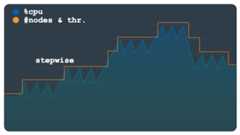
When the load threshold is crossed, this method provisions and removes nodes orprocessing units using a fixed but configurable number. For example, three nodesare added or removed for each scaling action. By changing the configuration, youcan allow for larger increments of capacity to be added or removed at any time.
Linear
Linear scaling is best used with load patterns that change more gradually orhave a few large peaks. The method calculates the minimum number of nodes orprocessing units required to keep utilization below the scaling threshold. Thenumber of nodes or processing units added or removed in each scaling event isnot limited to a fixed step amount.
The sample load pattern in the following chart shows large, sudden increases anddecreases in load. These fluctuations are not grouped in discernible steps asthey are in the previous chart. This pattern might be better handled usinglinear scaling.
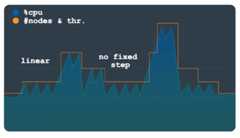
The Autoscaler tool uses the ratio of the observed utilization over theutilization threshold to calculate whether to add or subtract nodes orprocessing units from the current total number.
The formula to calculate the new number of nodes or processing units is asfollows:
newSize = currentSize * currentUtilization / utilizationThreshold
Direct
Direct scaling provides an immediate increase in capacity. This method isintended to support batch workloads where a predetermined higher node count isperiodically required on a schedule with a known start time. This method scalesthe instance up to the maximum number of nodes or processing units specified inthe schedule, and is intended to be used in addition to a linear or stepwisemethod.
The following chart depicts the large planned increase in load, which Autoscalerpre-provisioned capacity for using the direct method.
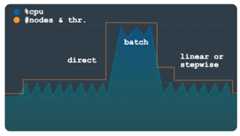
Once the batch workload has completed and utilization returns to normal levels,depending on your configuration, either linear or stepwise scaling is applied toscale the instance down automatically.
Configuration
The Autoscaler tool has different configuration options that you can use tomanage the scaling of your Spanner deployments. Though theCloud Run functions and GKE parametersare similar, they are supplied differently. For more information onconfiguring the Autoscaler tool, seeConfiguring a Cloud Run functions deployment andConfiguring a GKE deployment.
Advanced configuration
The Autoscaler tool has advanced configuration options that let you more finelycontrol when and how your Spanner instances are managed. The followingsections introduce a selection of these controls.
Custom thresholds
The Autoscaler tool determines the number of nodes or processing units to beadded or subtracted to an instance using therecommended Spanner thresholds for the following load metrics:
- High priority CPU
- 24-hour rolling average CPU
- Storage utilization
We recommend that you use the default thresholds as described inCreating alerts for Spanner metrics.However, in some cases you might want to modify the thresholds used bythe Autoscaler tool. For example, you could use lower thresholds to make theAutoscaler tool react more quickly than for higher thresholds. This modificationhelps to prevent alerts being triggered at higher thresholds.
Custom metrics
While the default metrics in the Autoscaler tool address most performance andscaling scenarios, there are some instances when you might need to specify yourown metrics used for determining when to scale in and out. For these scenarios,you define custom metrics in the configuration using themetrics property.
Margins
A margin defines an upper and a lower limit around the threshold. The Autoscalertool only triggers an autoscaling event if the value of the metric is more thanthe upper limit or less than the lower limit.
The objective of this parameter is to avoid autoscaling events being triggeredfor small workload fluctuations around the threshold, reducing the amount of fluctuation in Autoscaler actions. The threshold and margin together define thefollowing range, according to what you want the metric value to be:
[threshold - margin, threshold + margin]
The smaller the margin, the narrower the range, resulting in a higherprobability that an autoscaling event is triggered.
Specifying a margin parameter for a metric is optional, and it defaults to fivepercentage points both preceding and below the parameter.
Data splits
Spanner assigns ranges of data calledsplits to nodes or subdivisionsof a node called processing units. The node or processing units independentlymanage and serve the data in the apportioned splits. Data splits are createdbased on several factors, including data volume and access patterns. For moredetails, seeSpanner - schema and data model.
Note: Spanner charges you each hour for the maximum number of nodes orprocessing units that exist during that hour, multiplied by the hourly rate. Asa result, any nodes or processing units that you provision are billed for aminimum of one hour. We don't recommend that you optimize your Autoscalerconfiguration for intra-hour scale-ins. For more information, see theSpanner pricing overview.Data is organized into splits and Spanner automatically manages thesplits. So, when the Autoscaler tool adds or removes nodes or processing units,it needs to allow the Spanner backend sufficient time to reassign andreorganize the splits as new capacity is added or removed from instances.
The Autoscaler tool uses cooldown periods on both scale-up and scale-down eventsto control how quickly it can add or remove nodes or processing units from aninstance. This method allows the instance the necessary time to reorganize therelationships between compute notes or processing units and data splits. Bydefault, the scale-up and scale-down cooldown periods are set to the followingminimum values:
- Scale-up value: 5 minutes
- Scale-down value: 30 minutes
For more information about scaling recommendations and cooldown periods, seeScaling Spanner Instances.
Pricing
The Autoscaler tool resource consumption is minor in terms of compute, memory,and storage. Depending on your configuration of the Autoscaler, when deployedto Cloud Run functions the Autoscaler's resource utilization is usuallyin theFree Tier of itsdependent services (Cloud Run functions, Cloud Scheduler,Pub/Sub, and Firestore).
Note: This analysis doesn't include incurred charges for theSpanner instances that are managed by the Autoscaler.These charges include only the components of the Autoscaler. See theSpanner pricing pagefor more information on pricing for Spanner instances.Use thePricing Calculator to generate a cost estimate of your environments, based on your projected usage.
What's next
- Learn how todeploy the Autoscaler tool to Cloud Run functions.
- Learn how todeploy the Autoscaler tool to GKE.
- Read more about Spannerrecommended thresholds.
- Read more about SpannerCPU utilization metrics andlatency metrics.
- Learn aboutbest practices for Spanner schema design to avoid hotspots and for loading data into Spanner.
- Explore reference architectures, diagrams, and best practices about Google Cloud.Take a look at ourCloud Architecture Center.
Except as otherwise noted, the content of this page is licensed under theCreative Commons Attribution 4.0 License, and code samples are licensed under theApache 2.0 License. For details, see theGoogle Developers Site Policies. Java is a registered trademark of Oracle and/or its affiliates.
Last updated 2025-12-17 UTC.