

Manage discovery scan configurations
This page describes how to create, view, pause, resume, edit, and delete anexistingdiscovery scanconfiguration.
Adiscovery scan configuration (sometimes calleddiscovery configuration orscan configuration) specifies how Sensitive Data Protection should profileyour data. For more information, seeDiscovery scanconfiguration.
Create a scan configuration
For information about how to create an organization-level or project-leveldiscovery scan configuration, see the following pages:
| Discovery type | Create an organization-level scan configuration | Create a project-level scan configuration1 |
|---|---|---|
| Discovery for BigQuery data | Profile BigQuery data in an organization or folder | Profile BigQuery data in a single project |
| Discovery for Cloud SQL data | Profile Cloud SQL data in an organization or folder | Profile Cloud SQL data in a single project |
| Discovery for Cloud Storage data | Profile Cloud Storage data in an organization or folder | Profile Cloud Storage data in a single project |
| Discovery for Vertex AI data | Profile Vertex AI data in an organization or folder | Profile Vertex AI data in a single project |
| Discovery for Amazon S3 data | Discovery for Amazon S3 data | Not applicable |
| Discovery for Azure Blob Storage data | Discovery for Azure Blob Storage data | Not applicable |
| Secrets discovery (no profiles generated) | Configure secrets discovery at the organization level | Configure secrets discovery at the project level |
1 Not suitable for customers who have an organization-level discoverysubscription, such as one provided through Security Command Center
View a scan configuration
Go to the discovery scan configurations list.
Make sure you're viewing the correct organization or project:
- To manage a discovery scan configuration that you created at theorganization or folder level, view the organization.
- To manage a discovery scan configuration that you created at the projectlevel, view the project.
- To manage a discovery scan configuration for single data resource, view theproject that contains the resource.
To switch to a different view, on the toolbar, click the project selector.Select the organization or project that you want to view.
To open theScan configuration details page, click the name of theresource associated with the scan configuration.
Pause a scan configuration
Go to the discovery scan configurations list.
Make sure you're viewing the correct organization or project:
- To manage a discovery scan configuration that you created at theorganization or folder level, view the organization.
- To manage a discovery scan configuration that you created at the projectlevel, view the project.
- To manage a discovery scan configuration for single data resource, view theproject that contains the resource.
To switch to a different view, on the toolbar, click the project selector.Select the organization or project that you want to view.
ClickActions,and then clickPause scan.
As long as a scan configuration is paused, Sensitive Data Protection doesn'tgenerate any new profiles under that configuration.
Resume a scan configuration
Go to the discovery scan configurations list.
Make sure you're viewing the correct organization or project:
- To manage a discovery scan configuration that you created at theorganization or folder level, view the organization.
- To manage a discovery scan configuration that you created at the projectlevel, view the project.
- To manage a discovery scan configuration for single data resource, view theproject that contains the resource.
To switch to a different view, on the toolbar, click the project selector.Select the organization or project that you want to view.
ClickActions,and then clickResume scan.
Edit a scan configuration
If you edit a scan configuration that has already been used to profiletables, you might end up having different tables scanned according todifferent configurations.
To edit a scan configuration, follow these steps:
Go to the discovery scan configurations list.
Make sure you're viewing the correct organization or project:
- To manage a discovery scan configuration that you created at theorganization or folder level, view the organization.
- To manage a discovery scan configuration that you created at the projectlevel, view the project.
- To manage a discovery scan configuration for single data resource, view theproject that contains the resource.
To switch to a different view, on the toolbar, click the project selector.Select the organization or project that you want to view.
ClickActions,and then clickEdit.
Edit the configuration as needed. For more information, see the documentslisted inCreate a scan configuration on this page.
ClickSave.
Delete a scan configuration
Deleting a scan configuration doesn't delete the data profiles that havebeen generated through it. In addition, deleting a scan configuration andcreating a new one doesn't cause a reprofile operation on tables that are in thescope of the new scan configuration.
Sensitive Data Protection reprofiles data as described inFrequency of data profilegeneration. You can customize the profiling frequency in your scan configuration bycreating a schedule.To force the discovery service to reprofile your data, seeForce a reprofileoperation.
For information on how long Sensitive Data Protectionretains data profiles, seeRetention of data profiles.
To delete a scan configuration, follow these steps:
Go to the discovery scan configurations list.
Make sure you're viewing the correct organization or project:
- To manage a discovery scan configuration that you created at theorganization or folder level, view the organization.
- To manage a discovery scan configuration that you created at the projectlevel, view the project.
- To manage a discovery scan configuration for single data resource, view theproject that contains the resource.
To switch to a different view, on the toolbar, click the project selector.Select the organization or project that you want to view.
ClickActions,and then clickDelete.
To confirm the deletion, in the dialog that appears, clickDelete.
View configuration errors
Go to the discovery scan configurations list.
Make sure you're viewing the correct organization or project:
- To manage a discovery scan configuration that you created at theorganization or folder level, view the organization.
- To manage a discovery scan configuration that you created at the projectlevel, view the project.
- To manage a discovery scan configuration for single data resource, view theproject that contains the resource.
To switch to a different view, on the toolbar, click the project selector.Select the organization or project that you want to view.
Click the name of the resource associated with the scan configuration. TheScan configuration details page appears.
If there are errors in your configuration, theScan status field showsView errors.
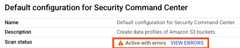
ClickView errors. TheErrors pane appears. For each error, thefollowing details are provided:
- Date and time the error was detected
- Error code
- Detailed error message
For certain types of errors, aRepair button might be available.
If aRepair button is available and if you have resolved the cause of theerror, clickRepair. Sensitive Data Protection retries processing thescan configuration and resolves the error if all requirements are met.
What's next
- Learn more aboutdata profiles.
- Learn how toprofile data in a project.
- Learn how toprofile data in an organization or folder.
- Learn how totroubleshoot issues with data profiles.
- Refer to a list ofmetrics included in data profiles.
Except as otherwise noted, the content of this page is licensed under theCreative Commons Attribution 4.0 License, and code samples are licensed under theApache 2.0 License. For details, see theGoogle Developers Site Policies. Java is a registered trademark of Oracle and/or its affiliates.
Last updated 2025-12-17 UTC.