

Analyzing and reporting on Sensitive Data Protection scan findings
Sensitive Data Protection helps you find, understand, and manage the sensitivedata that exists within your infrastructure. Once you've scanned your contentfor sensitive data using Sensitive Data Protection, you have several optionsfor what to do with that data intelligence. This topic shows you how toleverage the power of other Google Cloud features such as BigQuery,Cloud SQL, and Looker Studio to:
- Store Sensitive Data Protection scan results directly inBigQuery.
- Generate reports on where sensitive data resides in your infrastructure.
- Run rich SQL analytics to understand where sensitive data is stored andwhat kind it is.
- Automate alerts, or actions to trigger based on a single set or acombination of findings.
This topic also contains a complete example of how to useSensitive Data Protection along with other Google Cloud features toaccomplish all of these things.
Note: This example demonstrates how to interact withDLP API using the REST API and JSON objects. TheDLP API client libraries provide wrappers over the REST API,and are available in several supported programming languages. For moreinformation, seeDLP API Client Libraries.Scan a storage bucket
First, run a scan on your data. Following is basic information about how to scanstorage repositories using Sensitive Data Protection. For full instructions onscanning storage repositories, including the use of client libraries, seeInspecting Storage and Databases for SensitiveData.
To run a scan operation on aGoogle Cloud storage repository, assemble a JSON object that includesthe following configuration objects:
InspectJobConfig:Configures the Sensitive Data Protection scan job, and consists of:StorageConfig:The storage repository to scan.InspectConfig:How and what to scan for. You can also use an inspection template todefine the inspection configuration.Action:Task(s) to execute on the completion of the job. This can includesaving findings to a BigQuery table or publishing anotification to Pub/Sub.
In this example, you're scanning a Cloud Storage bucket for person names,phone numbers, US Social Security numbers, and email addresses. Then you sendthe findings to a BigQuery table dedicated to storingSensitive Data Protection output. The following JSON can be saved to a file orsent directly to thecreatemethod of theDlpJobSensitive Data Protection resource.
JSON Input:
POSThttps://dlp.googleapis.com/v2/projects/[PROJECT_ID]/dlpJobs{"inspectJob":{"inspectConfig":{"infoTypes":[ { "name":"PERSON_NAME" }, { "name":"PHONE_NUMBER" }, { "name":"US_SOCIAL_SECURITY_NUMBER" }, { "name":"EMAIL_ADDRESS" }],"includeQuote":true},"storageConfig":{"cloudStorageOptions":{"fileSet":{"url":"gs://[BUCKET_NAME]/**"}}},"actions":[ { "saveFindings":{ "outputConfig":{ "table":{ "projectId":"[PROJECT_ID]", "datasetId":"[DATASET_ID]", "tableId":"[TABLE_ID]"}}}}]}}By specifying two asterisks (**) after the Cloud Storage bucketaddress (gs://[BUCKET_NAME]/**), you're instructing thescan job to scan recursively. Placing a single asterisk (*) would instructthe job to scan only the specified directory level and no deeper.
The output will be saved to the specified table within the given dataset andproject. Subsequent jobs that specify the given table ID append findingsto the same table. You could also leave out a"tableId"key if you want to instruct Sensitive Data Protection to create a newtable every time the scan is run.
After you send this JSON in a request to theprojects.dlpJobs.createmethod via the specified URL, you get the following response:
JSON Output:
{"name":"projects/[PROJECT_ID]/dlpJobs/[JOB_ID]","type":"INSPECT_JOB","state":"PENDING","inspectDetails":{"requestedOptions":{"snapshotInspectTemplate":{},"jobConfig":{"storageConfig":{"cloudStorageOptions":{"fileSet":{"url":"gs://[BUCKET_NAME]/**"}}},"inspectConfig":{"infoTypes":[ { "name":"PERSON_NAME" }, { "name":"PHONE_NUMBER" }, { "name":"US_SOCIAL_SECURITY_NUMBER" }, { "name":"EMAIL_ADDRESS" }],"minLikelihood":"POSSIBLE","limits":{},"includeQuote":true},"actions":[ { "saveFindings":{ "outputConfig":{ "table":{ "projectId":"[PROJECT_ID]", "datasetId":"[DATASET_ID]", "tableId":"[TABLE_ID]" } } } } ] } } }, "createTime":"2018-11-19T21:09:07.926Z"}Once the job has completed, it saves its findings to the givenBigQuery table.
To get the status of the job, call theprojects.dlpJobs.getmethod, or send a GET request to the following URL, replacing[PROJECT_ID]with your project ID and[JOB_ID] with the job identifier given in theCloud Data Loss Prevention API's response to the job creation request (the job identifier willbe preceded by a "i-"):
GEThttps://dlp.googleapis.com/v2/projects/[PROJECT_ID]/dlpJobs/[JOB_ID]For the job you just created, this request returns the following JSON. Noticethat a summary of the results of the scan are returned after the inspectiondetails. If the scan hadn't yet completed, its"state" key would specify"RUNNING".
JSON Output:
{"name":"projects/[PROJECT_ID]/dlpJobs/[JOB_ID]","type":"INSPECT_JOB","state":"DONE","inspectDetails":{"requestedOptions":{"snapshotInspectTemplate":{},"jobConfig":{"storageConfig":{"cloudStorageOptions":{"fileSet":{"url":"gs://[BUCKET_NAME]/**"}}},"inspectConfig":{"infoTypes":[ { "name":"PERSON_NAME" }, { "name":"PHONE_NUMBER" }, { "name":"US_SOCIAL_SECURITY_NUMBER" }, { "name":"EMAIL_ADDRESS" }],"minLikelihood":"POSSIBLE","limits":{},"includeQuote":true},"actions":[ { "saveFindings":{ "outputConfig":{ "table":{ "projectId":"[PROJECT_ID]", "datasetId":"[DATASET_ID]", "tableId":"[TABLE_ID]" } } } } ] } }, "result":{ "processedBytes":"536734051", "totalEstimatedBytes":"536734051", "infoTypeStats":[ { "infoType":{ "name":"PERSON_NAME" }, "count":"269679" }, { "infoType":{ "name":"EMAIL_ADDRESS" }, "count":"256" }, { "infoType":{ "name":"PHONE_NUMBER" }, "count":"7" } ] } }, "createTime":"2018-11-19T21:09:07.926Z", "startTime":"2018-11-19T21:10:20.660Z", "endTime":"2018-11-19T22:07:39.725Z"}Run analytics in BigQuery
Now that you've created a new BigQuery table with the resultsof your Sensitive Data Protection scan, the next step is to run analytics on thetable.
On the left side of the Google Cloud console under Big Data, clickBigQuery.Open your project and your dataset, and then locate the new table that wascreated.
You can run SQL queries on this table to find out more about what theSensitive Data Protection found within your data bucket. For example, run thefollowing to count all the scan results by infoType, replacing theplaceholders with the appropriate real values:
SELECTinfo_type.name,COUNT(*)ASiCountFROM`[PROJECT_ID].[DATASET_ID].[TABLE_ID]`GROUPBYinfo_type.nameThis query results in a summary of findings for that bucket that might looksomething like the following:

Create a report in Looker Studio
Looker Studio enables you to create custom reports that can bebased on BigQuery tables. In this section, you create a simpletable report in Looker Studio that is based onSensitive Data Protection findings stored in BigQuery.
- OpenLooker Studio and start a new report.
- ClickCreate New Data Source.
- From the list of Connectors, clickBigQuery. If necessary, authorize Looker Studio to connect to your BigQuery projects by clickingAuthorize.
- Now, choose which table to search, and then clickMy Projects orShared Projects, depending on where your project resides. Find your project, dataset, and table in the lists on the page.
- ClickConnect to run the report.
- ClickAdd to Report.
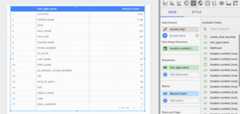
Now you'll create atable that displaysthe frequency of each infoType. Select the fieldinfo_type.name as theDimension. The resulting table will look similar to the following:
Next steps
This is just the start of what you can visualize usingLooker Studio and the output from Sensitive Data Protection.You can add in other charting elements and drill-down filters to createdashboards and reports. For more information about what is available inLooker Studio, see theLooker Studio ProductOverview.
Except as otherwise noted, the content of this page is licensed under theCreative Commons Attribution 4.0 License, and code samples are licensed under theApache 2.0 License. For details, see theGoogle Developers Site Policies. Java is a registered trademark of Oracle and/or its affiliates.
Last updated 2025-12-17 UTC.