

Setting up custom scans using Web Security Scanner
Schedule and run custom scans on a deployed application usingWeb Security Scanner in the Google Cloud console. Web Security Scanner supports scansfor public URLs and IPs that aren't behind a firewall.
Important: The managed scans that are included with the Security Command CenterPremium tier are separate from Web Security Scanner custom scans. Custom scansare more thorough than default managed scans and provide granular informationabout application vulnerability findings. This page provides more informationabout custom scans.Before you begin
To set up custom scans using Web Security Scanner:
- You must have a deployed application on a public URL or IP. Web Security Scanner only supports websites using IPv4. Websites using IPv6 are not scanned.
- You must have Security Command Center enabled.
Before you scan, carefully audit your application for any feature that mayaffect data, users, or systems beyond the chosen scope of your scan.
Because Web Security Scanner populates fields, pushes buttons, clicks links, andother interaction, you should use it with caution. Web Security Scanner mightactivate features that change the state of your data or system, with undesirableresults. For example:
- In a blog application that allows public comments, Web Security Scanner might posttest strings as comments on all your blog articles.
- In an email sign-up page, Web Security Scanner might generate large numbers oftest emails.
For tips about how to minimize risk, seebest practices to prevent unintendedconsequences.
Enable Web Security Scanner
Enable Web Security Scanner in Security Command Center to create and run customscans.
IfSecurity Command Center is active, youcan enable Web Security Scanner in the Google Cloud console on theSecurity Command CenterSettings page
Step 1: Deploying a test application
To complete Web Security Scanner setup for custom scans, you need the URL of aCompute Engine, Google Kubernetes Engine (GKE), or App Engine applicationthat is already deployed. If you don't have a deployed application, or if youwant to try out Web Security Scanner with a test application, deploy the testApp Engine application. Use the language of your choice:
Step 2: Assign IAM roles
To run a Web Security Scanner scan, you must have one of the followingIdentity and Access Management (IAM) roles for the project you want to scan:
- Editor
- Owner
To add one of these roles:
Go to theIAM & Admin page in theGoogle Cloud console.
Click theProject selector drop-down list.
On theSelect from dialog that appears, select the project that you wantto scan using Web Security Scanner.
On theIAM page, next to your username, clickEdit.
On theEdit permissions panel that appears, clickAdd another role,and then select one of the following roles:
- Project >Owner
- Project >Editor
When you're finished adding roles, clickSave.
Learn more aboutWeb Security Scanner roles.
Step 3: Run a scan
When you set up a scan, it's queued to run later. Depending on current load, itmight be several hours before a scan executes. To create, save, and run a scan:
Go to theWeb Security Scanner page in the Google Cloud console.
Select the project that contains the deployed application you want to scan.
To set up a new scan, clickNew scan:
On theCreate a new scan page that loads, set the following values:
- UnderStarting URLs, enter the URL of the application you want toscan.
- UnderSchedule, selectWeekly.
- UnderNext run on, select a date.
The box toExport to Security Command Center is automatically checked. If you'veenabled Web Security Scanner as a Security Command Centersecurity source, scan resultsappear on theFindings page in the Google Cloud console.
For this first scan, use the default scan without changing any other valueson theCreate a new scan page. For more information about scan settings,seeScanning an app.
To create the scan, clickSave.
On the Web Security Scanner page, click the scan name to load its overviewpage, and then clickRun scan.
The scan will be queued, and then it will run at a future time.It might take several hours before the scan runs.
The scan overview page displays a results section when the scan completes.The following image shows example scan results when no vulnerabilities aredetected:
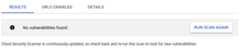
If you've enabled Web Security Scanner as a Web Security Scannersecurity source,scan results are also displayed on the Google Cloud console.
To display details about a specific finding, click the finding name inthe scan results.
You have now completed a basic Web Security Scanner scan. If you scanned yourown application, learn how to customize the scan in thescanning an app section on this page.
If you deployed a test application to run the scan, complete the followingclean up step on this page to avoid incurring App Enginecharges for the application.
Step 4: Cleaning up
Scanning an app
Set up a custom scan for your app using a test account.
Step 1: Creating a test account
When you scan your app, it's best to use a test account that doesn't have accessto sensitive data or harmful operations. Create a test account that can sign into your app. Note the login credentials to provide for authentication whencreating a scan. The credentials enable you to use the test account to scandata.
Step 2: Creating a scan
Go to theWeb Security Scanner page in the Google Cloud console.
ClickSelect, and then select a project that already has anApp Engine, Compute Engine, or GKEapplication deployed.
To display the new scan form, clickCreate scan orNew scan.
To add values to the new scan form, use the following table as a guide:
Field Description Starting URLs A basic site usually requires only one starting URL, like the home, main, or landing page for the site, from which Web Security Scanner can find all other site pages. However, Web Security Scanner might not find all pages if a site has:
- Many pages
- Islands of unconnected pages
- Navigation that requires complex JavaScript like a mouseover-driven multilevel menu
In such cases, specify more starting URLs to increase scan coverage.
Excluded URLs To reduce complexity, exclusions are defined using a simplified proto-language using one or more * wildcards, instead of requiring a valid regular expression. For details and sample valid patterns, seeExcluding URLs later on this page. Authentication > Google Account You can create a test account in Gmail and then use the account to scan your product. If you are a Google Workspace customer, you can create test accounts within your domain, for example,
test-account@yourdomain.com. In Web Security Scanner, these accounts work like Gmail accounts. Two factor authentication is not supported.Google enforces a real name policy on Google Accounts. If the name on your test account doesn't look real, the account might be blocked.
Authentication > Identity-Aware Proxy alpha To protect resources with Identity-Aware Proxy, see theIAP guide.
To use Web Security Scanner with an IAP-protected resource, first grant access to the Web Security Scanner service account:
- Go to the IAP page in the Google Cloud console.
- Select the project that you want to use with Web Security Scanner.
- Select the application resource you want to scan, and then clickAdd Principal on theInfo Panel.
- In theNew principals box on theAdd principals panel, enter the Web Security Scanner service account in the form of
service-project-number@gcp-sa-websecurityscanner.iam.gserviceaccount.com. - On theSelect a role drop-down list, selectCloud IAP > IAP Secured Web App User.
- When you're finished adding roles, clickSave.
Next, add the OAuth client ID to the scan. Web Security Scanner can only scan applications that are protected by a single OAuth Client ID. To add the OAuth client ID:
- Go to the IAP page in the Google Cloud console.
- Select the project that you want to use with Web Security Scanner.
- On theOverflow menu, selectEdit OAuth Client.
- On theClient ID for web application window that appears, copy theClient ID.
- Go to the Web Security Scanner page in the Google Cloud console.
- UnderAuthentication, selectIdentity-Aware Proxy alpha.
- In theOAuth2 Client ID box, paste the OAuth client ID that you copied, and then clickSave.
Authentication > Non-Google account Select this option if you have created your own authentication system and you aren't using Google Account services. Specify the login form's URL, the username, and the password. These credentials are used to sign in to your application and scan it.
Web Security Scanner attempts heuristics to sign in to your application, and scan it. Specifically, this method looks for a two field login-form that includes a
usernamefield andpasswordfield. The login action must result in an authentication cookie for the scanner to continue its scan.Common issues can cause custom login to fail include:
- Using non-standard HTML form fields, for example, not using a
passwordtype. - Using a complicated login form, for example, a form that has more than a single
usernameandpasswordfield. - Not saving an authentication cookie on successful login.
- In some situations, the scanner is denied by counter-measures that are meant to protect against bots, DDOS, and other attacks.
We recommend using Identity-Aware Proxy integration for the most consistent experience with authenticated scanning of applications.
Schedule You can set the scan to run daily, weekly, every two weeks, or every four weeks. It's best to create a scheduled scan to ensure that future versions of your application are tested. Also, because we occasionally release new scanners that find new bug types, running a scheduled scan offers more coverage without manual effort. Run scans from a predefined set of source IPs (Preview) Select this option to restrict scan traffic to a predefined set of IP addresses. This lets you enable the scanner to access applications behind a firewall, but may limit the scope of the scan. To modify your firewall rules to allow Web Security Scanner traffic, seeConfiguring the firewall later on this page. Export options Select this option to automatically export scan configurations and scan results to Security Command Center. Ignore HTTP status errors This option controls whether a high number of HTTP status errors—for example, **400 Bad Request**—during a scan will cause the scan to be reported as a failure. If the option is selected, status errors are ignored. If the option is not selected, and the percentage of status errors exceeds a predetermined threshold, the scan is reported as a failure. When you're finished adding values, clickSave. You can now run the newscan.
By default, Web Security Scanner uses randomly assigned IP addresses duringeach run. To make Web Security Scanner IP addresses predictable, completethe steps toenable scans from static IPs later on this page.
Step 3: Running a scan
To run a scan:
- Sign in to the test account that you used to create the scan.
Go to theWeb Security Scanner page in the Google Cloud console.
ClickSelect, and then select the project that you created the scan in.
UnderScan configs, click the name of the scan that you want to run.
On the scan details page, clickRun.
The scan is placed in a queue, and there might be a delay before it runs. It cantake several minutes or many hours to run, depending on the system load andfeatures like:
- Site complexity
- Number of actionable elements per page
- Number of links
- The amount of JavaScript on the site, including navigation
You can set up and run up to 10 different scans before you need to delete orclean up previously saved results.
Viewing custom scan results
The status and results of a custom scan are displayed on the scan details pagein the Google Cloud console. To view scan results:
- Sign in to the test account that you used to create the scan.
Go to theWeb Security Scanner page in the Google Cloud console.
ClickSelect, and then select the project that contains the scan thatyou want to review.
UnderScan configs, click the name of the scan that you want to review.
The scan details page loads and displays results from the most recent scan. If ascan is in progress, theResults tab displays the current completionpercent. To display results from previous scans, select the scan date and timefrom the drop-down list.
Details for completed custom scans include:
- TheResults tab displays a list of vulnerabilities the scan found, if any.
- TheURLs crawled tab displays a list of URLs that the scan checked.
TheDetails tab includes:
- Starting URLs
- Authentication
- User agent
- Maximum scan speed as queries per second (QPS)
You can find more information about the scan in the projectlogs page.
Editing a custom scan
To edit a custom scan:
- Sign in to the test account that you used to create the scan.
Go to theWeb Security Scanner page in the Google Cloud console.
ClickSelect, and then select the project that contains the scan thatyou want to edit.
UnderScan configs, click the name of the scan that you want to edit.
On the scan details page that appears, clickEdit.
On theEditing [scan name] page that appears, make changes that youwant, and then clickSave.
The edited custom scan runs when it's next scheduled, or you can manually run itto get updated results.
Deleting a custom scan
To delete one or more custom scans:
- Sign in to the test account that you used to create the scan.
Go to theWeb Security Scanner page in the Google Cloud console.
ClickSelect, and then select the project that contains the scan thatyou want to edit.
UnderScan configs, select the checkbox next to one or more scans thatyou want to delete.
ClickDelete, and then clickOk.
All scans that you selected are deleted.
Setting up a scan from static IPs
This feature is subject to the "Pre-GA Offerings Terms" in the General Service Terms section of theService Specific Terms. Pre-GA features are available "as is" and might have limited support. For more information, see thelaunch stage descriptions.
This section describes how to enable Web Security Scanner custom scans fromstatic IP addresses. When you enable this feature, Web Security Scanner usespredictable IP addresses to scan your public Compute Engine and Google Kubernetes Engineapplications. This feature is in Preview, and the Web Security Scanner IPaddresses might change in a future release.
Before you begin
To use the Web Security Scanner custom scans from static IPs feature, youneed:
- A public Compute Engine or GKE application. This featuredoesn't support App Engine applications.
- A scan created with no authentication, or with Google Account authentication.This feature doesn't support scans that use non-Google account authentication.
Step 1: Configuring the firewall
Go to the Firewall rules page in the Google Cloud console.
ClickSelect, and then select your project.
On theFirewall rules page that appears, clickCreate Firewall Rule.
On theCreate a firewall rule page, set the following values:
- Name: enter
web-security-scanneror a similar name. - Priority: select a higher priority (lower number value) than all ofthe rules that deny egress traffic to your application.
- Source IP ranges: enter
34.66.18.0/26and34.66.114.64/26. - Protocols and ports: selectAllow all or specify the protocolsand ports for your application. Usually, you can select thetcpcheckbox and then enter
80and443for the ports.
- Name: enter
When you're finished setting values, clickCreate.
Step 2: Configuring the scan
After you configure your firewall to allow the Web Security Scannerpredictable IP addresses, configure the scan to use predefined IPs:
Go to theWeb Security Scanner page in the Google Cloud console.
ClickSelect, and then select your project.
Create a new scan or edit an existing scan.
Select theRun scans from a pre-defined set of source IPs checkbox.
Save the scan.
The next time the scan runs, it will scan the public Compute Engine andGKE applications that are behind the firewall.
Excluding URLs
You can specify up to 100 excluded URL patterns to avoid testing sections of asite during a custom scan. Web Security Scanner doesn't request resources thatmatch any of the exclusions. The following sections describe the patternmatching that Web Security Scanner uses.
Note: A high number of excluded URL patterns can slow down your scans. Also,specifying more than 100 excluded URL patterns can cause Web Security Scannercustom scans to fail.URL pattern matching
Excluded URL matching is based on a set of URLs defined by match patterns. Amatch pattern is a URL with five segments:
scheme: for example,httpor*host: for example,www.google.comor*.google.comor*path: for example,/*,/foo*, or/foo/bar. *query: for example,?*,?*foo=bar*fragment: for example,#*,#access
Following is the basic syntax:
<exclude-pattern> := <scheme>://<host><path><query><fragment><scheme> := '*' | 'http' | 'https'<host> := '*' | '*.' <any char except '/' and '*'>+<path> := '/' <any chars except '?' or '#'><query> := '?' <any chars except '#'><fragment> := '#' <any chars>The* in each part has the following function:
scheme:*matches either HTTP or HTTPS.host:*matches any host*.hostnamematches the specified host and any of its subdomains.
path:*matches 0 or more characters.
All segments are not required in an excluded pattern.
- If the
schemesegment is not specified, it defaults to*://. - The
hostsegment must always be specified. If the
pathsegment is not specified, it defaults to:/*, ifqueryandfragmentsegments are not specified. This valuematches anypathor nopath./, or an emptypath, if either thequeryorfragmentsegment isspecified.
If the
querysegment is not specified, it defaults to:?*, if thefragmentsegment is not specified. This value matches anyqueryor noquery.?, or an emptyquery, if thefragmentis specified.
If the
fragmentsegment is not specified, it defaults to#*, which matchesanyfragmentor nofragment.
Valid Pattern Matches
The following table provides examples of valid patterns:
| Pattern | Behavior | Sample matching URLs |
|---|---|---|
http://*/* | Matches any URL that uses the HTTP scheme. |
|
http://*/foo* | Matches any URL that uses the HTTP scheme, on any host, if the path starts with/foo. |
|
https://*.google.com/foo*bar | Matches any URL that uses the HTTPS scheme and is on agoogle.com host — likewww.google.com,docs.google.com, orgoogle.com — if the path starts with/foo and ends withbar. |
|
http://example.org/foo/bar.html | Matches the specified URL. | http://example.org/foo/bar.html |
http://127.0.0.1/* | Matches any URL that uses the HTTP scheme and is on the host127.0.0.1. |
|
*://mail.google.com/* | Matches any URL that starts withhttp://mail.google.com orhttps://mail.google.com. |
|
*://*/foo*?*bar=baz* | Matches any URL where the path starts with/foo and has the query parameterbar=baz. | https://www.google.com/foo/example?bar=baz |
google.com/app#*open* | Matches any URL with agoogle.com host where the path starts with/app and has the fragmentopen. | https://www.google.com/app/example#open |
Invalid pattern matches
The following table provides examples of invalid patterns:
| Pattern | Reason |
|---|---|
http://www.google.com | The URL doesn't include a path. |
http://*foo/bar | * in the host must be followed by a. or/. |
http://foo.*.bar/baz | If* is in the host, it must be the first character. |
http:/bar | The URL is scheme separator isn't properly formed. The"/" should be"//". |
foo://* | The URL scheme is invalid. |
What's next
- Learn how toremediate Web Security Scanner findings.
Except as otherwise noted, the content of this page is licensed under theCreative Commons Attribution 4.0 License, and code samples are licensed under theApache 2.0 License. For details, see theGoogle Developers Site Policies. Java is a registered trademark of Oracle and/or its affiliates.
Last updated 2026-02-05 UTC.