

Remediating Security Command Center errors
This page provides a list of reference guides and techniques for remediatingSCC errors.
Before you begin
You need adequate Identity and Access Management (IAM) roles to view or editfindings, and to access or modify Google Cloud resources. If you encounterpermission errors when accessing Security Command Center in theGoogle Cloud console, ask your administrator for assistance. To learn aboutroles, seeAccess control. To resolveresource errors, read documentation for affected products.
Review findings in the Google Cloud console
SCC errors are configurationerrors that prevent Security Command Center from working as expected. TheSecurity Command Center source generates these findings.
As long as Security Command Center isset up for your organizationorproject,it generates error findings as it detects them. You can view SCC errorsin the Google Cloud console.
Use the following procedure to review findings in the Google Cloud console:
In the Google Cloud console, go to theFindings page of Security Command Center.
- Select your Google Cloud project or organization.
- In theQuick filters section, in theSource display name subsection, selectSecurity Command Center. The findings query results are updated to show only the findings from this source.
- To view the details of a specific finding, click the finding name in theCategory column. The details panel for the finding opens and displays theSummary tab.
- On theSummary tab, review the details of the finding, including information about what was detected, the affected resource, and—if available—steps that you can take to remediate the finding.
- Optional: To view the full JSON definition of the finding, click theJSON tab.
Deactivation of SCC errors after remediation
After you remediate anSCC error finding, Security Command Center automaticallysets the state of the finding toINACTIVE during the next scan. How long ittakes for Security Command Center to set the state of a remediated finding toINACTIVE depends on when you fix the finding and the schedule of the scan thatdetects the error.
For information about the scan frequency for anSCC error finding, see thesummary of the finding inError detectors.
Remediate SCC errors
This section includes remediation instructions for all SCC errors.
Caution: If done improperly, modifying the configuration of your resources can negatively affect your production environment. Also, enabling some suggested Google Cloud services can increase your cloud costs. Understand the impact of all remediation steps before making changes.API disabled
Category name in the API:API_DISABLED
One of the following services is disabled for the project:
The disabled service can't generate findings.
To remediate this finding, follow these steps:
- Review the finding to determine which API is disabled.
Enable the API:
Enable the Container Threat Detection API.
Enable the Web Security Scanner API.
Learn about this finding type'ssupported assets and scan settings.
APS no resource value configs match any resources
Category name in the API:APS_NO_RESOURCE_VALUE_CONFIGS_MATCH_ANY_RESOURCES
Resource value configurationsare defined for attack path simulations, but they don't match any resourceinstances in your environment. The simulations are using the default high-valueresource set instead.
Resource value configurations might not match any resources for the followingreasons, which are identified in the finding description inGoogle Cloud console:
- None of the resource value configurations match any resource instances.
- One or more resource value configurations that specify
NONEoverride everyother valid configuration. - All the defined resource value configurations specify a value of
NONE.
To remediate this finding, follow these steps:
Go to theAttack path simulation page in Security Command CenterSettings:
Select your organization. TheAttack path simulation page opens with theexisting configurations displayed.
In theResource value column of theResource value configurationslist, check for values of
None.For any configuration that specified
None, do the following:- Click the name of any resource value configuration to display theconfiguration specifications.
- If necessary,edit the resource attribute specificationsto reduce the number of resource instances that match the configuration.
If the problem is not caused by an overly broad
Nonespecification, do thefollowing:- Click the names of each configuration that specifies a value of
HIGH,MEDIUM, orLOWto display the resource attribute specifications. - Review and, necessary, edit the configuration to correct the scope,resource type, tag, or label specification to match the intendedresources.
- Click the names of each configuration that specifies a value of
If necessary,create a new resource value configuration.
Your changes are applied to the next attack path simulation.
Learn about this finding type'ssupported assets and scan settings.
APS resource value assignment limit exceeded
Category name in the API:APS_RESOURCE_VALUE_ASSIGNMENT_LIMIT_EXCEEDED
In the lastattack path simulation,the number of high-value resource instances, as identified by theResource value configurations,exceeded the limit of 1,000 resource instances in a high-valueresource set. As a result, Security Command Center excluded the excess number ofinstances from the high-value resource set.
To remediate this finding, you can try the following actions:
- Usetags orlabels to reduce the numberof matches for a given resource type or within a specified scope. The tags orlabels have to be applied to the resources instances before they can bematched by a resource value configuration.
Create a resource value configuration that assigns aresource value of
NONEto a subset of the resources that are specified in anotherconfiguration.Specifying a value of
NONEoverrides any other configurationsand excludes the resource instances from your high-value resource set.Reduce thescope resource attributespecification in the resource value configuration.
Delete resource value configurations that assign a value of
LOW.
For instructions on creating, editing, or deleting a resource valueconfiguration, seeDefine and manage your high-value resource set.
Learn about this finding type'ssupported assets and scan settings.
CIEM service account missing permissions
Enterprise tier only: This feature is available only with theSecurity Command Center Enterprise tier.
Category name in the API:CIEM_SERVICE_ACCOUNT_MISSING_PERMISSIONS
The service account that is used by the CIEM service is missingpermissions. CIEM cannot generate one or more finding categories.
To remediate this finding, restore the required IAM roles on theCIEM service account:
In the Google Cloud console, go to theIAM page.
Select your organization's CIEM service account. The serviceaccount's identifier is an email address with the following format:
service-org-ORGANIZATION_ID@gcp-sa-ciem.iam.gserviceaccount.comReplace
ORGANIZATION_IDwith your organization'snumerical ID.If you don't see the service account listed, clickGRANT ACCESS at thetop of the page and enter the service account as a new principal.
Grant the CIEM Service Agent role (
roles/ciem.serviceAgent)to the service account. If you use custom roles, make sure they include thefollowing permissions:cloudasset.assets.exportResourcecloudasset.assets.exportIamPolicy
ClickSave.
CIEM AWS CloudTrail configuration error
Enterprise tier only: This feature is available only with theSecurity Command Center Enterprise tier.
Category name in the API:AWS_CLOUDTRAIL_CONFIGURATION_ERROR
Either all or some CIEM AWS findings aren't being sent toSecurity Command Center. The AWS CloudTrail feed failed and is unable to successfullyfetch data due to a configuration error.
There are three possible causes for this finding:
Missing AWS CloudTrail feed
To fix this issue, create and configure a feed in Security Operations console toingest AWS CloudTrail logs. Set theIngestion label key-value pair to
CIEMandTRUE.For instructions on creating a feed, seeCreate the feedin the Google SecOps documentation.
Errors in feed configuration
Make sure you have configured the feed correctly.
To configure a feed, seeConfigure feed in Google Security Operations to ingest AWS logsin the Google SecOps documentation.
Incomplete AWS CloudTrail configuration
To fix this issue, set up the S3 bucket in your AWS CloudTrail configurationto log bothdata events andmanagement events from all AWS accountswhere you intend to use CIEM.
To set up CloudTrail, seeConfigure AWS CloudTrail (or other service)in the Google SecOps documentation.
GKE service account missing permissions
Category name in the API:GKE_SERVICE_ACCOUNT_MISSING_PERMISSIONS
Container Threat Detection can't generate findings for a Google Kubernetes Engine cluster, becausetheGKE default service account on the cluster is missingpermissions. This prevents Container Threat Detection from being successfully enabled onthe cluster.
To remediate this finding,restore the GKE default service account,and confirm that the service account has theKubernetes Engine Service Agent(roles/container.serviceAgent) role.
Learn about this finding type'ssupported assets and scan settings.
KTD blocked by admission controller
Category name in the API:KTD_BLOCKED_BY_ADMISSION_CONTROLLER
Container Threat Detection can't be enabled on a cluster because a third-party admissioncontroller is preventing the deployment of the requiredKubernetes DaemonSet object.
To remediate this finding, make sure that the admission controllers that arerunning on the cluster allow Container Threat Detection to create the requiredKubernetes objects.
Check the admission controller
Check to see if the admission controller in your cluster is denying thedeployment of the Container Threat Detection DaemonSet object.
In the finding description in finding details in the Google Cloud console,review the included error message from Kubernetes. The Kubernetes errormessage should be similar to the following message:
generic::failed_precondition: incompatible admission webhook:admission webhook "example.webhook.sh" denied the request:[example-constraint] you must provide labels: {"example-required-label"}.In the Admin Activity Cloud Audit Logs for the project that contains yourcluster, look for the error message shown in theDescription field ofthe finding details.
If your admission controller is working, but is denying the deployment ofthe Container Threat Detection DaemonSet object, configure your admission controllerto allow theservice agent for Container Threat Detectionto manage objects in the
kube-systemnamespace.The service agent for Container Threat Detection must be able to manage specificKubernetes objects.
For more information about using admission controllers with Container Threat Detection,seePodSecurityPolicy and Admission Controllers.
Confirm the fix
After you fix the error, Security Command Center automatically attempts to enableContainer Threat Detection. After waiting for enablement to complete, you can check ifContainer Threat Detection is active by using the following steps:
Go to Kubernetes EngineWorkloads page in the console.
If necessary, selectShow system workloads.
On theWorkloads page, filter the workloads first by the cluster name.
Look for the
container-watcherworkload. Ifcontainer-watcheris presentand its status showsOK, Container Threat Detection is active.
KTD image pull failure
Category name in the API:KTD_IMAGE_PULL_FAILURE
Container Threat Detection can't be enabled on the cluster because a required containerimage can't be pulled (downloaded) fromgcr.io, theContainer Registry image host.
The pulling or downloading of a container image can fail for any of multiplepossible reasons.
Check the following:
- Make sure that your VPC network, DNS, or firewall settings are not blockingnetwork access from the cluster to the
gcr.ioimage host. - If the cluster is private, make sure thatPrivate Google Accessis enabled to allow access to the
gcr.ioimage host. - If the network settings and Private Google Access are not the cause ofthe failure, see the GKE troubleshooting documentation for
ImagePullBackOffandErrImagePullerrors.
Learn about this finding type'ssupported assets and scan settings.
KTD service account missing permissions
Category name in the API:KTD_SERVICE_ACCOUNT_MISSING_PERMISSIONS
The Container Threat Detection service account that is identified in the finding detailsin the Google Cloud console is missing required permissions. Either all orsome Container Threat Detection findings are not being sent to Security Command Center.
To remediate this finding, follow these steps:
Grant theContainer Threat Detection Service Agentrole (
roles/containerthreatdetection.serviceAgent) to theservice account. For more information, seeGrant a single role.Alternatively, if you want to use acustom role,make sure it has thepermissions in the Container Threat Detection Service Agentrole.
Make sure that there are no IAMdeny policies preventing the service account fromusing any of the permissions in the Container Threat Detection Service Agent role.If there is a deny policy blocking access, add the service account as anexception principal in the denypolicy.
For more information about the Container Threat Detection service account and the roleand permissions it requires, seeRequired IAM permissions
Learn about this finding type'ssupported assets and scan settings.
Misconfigured Cloud Logging Export
Category name in the API:MISCONFIGURED_CLOUD_LOGGING_EXPORT
The project configured forcontinuous export to Cloud Loggingis unavailable. As a result, Security Command Center can't send findings toLogging.
To remediate this finding, do one of the following:
If the project recovery period has not elapsed,restore the missing project.
Note: You can verify the number of days left in the recovery period by usingthegcloud projects describeGoogle Cloud CLI method.If the project has been permanently deleted,configure a new or existing project for Logging exports.
Learn about this finding type'ssupported assets and scan settings.
VPC Service Controls Restriction
Category name in the API:VPC_SC_RESTRICTION
Security Health Analytics can't produce certain findings for a project, because the projectis protected by aservice perimeter. Youmust grant the Security Command Center service account inbound access to theservice perimeter.
The service account's identifier is an email address with the following format:
service-RESOURCE_KEYWORD-RESOURCE_ID@security-center-api.iam.gserviceaccount.com
Replace the following:
RESOURCE_KEYWORD: the keywordorgorproject, depending on what resource owns the service accountRESOURCE_ID: one of the following:- The organization ID if the service account is owned by the organization
- The project number if the service account is owned by a project
If you have both organization-level and project-level service accounts, apply the remediation to both of them.
To remediate this finding, follow these steps.
Step 1: Determine which service perimeter is blocking Security Health Analytics
Get the VPC Service Controls unique ID and the project ID associated with thefinding:
- To view the finding's details, click its category name.
- In theDescription field, copy the VPC Service Controls uniqueID—for example,
5e4GI409D6BTWfOp_6C-uSwmTpOQWcmW82sfZW9VIdRhGO5pXyCJPQ. - In theResource path field, copy the project's ID.
Obtain the access policy ID and the service perimeter's name:
In the Google Cloud console, go to theLogs Explorer page.
On the toolbar, select the project associated with the finding.
In the search box, enter the error's unique ID.
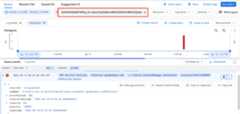
If the error doesn't appear in the query results, extend the timeline intheHistogram, and then rerun the query.
Click the error that appears.
ClickExpand nested fields.
Copy the value of the
servicePerimeterNamefield. The value has thefollowing format:accessPolicies/ACCESS_POLICY/servicePerimeters/SERVICE_PERIMETERIn this example, the service perimeter's full resource name is
accessPolicies/540107806624/servicePerimeters/vpc_sc_misconfigured.ACCESS_POLICYis the access policy ID—forexample,540107806624.SERVICE_PERIMETERis the service perimeter'sname—for example,vpc_sc_misconfigured.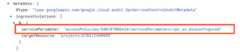
To get the display name that corresponds to the access policy ID, usethe gcloud CLI.
If you can't make organization-level queries, ask your administrator toperform this step.
gcloudaccess-context-managerpolicieslist\--organizationORGANIZATION_IDReplace
ORGANIZATION_IDwith your organization'snumerical ID.You get an output similar to the following:
NAME ORGANIZATION SCOPES TITLE ETAG540107806624 549441802605 default policy 2a9a7e30cbc14371352948212018 549441802605 projects/393598488212 another_policy d7b47a9ecebd4659The display name is the title that corresponds to the access policy ID.Take note of the access policy's display name and the serviceperimeter's name. You need them in the next section.
Step 2: Create an ingress rule that grants access to the project
This section requires you to have organization-level access toVPC Service Controls. If you don't have organization-level access, ask youradministrator to perform these steps.
In the following steps, you create an ingress rule on the service perimeter thatyou identified instep 1.
Note: If you were unable to identify the restricted service perimeter instep 1, we recommend performing the following steps foreach service perimeter in your organization that restricts access to the projectand to theservices that Security Health Analytics calls. You can check eachservice perimeter's settings through the Google Cloud console or through theGoogle Cloud CLI.To grant a service account inbound access to a service perimeter, followthese steps.
Go to VPC Service Controls.
On the toolbar, select your Google Cloud organization.
In the drop-down list, select the access policy that contains the serviceperimeter you want to grant access to.
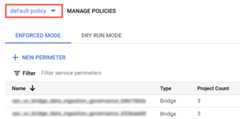
The service perimeters associated with the access policy appear in thelist.
Click the name of the service perimeter.
ClickEdit perimeter
In the navigation menu, clickIngress Policy.
ClickAdd rule.
Configure the rule as follows:
FROM attributes of the API client
- ForSource, selectAll sources.
- ForIdentity, selectSelected identities.
- In theAdd User/Service Account field, clickSelect.
- Enter the service account email address. If you have bothorganization-level and project-level service accounts, add both of them.
- ClickSave.
TO attributes of services/resources
ForProject, selectAll projects, or select the project specifiedin the finding.
ForServices, selectAll services or select specific services forwhich VPC Service Controls violations appear.
If a service perimeter restricts access to a required service,Security Health Analytics can't produce findings for that service.
In the navigation menu, clickSave.
For more information, seeConfiguring ingress and egress policies.
Learn about this finding type'ssupported assets and scan settings.
Security Command Center service account missing permissions
Category name in the API:SCC_SERVICE_ACCOUNT_MISSING_PERMISSIONS
Security Command Center'sservice agent is missingthe permissions needed to function properly.
The service account's identifier is an email address with the following format:
service-RESOURCE_KEYWORD-RESOURCE_ID@security-center-api.iam.gserviceaccount.com
Replace the following:
RESOURCE_KEYWORD: the keywordorgorproject, depending on what resource owns the service accountRESOURCE_ID: one of the following:- The organization ID if the service account is owned by the organization
- The project number if the service account is owned by a project
If you have both organization-level and project-level service accounts, apply the remediation to both of them.
To remediate this finding, follow these steps:
Grant the Security Center Service Agent(
roles/securitycenter.serviceAgent) role to the service account.For more information, seeGrant a single role.
Alternatively, if you want to use acustom role, makesure it has the permissions in theSecurity Center Service Agentrole.
Make sure that there are no IAMdeny policies preventing the service account fromusing any of the permissions in the required roles. If there is a denypolicy blocking access, add the service account as anexception principal in the denypolicy.
Learn about this finding type'ssupported assets and scan settings.
What's next
Learn aboutSecurity Command Center errors.
Except as otherwise noted, the content of this page is licensed under theCreative Commons Attribution 4.0 License, and code samples are licensed under theApache 2.0 License. For details, see theGoogle Developers Site Policies. Java is a registered trademark of Oracle and/or its affiliates.
Last updated 2025-12-17 UTC.