

Managing default organization roles
This page describes how to designate aBilling Account Creator andProject Creator for regular operations, and how to remove roles that wereassigned by default to the organization resource.
Adding a Billing Account Creator and Project Creator
To migrate existing billing accounts into an organization resource, a user must have theBilling Account Creator IAM role. Users with the Project Creatorrole are able to create and manage Project resources. To add additional BillingAccount Creators and Project Creators, follow these steps:
Console
To grant the Billing Account Creator or Project Creator role usingGoogle Cloud console:
Go to theManage resources page in the Google Cloud console:
On theOrganization drop-down list, select your organization resource.
Select the check box for the organization resource. If you do not have aFolder resource, the organization resource will not be visible. Tocontinue, see the instructions for granting roles through theIAMpage.
On the right sideInfo Panel, underPermissions, enter theemail address of the principal you want to add.
In theSelect a role drop-down, selectBilling > Billing Account Creator orResource Manager > Project Creator.
ClickAdd. A dialog will appear to confirm the addition or update ofthe principal's new role.
Removing default roles from the organization resource
After you designate your own Billing Account Creator and Project Creator roles,you can remove these roles from the organization resource to restrict thosepermissions to specifically designated users. To remove roles from theorganization resource, follow these steps:
Console
To remove the roles assigned to users by default using the Google Cloud console:
Go to theManage resources page in the Google Cloud console:
Click theOrganization drop-down list at the top of the page and then selectyour organization resource.
Select the check box for the organization resource for which you want tochange permissions. If you do not have a Folder resource, theorganization resource will not be visible. To continue, see theinstructions for revoking roles through theIAMpage.
On the right sideInfo Panel, underPermissions, click to expand the rolefrom which you want to remove users.
Under the expanded role list, next to the principal you want to remove fromthe role, click remove.
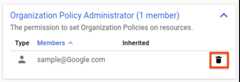
On theRemove principal? dialog that appears, clickRemove to confirm removing the role from the specified principal.
Repeat the above two steps for each role you want to remove.
Except as otherwise noted, the content of this page is licensed under theCreative Commons Attribution 4.0 License, and code samples are licensed under theApache 2.0 License. For details, see theGoogle Developers Site Policies. Java is a registered trademark of Oracle and/or its affiliates.
Last updated 2025-12-17 UTC.