

Creating and managing organization resources
The organization resource is the root node in theGoogle Cloud resource hierarchyand is the hierarchical super node of projects. This page explains how toacquire and manage an organization resource.
Note: To streamline setup, Google Cloud will automatically create an organization resource for new Free Trial customers. Additionally, every organization resource will automatically have a set of organization policies enforced on it. For more information, seeStandalone organizations andGoogle Cloud security baseline constraints.Before you begin
Read anoverviewof the organization resource.
Getting an organization resource
An organization resource is available for Google Workspace and Cloud Identity customers:
- Google Workspace: Sign up forGoogle Workspace.
- Cloud Identity: Sign up forCloud Identity.
Once you have created your Google Workspace or Cloud Identity account and associated it with a domain, your organization resource will be automatically created for you. The resource will be provisioned at different times depending on your account status:
- If you are new to Google Cloud and have not created a project yet, the organization resource will be created for you when you log in to the Google Cloud console and accept the terms and conditions.
If you are an existing Google Cloud user, the organization resource will be created for you when you create a new project or billing account. Any projects you created previously will be listed under "No organization", and this is normal. The organization resource will appear and the new project you created will be linked to it automatically.
You will need to move any projects you created under "No organization" into your new organization resource. For instructions on how to move your projects, seeMigrating projects into an organization resource.
The organization resource that is created will be linked to your Google Workspace or Cloud Identity account with the project or billing account you created set as a child resource. All projects and billing accounts created under your Google Workspace or Cloud Identity domain will be children of this organization resource.
- For information about how to migrate pre-existing projects, seeMigrating existing projects.
Each Google Workspace or Cloud Identity account is associated with exactly one organization resource. An organization resource is associated with exactly one domain, which is set when the organization resource is created.
Important: When the organization resource is created, we communicate its availability tothe Google Workspace or Cloud Identity super admins. Thesesuper administrator accounts should be used carefully because they have a lot of controlover your organization resource and all the resources underneath it. For this reason, werecommend against using Google Workspace or Cloud Identity super administrator accountsfor day-to-day management of your organization resource. For more information about usingGoogle Workspace or Cloud Identity super administrator accounts in Google Cloud,seeSuper administrator account best practices.To actively adopt the organization resource, the Google Workspace orCloud Identity super admins need to assign theOrganization Administrator(roles/resourcemanager.organizationAdmin) Identity and Access Management (IAM) role to auser or group. For steps on setting up your organization resource, seeSetting up your organization resource.
- When the organization resource is created, all users in your domain are automaticallygranted Project Creator (
roles/resourcemanager.projectCreator) andBilling Account Creator (roles/billing.creator) IAM rolesat the organization resource level. This enables users in your domain to continuecreating projects with no disruption. - The Organization Administrator will decide when they want to startactively using the organization resource. They can then change the defaultpermissions and enforce more restrictive policies as needed.
- If the organization resource is available and you don't have the IAMpermissions to view it, you can still create projects and billing accounts.These are automatically created under the organization resource, even if youcan't see it.
Google Cloud security baseline
Google Cloud security baseline addresses insecure security postures with a bundle of organizationpolicies that are enforced when an organization resource is created. Theseconstraints are automatically created and enforced on your organization when itis created. For information about viewing and managing these constraints,seeGoogle Cloud security baseline constraints.
Getting your organization resource ID
The organization resource ID is a unique identifier for an organization resource and isautomatically created when your organization resource is created. Organization resourceIDs are formatted as decimal numbers, and cannot have leading zeroes.
You can get your organization resource ID using the Google Cloud console,the gcloud CLI, or the Cloud Resource Manager API.
console
To get your organization resource ID using the Google Cloud console, dothe following:
- Go to the Google Cloud console:
- From the project picker at the top of the page, select your organizationresource.
- On the right side, clickMore, and then clickSettings.
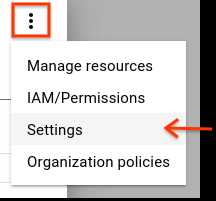
TheSettings page displays your organization resource ID.
gcloud
To find your organization resource ID, run the following command:
gcloudorganizationslistThis command lists all the organization resources to which you belong to,and their corresponding organization resource IDs.
API
To find your organization resource ID using the Cloud Resource Manager API, use theorganizations.search()method, including a query for your domain. For example:
GEThttps://cloudresourcemanager.googleapis.com/v3/organizations:search{query=domain:altostrat.com}The response contains the metadata of the organization resource thatbelongs toaltostrat.com, which includes the organization resource ID.
Setting up your organization resource
If you're a Google Workspace or Cloud Identity customer, an organizationresource is provided to you automatically.
The Google Workspace or Cloud Identity super administrators are the firstusers who can access the organization resource upon creation. All other users or groupswill be able to use Google Cloud as before. They'll be able to see theorganization resource, but they'll only be able to modify it after the correctpermissions are set.
The Google Workspace or Cloud Identity super administrators and theGoogle CloudOrganization Administrator are key roles during the setupprocess and for lifecycle control for the organization resource. The two rolesare generally assigned to different users or groups, although this depends onthe organization resource's structure and needs.
Google Workspace or Cloud Identity super administrator responsibilities, inthe context of Google Cloud organization resource setup are:
- Assigning theOrganization Administrator role to some users
- Being a point of contact in case of recovery issues
- Controlling the lifecycle of the Google Workspace or Cloud Identityaccount and organization resource as explained underDeleting an organization resource
TheOrganization Administrator, once assigned, can assign Identity and Access Management rolesto other users. The responsibilities of theOrganization Administrator roleare:
- Defining allow and deny policies and granting roles to other users.
- Seeing the structure of theResource Hierarchy
Following the principle of least privilege, this role does not include thepermission to perform other actions, such as creating folders or projects. Toget these permissions, an Organization Administrator must assign additionalroles to their account.
Having two distinct roles ensures separation of duties between theGoogle Workspace or Cloud Identity super administrators and theGoogle Cloud Organization Administrator. This isoften a requirement as the two Google products are typically managed bydifferent departments in the customer's organization.
To start using the organization resource actively, you must add an Organization Administrator. To do so, follow these steps:
Adding an Organization Administrator
Console
To add an Organization Administrator:
Sign in to the Google Cloud console as a Google Workspace orCloud Identity super administrator and navigate to theIAM & Admin page:
Select the organization resource you want to edit:
Click the project drop-down list at the top of the page.
In theSelect from dialog, click the organization drop-down list,and select the organization resource to which you want to add anOrganization Administrator.
On the list that appears, click the organization resource to open itsIAM Permissions page.
ClickAdd, and then enter the email address of one or more users youwant to set as Organization Administrators.
In theSelect a role drop-down list, selectResource Manager>Organization Administrator, and then clickSave.
The Organization Administrator can do the following:
Take full control of the organization resource. Separation ofresponsibilities between Google Workspace or Cloud Identitysuper administrator and Google Cloud administrator isestablished.
Delegate responsibility over critical functions by assigning therelevant IAM roles.
As explained inAcquiring an organization resource, upon creation,all users in the domain are granted Project Creator and Billing Account Creatorroles at the organization resource level by default. This ensures that no disruption iscaused to Google Cloud users when the organization resource is created. As theOrganization Administrator takes control, they might want to remove theseorganization-level permissions to start locking down access at a finergranularity (for instance, at the folder or project level). Note that, becauseallow and deny policies are inherited down the hierarchy, havingthe Project Creator role assigned to the entire domain(domain:mycompany.com) at the organization resource level implies that every userin the domain can create projects anywhere in the hierarchy.
Creating projects in your organization resource
Console
You can create a project in the organization resource using theGoogle Cloud console after the organization resource is enabled for yourdomain.
To create a new project in the organization resource:
To create a new project, do the following:
- Go to theManage resources page in the Google Cloud console.
The remaining steps appear in the Google Cloud console.
- On theSelect organization drop-down list at the top of the page, select the organization resource in which you want to create a project. If you are a free trial user, skip this step, as this list does not appear.
- ClickCreate Project.
- In theNew Project window that appears, enter a project name and select a billing account as applicable. A project name can contain only letters, numbers, single quotes, hyphens, spaces, or exclamation points, and must be between 4 and 30 characters.
- Enter the parent organization or folder resource in theLocation box. That resource will be the hierarchical parent of the new project. IfNo organization is an option, you can select it to create your new project as the top level of its own resource hierarchy.
- When you're finished entering new project details, clickCreate.
API
You can create a new project in the organization resource bycreating aproject and setting itsparent field to theorganizationId of theorganization resource.
The following code snippet demonstrates how to create a project in anorganization resource:
...project=crm.projects().create(body={'project_id':flags.projectId,'name':'MyNewProject','parent':{'type':'organization','id':flags.organizationId}}).execute()...Viewing projects in an organization resource
Users can only view and list projects they have access to using IAMroles. The Organization Administrator can view and list all projects in theorganization resource.
Console
To view all projects in an organization resource using the Google Cloud console:
Go to the Google Cloud console:
Click theOrganization drop-down on top of the page.
Select your organization resource.
Click theProject drop-down on top of the page and then clickView more projects. All projects in the organization resource are listedon the page.
TheNo organization option in theOrganization drop-down lists thefollowing projects:
- Projects that don't belong to the organization resource yet.
- Projects that the user has access to, but are under an organizationresource to which the user does not have access.
gcloud
To view all projects in an organization resource, run the following command:
gcloudprojectslist--filter 'parent.id=[ORGANIZATION_ID] AND \parent.type=organization'API
Use theprojects.list()method to list all the projects under a parent resource, as shown in thefollowing code snippet:
...filter='parent.type:organizationparent.id:%s'%flags.organizationIdprojects=crm.projects().list(filter=filter).execute()...Deleting an organization resource
The organization resource is bound to your Google Workspace or Cloud Identityaccount.
If you would prefer not to use the organization resource, we recommendrestoring the organization resource's allow policy to the original state usingthe following steps:
- Add your domain to the
Project CreatorandBilling Account Creatorroles. - Remove all other entries in the organization resource's allow policy.
This will allow your users to continue to create Projects and Billing Accountswhile allowing the Google Workspace or Cloud Identity super admins torecover central administration later.
Deleting yourGoogle Workspaceaccount deletes your organization resource andall resources associated withit. Therefore, if you want to delete your organization resource, you can do so bydeleting your Google Workspace account. ForCloud Identityusers, cancel all other Google services, then delete your user account. Thisis potentially a very damaging action that might be impossible to fully reverse,so it is recommended to only take this action if you are certain there are noresources in active use.
Try it for yourself
If you're new to Google Cloud, create an account to evaluate how our products perform in real-world scenarios. New customers also get $300 in free credits to run, test, and deploy workloads.
Get started for freeExcept as otherwise noted, the content of this page is licensed under theCreative Commons Attribution 4.0 License, and code samples are licensed under theApache 2.0 License. For details, see theGoogle Developers Site Policies. Java is a registered trademark of Oracle and/or its affiliates.
Last updated 2026-02-20 UTC.