

Using MQL from the Monitoring API
This page describes how to provide Monitoring Query Language (MQL) queries to theCloud Monitoring API.
This page doesn't cover creating the MQL queries. For a set ofexample queries, seeExamples.MQL Refererenceprovides a comprehensive reference for the language.
For general information about MQL-based alerting policies, seeAlerting policies with MQL.
Note: The code editor allows time ranges to be specified explicitlyin queries, and implicitly by the chart options in the editor.If you copy MQL queries from the editor, and you are using theimplicit, chart-based time selection, your queries may not be valid if youattempt to supply them directly to the API. For more information, seeTime ranges, charts, and the code editor.Using MQL from the API
You can provide MQL queries at the following places in theMonitoring API:
To select and manipulate time-series data by using MQL, call the
timeSeries.querymethod.For examples, seeUsingtimeSeries.query.To select and manipulate time-series data for charts, you providethe query to a
TimeSeriesQueryspecification when you call thedashboards.createmethod.For an example, seeBuilding charts.To create MQL-based conditions in alerting policies,describe the condition for the alerting policy with the
MonitoringQueryLanguageConditioncondition type whenyou callalertPolicies.create.For examples, seeCreating conditions for alerting policies.
Retrieving data withtimeSeries.query
To retrieve time-series data from the API with a MQL query,use thetimeSeries.query method.
ThetimeSeries.query method takes a minimal structure that looks like thisin JSON:
{ "query": string}For the value of thequery field, specify a string in MQL, asshown in the following simple queries:
{ "query": "fetch gce_instance::compute.googleapis.com/instance/disk/read_bytes_count | within 5m"}{ "query": "fetch gce_instance::compute.googleapis.com/instance/disk/read_bytes_count | for 1h"}{ "query": "fetch gce_instance::compute.googleapis.com/instance/cpu/usage_time | sum | next_older 10m | every 10m"}If your query creates an unaligned output table, then you must supply aduration by using thewithin table operation when callingthe API directly. Charting tools like Metrics Explorer provide a defaultquery duration. The query in the following JSON snippet works in theMQL code editor in Metrics Explorer but fails when supplieddirectly to the API:
{ "query": "fetch gce_instance::compute.googleapis.com/instance/disk/read_bytes_count | mul(10)"}With the addition of awithin table operation to the prior query, the priorexample can be supplied directly to the API:
{ "query": "fetch gce_instance::compute.googleapis.com/instance/disk/read_bytes_count | mul(10) |within 1h"}To experiment with the API, you can use the APIs Explorer tool on thetimeSeries.query reference page.For an introduction to APIs Explorer tool, seeAPIs Explorer.
Another way to try the API is to put the query into a text fileand then execute the query usingcurl. The following example passes the queryin the filequery.json to thetimeSeries.query method:
curl -d @query.json -H "Authorization: Bearer $TOKEN" \--header "Content-Type: application/json" -X POST \https://monitoring.googleapis.com/v3/projects/${PROJECT_ID}/timeSeries:queryFor more information about usingcurl, seeInvokingcurl.
If successful, the query returns a table containing the timeseries requested. The table is divided into two components:
The
timeSeriesDescriptordescribes the label keys,label values, and data points in the table. It doesn't contain any data;it simply describes the data.The
timeSeriesDatacontains the data described in thetime-series descriptor. This data is presented as an array of pairs.- The first item in the pair,
labelValues, records a set of valuesfor the labels listed in the time-series descriptor. - The second,
pointData, is an embedded array of value/timestamp pairs,which represent the data collected with the specified set of label values.
- The first item in the pair,
The response, slightly reformatted, looks like this:
[{ "timeSeriesTable": { "timeSeriesDescriptor": { "labelDescriptors": [ { "key": "resource.project_id" }, { "key": "resource.zone" }, { "key": "resource.instance_id" }, { "key": "metric.instance_name" } ], "valueDescriptors": [ { "key": "value.utilization", "valueType": "DOUBLE", "metricKind": "GAUGE" } ], "pointDescriptors": [ { "key": "value.utilization", "valueType": "DOUBLE", "metricKind": "GAUGE" } ] }, "timeSeriesData": [ { "labelValues": [ { "stringValue": "632526624816" }, { "stringValue": "us-central1-a" }, { "stringValue": "5106847938297466291" }, { "stringValue": "gke-kuber-cluster-default-pool-6fe301a0-n8r9" } ], "pointData": [ { "values": [ { "doubleValue": 0.063896992710942874 } ], "timeInterval": { "startTime": "1969-12-31T23:59:59.999999Z", "endTime": "2020-03-02T20:17:00Z" } }, { ... additional value/timestamp pairs ...} ] }, { ... additional labelValue/pointData pairs ...}, ] }Building charts
You can use thedashboards.create method toprogrammatically create dashboards and the charts they contain.
The only difference between creating MQL-based chartsand other charts is the type ofTimeSeriesQueryquery you use to populate the chart's data set.
Constructing an MQL-based chart
For MQL queries, use the query as the value of thetimeSeriesQueryLanguage string field in the chart'sDataSetarray.
The following is a simple dashboard definition that includes MQL:
{ "displayName": "Dashboard for MQL chart (API)", "gridLayout": { "widgets": [ { "title": "Min/Max Compute Engine CPU utilization", "xyChart": { "dataSets": [ {"timeSeriesQuery": { "timeSeriesQueryLanguage": "fetch gce_instance::compute.googleapis.com/instance/cpu/utilization | within(1h) | { top 1, max(val()) ; bottom 1, min(val()) } | union" }, "plotType": "LINE", } ], "timeshiftDuration": "0s", "yAxis": { "label": "y1Axis", "scale": "LINEAR" }, "chartOptions": { "mode": "COLOR" } } } ] }}This creates a dashboard titled "Dashboard for MQL chart (API)" in yourproject. The dashboard contains a chart called "Min/Max Compute Engine CPUUtilization", which shows two lines, one for the highest values and one forthe lowest.
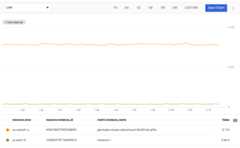
For more information about this example query, seeCombining selections withunion.
Creating a chart
You can put the dashboard JSON into a file and then pass the file togcloud beta monitoring dashboards create or usecurl to post it tohttps://monitoring.googleapis.com/v1/projects/${PROJECT_ID}/dashboards.For more examples, seeCreating a dashboard.For more information about usingcurl, seeInvokingcurl.
For general information about creating charts and dashboards, seeManaging dashboards by API. For reference material, seeDashboards.
Creating conditions for alerting policies
You use thealertPolicies.create method toprogrammatically create alerting policies.
The only difference between creating MQL-based alerting policiesand other alerting policies is the type ofConditionyou use. Otherwise, you create these policies like any other alerting policy.
The following shows a simple MQL query for an alert-policycondition that tests for Compute Engine CPU utilization exceeding15 percent:
fetch gce_instance::compute.googleapis.com/instance/cpu/utilization| group_by sliding(5m), mean(val())| condition val() > 0.15 '10^2.%'
For more information about the MQLcondition alert operation, seeAlerting policies with MQL.
Constructing the alerting policy
To build an alerting policy based on an MQL query, use theAlertPolicycondition typeMonitoringQueryLanguageCondition.TheMonitoringQueryLanguageCondition has the following structure:
{ "query": string, "duration": string, "trigger": { object (Trigger) }}The value of thequery field is a MQL alerting-query string ineither concise or strict form. The examples in this document are in conciseform. For more information about strict form, seeStrict-formqueries.
Theduration field specifies the length of time during which eachevaluation of the query must generate atrue value before the alerting policyis triggered. For more information, seeBehavior of metric-based alerting policies.The value must be a number of minutes, expressed in seconds; for example,600s for a 10-minute duration.
Thetrigger field specifies how many time series must satisfy the conditionduring theduration period, expressed as a count or a percentage. Thedefault value is a count of 1. For more in information,seeTrigger.
For the example alerting query, with a 10-minute duration and a triggercount of 1, the structure looks like the following:
{ "query": "fetch gce_instance::compute.googleapis.com/instance/cpu/utilization | group_by sliding(5m), mean(val()) | condition val() > 0.15 '10^2.%'", "duration": "600s", "trigger" : { "count": 1 }}Use this structure as the value of aconditionMonitoringQueryLanguage field ina condition, which is in turn embedded in an alerting-policy structure.For more information about these structures, seeAlertPolicy.
The following shows a complete minimal policy with aMonitoringQueryLanguageConditioncondition in JSON:
{ "displayName":"Alert if CPU utilization exceeds 15% for 10 mins (MQL, API)", "combiner":"OR", "conditions":[ { "displayName":"MQL-based utilization condition, API","conditionMonitoringQueryLanguage": { "query": "fetch gce_instance::compute.googleapis.com/instance/cpu/utilization | group_by sliding(5m), mean(val()) | condition val() > 0.15 '10^2.%'", "duration": "600s", "trigger" : { "count": 1 }, }, } ],}Creating an alerting policy
To create the policy, you can put the alerting-policy JSON into a file and thenpass the file togcloud monitoring policies create or usecurl to post it tohttps://monitoring.googleapis.com/v3/projects/${PROJECT_ID}/alertPolicies.
For more information about the Monitoring API for alerting policies,seeManaging alerting policies by API.
For more information about usingcurl, seeInvokingcurl.
Invokingcurl
Eachcurl invocation includes a set of arguments,followed by the URL of an API resource. The common arguments includea Google Cloud project ID and an authentication token. These valuesare represented here by thePROJECT_ID andTOKEN environment variables.
You might also have to specify other arguments, for example, to specify the typeof the HTTP request (for example,-X DELETE). The default request isGET,so the examples don't specify it.
Eachcurl invocation has this general structure:
curl --http1.1 --header "Authorization: Bearer ${TOKEN}" <other_args> https://monitoring.googleapis.com/v3/projects/${PROJECT_ID}/<request>
To usecurl, you must specify your project ID and an accesstoken. To reduce typing and errors, you can put these into environment variablesas pass them tocurl that way.
To set these variables, do the following:
Create an environment variable to hold the ID of yourscoping project of a metrics scope. These steps call the variable
PROJECT_ID:PROJECT_ID=a-sample-projectAuthenticate to the Google Cloud CLI:
gcloud auth loginOptional. To avoid having to specify your project ID with each
gcloudcommand, set your project ID as the default by using gcloud CLI:gcloudconfigsetproject${PROJECT_ID}Create an authorization token and capture it in an environment variable.These steps call the variable
TOKEN:TOKEN=`gcloud auth print-access-token`You have to periodically refresh the access token. If commands that workedsuddenly report that you are unauthenticated, reissue this command.
To verify that you got an access token, echo the
TOKENvariable:echo${TOKEN}ya29.GluiBj8o....
Except as otherwise noted, the content of this page is licensed under theCreative Commons Attribution 4.0 License, and code samples are licensed under theApache 2.0 License. For details, see theGoogle Developers Site Policies. Java is a registered trademark of Oracle and/or its affiliates.
Last updated 2025-12-15 UTC.