

Cloud Monitoring overview
This document provides an overview of the services that Cloud Monitoringprovides. These services can help you to understand the behavior, health, andperformance of your applications and of other Google Cloud services.Cloud Monitoring automatically collects and stores performance informationfor most Google Cloud services. Youcan collectPrometheusmetrics by usingGoogle Cloud Managed Service for Prometheus.If you install theOps Agent on your Compute Enginevirtual machines (VMs), then you can collect metrics and logs from yourapplications and from third-party applications.
The alerting, testing, and visualization services provided byCloud Monitoring help you answer important questions like the following:
- What is the load on my service?
- Is my website responding correctly?
- Is my service performing well?
- What is the health of myApp Hub application?
Cloud Monitoring provides both Google Cloud console and API support for most ofits services. Some services also support the Google Cloud CLI orTerraform. The Cloud Monitoring API reference pages, such as the pagealertPolicies.list,let you experiment with API calls directly from the reference page.
Cloud Monitoring services
Cloud Monitoring provides different services that you can useto understand the health and performance of your applications, and of theother Google Cloud services that you use.
Incidents and notifications in Cloud Monitoring
To be notified when the value of a performance metric meets criteria that youdefine, create analerting policy. The alerting policyincludes the list of people or groups who are to receive notifications.Monitoring supportscommon notification channels,including email, Cloud Mobile App, and services such as PagerDuty or Slack.For example, you might create an alerting policy so that you are notifiedwhen the CPU utilization of a VM exceeds 80%.
Each notification includes relevant information about a failure, and itincludes a link to an incident. Anincident is a persistent recordthat stores information that you can use to troubleshoot the failure. Typically,a record lists the status of the incident, links to logs, a chart of therecorded metric data, labels, and duration.
The alerting service is integrated with many Google Cloud services. When theseintegrations exist, you might see a panel that lists recommended alerts, oryou might see a button on a chart that lets you create an alerting policy.In both cases, the alerting policies are pre-configured,you only specify the list of people or groups to be notified.
You can create and manage alerting policies by using the Google Cloud console,the Cloud Monitoring API, the Google Cloud CLI, or Terraform.
Proactive monitoring and validation
To test the availability, consistency, and performance of your services,applications, web pages, and APIs, createsynthetic monitors. For example,you can probe HTTP, HTTPS, and TCP endpoints for responsiveness withuptime checks, and then get notified when anendpoint fails to respond. You can also create abroken-link checker to crawl a web page and thennotify you when broken links are detected.
You can create and manage synthetic monitors by using the Google Cloud console,the Cloud Monitoring API, the Google Cloud CLI, or Terraform.
Data visualization
As you instantiate Google Cloud resources or register applications withApp Hub, the dashboard service automatically createsGoogle Cloud-managed dashboards.These dashboards show curated information that helps you understandthe health of your resources and applications.For example, for an App Hub application, dashboards are created forthe application and for each of its services and workloads.These dashboards show information like an application's logor metric data, and the number of open alerts.
The dashboards created by Google Cloud might provide you enough informationto complete an investigation. However, they might not provide the exact datayou need to see trends, identify outliers, or view otherdetails about your data. To complete these tasks, you can use thedashboard andcharting services:
To control what data you view and the display format for that data,create a custom dashboard. For example,you mightimport a Grafana dashboard orinstall a dashboard from a template.
Your custom dashboards can display the following.
- Charts and tables that show metric data
- Log data and error groups
- Charts for alerting policies
- Information about alerts
- Text
- Events, such as a reboot or a crash, that affectsthe operation of a system.
You can create and manage dashboards by usingtheGoogle Cloud console or theAPI.
The chart service,Metrics Explorer,lets you quickly visualize and explore time-series data. The chart settingslet you compare current data to previous data, display outliers andpercentiles, and display multiple metrics. You can alsosave charts to a custom dashboard.
Data collection and storage
Cloud Monitoring collects and stores the following types of metric data:
- System metrics generated by Google Cloud services.These metrics provide information about how a service is operating.
- System and application metrics that theOps Agent collects about system resources andapplicationsrunning on Compute Engine instances. You can configure the Ops Agentto collect metrics fromthird-party plugins suchas Apache or Nginx web servers, or MongoDB or PostgreSQL databases.
User-defined metrics that are created byusing theCloud Monitoring API or by using alibrary such asOpenTelemetry.
External metrics that are defined by some open sourcelibraries or third-party providers.
Prometheus metrics that are collected byGoogle Cloud Managed Service for Prometheus,or by using the Ops Agent and thePrometheus receiver or theOTLP receiver.
- Log-based metrics that record numeric information aboutthe logs written toCloud Logging.Google-defined log-based metrics includecounts of the errors that your service detects and the totalnumber of log entries received by your Google Cloud project.You can also define log-based metrics.
Query languages for Cloud Monitoring
When you create an alerting policy or a chart, you mustprovide a query that describes the data that you want to monitor or chart:
Google Cloud console: You can build your query by making selections from menus,or you can write a query. Query editors are available forthePrometheus Query Language (PromQL). The query editorprovides syntax checks and suggestions. You can alsowrite aMonitoring filter expression.
Cloud Monitoring API: The API supportsPrometheus Query Language (PromQL)and Monitoring filter expressions.
Monitor metrics for multiple Google Cloud projects
To view and monitor the time-series data for multipleGoogle Cloud projects and AWS accounts through a single interface,configure a multi-projectmetrics scope.
By default, Cloud Monitoring pages in the Google Cloud console provideaccess only to the time series stored in thescoping project. Thescoping project is the project that you selected with theGoogle Cloud console project picker. The scoping projectstores thealerts,synthetic monitors, anddashboardsthat you configure.
The scoping project also hosts a metrics scope.Themetrics scope defines the projects and accounts whose metrics arevisible to the scoping project. You can configure the metrics scopeto include time-series data from other Google Cloud projects and fromAWS accounts. For information about how to modify a metrics scope, seeConfigure a metrics scope for multiple projects.
Cloud Monitoring data model
This section introduces the Cloud Monitoring data model:
Ametric type describes something that ismeasured. Examples of metric types include a VM's CPU utilization and thepercentage of a disk that is used.
Atime series is a data structure that contains time-stamped measurementsof a metric and information about the source andmeaning of those measurements.
Here are some details about what a time series contains:
The
pointsarray contains the time-stamped measurements.The following is an example of a
pointsarray with two values:"points": [ { "interval": { "startTime": "2020-07-27T20:20:21.597143Z", "endTime": "2020-07-27T20:20:21.597143Z" }, "value": { "doubleValue": 0.473005 } }, { "interval": { "startTime": "2020-07-27T20:19:21.597239Z", "endTime": "2020-07-27T20:19:21.597239Z" }, "value": { "doubleValue": 0.473025 } }, ],To understand the meaning of a value, you need to refer to the other dataincluded in the time series and to the definitions of that data.
The
resourcefield describes the hardware or software componentthat is being monitored. In Cloud Monitoring, the hardware or softwarecomponent is referred to as themonitored resource.Examples of monitored resources include Compute Engineinstances and App Engine applications. For a list ofmonitored resources, see theMonitored resource list.The following is an example of a
resourcefield:"resource": { "type": "gce_instance", "labels": { "instance_id": "2708613220420473591", "zone": "us-east1-b", "project_id": "sampleproject" } }The
typefield lists the monitored resourceas agce_instance, which indicates thatthese measurements are taken on a Compute Engine VM instance.The
labelsfield contains key-value pairs that provide additionalinformation about the monitored resource. For agce_instancetype,the labels identify the VM instance that is being monitored.
The
metricfield describes what is being measured.The following is an example of a
metricfield:"metric": { "labels": { "instance_name": "test" }, "type": "compute.googleapis.com/instance/cpu/utilization" },- For Google Cloud services, the
typefield specifies the service and whatis being monitored. In this example, the Compute Engine servicemeasuring the CPU utilization.When thetypefield begins withcustomorexternal, the metric iseither a custom metric or one defined by a third party.
- The
labelsfield contains key-value pairs that provide additionalinformation about the measurement. These labels are defined as part oftheMetricDescriptor, which is a data structure thatdefines the attributes of the measured data.TheMetricDescriptorfor the metriccompute.googleapis.com/instance/cpu/utilizationincludes the labelinstance_name.
- For Google Cloud services, the
The
metricKindfield describes the relationship betweenadjacent measurements within a time series:GAUGEmetrics store the value of the thing beingmeasured at a given moment in time—for example, an hourlytemperature record.CUMULATIVEmetrics store the accumulated value of the thing beingmeasured at a given moment in time—for example, an odometer in avehicle.DELTAmetrics store the change in the value of the thing beingmeasured over a specified period—for example, a stocksummary that shows the stock's gains or losses.
The
valueTypefield describes the data type for themeasurement:INT64,DOUBLE,BOOL,STRING, orDISTRIBUTION.
- You can show the CPU utilization of every VM instance.
- You can show the CPU utilization for a specific VM instance byfiltering the time series for a single value of the
instance_idlabel. You can group by the VM instances by the
machine_typelabel,and then display the average CPU utilization. The following screenshotillustrates a chart with this configuration: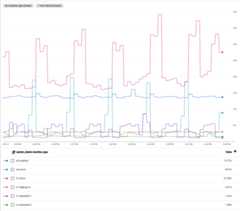
Pricing
To learn about pricing for Cloud Monitoring, see theGoogle Cloud Observability pricing page.
What's next
- To explore Cloud Monitoring, try theQuickstart for monitoring a Compute Engine instance.
- For information about how to configure our Google Cloud project to viewmetrics for multiple Google Cloud projects and AWS accounts, seeMetrics scopes overview.
For information about the Cloud Monitoring data model, seeMetrics, time series, and resources.
For information about the Cloud Monitoring API, seeAPIs and reference.
For lists of metrics and monitored resources,seeMetrics listandMonitored resource list.
Except as otherwise noted, the content of this page is licensed under theCreative Commons Attribution 4.0 License, and code samples are licensed under theApache 2.0 License. For details, see theGoogle Developers Site Policies. Java is a registered trademark of Oracle and/or its affiliates.
Last updated 2026-02-19 UTC.