

Configure log views on a log bucket
This document describes how to create and manage log views on yourCloud Logging buckets. Log views give you advanced and granular control overwho has access to the logs within your log buckets.
You can configure and manage your log views byusing the Google Cloud console, the gcloud CLI, Terraform, or theCloud Logging API.
For general information about the Logging storage model, seeRouting and storage overview.
About log views
Log views let you grant a user access to only a subset of the logs stored in alog bucket. For example, consider a scenario in which you storeyour organization's logs in a central project. You might create one log viewfor each project that contributes logs to the log bucket. You can thengrant each user access to one or more log views, and thereby restrict which logsthe users can view.
You can create a maximum of 30 log views per log bucket.
Control access to a log view
Cloud Logging uses IAM policies to control who has accessto log views. IAM policies can exist at the resource, project,folder, and organization levels. For Cloud Logging, you can create anIAM policy for each log view.To determine whether a principal is authorized for anaction, IAM evaluates all applicable policies, withthe first evaluation at the resource level.
Principals with the role ofroles/logging.viewAccessor on aGoogle Cloud project can access views and logs in any log bucketin the project.
To grant a principal access to only a specific log view, do one of thefollowing:
Create an IAM policy for the log view, and then add anIAM binding to that policy which grants the principalaccess to the log view.
If you create large numbers of log views, then we recommend this approach.
Grant the principal the IAM role of
roles/logging.viewAccessoron the project that contains the log view,but attach anIAM condition torestrict the grant to the specific log view. If you omit thecondition, then you grant the principal access to all log views.There is a limit of 20role bindings in the policy file for a Google Cloud project that include thesame role and the same principal, but different condition expressions.
For more information, see the following sections of this document:
Automatically created log views
Cloud Logging automatically creates an_AllLogs view for everylog bucket and a_Default view for the_Default log bucket:
_AllLogsview: You can view all logs in the log bucket._Defaultview: You can view all non-Data Access audit logs in thelog bucket.
You can't modify views that are automatically created by Cloud Logging;however, you can delete the_AllLogs view.
Log view filter
Each log view contains a filter that determines which log entries that arevisible in the view. Filters can compare any of the following values:
A data source using the
sourcefunction.Thesourcefunction returns log entries from a particular resource inthe organizations, folders, and Google Cloud projects hierarchy.A log ID using the
log_idfunction.Thelog_idfunction returns log entries that match the givenLOG_IDargument from thelogNamefield.A valid resource type using the
resource.type=FIELD_NAMEcomparison.
A log view filter can contain multiple statements that are joinedby logicalAND operators. For example, the following filter includes onlyCompute Enginestdoutlog entries from a Google Cloud project calledmyproject:
source("projects/myproject") ANDresource.type = "gce_instance" ANDlog_id("stdout")You can also apply the negation operator to adata source, a log ID, or to a resource type. For example, the followingfilter excludes Compute Enginestdout log entries from the log view:
source("projects/myproject") ANDNOT resource.type = "gce_instance" ANDlog_id("stdout")You can apply the negation operator to a data source, a log ID, or to aresource type. You can't apply this operator to a compound statement.For example, a statement of the formNOT (A AND B) isn't supported.Also, you can't include logicalOR operators in log view filters.
For details about the filtering syntax, seeComparisons.
How log views differ from analytics views
Log views and analytics views are different.
A log view on alog bucket controlswhich log entries in the log bucket that you can see. When you useLog Analytics, theLogEntry data structure determines the schema of thedata that you query.
Ananalytics view contains a SQL query over one ormore log views. By using Log Analytics, you can write queries against ananalytics view. Because the creator of an analytics view determines theschema, one use case for analytics views is to transform log data from theLogEntry format into a format that is more suitable for you.
Before you begin
Before you create or update a log view, complete the following steps:
If you haven't already done so, in the appropriate Google Cloud project,create a Logging bucketfor which you want to configure a custom log view.
To get the permissions that you need to create and manage log views and to grant access to log views, ask your administrator to grant you the following IAM roles on your project:
- Logs Configuration Writer (
roles/logging.configWriter) - To add a role binding to a project:Project IAM Admin (
roles/resourcemanager.projectIamAdmin) - To add a role binding to a log view:Logging Admin (
roles/logging.admin)
For more information about granting roles, seeManage access to projects, folders, and organizations.
You might also be able to get the required permissions throughcustom roles or otherpredefined roles.
- Logs Configuration Writer (
Select the tab for how you plan to use the samples on this page:
Console
When you use the Google Cloud console to access Google Cloud services and APIs, you don't need to set up authentication.
gcloud
In the Google Cloud console, activate Cloud Shell.
At the bottom of the Google Cloud console, aCloud Shell session starts and displays a command-line prompt. Cloud Shell is a shell environment with the Google Cloud CLI already installed and with values already set for your current project. It can take a few seconds for the session to initialize.
Terraform
To use the Terraform samples on this page in a local development environment, install and initialize the gcloud CLI, and then set up Application Default Credentials with your user credentials.
Install the Google Cloud CLI.
If you're using an external identity provider (IdP), you must first sign in to the gcloud CLI with your federated identity.
Note: If you installed the gcloud CLI previously, make sure you have the latest version by runninggcloud components update.If you're using a local shell, then create local authentication credentials for your user account:
gcloudauthapplication-defaultlogin
You don't need to do this if you're using Cloud Shell.
If an authentication error is returned, and you are using an external identity provider (IdP), confirm that you have signed in to the gcloud CLI with your federated identity.
For more information, see Set up ADC for a local development environment in the Google Cloud authentication documentation.
Determine which logs you want to include in the view. You use thisinformation to specify thefilter of the log view.
Determine who should have access to the log view and whether you wantto add bindings to the IAM policy of the log view orthe Google Cloud project. For more information,seeControl access to a log view.
Create a log view
You can create a maximum of 30 log views per log bucket.
Console
To create a log view, do the following:
In the Google Cloud console, go to theLogs Storage page:
If you use the search bar to find this page, then select the result whose subheading isLogging.
- Select the project, folder, or organization that stores the log bucket.
- In theLog buckets pane, select the name of the log bucket on whichyou want to create a log view.
- In the details page for the log bucket, go to theLog views pane, andthen clickCreate log view.
In theDefine log view page, complete the following:
- Enter a name for the log view. You can't change this name after thelog view is created. The name is limited to 100 characters and can include only letters,digits, underscores, and hyphens.
- Enter a description for the log view.
- In theBuild filter field, enter an expression that determines whichlog entries in the log bucket are included in the log view.For information about the structure of this field, see theLog view filter section of this document.
Optional: To add a role binding to the log view resource, do the following:
- ClickContinue and advance to theSet permissions page.
- ClickGrant access.
- In theAdd principals section, expand theNew principals menuand then select a principal.
- In theAssign roles section, select theLogs View Accessor role.
- ClickSave.
ClickSave view.
If you didn't grant principals access to your log view as part of thecreate flow, then complete the steps in the following section.
gcloud
To create a log view, do the following:
Run the
gcloud logging views createcommand.Before using any of the command data below, make the following replacements:
- LOG_VIEW_ID: The identifier of the log view, which is limited to 100 characters and can include only letters,digits, underscores, and hyphens.
- BUCKET_NAME: The name of the log bucket.
- LOCATION: The location of the log bucket.
- FILTER: A filter that defines the log view. When empty, the log view includes all logs. For example, to filter by Compute Engine VM instances logs, enter
"resource.type=gce_instance". - DESCRIPTION: A description of the log view. For example, you might enter the following for the description
"Compute logs". - PROJECT_ID: The identifier of the project. To create a log view in a folder or an organization, replace
--projectwith--folderor--organization.
Execute the
gcloud logging views createcommand:Linux, macOS, or Cloud Shell
gcloudloggingviewscreateLOG_VIEW_ID--bucket=BUCKET_NAME\--location=LOCATION--log-filter=FILTER--description=DESCRIPTION\--project=PROJECT_ID
Windows (PowerShell)
gcloudloggingviewscreateLOG_VIEW_ID--bucket=BUCKET_NAME`--location=LOCATION--log-filter=FILTER--description=DESCRIPTION`--project=PROJECT_ID
Windows (cmd.exe)
gcloudloggingviewscreateLOG_VIEW_ID--bucket=BUCKET_NAME^--location=LOCATION--log-filter=FILTER--description=DESCRIPTION^--project=PROJECT_ID
This command doesn't provide a response. To confirm the changes, you can run the
gcloud logging views listcommand.Grant principals access to your log view. The following sectioncontains information about these steps.
Terraform
To learn how to apply or remove a Terraform configuration, seeBasic Terraform commands. For more information, see theTerraform provider reference documentation.
To create a log view in a project, folder, or organization, by using Terraform,do the following:
Use the Terraform resource
google_logging_log_view.In the command, set the following fields:
name: Set to name fully-qualified name of the log view. For example,for projects, the format of this field is:"projects/PROJECT_ID/locations/LOCATION/buckets/BUCKET_NAME/view/LOG_VIEW_ID"In the previous expression,LOCATION is the location of thelog bucket.
bucket: Set to the fully-qualified name of the log bucket. For example,this field might be:"projects/PROJECT_ID/locations/LOCATION/buckets/BUCKET_NAME"filter: The filter which describes which log entries are included in thelog view.description: A brief description.
Grant principals access to your log view. The following sectioncontains information about these steps.
Grant access to a log view
To restrict a principal to a specific log view on a user-defined log bucket,there are two approaches that you can use:
When you create a large number oflog views, we recommend that you control access by using theIAM policy file of the log view.
Log view: Add role bindings
This section describes how to use the IAMpolicy file for a log view to control who has access to the log entriesin that log view. When you use this approach, you add a binding to thelog view's policy file, the binding grants the specified principal access tothe log view.
This section also describes how to list the role binding contained inthe IAM policy file for a log view.
Console
To update the IAM policy file of a log view, do the following:
In the Google Cloud console, go to theLogs Storage page:
If you use the search bar to find this page, then select the result whose subheading isLogging.
- Select the project, folder, or organization that stores the log bucket.
- In theLog buckets pane, select the name of the log bucket that hoststhe log view.
- In the details page for the log bucket, go to theLog views pane.
For the log view whose IAM policy file that youwant to modify, clickmore_vertActions, and then selectAdjust permissions.
The permissions flyout opens and displays the permissions associated withthe log view.
In the permissions flyout, clickAdd principal.
In theAdd principals section, expand theNew principals menu, andthen select a principal.
In theAssign roles section, select theLogs View Accessor role.
ClickSave.
The permissions flyout updates with the new permissions.
The section labeledLogs View Accessor (N)lists the principals with project-level grants of the roleLogs View Accessor. These principals haveaccess to all log views in the project.
Sections labeled likeLogs View Accessor condition:Condition-specific descriptive text (N)list the principals who have conditional project-level grants of the roleLogs View Accessor. These principals have access only to the log viewspecified by the condition.
The section labeled likeLogs View Accessor condition:abcde (N),lists the principals who have log view-level grants.
The following screenshot shows a permissions flyout wheretwo principals have project-level role grants, which are identified by theproject icon,
 , and one principal has a log view-level grant: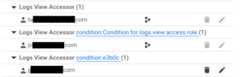
To close the flyout, clickX.
gcloud
To update the IAM policy file of a log view, do the following:
Run the
gcloud logging views add-iam-policy-bindingcommand.Before using any of the command data below, make the following replacements:
- LOG_VIEW_ID: The identifier of the log view, which is limited to 100 characters and can include only letters,digits, underscores, and hyphens.
- PRINCIPAL: An identifier for the principal that you want to grant the role to. Principal identifiers usually have the following form:
PRINCIPAL-TYPE:ID. For example,user:my-user@example.com. For a full list of the formats thatPRINCIPALcan have, seePrincipal identifiers. - BUCKET_NAME: The name of the log bucket.
- LOCATION: The location of the log bucket.
- PROJECT_ID: The identifier of the project. When necessary, replace
--projectwith--folderor--organization.
Execute the
gcloud logging views add-iam-policy-bindingcommand:Linux, macOS, or Cloud Shell
gcloudloggingviewsadd-iam-policy-bindingLOG_VIEW_ID\--member=PRINCIPAL--role='roles/logging.viewAccessor'\--bucket=BUCKET_NAME--location=LOCATION\--project=PROJECT_ID
Windows (PowerShell)
gcloudloggingviewsadd-iam-policy-bindingLOG_VIEW_ID`--member=PRINCIPAL--role='roles/logging.viewAccessor'`--bucket=BUCKET_NAME--location=LOCATION`--project=PROJECT_ID
Windows (cmd.exe)
Note: If this command uses'for quoting content, replace these single quotes with double quotes. If quoting is nested, use\"to escape the inner quotes.gcloudloggingviewsadd-iam-policy-bindingLOG_VIEW_ID^--member=PRINCIPAL--role='roles/logging.viewAccessor'^--bucket=BUCKET_NAME--location=LOCATION^--project=PROJECT_ID
The following illustrates the response when a single binding is added:
Updated IAM policy for logging view [projects/PROJECT_ID/locations/global/buckets/BUCKET_NAME/views/LOG_VIEW_ID].bindings:- members: -PRINCIPAL role: roles/logging.viewAccessoretag: BwYXfSd9-Gw=version: 1
To verify the update, run the
gcloud logging views get-iam-policycommand:Before using any of the command data below, make the following replacements:
- LOG_VIEW_ID: The identifier of the log view, which is limited to 100 characters and can include only letters,digits, underscores, and hyphens.
- BUCKET_NAME: The name of the log bucket.
- LOCATION: The location of the log bucket.
- PROJECT_ID: The identifier of the project. When necessary, replace
--projectwith--folderor--organization.
Execute the
gcloud logging views get-iam-policycommand:Linux, macOS, or Cloud Shell
gcloudloggingviewsget-iam-policyLOG_VIEW_ID\--bucket=BUCKET_NAME--location=LOCATION\--project=PROJECT_ID
Windows (PowerShell)
gcloudloggingviewsget-iam-policyLOG_VIEW_ID`--bucket=BUCKET_NAME--location=LOCATION`--project=PROJECT_ID
Windows (cmd.exe)
gcloudloggingviewsget-iam-policyLOG_VIEW_ID^--bucket=BUCKET_NAME--location=LOCATION^--project=PROJECT_ID
When a log view doesn't contain any bindings, the response contains only an
etagfield. The following illustrates the response when a log view contains a single binding:bindings:- members: -PRINCIPAL role: roles/logging.viewAccessoretag: BwYXfSd9-Gw=version: 1
Terraform
To learn how to apply or remove a Terraform configuration, seeBasic Terraform commands. For more information, see theTerraform provider reference documentation.
To provision IAM associations for a log view by using Terraform,several different resources are available:
google_logging_log_view_iam_policygoogle_logging_log_view_iam_bindinggoogle_logging_log_view_iam_member
For more information, seeIAM policy for Cloud Logging LogView.
To list IAM associations for log views by using Terraform,use the data sourcegoogle_logging_log_view_iam_policy.
Google Cloud project: Add role bindings
This section describes how to add a role binding to a Google Cloud project,and how to list the bindings attached to a project. When you use this approach,to restrict a principal to having access to the log entries stored in a specificlog view, you must add an IAM condition to the grant.
Note: If you have a large number of log views, then we recommend that youadd a role binding to the policy file of the log view.Console
To add a role binding to the IAM policy file of aGoogle Cloud project, in the project where you created the log bucket,do the following:
In the Google Cloud console, go to theIAM page:
If you use the search bar to find this page, then select the result whose subheading isIAM & Admin.
TheIAM page lists all principals, their IAM roles,and any conditions attached to those roles, that are applied at theproject level. This page doesn't show role bindings that are attachedto the policy file of a log view.
ClickGrant access.
In theNew principals field, add the user's email account.
In theSelect a role drop-down menu, selectLogs View Accessor.
This role provides users with read access to all views. To limit user accessto a specific view, add a condition based on the resource name.
ClickAdd IAM condition.
Enter aTitle andDescription for the condition.
In theCondition type drop-down menu, selectResource >Name.
In theOperator drop-down menu, selectis.
In theValue field, enter the ID of the log view, including thefull path to the view.
For example:
projects/PROJECT_ID/locations/LOCATION/buckets/BUCKET_NAME/views/LOG_VIEW_ID
ClickSave to add the condition.
ClickSave to set the permissions.
gcloud
To add a role binding to the IAM policy file of aGoogle Cloud project, complete the following steps:
Create a JSON or yaml file with your condition.
For example, you might create a file named
condition.yamlwiththe following contents:expression: "resource.name == \"projects/PROJECT_ID/locations/LOCATION/buckets/BUCKET_NAME/views/LOG_VIEW_ID\""title: "My title"description: "My description"Optional: To verify that the JSON or yaml file is properly formatted,run the following command:
gcloudalphaiampolicieslint-condition--condition-from-file=condition.yamlUpdate the IAM policy on the Google Cloud project bycalling the
gcloud projects add-iam-policy-bindingmethod.Before using the following command, make the following replacements:
- PROJECT_ID: The identifier of the project.
- PRINCIPAL: An identifier for the principal that you want to grant the role to. Principal identifiers usually have the following form:
PRINCIPAL-TYPE:ID. For example,user:my-user@example.com. For a full list of the formats thatPRINCIPALcan have, seePrincipal identifiers.
Execute the
gcloud projects add-iam-policy-bindingcommand:gcloudprojectsadd-iam-policy-bindingPROJECT_ID--member=PRINCIPAL--role='roles/logging.viewAccessor'--condition-from-file=condition.yamlThe response to the previous command includes all role bindings.
- condition: description: My description expression: resource.name == "projects/PROJECT_ID/locations/LOCATION/buckets/BUCKET_NAME/views/LOG_VIEW_ID" title: My title members: -PRINCIPAL role: roles/logging.viewAccessorOptional: To list the role bindings on a Google Cloud project, use the
gcloud projects get-iam-policycommand:gcloudprojectsget-iam-policyPROJECT_IDBefore using the following command, make the following replacements:
- PROJECT_ID: The identifier of the project.
The response to the previous command includes all role bindings.
- condition: description: My description expression: resource.name == "projects/PROJECT_ID/locations/LOCATION/buckets/BUCKET_NAME/views/LOG_VIEW_ID" title: My title members: -PRINCIPAL role: roles/logging.viewAccessor
Terraform
To learn how to apply or remove a Terraform configuration, seeBasic Terraform commands. For more information, see theTerraform provider reference documentation.
To provision IAM associations for projects by usingTerraform, several different resources are available:
google_project_iam_policygoogle_project_iam_bindinggoogle_project_iam_member
For more information, seeIAM policy for projects.
To list IAM associations for projects by using Terraform,use the data sourcegoogle_project_iam_policy.
List all role bindings for a log view
TheIAM page in the Google Cloud console lists project-level rolebindings. This page doesn't list role bindings that are attached to resourceslike log views. This section describes how you can view all role bindings fora specific log view.
To list the IAM bindings that are attached to a log view,complete the following steps.
In the Google Cloud console, go to theLogs Storage page:
If you use the search bar to find this page, then select the result whose subheading isLogging.
- Select the project, folder, or organization that stores the log bucket.
- In theLog buckets pane, select the name of the log bucket that hoststhe log view.
- In the details page for the log bucket, go to theLog views pane.
For the log view whose role bindings you want to view,clickmore_vertActions, and then selectAdjust permissions.
The permissions flyout displays all permissions associated withthe log view:
The section labeledLogs View Accessor (N)lists the principals with project-level grants of the roleLogs View Accessor. These principals haveaccess to all log views in the project.
Sections labeled likeLogs View Accessor condition:Condition-specific descriptive text (N)list the principals who have conditional project-level grants of the roleLogs View Accessor. These principals have access only to the log viewspecified by the condition.
The section labeled likeLogs View Accessor condition:abcde (N),lists the principals who have log view-level grants.
The following screenshot shows a permissions flyout wheretwo principals have project-level role grants, which are identified by theproject icon,
, and one principal has a log view-level grant:To close the flyout, clickX.
List log views on a log bucket
Console
In the Google Cloud console, go to theLogs Storage page:
If you use the search bar to find this page, then select the result whose subheading isLogging.
- Select the project, folder, or organization that stores the log bucket.
In theLog buckets pane, select the name of the log bucket that hoststhe log view.
The details page for the log bucket opens. TheLog views pane liststhe log views on the log bucket.
gcloud
To list the log views created for a log bucket,use thegcloud logging views list command.
Before using any of the command data below, make the following replacements:
- BUCKET_NAME: The name of the log bucket.
- LOCATION: The location of the log bucket.
- PROJECT_ID: The identifier of the project. When necessary, replace
--projectwith--folderor--organization.
Execute thegcloud logging views list command:
Linux, macOS, or Cloud Shell
gcloudloggingviewslist\--bucket=BUCKET_NAME--location=LOCATION\--project=PROJECT_ID
Windows (PowerShell)
gcloudloggingviewslist`--bucket=BUCKET_NAME--location=LOCATION`--project=PROJECT_ID
Windows (cmd.exe)
gcloudloggingviewslist^--bucket=BUCKET_NAME--location=LOCATION^--project=PROJECT_ID
The response data is a list of log views. For each log view, the filter is shown along withthe create and last update dates. When the create and update dates are empty, the log view wascreated when the Google Cloud project was creatd. The following example output shows that ther aretwo view IDs,_AllLogs andcompute, on the log bucket that was queried:
VIEW_ID: _AllLogsFILTER:CREATE_TIME:UPDATE_TIME:VIEW_ID: computeFILTER: resource.type="gce_instance"CREATE_TIME: 2024-02-20T17:41:17.405162921ZUPDATE_TIME: 2024-02-20T17:41:17.405162921Z
Terraform
You can use Terraform to create and modify a log view.However, you can't use Terraform to list your log views.
Update a log view
Note: You can't update the_Default and_AllLogs log views for anylog bucket.Console
In the Google Cloud console, go to theLogs Storage page:
If you use the search bar to find this page, then select the result whose subheading isLogging.
- Select the project, folder, or organization that stores the log bucket.
- In theLog buckets pane, select the name of the log bucket that hoststhe log view.
- In the details page for the log bucket, go to theLog views pane.
On the log view whose details you want to update,clickmore_vertMore, and then clickEdit view.
You can edit the description and the filter for the log view.
When your changes are complete, clickSave view.
gcloud
To update or modify a log view,use thegcloud logging views update command.If you don't know the view ID, then seeList log views.
Before using any of the command data below, make the following replacements:
- LOG_VIEW_ID: The identifier of the log view, which is limited to 100 characters and can include only letters,digits, underscores, and hyphens.
- BUCKET_NAME: The name of the log bucket.
- LOCATION: The location of the log bucket.
- FILTER: A filter that defines the log view. When empty, the log view includes all logs. For example, to filter by Compute Engine VM instances logs, enter
"resource.type=gce_instance". - DESCRIPTION: A description of the log view. For example, you might enter the following for the description
"New description for the log view". - PROJECT_ID: The identifier of the project. When necessary, replace
--projectwith--folderor--organization.
Execute thegcloud logging views update command:
Linux, macOS, or Cloud Shell
gcloudloggingviewsupdateLOG_VIEW_ID\--bucket=BUCKET_NAME--location=LOCATION\--log-filter=FILTER--description=DESCRIPTION\--project=PROJECT_ID
Windows (PowerShell)
gcloudloggingviewsupdateLOG_VIEW_ID`--bucket=BUCKET_NAME--location=LOCATION`--log-filter=FILTER--description=DESCRIPTION`--project=PROJECT_ID
Windows (cmd.exe)
gcloudloggingviewsupdateLOG_VIEW_ID^--bucket=BUCKET_NAME--location=LOCATION^--log-filter=FILTER--description=DESCRIPTION^--project=PROJECT_ID
This command doesn't provide a response. To confirm the changes, you can run thegcloud logging views describe command.
Terraform
To learn how to apply or remove a Terraform configuration, seeBasic Terraform commands. For more information, see theTerraform provider reference documentation.
To modify a log view in a project, folder, or organization by using Terraform,use the Terraform resourcegoogle_logging_log_view.
Delete a log view
When you no longer need a log view that you created, you can delete it.However, before you delete a log view, we recommend that you verify that thelog view isn't being referenced by another resource, such as a saved query.
You can't delete the_Default log view on the_Default log bucket.
_AllLogs view on a log bucket, becauseyou can't create a log view with the name_AllLogs.Console
In the Google Cloud console, go to theLogs Storage page:
If you use the search bar to find this page, then select the result whose subheading isLogging.
- Select the project, folder, or organization that stores the log bucket.
- In theLog buckets pane, select the name of the log bucket that hoststhe log view.
- In the details page for the log bucket, go to theLog views pane, andthen select the checkbox for the log view that you want to delete.
- In the toolbar of theLog views pane,clickDelete view, and then complete the dialog.
gcloud
To delete a log view, do the following:
Recommended: Review your Google Cloud project to ensure that the log viewisn't being referenced. Consider examining the following:
- Queries run from theLogs Explorer orLog Analytics pages thatwere saved or shared.
- Custom dashboards.
Use the
gcloud logging views deletecommand.If you don't know the view ID, then seeList log views.Before using any of the command data below, make the following replacements:
- LOG_VIEW_ID: The identifier of the log view, which is limited to 100 characters and can include only letters,digits, underscores, and hyphens.
- BUCKET_NAME: The name of the log bucket.
- LOCATION: The location of the log bucket.
- PROJECT_ID: The identifier of the project. When necessary, replace
--projectwith--folderor--organization.
Execute the
gcloud logging views deletecommand:Linux, macOS, or Cloud Shell
gcloudloggingviewsdeleteLOG_VIEW_ID\--bucket=BUCKET_NAME--location=LOCATION\--project=PROJECT_ID
Windows (PowerShell)
gcloudloggingviewsdeleteLOG_VIEW_ID`--bucket=BUCKET_NAME--location=LOCATION`--project=PROJECT_ID
Windows (cmd.exe)
gcloudloggingviewsdeleteLOG_VIEW_ID^--bucket=BUCKET_NAME--location=LOCATION^--project=PROJECT_ID
The response confirms the deletion. For example, the following shows the response to deleting alog view named
tester:Deleted [tester].
Terraform
To learn how to apply or remove a Terraform configuration, seeBasic Terraform commands. For more information, see theTerraform provider reference documentation.
Describe a log view
Console
In the Google Cloud console, go to theLogs Storage page:
If you use the search bar to find this page, then select the result whose subheading isLogging.
- In theLog buckets pane, select the name of the log bucket that hoststhe log view.
- In the details page for the log bucket, go to theLog views pane.
- On the log view whose details you want to see,clickmore_vertMore, and then clickEdit view.
- To close the dialog without saving any changes, clickCancel.
gcloud
To retrieve detailed information about a log view,use thegcloud logging views describe command.If you don't know the view ID, then seeList log views.
Before using any of the command data below, make the following replacements:
- LOG_VIEW_ID: The identifier of the log view, which is limited to 100 characters and can include only letters,digits, underscores, and hyphens.
- BUCKET_NAME: The name of the log bucket.
- LOCATION: The location of the log bucket.
- PROJECT_ID: The identifier of the project. When necessary, replace
--projectwith--folderor--organization.
Execute thegcloud logging views describe command:
Linux, macOS, or Cloud Shell
gcloudloggingviewsdescribeLOG_VIEW_ID\--bucket=BUCKET_NAME--location=LOCATION\--project=PROJECT_ID
Windows (PowerShell)
gcloudloggingviewsdescribeLOG_VIEW_ID`--bucket=BUCKET_NAME--location=LOCATION`--project=PROJECT_ID
Windows (cmd.exe)
gcloudloggingviewsdescribeLOG_VIEW_ID^--bucket=BUCKET_NAME--location=LOCATION^--project=PROJECT_ID
The response always includes the description and the fully-qualified name of the log view.It also includes the filter, when the filter field isn't empty. The following is a sampleresponse:
createTime: '2024-02-20T17:41:17.405162921Z'filter: resource.type="gce_instance"name: projects/my-project/locations/global/buckets/my-bucket/views/computeupdateTime: '2024-02-20T17:41:17.405162921Z'
Terraform
You can use Terraform to create and modify a log view.However, you can't use Terraform to display the details of a log view.
View logs associated with a log view
You can display the log entries in a log view by using the Logs Exploreror by using theLog Analytics page. When you use the Logs Explorer,you must configure the scope and select a log view. When you use theLog Analytics page, you query a log view.
To query a log view by using the Logs Explorer, do the following:
In the Google Cloud console, go to theLogs Explorer page:
If you use the search bar to find this page, then select the result whose subheading isLogging.
Select the resources searched for log entries:
When the toolbar displays
Project logs,expand the menu, selectLog view, and then select the log view that you want to query.When the toolbar displays something like
 1 log view,expand the menu, selectLog view, and then select the log view orlog views that you want to query.
Otherwise, the toolbar displays an
 icon andthe name of a log scope, such as_Default. Expand the menu, selectLog view, and then select the log view that you want to query.
For more information, see theLogs Explorerdocumentation.
What's next
To learn how to control access to specific fields in a log entry, seeConfigure field-level access.
Except as otherwise noted, the content of this page is licensed under theCreative Commons Attribution 4.0 License, and code samples are licensed under theApache 2.0 License. For details, see theGoogle Developers Site Policies. Java is a registered trademark of Oracle and/or its affiliates.
Last updated 2025-12-15 UTC.