

Configure distribution metrics
This page explains how to create distribution-type log-based metrics using theGoogle Cloud console, the Logging API, and the Google Cloud CLI.For an overall view of log-based metrics, go toOverview of log-based metrics.
Overview
Distribution metrics require both a filter to select the relevant log entriesand a value extractor to grab the numeric value for the distribution. The valueextractor is the same kind as is used foruser-defined labels.
A distribution metric records the statistical distribution of the extractedvalues in histogram buckets. The extracted values are not recordedindividually, but their distribution across the configured buckets arerecorded, along with the count, mean, and sum of squared deviation of thevalues. You can use the default layout of histogram buckets in yourdistribution or you can fine-tune the buckets' boundaries to approximatelycapture the values.
For more information on viewing and interpreting distribution metrics, seeDistribution metrics.
Before you begin
To use log-based metrics, you must have a Google Cloud project withbilling enabled:
- Sign in to your Google Cloud account. If you're new to Google Cloud, create an account to evaluate how our products perform in real-world scenarios. New customers also get $300 in free credits to run, test, and deploy workloads.
In the Google Cloud console, on the project selector page, select or create a Google Cloud project.
Roles required to select or create a project
- Select a project: Selecting a project doesn't require a specific IAM role—you can select any project that you've been granted a role on.
- Create a project: To create a project, you need the Project Creator role (
roles/resourcemanager.projectCreator), which contains theresourcemanager.projects.createpermission.Learn how to grant roles.
Verify that billing is enabled for your Google Cloud project.
In the Google Cloud console, on the project selector page, select or create a Google Cloud project.
Roles required to select or create a project
- Select a project: Selecting a project doesn't require a specific IAM role—you can select any project that you've been granted a role on.
- Create a project: To create a project, you need the Project Creator role (
roles/resourcemanager.projectCreator), which contains theresourcemanager.projects.createpermission.Learn how to grant roles.
Verify that billing is enabled for your Google Cloud project.
Ensure that your Identity and Access Management role includes the permissions required tocreate and view log-based metrics, and to create alerting policies.For details, seePermissions for log-based metrics.
Create a distribution metric
The metric counts the log entries identified by a filter you provide. You canuseregular expressionsin your filter, and we recommend that you include a resource type. Thelength of a filter can't exceed 20,000 characters.
Don't put sensitive information in the filter. Filters are treated as service data.
Note: See the followingTroubleshootingsection if you're creating log-based metrics on audit logs.Console
Follow these steps to create a log-based counter metric in theGoogle Cloud console in your Google Cloud project:
In the Google Cloud console, go to theLog-based Metrics page:
If you use the search bar to find this page, then select the result whose subheading isLogging.
ClickCreate Metric. TheCreate logs metric panel appears.
Set theMetric type: SelectDistribution.
Set the following fields in theDetails section:
- Log metric name: Choose a name that is unique among thelog-based metrics in your Google Cloud project. Some namingrestrictions apply; seeTroubleshootingfor details.
- Description: Enter a description for the metric.
- Units: (Optional) For distribution metrics, you can optionallyenter units, such as
sandms. For more information, see theunitfield of theMetricDescriptor.
Define your metric filter in theFilter selection section.
Use theSelect project or log bucket menu to select whether themetriccounts the log entries in your Google Cloud project or onlythose log entries in a specific log bucket.
Create a filter that collects only the log entries that you want tocount in your metric using thelogging query language.You can also use regular expressions to create your metric'sfilters.
Field name: Enter the log entry field that contains thedistribution's value. You are offered choices as you type. Forexample:
protoPayload.latencyRegular expression: (Optional) IfField name alwayscontains a numeric value convertible to type
double, then you canleave this field empty. Otherwise, specify a regular expression thatextracts the numeric distribution value from the field value.Example. Suppose that your
latencylog entryfield contains a number followed bymsfor milliseconds. Thefollowing regexp chooses the number without the unit suffix:([0-9.]+)The parentheses, known as a regexpcapture group, identifies thepart of the text match that will be extracted. Seeusing regular expressionsfor details.
- Advanced (Histogram buckets): (Optional) ClickingAdvancedopens a section of the form you can use to specify custom bucketlayouts. If you don't specify your bucket layouts, a default bucketlayout is provided. For more information,seeHistogram buckets on this page.
- To see which log entries match your filter, clickPreview logs.
(Optional) Add a label in theLabels section. For instructions oncreating labels, seeCreate a label.
ClickCreate metric to create the metric.
gcloud
To create a distribution-type log-based metric,create a file that contains a representation of yourLogMetric definition inJSON or YAML format. Then use the following command to read theconfiguration from your file:
gcloud logging metrics createMETRIC_NAME --config-from-fileFILENAME
For information about describing the histogram buckets for a distribution,seeHistogram buckets.
API
To create a distribution metric, use theprojects.metrics.create methodof the Logging API. If you use the APIs Explorer pane on thereference page, then prepare the arguments as follows:
Set theparent field to the project or bucket in which the metric isto be created:
- For a project-scoped log-based metric, specify the project:
projects/PROJECT_ID
- For a bucket-scoped log-based metric, specify the bucket:
projects/PROJECT_ID/locations/LOCATION/bucket/BUCKET_ID
Set the request body to a
LogMetricobject. Following isa sampleobject for a distribution metric.{ name: "my-metric" description: "Description of my-metric." filter: "resource.type=gce_instance AND log_id(\"syslog\")", valueExtractor: "REGEXP_EXTRACT(jsonPayload.latencyField, \"([0-9.]+)ms\")", labelExtractors: { "my-label-1": "REGEXP_EXTRACT(jsonPayload.someField, \"before ([[:word:]]+) after\")", "my-label-2": "EXTRACT(jsonPayload.anotherField, \"before ([0-9]+) after\")", }, bucketOptions: { [SEE_BELOW] }, metricDescriptor: { metricKind: DELTA, valueType: DISTRIBUTION, unit: "ms", labels: [ { key: "my-label-1", valueType: STRING, description: "Description of string my-label-1.", }, { key: "my-label-2", valueType: INT64, description: "Description of integer my-label-2.", } ] },}
Notes:
Some naming restrictions apply; seeTroubleshootingfor details.
metricDescriptor: aMetricDescriptorobject.metricKindmust beDELTA.valueTypemust beDISTRIBUTION.
Histogram buckets
Distribution metrics include a histogram that counts the number of values thatfall in specified ranges (buckets). You can have up to 200 buckets in adistribution metric.
Each bucket has twoboundary values,L andH, that define the lowest andhighest values covered by the bucket. Thewidth of the bucket isH -L.Since there cannot be gaps between buckets, the lower boundary of one bucket isthe same as the higher boundary of the previous bucket, and so forth. So thatthe boundaries don't fall into more than one bucket, a bucket includes its lowerboundary; its higher boundary belongs to the next bucket.
All bucket layouts can be specified by listing, in increasing order, theboundary values between individual buckets. The first bucket is theunderflowbucket, which counts values less than the first boundary. The last bucket istheoverflow bucket, which counts values greater than or equal to the lastboundary. The other buckets count values greater than or equal to their lowerboundary and less than their upper boundary. If there aren boundary values,then there aren+1 buckets. Excluding the underflow and overflow buckets,there aren-1finite buckets.
There are three different ways to specify the boundaries betweenhistogram buckets for distribution metrics. You either specify a formulafor the boundary values, or you list the boundary values:
Linear(offset,width,i): Every bucket has the same width.The boundaries areoffset +width *i, fori=0,1,2,...,N. Formore information on linear buckets, see theAPI reference.
Exponential(scale,growth_factor,i): Bucket widths increase forhigher values. The boundaries arescale *growth_factori,fori=0,1,2,...,N. For more information on exponential buckets, seetheAPI reference.
Explicit: You list all the boundaries for the buckets in thebounds array. Bucketi has these boundaries:
Upper bound: bounds[*i*] for (0 <= *i* < *N*-1)Lower bound: bounds[*i* - 1] for (1 <= *i* < *N*)For more information on explicit buckets, see theAPI reference.
How you specify your histogram buckets is explained in the following section:
Console
TheHistogram buckets submenu opens when you create a distributionmetric and you clickMore in theMetric editor form.The following subform is for theLinear bucket layout:
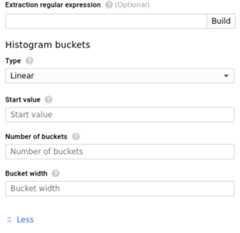
Linear buckets: Fill in the histogram bucket form as follows.
- Type:Linear
- Start value (a): The lower boundary of the first finite bucket.This value is calledoffset in the API.
- Number of buckets (N): The number of finite buckets. The valuemust be greater than or equal to 0.
- Bucket width (b): The difference between the upper bound and lowerbound in each finite bucket. The value must be greater than 0.
For example, if the start value is 5, the number of buckets is 4, andthe bucket width is 15, then the bucket ranges are as follows:
(-INF, 5), [5, 20), [20, 35), [35, 50), [50, 65), [65, +INF)Explicit buckets:Fill in the histogram bucket form as follows:
- Type:Explicit
- Bounds (b): A comma-separated list of the boundary values of thefinite buckets. This also determines the number of buckets and theirwidths.
For example, if the list of boundaries is:
0, 1, 2, 5, 10, 20then there are five finite buckets with the following ranges:
(-INF, 0), [0, 1), [1, 2), [2,5), [5, 10), [10, 20), [20, +INF)Exponential buckets:Fill in the histogram bucket form as follows:
- Type:Exponential
Number of buckets (N): The total number of finite buckets.The value must be greater than 0.
Linear scale (a): The linear scale for the buckets.The value must be greater than 0.
Exponential growth factor (b): The exponential growth factor forthe buckets. The value must be greater than 1.
For example, ifN=4,a=3, andb=2, then the bucket rangesare as follows:
(-INF, 3), [3, 6), [6, 12), [12, 24), [24, 48), [48, +INF)For more information about the buckets, seeBucketOptions in theCloud Monitoring API.
API
The optional bucket layout is specified by thebucketOptions field intheLogMetric object supplied toprojects.metrics.create. For thecompleteLogMetric object,seeCreate a distribution metric on this page.The additions for bucket layouts are as shown:
Linear buckets:
{ # LogMetric object ... bucketOptions: { linearBuckets: { numFiniteBuckets: 4, width: 15, offset: 5 } }, ...}The previous sample creates the following buckets:
(-INF, 5), [5, 20), [20, 35), [35, 50), [50, 65), [65, +INF)Explicit buckets: Boundaries are listed individually.
{ # LogMetric object ... bucketOptions: { explicitBuckets: { bounds: [0, 1, 2, 5, 10, 20 ] } }, ...}The previous sample creates the following buckets:
(-INF, 0), [0, 1), [1, 2), [2, 5), [5, 10), [10, 20), [20, +INF)Exponential buckets: Boundaries arescale *growthFactor ^i, fori=0,1,2, ...,numFiniteBuckets
{ # LogMetric object ... bucketOptions: { exponentialBuckets: { numFiniteBuckets: 4, growthFactor: 2, scale: 3 } }, ...}The previous sample creates the following buckets:
(-INF, 3), [3, 6), [6, 12), [12, 24), [24, 48), [48, +INF)New metric latency
Your new metric appears in the list of metrics and in the relevant Monitoring menus right away. However, it might take up to aminute for the metric to start collecting data for the matching log entries.
Inspect distribution metrics
To list the user-defined log-based metrics in your Google Cloud project or toinspect a particular metric in your Google Cloud project, do the following:
Console
In the Google Cloud console, go to theLog-based Metrics page:
If you use the search bar to find this page, then select the result whose subheading isLogging.
In theUser-defined metrics pane, you see the user-definedlog-based metrics in the current Google Cloud project:
To view the data in a log-based metric, click themore_vertMenu inthe metric's row and selectView in Metrics Explorer.
gcloud
To list the user-defined log-based metrics in your Google Cloud project,use the following command:
gcloud logging metrics list
To display a user-defined log-based metric in your Google Cloud project,use the following command:
gcloud logging metrics describeMETRIC_NAME
To get help, use the following command:
gcloud logging metrics --help
You can't read a metric's time series data from the Google Cloud CLI.
API
List metrics
To list the user-defined log-based metrics in a Google Cloud project, usetheprojects.metrics.list API method.Fill in the parameters to the method as follows:
- parent: The resource name of the Google Cloud project:
projects/PROJECT_ID. - pageSize: The maximum number of results.
- pageToken: Gets the next page of results. For informationabout using page tokens, see
projects.metrics.list.
Retrieve metric definitions
To retrieve a single user-defined log-based metric, use theprojects.metrics.get API method.Fill in the parameters to the method as follows:
metricName: The resource name of the metric:
projects/PROJECT_ID/metrics/METRIC_ID
Read metric data
To read the time series data in a log-based metric, usetheprojects.timeseries.list in theCloud Monitoring API.For details on time series data, seeReading time series.
To read a single user-defined log-based metric, fill in the method'sparameters with this metric type and identifier:
logging.googleapis.com/user/METRIC_ID
Update distribution metrics
You can edit a user-defined log-based metric to change its description, filter,and the names of fields referenced in the metric. You can add new labels to themetric and you can change the regular expressions used to extract values for themetric and its labels. If you're using a bucket-scoped metric, you can alsoupdate the metric's bucket.
You can't change the names or types of user-defined log-based metrics or theirlabels, and you can't delete existing labels in a log-based metric.
To edit a log-based metric, do the following:
Console
In the Google Cloud console, go to theLog-based Metrics page:
If you use the search bar to find this page, then select the result whose subheading isLogging.
ClickEdit metric in themore_vertMenufor the log-based metric that you want to modify.
Change the allowable items in the metric.
ClickUpdate metric.
gcloud
Use the Google Cloud CLI to change a counter metric's description, filterquery and bucket. You can update any or all of the fields at once.
gcloud logging updateMETRIC_NAME \ --description="METRIC_DESCRIPTION" \ --log-filter="FILTER" \ --bucket-name=BUCKET_NAME
If you change the bucket associated with a bucket-scoped metric, thenany metric data collected before the change no longer reflects thecurrent configuration. The metric data collected for the previous bucketis not removed.
Note: TheMETRIC_NAME value must match an existing log-based metric inyour Google Cloud project, or the update command creates a new metric.To update distribution metrics or other counter metric fields, excluding theMETRIC_NAME, create a file that contains the revised specification ofyourLogMetric in JSON or YAML format. Then, update themetric by calling theupdate command with the --config-from-file field,replacingFILENAME with the name of your JSON or YAML file:
gcloud logging updateMETRIC_NAME --config-from-fileFILENAME
For more details, use the following command:
gcloud logging metrics update --help
API
To edit a log-based metric, use theprojects.metrics.update method in the API.Set the fields as follows:
metricName: The full resource name of the metric:
projects/PROJECT_ID/metrics/METRIC_ID
For example:
projects/my-gcp-project/metrics/my-error-metric
In the request body, include a
LogMetricobject thatis exactly the same as the existing metric except for thechanges and additions you want to make.
Delete distribution metrics
To delete a user-defined log-based metric, do the following:
Console
In the Google Cloud console, go to theLog-based Metrics page:
If you use the search bar to find this page, then select the result whose subheading isLogging.
Select the metric you want to delete and clickDelete.
Alternatively, clickDelete metric in themore_vertmenuof the log-based metric that you want to delete.
gcloud
Use the following command to delete a user-defined log-based metricin the current Google Cloud project:
gcloud logging metrics deleteMETRIC_NAME
For more details, use the following command:
gcloud logging metrics delete --help
API
To delete a user-defined log-based metric, use theprojects.metrics.delete method in the API.
In addition, in the Google Cloud consoleLog-based metric page, theUser-defined metrics pane of the log-based metrics interface providesmore features to help you manage the user-defined metrics on yourGoogle Cloud project. SeeUser-defined metricsfor details.
Except as otherwise noted, the content of this page is licensed under theCreative Commons Attribution 4.0 License, and code samples are licensed under theApache 2.0 License. For details, see theGoogle Developers Site Policies. Java is a registered trademark of Oracle and/or its affiliates.
Last updated 2025-12-15 UTC.