

Enable Data Access audit logs
This guide explains how to enable or disable some or allData Access audit logs in yourGoogle Cloud projects, billing accounts, folders, and organizations byusing the Google Cloud console or the API.
Before you begin
Important: Data Access audit logs volume can be large. Enabling Data Access logsmight result in your Google Cloud project being charged for the additionallogs usage. For pricing information, see the Cloud Logging sections of theGoogle Cloud Observability pricing page.Important: If you configure Data Access logs to track access toStorage objects, thenauthenticated browser downloadsfromstorage.cloud.google.com might result in a403: Forbidden response.For example, if you copy the authenticated URL for an object and paste that URLinto another browser tab, then an authenticated browser download occurs. Thesetypes of actions fail because Cloud Storage can't generate aData Access audit log entry when the object is accessed by usingcookie-based authentication.Before you proceed with configuring Data Access audit logs, understand thefollowing information:
Data Access audit logs—except for BigQuery—are disabledby default. If you want Data Access audit logs to be written forGoogle Cloud services other than BigQuery, you must explicitlyenable them.
Data Access audit logs are stored in the
_Defaultbucket unlessyou've routed them elsewhere. For more information, seeStoring and routing audit logs.Data Access audit logs help Google Support troubleshoot issues with youraccount. Therefore, we recommend enabling Data Access audit logs whenpossible.
To get the permissions that you need to get access to all logs in the
_Requiredand_Defaultbuckets, including Data Access logs, ask your administrator to grant you thePrivate Logs Viewer (roles/logging.privateLogViewer) IAM role on your project.The Private Logs Viewer role
(roles/logging.privateLogViewer)includes thepermissions contained in the Logs Viewer role (roles/logging.viewer),and those necessary to read Data Access audit logs in the_Defaultbucket.The Editor role (
roles/editor) doesn't include the permissions requiredto view Data Access logs.For more information about the IAM permissions and roles thatapply to audit logs data, seeAccess control with IAM.
Configuration overview
You can configure how Data Access audit logs are enabled for yourGoogle Cloud resources and services:
Organizations: You can enable and configure Data Access audit logs in anorganization, which applies to all the existing and newGoogle Cloud projects and folders in the organization.
Folders: You can enable and configure Data Access audit logs in afolder, which applies to all the existing and new Google Cloud projects inthe folder. You can't disable a Data Access audit log that was enabled inthe project's parent organization.
Projects: You can configure Data Access audit logs for an individualGoogle Cloud project. You can't disable a Data Access audit log thatwas enabled in a parent organization or folder.
Billing accounts: To configure Data Access audit logs for billingaccounts, use the Google Cloud CLI. For more information about usingthe gcloud CLI with Data Access audit logs and billing accounts,see the
gcloud beta billing accounts set-iam-policydocumentation.Default configurations: You can specify a default Data Access audit logconfiguration in an organization, folder, or Google Cloud project thatapplies to future Google Cloud services that begin to produce DataAccess audit logs. For instructions, seeSet the default configuration.
Permission types: You can specify that Google Cloud APIs which onlycheck for a certain type of permission emit an audit log. For moreinformation, see thePermission types section of thispage.
Exempted principals: You can exempt specific principals fromhaving their data accesses recorded. For example, you can exempt yourinternal testing accounts from having their Cloud Monitoring operationsrecorded. For a list of valid principals, including users and groups,see the
Bindingtype reference.
You can configure your Data Access audit logs through the IAMAudit Logs page of the Google Cloud console, or by using the API. These methodsare explained in the following sections.
Permission types
API methods check IAM permissions. Each IAMpermission has apermission type, which is defined by thetype property.Permission types are categorized as either a Data Access permission typeor as an Admin Activity permission type:
Data Access permission types:
ADMIN_READ: IAM permissions of this type are checked forGoogle Cloud API methods that read metadata or configurationinformation. Typically,ADMIN_READaudit logs are disabled by defaultand must be enabled.DATA_READ: IAM permissions of this type are checked forGoogle Cloud API methods that read user-provided data. Typically,DATA_READaudit logs are disabled by default and must be enabled.DATA_WRITE: IAM permissions of this type are checked forGoogle Cloud API methods that write user-provided data. Typically,DATA_WRITEaudit logs are disabled by default and must be enabled.
Admin Activity permission type:
ADMIN_WRITE: IAM permissions of this type are checked forGoogle Cloud API methods that write metadata or configurationinformation. The audit logs associated with this type,Admin Activity audit logs,are on by default and can't be disabled.
You can enable or disable permission types for servicesby using theGoogle Cloud console orby invoking the API.
Most Google Cloud APIs only check if the caller has a singleIAM permission. If the permission type associated with thatpermission is enabled for the service whose API is being called, then theAPI generates an audit log.
The following sections generally describe other ways in which Google CloudAPI methods check for IAM permissions. For service-specificinformation about which methods are checked for which permission types, seetheservice's audit logging documentation.
IAM permissions checking for Data Access permission types
Some Google Cloud API methods check whether the caller hasmultiple IAM permissions with different Data Accesspermission types. An audit log is written when one of those Data Accesspermission types is enabled on the project.
For example, an API method might check that the principal issuing an APIrequest has the permissionsexample.resource.get (DATA_READ) andexample.resource.write (DATA_WRITE). The project only needs eitherDATA_WRITE orDATA_READ enabled for the service to emit the audit log whenissuing the call.
Admin Activity and Data Access IAM permission types checked
Some Google Cloud API methods check for both an IAMpermission that has theADMIN_WRITE permission type, and one or morepermissions that have a Data Access permission type.
These types of API calls emitAdmin Activity audit logs,which are on by default and can't be disabled.
API method checks for IAM permissions not owned by service
Some Google Cloud services have API methods that generate an audit logonly when a specific permission type is enabled for a different service.
For example, Cloud Billing has an API method that checks for anADMIN_READpermission type that is owned by Resource Manager.ADMIN_READ must beenabled for the servicecloudresourcemanager.googleapis.com to enablethe audit log associated with the Cloud Billing API.
Same API method checks for different IAM permissions
For some Google Cloud APIs, how the method is called determineswhich IAM permission type(s) must be enabled on the projectfor an audit log to be generated.
For example, Spanner has an API method that sometimes checks for anIAM permission with theDATA_WRITE type, and sometimes checksfor an IAM permission with theDATA_READ type depending on howthe method is called. In this case, enablingDATA_WRITE for Spanneron the project the API call only enables the audit log associated with the APIwhen the IAM permission with theDATA_WRITE type is checked.
Service-specific configurations
If there is both a Google Cloud service-wide (allServices) configurationand a configuration for a specific Google Cloud service, then theresulting configuration for the service is the union of the two configurations.In other words:
You can enable Data Access audit logs for specific Google Cloudservices, but you can't disable Data Access audit logs forGoogle Cloud services that are enabled in the broader configuration.
You can add additional kinds of information to a Google Cloudservice's Data Access audit log, but you can't remove kinds of informationthat are specified in the broader configuration.
You can add principals to exemption lists, but you can't remove themfrom exemption lists in the broader configuration.
For BigQuery Data Transfer Service, Data Access audit log configuration isinherited from your default audit log configuration.
Google Cloud MCP servers servers write Data Access audit logs that are service-specific anduse the formatSERVICE_NAME.googleapis.com/mcp. You can enable these DataAccess logs by turning on audit logging formcp.googleapis.com intheIAMAuditConfig object.For more information about audit logging for Google Cloud MCP servers, seeGoogle Cloud MCP servers audit logging.
Google Cloud resource configurations
You can configure Data Access audit logs for Google Cloud projects,billing accounts, folders, and organizations. If there is a configuration for aGoogle Cloud service across the hierarchy, then the resultingconfiguration is the union of the configurations. In other words, at theGoogle Cloud project level:
You can enable logs for a Google Cloud service, but you can't disablelogs for a Google Cloud service that is enabled in a parentorganization or folder.
You can enable kinds of information, but you can't disable kinds ofinformation that are enabled in a parent organization or folder.
You can add principals to exemption lists, but you can't remove themfrom exemption lists in a parent organization or folder.
At a parent organization or folder level, you can enable Data Access auditlogs for a Google Cloud project within that organization or folder, evenif Data Access audit logs haven't been configured in theGoogle Cloud project.
Access control
Identity and Access Management roles and permissions govern access to Logging data,including viewing and managing theIAM policies underlying Data Access auditlogging configurations.
To view or set the policies associated with Data Access configuration, you needa role with permissions at the appropriate resource level. For instructions ongranting these resource-level roles, seeManage access to Google Cloud projects, folders, and organizations.
To set IAM policies, you need a role with the
resourcemanager.RESOURCE_TYPE.setIamPolicypermission.To view IAM policies, you need a role with the
Important: When viewing Data Access configs in the Google Cloud console atthe Google Cloud project or folder level, if you don't have theresourcemanager.RESOURCE_TYPE.getIamPolicypermission.getIamPolicypermission for a parent organization or folder, thenany Data Access configurations present in those parent entities isn't shownin the Google Cloud console. Those Data Access configurations still applyto all API calls in the Google Cloud project or folder you are viewing.
For the list of the permissions and roles you need to view Data Access auditlogs, seeAccess control with IAM.
Configure Data Access audit logs with the Google Cloud console
This section explains how to use the Google Cloud console to configure DataAccess audit logs.
You can also use the API or the Google Cloud CLI to perform these tasksprogrammatically; seeConfigure Data Access audit logs with the API for details.
To access audit log configuration options in the Google Cloud console, followthese steps:
In the Google Cloud console, go to theAudit Logs page:
If you use the search bar to find this page, then select the result whose subheading isIAM & Admin.
Select an existing Google Cloud project, folder, or organization.
Enable audit logs
To enable Data Access audit logs, do the following:
In theData Access audit logs configuration table, select one or moreGoogle Cloud services from theService column.
In thePermission types tab, select the Data Access audit logtypes that you want to enable for your selected services.
ClickSave.
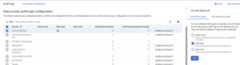
Where you have successfully enabled audit logs, the table includes acheck_circleCheck icon.
In the following example, you see that, for theAccess Approval service, theData Read audit log type is enabled:
You can also enable audit logs for all Google Cloud services that produceData Access audit logs. In theData Access audit logs configuration table,select all Google Cloud services.
Note that this bulk configuration method applies only to the Google Cloudservices that are available for your resource. If a newGoogle Cloud service is added, it inherits yourdefault audit configuration.
Disable Data Access audit logs
To disable Data Access audit logs, do the following:
In theData Access audit logs configuration table, select one or moreGoogle Cloud services.
In theLog Types tab in the information panel, select the Data Accessaudit log types that you want to disable for your selected services.
ClickSave.
Where you've successfully disabled Data Access audit logs, the table indicatesthis with a dash. Any enabled Data Access audit logs are indicated with acheck_circleCheck icon.
Set exemptions
You can set exemptions to let you control which principals generate DataAccess audit logs for particular services. When you add an exempted principal,audit logs aren't created for them for the selected log types.
Caution: If you add an exempted principal to a service for an audit log type,then this enables the audit log type even if it was previously disabled.To set exemptions, do the following:
In theData Access audit logs configuration table, select aGoogle Cloud service from theService column.
Select theExempted Principals tab in the information panel.
InAdd exempted principal, enter the principal that you want to exemptfrom generating Data Access audit logs for your selected service.
You can add multiple principals byclicking theAdd exempted principal button as many times as needed.
For a list of valid principals, including users and groups,see the
Bindingtype reference.InDisabled Log Types, select the Data Access audit log typesthat you want to disable.
ClickSave.
Where you have successfully added exempted principals to a service, theDataAccess audit logs configuration table indicates this with a number under theExempted principals column.
To remove a principal from your exemption list, do the following:
In theData Access audit logs configuration table, select aGoogle Cloud service from theService column.
Select theExempted Principals tab in the information panel.
Hold your pointer over a principal name and then selectDelete.
After the principal's name is shown in strikethrough text, clickSave.
To edit the information for an exempted principal, do the following:
In theData Access audit logs configuration table, select aGoogle Cloud service from theService column.
Select theExempted Principals tab in the information panel.
Locate the principal and select expandexpand_moreShow more.
Select or deselect the Data Access audit log types as appropriate for theprincipal.
ClickSave.
Set the default configuration
You can set a configuration that all new and existing Google Cloudservices in your Google Cloud project, folder, or organization inherit.Setting this default configuration applies if a new Google Cloud servicebecomes available and principals in your organization begin using it: theservice inherits the audit logging policy that you have already set for otherGoogle Cloud services, ensuring that Data Access audit logs are captured.
To set or edit the default configuration, do the following:
ClickSet Default Configuration.
In theLog Types tab in the information panel, select the Data Accessaudit log types that you want to enable or disable.
ClickSave.
Select theExempted Principals tab in the information panel.
InAdd exempted principal, enter the principal that you want to exemptfrom generating Data Access audit logs for your selected service.
You can add multiple principals byclicking theAdd exempted principal button as many times as needed.
For a list of valid principals, including users and groups,see the
Bindingtype reference.InDisabled Log Types, select the Data Access audit log typesthat you want to disable.
ClickSave.
Configure Data Access audit logs with the API
This section explains how to use the API and the gcloud CLI toconfigure Data Access audit logs programmatically.
Many of these tasks can also be performed by using the Google Cloud console;for instructions, seeConfigure Data Access audit logs with the Google Cloud consoleon this page.
IAM policy objects
To configure Data Access audit logs using the API, you must edit theIAM policy associated with your Google Cloud project, folder,or organization. The audit log configuration is in theauditConfigs section ofthe policy:
"auditConfigs": [ { object(AuditConfig) }]For details, see the IAMPolicy type.
The following sections describe theAuditConfig object in more detail.For the API and gcloud CLI commands used to change the configuration,see the section titledgetIamPolicy andsetIamPolicy.
AuditConfig objects
The audit log configuration consists of a list ofAuditConfigobjects. Each object configures the logs for one service, or it establishes abroader configuration for all services. Each object looks like the following:
{ "service":SERVICE_NAME, "auditLogConfigs": [ { "logType": "ADMIN_READ" "exemptedMembers": [PRINCIPAL,] }, { "logType": "DATA_READ" "exemptedMembers": [PRINCIPAL,] }, { "logType": "DATA_WRITE" "exemptedMembers": [PRINCIPAL,] }, ]},SERVICE_NAME has a value such as"appengine.googleapis.com", or it is thespecial value,"allServices". If a configuration doesn't mention a particularservice, then the broader configuration is used for that service. If there is noconfiguration, then Data Access audit logs aren't enabled for that service.For a list of the service names, seeLog services.
TheauditLogConfigs section of theAuditConfig object is a list of 0 to 3objects, each of which configures one kind of audit log information. If you omitone of the kinds from the list, then that kind of information isn't enabledfor the service.
PRINCIPAL is a user for whom Data Access audit logs isn't collected. TheBinding type describes different kinds of principals, includingusers and groups, but not all of those can be used to configure Data Accessaudit logs.
Following is an example of an audit configuration in both JSON and YAML formats.The YAML format is the default when using the Google Cloud CLI.
JSON
"auditConfigs": [ { "auditLogConfigs": [ { "logType": "ADMIN_READ" }, { "logType": "DATA_WRITE" }, { "logType": "DATA_READ" } ], "service": "allServices" }, { "auditLogConfigs": [ { "exemptedMembers": [ "499862534253-compute@developer.gserviceaccount.com" ], "logType": "ADMIN_READ" } ], "service": "cloudsql.googleapis.com" }],YAML
auditConfigs:- auditLogConfigs: - logType: ADMIN_READ - logType: DATA_WRITE - logType: DATA_READ service: allServices- auditLogConfigs: - exemptedMembers: - 499862534253-compute@developer.gserviceaccount.com logType: ADMIN_READ service: cloudsql.googleapis.comCommon configurations
Following are some common audit log configurations for Google Cloud projects.
Enable all Data Access audit logs
The followingauditConfigs section enables Data Access audit logs for allservices and principals:
JSON
"auditConfigs": [ { "service": "allServices", "auditLogConfigs": [ { "logType": "ADMIN_READ" }, { "logType": "DATA_READ" }, { "logType": "DATA_WRITE" }, ] }, ]YAML
auditConfigs:- auditLogConfigs: - logType: ADMIN_READ - logType: DATA_WRITE - logType: DATA_READ service: allServicesEnable one service and information kind
The following configuration enablesDATA_WRITE Data Access audit logs forCloud SQL:
JSON
"auditConfigs": [ { "service": "cloudsql.googleapis.com", "auditLogConfigs": [ { "logType": "DATA_WRITE" }, ] },]YAML
auditConfigs:- auditLogConfigs: - logType: DATA_WRITE service: cloudsql.googleapis.comDisable all Data Access audit logs
To disable all Data Access audit logs (except BigQuery) in aGoogle Cloud project, include an emptyauditConfigs: section in your newIAM policy:
JSON
"auditConfigs": [],YAML
auditConfigs:If you remove theauditConfigs section entirely from your new policy,thensetIamPolicy doesn't change the existing Data Access audit logsconfiguration. For more information, see the section titledThesetIamPolicy update mask.
BigQuery Data Access audit logs can't be disabled.
getIamPolicy andsetIamPolicy
You use the Cloud Resource Manager APIgetIamPolicy andsetIamPolicy methods to readand write your IAM policy. You have several choices for thespecific methods to use:
TheCloud Resource Manager API has the following methods:
projects.getIamPolicyprojects.setIamPolicyorganizations.getIamPolicyorganizations.setIamPolicyTheGoogle Cloud CLI has the followingResource Manager commands:
gcloudprojectsget-iam-policygcloudprojectsset-iam-policygcloudresource-managerfoldersget-iam-policygcloudresource-managerfoldersset-iam-policygcloudorganizationsget-iam-policygcloudorganizationsset-iam-policygcloudbetabillingaccountsget-iam-policygcloudbetabillingaccountsset-iam-policy
projects.getIamPolicy orprojects get-iam-policy, theresult shows only the policies set in the Google Cloud project, not thepolicies inherited from a parent organization or folder.Regardless of your choice, follow these three steps:
- Read the current policy using one of the
getIamPolicymethods.Save the policy to a temporary file. - Edit the policy in the temporary file.Change (or add) only the
auditConfigssection. - Write the edited policy in the temporary file,using one of the
setIamPolicymethods.
setIamPolicy fails if Resource Manager detects that someoneelse changed the policy after you read it in the first step. If this happens,then repeat the three steps.
Examples
The following examples demonstrate how to configure your project's Data Accessaudit logs using thegcloud command and the Cloud Resource Manager API.
To configure organization Data Access audit logs, replace the "projects" versionof the commands and API methods with the "organizations" version.
Caution: Follow the instructions carefully. You are editing a policy object thatcontains critical information about who can access your resource. Accidentallyaltering that information could make your resource unusable.gcloud
To configure your Data Access audit logs usingthegcloud projects command,do the following:
Read your project's IAM policy and store it in afile:
gcloudprojectsget-iam-policyPROJECT_ID >/tmp/policy.yamlThe following shows the returned policy. This policy doesn't have an
auditConfigssection:bindings:- members: - user:colleague@example.com role: roles/editor- members: - user:myself@example.com role: roles/owneretag: BwVM-FDzeYM=version: 1Edit your policy in
Caution: You must preserve the/tmp/policy.yaml, adding or changing onlythe Data Access audit logs configuration.bindings:andetag:sections withoutchanges. Failure to do so might cause your Google Cloud project tobecome unusable. For more information, seesetIamPolicyupdate mask on this page.An example of your edited policy, which enables Cloud SQLdata-write Data Access audit logs:
auditConfigs:- auditLogConfigs: - logType: DATA_WRITE service: cloudsql.googleapis.combindings:- members: - user:colleague@example.com role: roles/editor- members: - user:myself@example.com role: roles/owneretag: BwVM-FDzeYM=version: 1As the previous example shows,four lines have been added to the beginning of the policy.
Write your new IAM policy:
gcloudprojectsset-iam-policyPROJECT_ID/tmp/policy.yamlIf the preceding command reports a conflict with another change, thenrepeat these steps, starting with the first step.
JSON
To work with your IAM policy in JSON format instead of YAML,substitute the followinggcloud commands into the example:
gcloudprojectsget-iam-policyPROJECT_ID--format=json>/tmp/policy.jsongcloudprojectsset-iam-policyPROJECT_ID/tmp/policy.jsonAPI
To configure your Data Access audit logs using theCloud Resource Manager API, do the following:
Read your project's IAM policy, specifying thefollowing parametersto thegetIamPolicy API method:
- resource:
projects/PROJECT_ID - Request body:empty
The method returns the current policy object:
{ "version": 1, "etag": "BwXqwxkr40M=", "bindings": [ { "role": "roles/owner", "members": [ "user:myself@example.com" ] } ]}The previous example shows that theproject's policy doesn't have an
auditConfigssection.- resource:
Edit the current policy:
Change or add the
auditConfigssection.To disable your Data Access audit logs, include anempty valuefor the section:
auditConfigs:[].Preserve the value of
etag.
You can also remove all other information from the new policyobject, as long as you're careful to set
updateMaskin the next step.The following shows the edited policy, which enablesCloud SQLDATA_WRITEaudit logs:{ "policy": { "auditConfigs": [ { "auditLogConfigs": [ { "logType": "DATA_WRITE" } ], "service": "cloudsql.googleapis.com" } ], "etag": "BwXqwxkr40M=" }, "updateMask": "auditConfigs,etag"}Write the new policy usingthe
setIamPolicyAPI method, specifying the followingparameters:- resource:
projects/PROJECT_ID - Request body: Include the edited policy.
- resource:
updateMask parameter as shown. If you don'tspecifyupdateMask, then you might lose all access to yourGoogle Cloud project. For more information, see the followingsection,ThesetIamPolicy update mask.ThesetIamPolicy update mask
This section explains the importance of theupdateMask parameter in thesetIamPolicy method, and explains why you must be careful with thegcloud CLIset-iam-policy command so that you don't causeaccidental harm to your Google Cloud project or organization.
ThesetIamPolicy API method uses anupdateMask parameter tocontrol which policy fields are updated. For example, if the mask does notcontainbindings, then you can't accidentally change that policy section. Onthe other hand, if the mask does containbindings, then that section isalways updated. If you don't include an updated value forbindings, thenthat section is removed entirely from the policy.
Thegcloud projects set-iam-policy command, which callssetIamPolicy,doesn't let you specify theupdateMask parameter. Instead, the commandcomputes a value forupdateMask in the following way:
- The
updateMaskalways contains the fieldsbindingsandetag. - If the policy object supplied in
set-iam-policycontains any othertop-level fields—such asauditConfigs—then those fields areadded toupdateMask.
As a consequence of these rules, theset-iam-policy command has the followingbehaviors:
If you omit the
auditConfigssection in your new policy, then the previousvalue ofauditConfigssection (if any) isn't changed, because thatsection isn't in the update mask. This is harmless but might be confusing.If you omit
bindingsin your new policy object, then thebindingssection is removed from your policy, since this section appears in theupdate mask. This is very harmful, and causes all principals to lose accessto your Google Cloud project.If you omit
etagin your new policy object, this disables the checking forconcurrent changes to your policy and might result in your changesaccidentally overwriting someone else's changes.
Except as otherwise noted, the content of this page is licensed under theCreative Commons Attribution 4.0 License, and code samples are licensed under theApache 2.0 License. For details, see theGoogle Developers Site Policies. Java is a registered trademark of Oracle and/or its affiliates.
Last updated 2025-12-15 UTC.