

Using the APIs Explorer
This guide describes how to use the APIs Explorer to try outCloud Logging API methods. APIs Explorer is a widget attached to theREST API reference page for a method. It appears as a panel with the titleTry this API. The following screenshot shows the panel as itappears for a method with only one parameter,name:
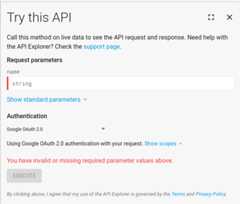
The APIs Explorer is an excellent way to try out methods in theCloud Logging API without having to write any code. The widget presents a formshowing the parameters for each method. Fill in the form, click theExecutebutton, and see the results.
You can also hide the widget by clicking theclose button, orexpand the widget to full screen by clicking thefullscreen button.
Note: If you expand APIs Explorer to full screen, then you can view therequest as a curl command, as an HTTP request, and in JavaScript.Try It! buttons
In the documentation, you might seeTry It! buttons like the following:
Try It!When you click the button, the APIs Explorer on the method's referencepage opens. Typically, some parameters appropriate to the example are populated;however, you might have to edit some of the parameters to match your ownproject, such as the value for[PROJECT_ID].
For information about avoiding and fixing errors, seeTroubleshoot.
Access the APIs Explorer
The APIs Explorer is attached to the reference page for each REST APImethod. To find the widget, see the reference page for a method, for example,seeprojects.logs.list.
Execute a request
Most methods have some required parameters and some optional ones. Therequired ones are marked with a red bar until they are filled. You canexecute a request after supplying values for all required arguments.
Theprojects.logs.list method returns a list of all logs in yourproject, organization, folder, or billing account. The only required parameteris theparent parameter.To execute theprojects.logs.list method, do the following:
ClickTry It!
In theparent parameter, enter your project's ID using the format
projects/[PROJECT_ID]. Be sure to replace[PROJECT_ID] withyour project's ID.ClickExecute. To execute the command, APIs Explorer requiresaccess to your account. When prompted, select an account and clickAllow.Access is for a limited time period and restricted to the API method you areexecuting.
The results of the method invocation appear in a box which has a green or redheader. When the request succeeds, the box has a green header with the HTTPstatus code200 in it. The results of the invocation are in the box:
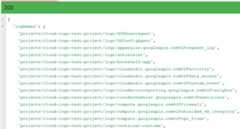
When the header is red, it contains an HTTP failure code, and the box containsthe error message. For information about resolving errors, seeTroubleshoot.
Note: After you configure the APIs Explorer and then clickExecute, thepage URL changes. You can bookmark the updated URL. When you want to run themethod again, click the bookmark to open the page with the form alreadypopulated with your previous selections.Supply additional parameters
The list of parameters you see depends on the method to which theAPIs Explorer widget is attached. For example, thelogs.list method has more than theparent parameter,butparent is the only required parameter.
Standard parameters
By default, the set of parameters that APIs Explorer shows corresponds tothe parameters of the associated method. However, the APIs Explorer widgetalso has a set of extra parameters that aren't part of the method itself. Todisplay the extra parameters, clickShow standard parameters:

To hide the extra parameters from the display, clickHide standard parameters.
The most useful standard parameter is thefields parameter. This parameterlets you select the fields in the returned output that you want to see.
Troubleshoot
This section describes common issues when using APIs Explorer.
Invalid filter syntax
You copy a multi-line expression and paste it into a field shown inAPIs Explorer, but APIs Explorer displays an error message.
Do: Ensure that strings are on a singleline.
"query": "sum by (instance_name) (rate({\"compute.googleapis.com/instance/disk/read_bytes_count\", monitored_resource=\"gce_instance\"}[5m]))"Don't: Copy and paste line-continuation ornew-line characters.
For example, if you add the following to thetimeSeries.querymethod, then APIs Explorerdisplays the error messageSelect an underlined section to see more details:
"query": "sum by (instance_name) ( rate( {\"compute.googleapis.com/instance/disk/read_bytes_count\", monitored_resource=\"gce_instance\" }[5m] ) )"Invalid project identifier
If the project identifier is invalid, then the API requestfails with an HTTP error of 400.
To resolve this condition, verify that the text[PROJECT_ID] was replacedwith your project's ID.
Invalid form values
If your API request fails or returns unexpected values, then check allform parameters.
The APIs Explorer parameters require specific formatting. Formattingmistakes might cause errors or they might be accepted but be treated likespelling errors in the API method:
- Don't use quotation marks around parameter values of any type.
Don't use backslashes except when you need to protect a substring.
For example, the following sample is for an API method where you enterthe content as JSON, instead of completing individual form parameters.Because the value for
filteris a string, the substring,k8s_cluster, is protected by backslashes:
{ "resourceNames": [...], "filter": "resource.type = \"k8s_cluster\"" }- Quote strings appearing inside filters. Use double quotationmarks (
") and not apostrophes ('). For an example, seeSupply additional parameters.
If APIs Explorer requires that you enter JSON, then you might needto use URL-encoding for specific parameters. For more information, seeCloud Logging query language.
For example, if you are listing log entries and only want to seeactivity logs, then you can filter by the
logName, which must beURL-encoded.
{ "resourceNames": [...], "filter": "logName=\"projects/[PROJECT_ID]/logs/cloudaudit.googleapis.com%2Factivity\"" }Too much data is returned
To limit the number of results returned, in thepageSize parameter,enter a value, such as2. ThepageSize parameter defines the maximumnumber of results that are returned, and is available for most API methods.
To select specific fields to return, use thefields parameter. Formore information, seeStandard parameters.
Authentication
There is aCredentials section on the APIs Explorer page. Werecommend that you leave these fields at default values.The default authentication mechanism is Google OAuth 2.0.
To find out which API scopes that are required for the method,clickShow scopes. By default, all necessary scopes are granted.
For more information about these concepts, seeAccess Control.
Except as otherwise noted, the content of this page is licensed under theCreative Commons Attribution 4.0 License, and code samples are licensed under theApache 2.0 License. For details, see theGoogle Developers Site Policies. Java is a registered trademark of Oracle and/or its affiliates.
Last updated 2025-12-15 UTC.