

Install the Ops Agent during VM creation
This document describes how the Google Cloud console can automatically install theOps Agent for you when you create a VM instance. During the installationprocess, the Compute EngineVM Manager creates anOps Agent OS policythat installs the agent and reinstalls it when necessary. TheVM Manager helps you get the Ops Agent running on your VM and ensuresthat the agent is always installed.
Overview
The VM Manager uses OS policies to manage the Ops Agentinstallation. A configuration policy is applied to a VM by using a mappingcalled anassignment ID, which looks like the following example:
goog-ops-agent-v2-x86-template-1-0-0-ZONE
An assignment ID for an Ops Agent OS policy consists of the followingcomponents:
- The name of the policy: "goog-ops-agent"
- A template for creating the policy: "v2-x86-template"
- A version string for the template. The version, which might change over time,is a value like "1-0-0".
- The zone to which the assignment ID applies, a value like "us-central1-a".
A VM is associated with an assignment ID by using the labels on the VM instance.A Compute Engine VM is a monitored resource of typegce_instanceand includes azone label. When you use the Google Cloud console tocreate a VM with the Ops Agent installed, the VM Manager adds anotherlabel to the VM, which looks likegoog-ops-agent-policy:v2-x86-template-1-0-0. This label identifies thepolicy, template, and version:
- Label key, the identifier for the policy:
goog-ops-agent-policy - Label value, the policy template and version:
v2-x86-template-1-0-0
When you create a VM in the Google Cloud console, you can select theInstall Ops Agent for Monitoring and Logging checkbox. When you clickCreate, VM Manager assigns the VM a label ofgoog-ops-agent-policy:v2-x86-template-1-0-0 andinstalls the Ops Agent. If the VM is the first VM in its zone, thenVM Manager also creates an Ops Agent OS policy and an Ops Agent OSpolicy assignment for that zone.
While a zone has an Ops Agent OS policy assignment, the Ops Agent OS policymonitors VMs that have the following characteristics:
- The VM has the
goog-ops-agent-policy:v2-x86-template-1-0-0label. - The VM is in the same zone as the Ops Agent OS policy assignment.
The Ops Agent OS policy checks every hour whether itscovered VMs have the Ops Agent installed. If the Ops Agent isn'tinstalled, then the Ops Agent OS policy installs the latest versionof the agent.
Create a VM with automatic installation of the Ops Agent
To install the Ops Agent automatically during VM creation and apply theOps Agent OS policy assignment to the VM, do the following:
Grant roles to your user account. Run the following command once for each of the following IAM roles:
roles/osconfig.osPolicyAssignmentEditorgcloudprojectsadd-iam-policy-bindingPROJECT_ID--member="user:USER_IDENTIFIER"--role=ROLE
Replace the following:
PROJECT_ID: Your project ID.USER_IDENTIFIER: The identifier for your user account. For example,myemail@example.com.ROLE: The IAM role that you grant to your user account.
- Follow the steps inCreate a VM instance from a public image. Before you clickCreate, select theInstall Ops Agent for Monitoring and Logging checkbox:
Note: When you select theInstall Ops Agent for Monitoring and Logging checkbox during VM creation, the examples on the tabs in theEquivalent code flyout are updated to include the steps for creating the Ops Agent OS policy. There is no REST equivalent for creating an Ops Agent OS policy.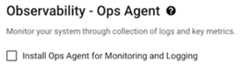
- ClickCreate.
When you install the Ops Agent automatically for the first time in a zone, if you don't have VM Manager enabled for your Google Cloud project, then the VM-creation process does the following:
- Enables VM Manager to operate inrestricted mode.
- Creates the Ops Agent OS policy and an Ops Agent OS policy assignment for the zone. The Ops Agent OS policy is a field of the policy assignment.
- Enables Patch, OS policies, and OS inventory management by setting the VM metadata label
enable-osconfigtoTRUE. - Creates the VM and assigns it the Ops Agent OS policy label.
If you create a VM and automatically install the Ops Agent in a zone where an Ops Agent OS policy assignment already exists, then the VM-creation process creates the VM and assigns it the Ops Agent OS policy label.
- ClickCreate.
Example
Your Google Cloud project doesn't have any Ops Agent OSpolicy assignments. You create two VMs,instance-1 andinstance-2 in theus-central1-a zone. Youthen createinstance-3 andinstance-4 in theus-east1-b zone.instance-1,instance-2, andinstance-3 had theInstall Ops Agent for Monitoring and Logging checkboxselected during creation.
- When you createinstance-1, VM Manager creates an Ops Agent OS policyfor the
us-central1-azone and an OS policyassignment with the IDgoog-ops-agent-v2-x86-template-1-0-0-us-central1-a.VM Manager then sets the policy label oninstance-1. - When you createinstance-2, VM Manager sets thesame policy label oninstance-2.
- When you createinstance-3,VM Manager creates an Ops Agent OS policy for the
us-east1-bzoneand an OS policy assignment with the IDgoog-ops-agent-v2-x86-template-1-0-0-us-east1-b. VM Manager thenassigns the policy label toinstance-3.
The Ops Agent OS policies then cover the following VMs based on theOps Agent OS policy assignment IDs:
| OS Policy Assignment ID | Covers VMs In: | Covered VMs |
|---|---|---|
| goog-ops-agent-v2-x86-template-1-0-0-us-central1-a | us-central1-a | instance-1,instance-2 |
| goog-ops-agent-v2-x86-template-1-0-0-us-east1-b | us-east1-b | instance-3 |
By default,instance-4 isn't covered because you didn't selectInstall Ops Agent for Monitoring and Logging, so it doesn't have thegoog-ops-agent-policy:v2-x86-template-1-0-0 label. If you also want to apply the Ops Agent OS policy toinstance-4, then seeAdd Ops Agent OS policy coverage to an existing VM.
Manage Ops Agent versions on VMs covered by the Ops Agent OS policy
The Ops Agent OS policy doesn't update the Ops Agent when new versions of theagent are released. As long as the VM has some version of the Ops Agentinstalled, the policy does nothing. If you uninstall the Ops Agent, then thepolicy detects that the Ops Agent isn't installed and then installs the latestversion.
To upgrade your VM to the latest version of the Ops Agent, uninstall theversion that you are currently running and let the Ops Agent OS policyinstall the latest version.
If you need to install a previous version of the Ops Agent, you canuninstall the Ops Agent on VMs covered by the Ops Agent OS policyand theninstall a specific version of the agent.
Troubleshooting
For information about troubleshooting agent installation and Ops Agent OSpolicies, seeManage VMs covered by the Ops Agent OS policyandAgent diagnostics tool for automatic installation policies.
Pricing
OS policies are generic tools for installing packages. By default, whenVM Manager is enabled because you've created a VM with the Ops Agentautomatically installed, VM Manager is enabled in the limited mode.For information about VM Manager modes and pricing, seeVM Manager Pricing.
What's next
For information about managing VMs covered by the Ops Agent OS policy, seeManage VMs covered by the Ops Agent OS policy.
Except as otherwise noted, the content of this page is licensed under theCreative Commons Attribution 4.0 License, and code samples are licensed under theApache 2.0 License. For details, see theGoogle Developers Site Policies. Java is a registered trademark of Oracle and/or its affiliates.
Last updated 2025-12-15 UTC.