

Configure the Logging agent
This page provides details about the Cloud Logging agent's default andcustom configurations.
Most users don't need to read this page. Read this page if:
You're interested in learning deep technical details of theCloud Logging agent's configuration.
You want to change the configuration of the Cloud Logging agent.
Default configuration
The Logging agentgoogle-fluentd is a modified version of thefluentd log data collector.The Logging agent comes with a default configuration; in mostcommon cases, no additional configuration is required.
In its default configuration, the Logging agent streams logs, asincluded in thelist of default logs,to Cloud Logging. You can configure the agent to stream additional logs;for details, go toCustomizing the Logging agent configurationon this page.
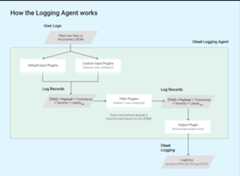
The Logging agent usesfluentd input plugins toretrieve and pull event logs from external sources, such as files on disk, orto parse incoming log records. Input plugins are bundled with the agent or canbe installed separately as Ruby gems; review the list ofbundled plugins.
The agent readslog records stored in log files on the VM instance viafluentd's built-inin_tail plugin. Each log record is converted to alog entry structure forCloud Logging. The content of each log record is mostly recorded inthepayload of the log entries, but log entries also contain standardelements like atimestamp andseverity. The Loggingagent requires every log record to be tagged with a string-format tag; all ofthe queries and output plugins match a specific set of tags. The log nameusually follows the format,projects/[PROJECT-ID]/logs/[TAG]. For example, this log name includes thetagstructured-log:
projects/my-sample-project-12345/logs/structured-logThe output plugin transforms each internalized structured message to a logentry in Cloud Logging. The payload becomes the text or JSON payload.
The following sections on this page discuss the default configuration in detail.
Default configuration definitions
The following sections describe the default configuration definitions forsyslog, the forward input plugin, input configurations for third-partyapplication logs, such as those in thelist of default logs, and our GoogleCloudfluentd output plugin.
Root configuration file location
Linux:
/etc/google-fluentd/google-fluentd.confThis root configuration file imports all configuration files from the
/etc/google-fluentd/config.dfolder as well.Windows:
C:\Program Files (x86)\Stackdriver\LoggingAgent\fluent.confIf you are running a Logging agent before v1-5, the location is:
C:\GoogleStackdriverLoggingAgent\fluent.conf
Syslog configuration
Note: The following defaultsyslog configuration, as part of thegoogle-fluentd-catch-all-config package, is exclusive to Linux operatingsystems.Configuration file locations:
/etc/google-fluentd/config.d/syslog.confDescription: This file includes the configuration to specify syslog as alog input.
Review theconfig repository.
| Configuration name | Type | Default | Description |
|---|---|---|---|
format | string | /^(?<message>(?<time>[^ ]*\s*[^ ]* [^ ]*) .*)$/ | The format of the syslog. |
path | string | /var/log/syslog | The path of the syslog file. |
pos_file | string | /var/lib/google-fluentd/pos/syslog.pos | The path of the position file for this log input.fluentd records the position it last read into this file. Review the detailedfluentd documentation. |
read_from_head | bool | true | Whether to start to read the logs from the head of file instead of the bottom. Review the detailedfluentd documentation. |
tag | string | syslog | The log tag for this log input. |
in_forward input plugin configuration
Note: The following defaultin_forward plugin configuration, as part of thegoogle-fluentd-catch-all-config package, is exclusive to Linux operatingsystems.Configuration file locations:
/etc/google-fluentd/config.d/forward.confDescription: This file includes the configuration to configure the
in_forwardfluentdinput plugin. Thein_forwardinput plugin allows youto pass in logs via a TCP socket.Review the detailed
fluentddocumentation for this plugin and theconfig repository.
| Configuration name | Type | Default | Description |
|---|---|---|---|
port | int | 24224 | The port to monitor. |
bind | string | 127.0.0.1 | The bind address to monitor. By default, only connections from localhost are accepted. To open this up, this configuration needs to be changed to0.0.0.0. |
Third-party application log input configuration
Note: The following default third-party application log configuration, as partof thegoogle-fluentd-catch-all-config package, is exclusive to Linuxoperating systems.Configuration file locations:
/etc/google-fluentd/config.d/[APPLICATION_NAME].confDescription: This directory includes configuration files to specifythird-party applications' log files as log inputs. Each file, except
syslog.confandforward.conf, represents one application(e.g.,apache.conffor the Apache application).Review theconfig repository.
| Configuration name | Type | Default | Description |
|---|---|---|---|
format1 | string | Varies per application | The format of the log. Review the detailedfluentd documentation. |
path | string | Varies per application | The path of the log file(s). Multiple paths can be specified, separated by ','. * and strftime format can be included to add/remove watch file dynamically. Review the detailedfluentd documentation. |
pos_file | string | Varies per application | The path of the position file for this log input.fluentd records the position it last read into this file. Review the detailedfluentd documentation). |
read_from_head | bool | true | Whether to start to read the logs from the head of file instead of the bottom. Review the detailedfluentd documentation. |
tag | string | Varies; the name of the application. | The log tag for this log input. |
1 If you are using the<parse> stanza, then specify the format ofthe log by using@type.
Google Cloudfluentd output plugin configuration
Configuration file locations:
- Linux:
/etc/google-fluentd/google-fluentd.conf Windows:
C:\Program Files (x86)\Stackdriver\LoggingAgent\fluent.confIf you are running a Logging agent before v1-5, the location is:
C:\GoogleStackdriverLoggingAgent\fluent.conf
- Linux:
Description: This file includes configuration options to control theGoogle Cloud
fluentdoutput plugin's behavior.Go to theconfig repository.
| Configuration name | Type | Default | Description |
|---|---|---|---|
buffer_chunk_limit | string | 512KB | As log records come in, those that cannot be written to downstream components fast enough are pushed into a queue of chunks. This configuration sets the size limit of each chunk. By default, we set the chunk limit conservatively to avoid exceeding the recommended chunk size of 5MB per write request in Logging API. Log entries in the API request can be 5X - 8X times larger than the original log size with all the additional metadata attached. A buffer chunk gets flushed if one of the two conditions are met: 1. flush_interval kicks in.2. The buffer size reaches buffer_chunk_limit. |
flush_interval | string | 5s | As log records come in, those that cannot be written to downstream components fast enough are pushed into a queue of chunks. The configuration sets how long before we have to flush a chunk buffer. A buffer chunk gets flushed if one of the two conditions are met: 1. flush_interval kicks in.2. The buffer size reaches buffer_chunk_limit. |
disable_retry_limit | bool | false | Enforces a limit on the number of retries of failed flush of buffer chunks. Review detailed specifications inretry_limit,retry_wait andmax_retry_wait. |
retry_limit | int | 3 | When a buffer chunk fails to be flushed,fluentd by default retries later. This configuration sets how many retries to perform before dropping one problematic buffer chunk. |
retry_wait | int | 10s | When a buffer chunk fails to be flushed,fluentd by default retries later. This configuration sets the wait interval in seconds before the first retry. The wait interval doubles on each following retry (20s, 40s,...) until eitherretry_ limit ormax_retry_wait is reached. |
max_retry_wait | int | 300 | When a buffer chunk fails to be flushed,fluentd by default retries later. The wait interval doubles on each following retry (20s, 40s,...) This configuration sets the maximum of wait intervals in seconds. If the wait interval reaches this limit, the doubling stops. |
num_threads | int | 8 | The number of simultaneous log flushes that can be processed by the output plugin. |
use_grpc | bool | true | Whether to use gRPC instead of REST/JSON to communicate to the Logging API. With gRPC enabled, CPU usage is typically lower |
grpc_compression_algorithm | enum | none | If using gRPC, sets which compression schema to use. Can benone orgzip. |
partial_success | bool | true | Whether to support partial success for logs ingestion. Iftrue, invalid log entries in a full set are dropped, and valid log entries are successfully ingested into the Logging API. Iffalse, the full set would be dropped if it contained any invalid log entries. |
enable_monitoring | bool | true | When set totrue, the Logging agent exports internal telemetry. SeeOutput plugin telemetry for details. |
monitoring_type | string | opencensus | The type of monitoring. The supported options areopencensus andprometheus. SeeOutput plugin telemetry for details. |
autoformat_stackdriver_trace | bool | true | When set totrue, the trace is reformatted if the value of structured payload fieldlogging.googleapis.com/trace matchesResourceTracetraceId format. Details of the autoformatting can be found inSpecial fields in structured payloads on this page. |
Monitoring configuration
Output plugin telemetry
Theenable_monitoring option controls whether the Google Cloudfluentdoutput plugin collects its internal telemetry. When set totrue, theLogging agent keeps track of the number of log entries requestedto be sent to Cloud Logging and the actual number of log entries successfullyingested by Cloud Logging. When set tofalse, no metrics are collected bythe output plugin.
Themonitoring_type option controls how this telemetry is exposed by theagent. See the following for the list of metrics.
When set toprometheus, the Logging agent exposes metrics inPrometheus format on the Prometheus endpoint (localhost:24231/metrics bydefault; seeprometheus and prometheus_monitor plugin configuration fordetails on customizing this). On Compute Engine VMs, in order for thosemetrics to be written to the Monitoring API, theMonitoring agent hasto be installed and running as well.
When set toopencensus (default sincev1.6.25),the Logging agent directly writes its own health metrics to theMonitoring API. This requires theroles/monitoring.metricWriterrole to be granted to theCompute Engine default service account,even if the Monitoring agent is not installed.
The following metrics are written to the Monitoring API by boththe Monitoring agent and the Logging agent inopencensus mode:
agent.googleapis.com/agent/uptimewith aversionlabel:Uptime of the Logging agent.agent.googleapis.com/agent/log_entry_countwith aresponse_codelabel:Count of log entries written by the Logging agent.agent.googleapis.com/agent/log_entry_retry_countwith aresponse_codelabel:Count of log entries written by the Logging agent.agent.googleapis.com/agent/request_countwith aresponse_codelabel:Count of API requests from the Logging agent.
These metrics are described in more detail on theAgent metricspage.
In addition, the following Prometheus metrics are exposed by the output plugininprometheus mode:
uptimewith aversionlabel:Uptime of the Logging agent.stackdriver_successful_requests_countwithgrpcandcodelabels:The number of successful requests to the Logging API.stackdriver_failed_requests_countwithgrpcandcodelabels:The number of failed requests to the Logging API, broken downby the error code.stackdriver_ingested_entries_countwithgrpcandcodelabels:The number of log entries ingested by the Logging API.stackdriver_dropped_entries_countwithgrpcandcodelabels:The number of log entries rejected by the Logging API.stackdriver_retried_entries_countwithgrpcandcodelabels:The number of log entries that failed to be ingested by the Google Cloudfluentdoutput plugin due to a transient error and were retried.
prometheus and prometheus_monitor plugin configuration
Note: The following default monitoring configuration is exclusive to Linuxoperating systems.Configuration file locations:
/etc/google-fluentd/google-fluentd.confDescription:This file includes configuration options to control the behavior of the
prometheusandprometheus_monitorplugins. Theprometheus_monitorpluginmonitors Fluentd's core infrastructure. Theprometheusplugin exposes themetrics including the ones from theprometheus_monitorplugin and the onesfrom thegoogle_cloudplugin above via a local port in Prometheus format.See more details at https://docs.fluentd.org/deployment/monitoring-prometheus.Go to theconfig repository.
For monitoring Fluentd, the built-in Prometheus http metrics server is enabledby default. You can remove the following section from the configuration to stopthis endpoint from starting:
# Prometheus monitoring.<source> @type prometheus port 24231</source><source> @type prometheus_monitor</source>Processing payloads
Most of the supported logs under the default configuration of theLogging agent are from log files and are ingested as unstructured(text) payloads in the log entries.
The only exception is that thein_forward input plugin, which is also enabledby default, only accepts structured logs and ingests them as structured(JSON) payloads in the log entries. For details, readStreaming structured (JSON) log records viain_forward pluginon this page.
When the log line is a serialized JSON object and thedetect_json option is enabled, the output plugin transformsthe log entry into a structured (JSON) payload. This option is enabled bydefault in VM instances running on App Engine flexible environment andGoogle Kubernetes Engine. This option isn't enabled by default in VM instancesrunning on App Engine standard environment. Any JSON parsed with thedetect_json option enabled is always ingested asjsonPayload.
You can customize the agents's configuration to support ingestingstructured logs from additional resources. SeeStreaming structured (JSON) log records to Cloud Loggingfor details.
The payload of log records streamed by a custom-configuredLogging agent can be eithera single unstructured text message (textPayload) or a structured JSON message(jsonPayload).
Special fields in structured payloads
When the Logging agent receives a structured log record, it moves any key thatmatches the following table into the corresponding field in theLogEntry object. Otherwise, the key becomes part of theLogEntry.jsonPayload field. This behavior lets you set specific fields in theLogEntry object, which is what is written to the Logging API.For example, if the structured log record contains a key ofseverity,then the Logging agent populates theLogEntry.severity field.
| JSON logfield | LogEntryfield | Cloud Loggingagent function | Example value |
|---|---|---|---|
severity | severity | The Loggingagent attempts to match a variety ofcommon severity strings, which includesthe list ofLogSeveritystrings recognized by theLogging API. | "severity":"ERROR" |
message | textPayload(or part ofjsonPayload) | The message that appears on the logentry line in the Logs Explorer. | "message":"There was an error in the application."Note: message is saved astextPayload if it is theonly field remaining after the Loggingagent moves the other special-purpose fieldsanddetect_json wasn't enabled; otherwisemessageremains injsonPayload.detect_json is not applicable to managedlogging environments like Google Kubernetes Engine. If your log entry contains anexception stack trace, the exception stack trace shouldbe set in thismessage JSON log field, so that the exceptionstack trace can be parsed and saved to Error Reporting. |
log(legacyGoogle Kubernetes Engineonly) | textPayload | Only applies to legacy Google Kubernetes Engine:if, after moving special purposefields, only alog field remains, thenthat field is saved astextPayload. | |
httpRequest | httpRequest | A structured record in the formatof theLogEntryHttpRequest field. | "httpRequest":{"requestMethod":"GET"} |
| time-relatedfields | timestamp | For more information,seeTime-related fields. | "time":"2020-10-12T07:20:50.52Z" |
logging.googleapis.com/insertId | insertId | For more information,seeinsertIdon theLogEntry page. | "logging.googleapis.com/insertId":"42" |
logging.googleapis.com/labels | labels | The value of this fieldmust be a structured record.For more information, seelabels ontheLogEntry page. | "logging.googleapis.com/labels":{"user_label_1":"value_1","user_label_2":"value_2"} |
logging.googleapis.com/operation | operation | The value of this fieldis also used bythe Logs Explorer togroup related log entries.For more information,seeoperation ontheLogEntry page. | "logging.googleapis.com/operation":{"id":"get_data","producer":"github.com/MyProject/MyApplication","first":"true"} |
logging.googleapis.com/sourceLocation | sourceLocation | Source code locationinformation associatedwith the log entry,if any.For more information,seeLogEntrySourceLocationon theLogEntry page. | "logging.googleapis.com/sourceLocation":{"file":"get_data.py","line":"142","function":"getData"} |
logging.googleapis.com/spanId | spanId | The span ID within thetrace associated withthe log entry.For more information,seespanIdon theLogEntry page. | "logging.googleapis.com/spanId":"000000000000004a" |
logging.googleapis.com/trace | trace | Resource name of the traceassociated withthe log entryif any.For more information,seetraceon theLogEntry page. | "logging.googleapis.com/trace":"projects/my-projectid/traces/0679686673a"Note: If not writing to stdout orstderr,the value of this field should be formatted asprojects/[PROJECT-ID]/traces/[TRACE-ID],so it can be used by the Logs Explorer andthe Trace Viewer to group log entriesand display them in line with traces.Ifautoformat_stackdriver_trace is true and[V] matches the format ofResourceTracetraceId the LogEntrytrace field has the valueprojects/[PROJECT-ID]/traces/[V]. |
logging.googleapis.com/trace_sampled | traceSampled | The value of this fieldmust be eithertrue orfalse.For more information,seetraceSampledon theLogEntry page. | "logging.googleapis.com/trace_sampled": false |
Time-related fields
In general, time-related information about a log entry is stored in thetimestamp field of theLogEntry object:
{insertId: "1ad8d08f-6529-47ea-832e-467f869a2da4"...resource: {2}timestamp: "2023-10-30T16:33:15.505196Z"}When the source for a log entry is structured data, theLogging agent uses the following rules to search the fields in thejsonPayload entry for time-related information:
Search for a
timestampfield that is a JSON object that includes thesecondsandnanosfields, representing, respectively, a signednumber of seconds from the UTC epoch and a nonnegative number offractional seconds:jsonPayload: { ... "timestamp": { "seconds": CURRENT_SECONDS, "nanos": CURRENT_NANOS }}If the previous search fails, then searchfor a pair of
timestampSecondsandtimestampNanosfields:jsonPayload: { ... "timestampSeconds": CURRENT_SECONDS, "timestampNanos": CURRENT_NANOS}If the previous search fails, then search for a
timefield that is astring inRFC 3339 format:jsonPayload: { ... "time": CURRENT_TIME_RFC3339}
When time-related information is found, the Logging agent uses that informationto set the value of theLogEntry.timestamp, and it doesn't copy thatinformation from the structured record into theLogEntry.jsonPayload object.
Time-related fields that aren't used to set the value of theLogEntry.timestamp field are copied from the structured record into theLogEntry.jsonPayload object. For example, if thestructured record contains atimestamp JSON object and atime field,then the data in thetimestamp JSON object is used to set theLogEntry.timestamp field. TheLogEntry.jsonPayload object contains atimefield, because this field wasn't used to set theLogEntry.timestamp value.
Customizing agent configuration
Besides thelist of default logsthat the Logging agent streams by default, you can customize theLogging agent to send additional logs to Loggingor to adjust agent settings by adding input configurations.
The configuration definitions in these sections apply to thefluent-plugin-google-cloud output plugin only and specify how logs aretransformed and ingested into Cloud Logging.
Main configuration file locations:
- Linux:
/etc/google-fluentd/google-fluentd.conf Windows:
C:\Program Files (x86)\Stackdriver\LoggingAgent\fluent.confIf you are running a Logging agent before v1-5, the location is:
C:\GoogleStackdriverLoggingAgent\fluent.conf
- Linux:
Description: This file includes configuration options to control the
fluent-plugin-google-cloudoutput plugin's behavior.Review theconfig repository.
Streaming logs from additional inputs
You can customize theLogging agent to send additional logs to Loggingby adding input configurations.
Streaming unstructured (text) logs via log files
Note: This section contains a Linux command example. If you use Windows,then you must adapt the command steps to that environment.C:\Program Files (x86)\Stackdriver\LoggingAgent\config.d is thethird-party configuration directory for Windows. Also, ensure that youuse forward slashes, (/), in the configuration file for Windows.For more information about why this is required, seeWildcard pattern in path does not work on Windows.From the Linux command prompt, create a log file:
touch/tmp/test-unstructured-log.logCreate a new configuration file labeled
test-unstructured-log.confin the additional configuration directory/etc/google-fluentd/config.d:sudotee/etc/google-fluentd/config.d/test-unstructured-log.conf<<EOF<source>@typetail<parse># 'none' indicates the log is unstructured (text).@typenone</parse># The path of the log file.path/tmp/test-unstructured-log.log# The path of the position file that records where in the log file# we have processed already. This is useful when the agent# restarts.pos_file/var/lib/google-fluentd/pos/test-unstructured-log.posread_from_headtrue# The log tag for this log input.tagunstructured-log</source>EOFAn alternative to creating a new file, is to add the configurationinformation to an existing configuration file.
Restart the agent to apply the configuration changes:
sudoservicegoogle-fluentdrestartGenerate a log record into the log file:
echo'This is a log from the log file at test-unstructured-log.log' >>/tmp/test-unstructured-log.logCheck the Logs Explorer to see the ingested log entry:
{ insertId: "eps2n7g1hq99qp" labels: { compute.googleapis.com/resource_name: "add-unstructured-log-resource" } logName: "projects/my-sample-project-12345/logs/unstructured-log" receiveTimestamp: "2018-03-21T01:47:11.475065313Z" resource: { labels: { instance_id: "3914079432219560274" project_id: "my-sample-project-12345" zone: "us-central1-c" } type: "gce_instance" } textPayload: "This is a log from the log file at test-unstructured-log.log" timestamp: "2018-03-21T01:47:05.051902169Z"}
Streaming structured (JSON) logs via log files
Note: This section contains a Linux command example. If you use Windows,then you must adapt the command steps to that environment.C:\Program Files (x86)\Stackdriver\LoggingAgent\config.d is thethird-party configuration directory for Windows. Also, ensure that youuse forward slashes, (/), in the configuration file for Windows.For more information about why this is required, seeWildcard pattern in path does not work on Windows.You can configure the Logging agent to require each log entryfor certain log inputs to bestructured.You can also customize the Logging agent to ingest JSONformatted content from a log file. When the agent is configured to ingest JSONcontent, the inputmust be formatted so that each JSON object is on anewline:
{"name" : "zeeshan", "age" : 28} {"name" : "reeba", "age" : 15}To configure the Logging agent to ingest JSON formatted content,do the following:
From the Linux command prompt, create a log file:
touch/tmp/test-structured-log.logCreate a new configuration file labeled
test-structured-log.confin the additional configuration directory/etc/google-fluentd/config.d:sudotee/etc/google-fluentd/config.d/test-structured-log.conf<<EOF<source>@typetail<parse># 'json' indicates the log is structured (JSON).@typejson</parse># The path of the log file.path/tmp/test-structured-log.log# The path of the position file that records where in the log file# we have processed already. This is useful when the agent# restarts.pos_file/var/lib/google-fluentd/pos/test-structured-log.posread_from_headtrue# The log tag for this log input.tagstructured-log</source>EOFAn alternative to creating a new file, is to add the configurationinformation to an existing configuration file.
Restart the agent to apply the configuration changes:
sudoservicegoogle-fluentdrestartGenerate a log record into the log file:
echo'{"code": "structured-log-code", "message": "This is a log from the log file at test-structured-log.log"}' >>/tmp/test-structured-log.logCheck the Logs Explorer to see the ingested log entry:
{ insertId: "1m9mtk4g3mwilhp" jsonPayload: { code: "structured-log-code" message: "This is a log from the log file at test-structured-log.log" } labels: { compute.googleapis.com/resource_name: "add-structured-log-resource" } logName: "projects/my-sample-project-12345/logs/structured-log" receiveTimestamp: "2018-03-21T01:53:41.118200931Z" resource: { labels: { instance_id: "5351724540900470204" project_id: "my-sample-project-12345" zone: "us-central1-c" } type: "gce_instance" } timestamp: "2018-03-21T01:53:39.071920609Z"}In the Logs Explorer, filter by your resource type and alogName of
structured-log.
For additional options to customize your log input format for common third-partyapplications, seeCommon Log Formats and How To Parse Them.
Streaming structured (JSON) logs viain_forward plugin
Additionally, you can send logs via thefluentdin_forward plugin.fluentd-cat is a built-in tool that helps easily send logs to thein_forwardplugin. Thefluentd documentation contains more details for this tool.
To send logs via thefluentdin_forward plugin, read the followinginstructions:
Execute the following command on the VM with the Loggingagent installed:
echo'{"code": "send-log-via-fluent-cat", "message": "This is a log from in_forward plugin."}'|/opt/google-fluentd/embedded/bin/fluent-catlog-via-in-forward-pluginCheck the Logs Explorer to see the ingested log entry:
{ insertId: "1kvvmhsg1ib4689" jsonPayload: { code: "send-log-via-fluent-cat" message: "This is a log from in_forward plugin." } labels: { compute.googleapis.com/resource_name: "add-structured-log-resource" } logName: "projects/my-sample-project-12345/logs/log-via-in-forward-plugin" receiveTimestamp: "2018-03-21T02:11:27.981020900Z" resource: { labels: { instance_id: "5351724540900470204" project_id: "my-sample-project-12345" zone: "us-central1-c" } type: "gce_instance" } timestamp: "2018-03-21T02:11:22.717692494Z"}
Streaming structured (JSON) log records from application code
You can enable connectors in various languages to send structured logs fromapplication code; for moreinformation, review thefluentd documentation.These connectors are built based on thein_forward plugin.
Setting log entry labels
The following configuration options let you overrideLogEntry labelsandMonitoredResource labels when ingesting logs to Cloud Logging.All log entries are associated with monitored resources; for more information,review the list ofCloud Logging monitored resource types.
| Configuration name | Type | Default | Description |
|---|---|---|---|
label_map | hash | nil | label_map (specified as a JSON object) is an unordered set offluentd field names whose values are sent as labels rather than as part of the structured payload. Each entry in the map is a {field_name:label_name} pair. Whenfield_name (as parsed by the input plugin) is encountered, a label with the correspondinglabel_name is added to the log entry. The value of the field is used as the value of the label. The map gives you the additional flexibility in specifying label names, including the ability to use characters which wouldn't be legal as part offluentd field names. For an example, go toSetting labels in structured log entries. |
labels | hash | nil | labels (specified as a JSON object) is a set of custom labels provided at configuration time. It allows you to inject extra environmental information into every message or to customize labels otherwise detected automatically. Each entry in the map is a {label_name:label_value} pair. |
The Logging agent output plugin supports three ways to setLogEntry labels:
- Dynamically, replacing specific labels in a structured entry with differentlabels. For details, go toSetting labels in structured log entrieson this page.
- Statically, attaching a label to any occurrence of a value. For details, go toSetting labels statically on this page.
Setting labels in structured log entries
Suppose you wrote a structured log entry payload like this:
{ "message": "This is a log message", "timestamp": "Aug 10 20:07:00", "env": "production" }And suppose you want to translate the payload fieldenv to a metadatalabelenvironment. To do this, add the following to your output pluginconfiguration in the main configuration file(/etc/google-fluentd/google-fluentd.conf on Linux orC:\Program Files (x86)\Stackdriver\LoggingAgent\fluent.conf on Windows):
# Configure all sources to output to Cloud Logging<match**>@typegoogle_cloudlabel_map{"env":"environment"}...</match>Thelabel_map setting here replaces theenv label in the payload withenvironment, so the resulting log entry has a labelenvironment withthe valueproduction.
Setting labels statically
If you don't have this information in the payload, and simply want to add astatic metadata label calledenvironment, add the following to your outputplugin configuration in the main configuration file(/etc/google-fluentd/google-fluentd.conf on Linux orC:\Program Files (x86)\Stackdriver\LoggingAgent\fluent.conf on Windows):
# Configure all sources to output to Cloud Logging<match**>@typegoogle_cloudlabels{"environment":"production"}...</match>In this case, instead of using a map to replace one label with another, we use alabels setting to attach a label with a given literal value to a log entry,regardless of whether the entry already has a label or not. This approach can beused even if you are sending unstructured logs.
For more on how to configurelabels,label_map and otherLogging agent settings, go toSetting Log Entry Labels on this page.
Modifying Log Records
Fluentd providesbuilt-in filter plugins that can be used to modify log entries.
The most commonly used filter plugin isfilter_record_transformer. It enablesyou to:
- Add new fields to log entries
- Update fields in log entries
- Delete fields in log entries
Some output plugins also let you modify log entries.Thefluent-plugin-record-reformer output plugin provides functionality similar tothefilter_record_transformerfilter plugin, except that it also allows you to modify log tags.More resource usage is expected with this plugin: each time a log tag isupdated, it generates a new log entry with the new tag.Note that thetag field in the configuration is required; we alsorecommend that you modify this field to avoid entering a dead loop.
Thefluent-plugin-detect-exceptions output plugin scans a log stream, eitherunstructured (text) or JSON-format log records, for multi-line exception stacktraces. If a consecutive sequence of log entries forms an exception stack trace,the log entries are forwarded as a single, combined log message. Otherwise,the log entry is forwarded as it was.
Advanced (non-default) configuration definitions
If you want to customize the configuration of yourLogging agent, beyond itsdefault configuration, continue to read this page.
Buffer-related configuration options
The following configuration options let you adjust the Loggingagent's internal buffering mechanism.
| Configuration name | Type | Default | Description |
|---|---|---|---|
buffer_type | string | buf_memory | Records that cannot be written to the Logging API fast enough are pushed into a buffer. The buffer can be in memory or in actual files. Recommended value:buf_file. The defaultbuf_memory is fast but not persistent. There is risk of losing logs. Ifbuffer_type isbuf_file,buffer_path needs to be specified as well. |
buffer_path | string | User-specified | The path where buffer chunks are stored. This parameter is required ifbuffer_type isfile. This configuration must be unique to avoid a race condition. |
buffer_queue_limit | int | 64 | Specifies the length limit of the chunk queue. When the buffer queue reaches this many chunks, the buffer behavior is controlled bybuffer_queue_full_action. By default, it throws exceptions. This option in combination withbuffer_chunk_limit determines the maximum disk spacefluentd takes for buffering. |
buffer_queue_full_action | string | exception | Controls the buffer behavior when the buffer queue is full. Possible values: 1. exception: ThrowBufferQueueLimitError when the queue is full. HowBufferQueueLimitError is handled depends on input plugins. For example, thein_tail input plugin stops reading new lines while thein_forward input plugin returns an error.2. block: This mode stops input plugin thread until the buffer full condition is resolved. This action is a good for batch-like use cases.fluentd doesn't recommend using block action to avoidBufferQueueLimitError. If you hitBufferQueueLimitError frequently, it means your destination capacity is insufficient for your traffic.3. drop_oldest_chunk: This mode drops the oldest chunks. |
Project- and monitored resource-related configuration options
The following configuration options let you manually specify a project andcertain fields from theMonitoredResource object.These values areautomatically gathered by the Logging agent; it is notrecommended that you manually specify them.
| Configuration name | Type | Default | Description |
|---|---|---|---|
project_id | string | nil | If specified, this overrides theproject_id identifying the underlying Google Cloud or AWS project in which the Logging agent is running. |
zone | string | nil | If specified, this overrides the zone. |
vm_id | string | nil | If specified, this overrides the VM id. |
vm_name | string | nil | If specified, this overrides the VM name. |
Other output plugin configuration options
| Configuration name | Type | Default | Description |
|---|---|---|---|
detect_json1 | bool | false | Whether to try to detect if the log record is a text log entry with JSON content that needs to be parsed. If this option istrue, and an unstructured (text) log entry is detected as in JSON format, then it is parsed and sent as a structured (JSON) payload. |
coerce_to_utf8 | bool | true | Whether to allow non-UTF-8 characters in user logs. If set totrue, any non-UTF-8 character would be replaced by the string specified bynon_utf8_replacement_string. If set tofalse, any non-UTF-8 character would trigger the plugin to error out. |
require_valid_tags | bool | false | Whether to reject log entries with invalid tags. If this option is set tofalse, tags are made valid by converting any non-string tag to a string, and sanitizing any non-UTF-8 or other invalid characters. |
non_utf8_replacement_string | string | ""(space) | Ifcoerce_to_utf8 is set totrue, any non-UTF-8 character would be replaced by the string specified here. |
1This feature isenabled by default in VM instances running onApp Engine flexible environment and Google Kubernetes Engine.
Applying customized agent configuration
Customizing the Logging agent allows you to add your ownfluentd configuration files:
Linux instance
Copy your configuration files into the following directory:
/etc/google-fluentd/config.d/The Logging agent installation script populates thisdirectory with thedefault catch-all configuration files. For more information, seeGetting the Logging agent source code.
Optional. Validate your configuration change by running the following command:
sudoservicegoogle-fluentdconfigtestRestart the agent by running the following command:
sudoservicegoogle-fluentdforce-reload
Windows instance
Note: If you are running an agent version before v1-5, then you cannot addyour own configurationfiles.Upgrade to the latest agent.Copy your config files into the
config.dsubdirectory of youragent-installation directory. If you accepted the default installationdirectory, this directory is:C:\ProgramFiles(x86)\Stackdriver\LoggingAgent\config.d\Restart the agent by running the following commands in a command-lineshell:
netstopStackdriverLoggingnetstartStackdriverLogging
For more information onfluentd configuration files, seefluentd's Configuration File Syntax documentation.
Except as otherwise noted, the content of this page is licensed under theCreative Commons Attribution 4.0 License, and code samples are licensed under theApache 2.0 License. For details, see theGoogle Developers Site Policies. Java is a registered trademark of Oracle and/or its affiliates.
Last updated 2026-02-19 UTC.