

Get started with media recommendations
You can quickly build a state-of-the-art media recommendations app. Mediarecommendations enable your audiences to discover more personalized content,like what to watch or read next, with Google-quality results that are customizedby optimization objectives.
For general information about Vertex AI Search for media, seeIntroduction to media search and recommendations.In this getting-started tutorial, you will use theMovielens dataset to demonstratehow to upload your media content catalog and user events intoVertex AI Search and train a personalized movie recommendation model.The Movielens dataset contains a catalog of movies (documents) and user movieratings (user events).
In this tutorial, you train a recommendation model of type Others You May Like optimized for click-through-rate (CTR). After training, the model can recommend movies based on a user ID and on a seed movie.
To meet the minimum data requirements for the model, each positive movie rating (4 or higher) is treated as a view-item event.
Estimated time to complete this tutorial:
- Initial steps to start training the model: ~1.5 hours.
- Waiting for the model to train: ~24 hours. (Train the model)
- Evaluating the model predictions and cleaning up: ~30 minutes. (Previewrecommendations)
If you completed theGet started with media search tutorial and you still have the data store (suggested namequickstart-media-data-store), then you can use that data store instead ofcreating another. In this case, you should begin the tutorial atCreate an app for media recommendations.
Objectives
- Learn how to import media documents and user events data fromBigQuery into Vertex AI Search.
- Train and evaluate recommendation models.
Before following this tutorial, make sure you have done the steps inBefore youbegin.
To follow step-by-step guidance for this task directly in the Google Cloud console, clickGuide me:
Before you begin
- Sign in to your Google Cloud account. If you're new to Google Cloud, create an account to evaluate how our products perform in real-world scenarios. New customers also get $300 in free credits to run, test, and deploy workloads.
In the Google Cloud console, on the project selector page, select or create a Google Cloud project.
Roles required to select or create a project
- Select a project: Selecting a project doesn't require a specific IAM role—you can select any project that you've been granted a role on.
- Create a project: To create a project, you need the Project Creator role (
roles/resourcemanager.projectCreator), which contains theresourcemanager.projects.createpermission.Learn how to grant roles.
Verify that billing is enabled for your Google Cloud project.
Enable the Vertex AI Search (Discovery Engine), Cloud Storage, BigQuery APIs.
Roles required to enable APIs
To enable APIs, you need the Service Usage Admin IAM role (
roles/serviceusage.serviceUsageAdmin), which contains theserviceusage.services.enablepermission.Learn how to grant roles.Make sure that you have the following role or roles on the project: Discovery Engine Admin and BigQuery Admin.
Check for the roles
In the Google Cloud console, go to theIAM page.
Go to IAM- Select the project.
In thePrincipal column, find all rows that identify you or a group that you're included in. To learn which groups you're included in, contact your administrator.
- For all rows that specify or include you, check theRole column to see whether the list of roles includes the required roles.
Grant the roles
In the Google Cloud console, go to theIAM page.
Go to IAM- Select the project.
- ClickGrant access.
In theNew principals field, enter your user identifier. This is typically the email address for a Google Account.
- ClickSelect a role, then search for the role.
- To grant additional roles, clickAdd another role and add each additional role.
- ClickSave.
In the Google Cloud console, on the project selector page, select or create a Google Cloud project.
Roles required to select or create a project
- Select a project: Selecting a project doesn't require a specific IAM role—you can select any project that you've been granted a role on.
- Create a project: To create a project, you need the Project Creator role (
roles/resourcemanager.projectCreator), which contains theresourcemanager.projects.createpermission.Learn how to grant roles.
Verify that billing is enabled for your Google Cloud project.
Enable the Vertex AI Search (Discovery Engine), Cloud Storage, BigQuery APIs.
Roles required to enable APIs
To enable APIs, you need the Service Usage Admin IAM role (
roles/serviceusage.serviceUsageAdmin), which contains theserviceusage.services.enablepermission.Learn how to grant roles.Make sure that you have the following role or roles on the project: Discovery Engine Admin and BigQuery Admin.
Check for the roles
In the Google Cloud console, go to theIAM page.
Go to IAM- Select the project.
In thePrincipal column, find all rows that identify you or a group that you're included in. To learn which groups you're included in, contact your administrator.
- For all rows that specify or include you, check theRole column to see whether the list of roles includes the required roles.
Grant the roles
In the Google Cloud console, go to theIAM page.
Go to IAM- Select the project.
- ClickGrant access.
In theNew principals field, enter your user identifier. This is typically the email address for a Google Account.
- ClickSelect a role, then search for the role.
- To grant additional roles, clickAdd another role and add each additional role.
- ClickSave.
Prepare the dataset
You use the Cloud Shell to import the Movielens dataset and restructure thedataset for Vertex AI Search for media.
Open the Cloud Shell
- OpenGoogle Cloud console.
- Select your Google Cloud project.
- Take note of the project ID in theProject info card on the dashboardpage. You will need the project ID for the following procedures.
Click theActivate Cloud Shell button at the top of the console. ACloud Shell session opens inside a new frame at the bottom of theGoogle Cloud console and displays a command-line prompt. For other ways tolaunch the Cloud Shell, seeLaunch Cloud Shell.

Import the dataset
The Movielens dataset is available in a public Cloud Storage bucket to make it easier to import.
Run the following using your project ID to set the default project for the command-line.
gcloudconfigsetprojectPROJECT_IDCreate a BigQuery dataset:
bqmkmovielensLoad
movies.csvinto a newmoviesBigQuery table:bqload--skip_leading_rows=1movielens.movies\gs://cloud-samples-data/gen-app-builder/media-recommendations/movies.csv\movieId:integer,title,genresLoad
ratings.csvinto a newratingsBigQuery table:bqload--skip_leading_rows=1movielens.ratings\gs://cloud-samples-data/gen-app-builder/media-recommendations/ratings.csv\userId:integer,movieId:integer,rating:float,time:timestamp
Create BigQuery views
In this step, you restructure the Movielens dataset so it follows the expectedformat for media recommendations.
Media recommendations require user events data in order to create a model.For this guide, you create fakeview-item events during the past 90 daysfrom positive ratings (>= 4).
Create a view that converts the movies table into the Google-defined
Documentschema:bqmk--project_id=PROJECT_ID\--use_legacy_sql=false\--view'WITHtAS(SELECTCAST(movieIdASstring)ASid,SUBSTR(title,0,128)AStitle,SPLIT(genres,"|")AScategoriesFROM`PROJECT_ID.movielens.movies`)SELECTid,"default_schema"asschemaId,nullasparentDocumentId,TO_JSON_STRING(STRUCT(titleastitle,categoriesascategories,CONCAT("http://mytestdomain.movie/content/",id)asuri,"2023-01-01T00:00:00Z"asavailable_time,"2033-01-01T00:00:00Z"asexpire_time,"movie"asmedia_type))asjsonDataFROMt;'\movielens.movies_viewNow, the new view has the schema that the Discovery Engine API expects.
Go to theBigQuery page in Google Cloud console.
In theExplorer pane, expand your project name, expand the
movielensdataset and clickmovies_viewto open the query page for this view.
Go to theTable explorer tab.
In theGenerated query pane, click theCopy to query button. The query editor opens.
ClickRun to see movie data in the view that you created.
Create user events
Create fictitioususer events from movie ratings by running the following Cloud Shell command:
bqmk--project_id=PROJECT_ID\--use_legacy_sql=false\--view' WITH t AS ( SELECT MIN(UNIX_SECONDS(time)) AS old_start, MAX(UNIX_SECONDS(time)) AS old_end, UNIX_SECONDS(TIMESTAMP_SUB( CURRENT_TIMESTAMP(), INTERVAL 90 DAY)) AS new_start, UNIX_SECONDS(CURRENT_TIMESTAMP()) AS new_end FROM `PROJECT_ID.movielens.ratings`) SELECT CAST(userId AS STRING) AS userPseudoId, "view-item" AS eventType, FORMAT_TIMESTAMP("%Y-%m-%dT%X%Ez", TIMESTAMP_SECONDS(CAST( (t.new_start + (UNIX_SECONDS(time) - t.old_start) * (t.new_end - t.new_start) / (t.old_end - t.old_start)) AS int64))) AS eventTime, [STRUCT(movieId AS id, null AS name)] AS documents, FROM `PROJECT_ID.movielens.ratings`, t WHERE rating >= 4;'\movielens.user_events
Activate Vertex AI Search
In the Google Cloud console, go to theAI Applications page.
Optional: ClickAllow Google to selectively sample model input andresponses.
ClickContinue and activate the API.
Create an app for media recommendations
The procedures in this section guide you through creating and deploying a mediarecommendations app.
In the Google Cloud console, go to theAI Applications page.
Click
Create app .On theCreate app page, underMedia recommendations, clickCreate.
In theApp name field, enter a name for your app, such as
quickstart-media-recommendations.Your app ID appears under the app name.UnderRecommendations type, make sureOthers you may like is selected.
UnderBusiness Objective, make sureClick-through rate (CTR) is selected.
ClickContinue.
Create a data store.
Note: If you completed theGet started with media search tutorial and you still have the data store (suggested namequickstart-media-data-store), then select it, clickCreate, and skip toTrain the recommendation model.On theData Stores page, clickCreate data store.
Enter a display name for your data store, such as
quickstart-media-data-store, and then clickCreate.
Select the data store you just created, and then clickCreate to create your app.
Import data
Next, import the movies and user events data that were formatted earlier.
Import documents
Import themovies_view document created in theCreate BigQuery views section to yourquickstart-media-data-store data store.
UnderNative sources on theImport documents page, selectBigQuery.
Enter the name of the
moviesBigQuery view that you createdand clickImport.PROJECT_ID.movielens.movies_viewWait until all documents have been imported, which should take about 15 minutes.There should be 86537 documents when complete.
You can check theActivity tab for the import operation status. When theimport is complete, the import operation status changes toCompleted.
Import user events
Note: User events are required to train your app and to generaterecommendations.Import theuser_events records created in theCreate BigQuery views section to your data store.
On theEvents tab, clickImport Events.
UnderNative sources on the Import documents page, selectBigQuery.
Enter the name of the
user_eventsBigQuery view that youcreated and clickImport.PROJECT_ID.movielens.user_eventsWait until at least a million events have been imported before proceeding tothe next step, in order to meet the data requirements for training a newmodel.
You can check theActivity tab for the operation status. The process takesabout an hour to complete because you are importing millions of rows.
To see if the requirements have been met, go to theData quality >Requirements tab. Even after the user events have been imported, it cantake some time for theRequirements tab to update its status toDatarequirements met.
Train the recommendation model
Go to theConfigurations page.
Click theControl tab. A serving config has already been created.
If you want to adjust theRecommendation demotionorResult diversificationsettings, you can do so on this page.
Click theTraining tab.
After the data requirements have been met, the model begins trainingautomatically. You can view the training and tuning status on this page.
It might take a couple of days for the model to train and become ready toquery. TheReady to query field indicatesYes when the process iscomplete. You need to refresh the page to see the changeNo toYes.
Preview recommendations
After the model is ready to query:
In the navigation menu, click
Preview .Click theDocument ID field. A list of document IDs appears.
Enter a seed document (movie) ID, such as
4993for "The Lord of the Rings: TheFellowship of the Ring (2001)".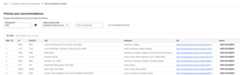
Select theServing config name from the drop-down menu.
ClickGet recommendations. A list of recommended documents appears.
Deploy your app for structured data
There is no recommendations widget for deploying your app. To test your appbefore deployment:
Go to theData page,Documents tab, and copy a documentID.
Go to theIntegration page. This page includes a sample command for the
servingConfigs.recommendmethod in the REST API.Paste the document ID you copied earlier into theDocument ID field.
Leave theUser Pseudo ID field as is.
Copy the example request and run it in Cloud Shell.
For help integrating the recommendations app into your web app,see the code samples atGet media recommendations.
Clean up
To avoid incurring charges to your Google Cloud account for the resources used on this page, follow these steps.
You can reuse the data store you created for media search in theGet started with media search tutorial.Try that tutorial before doing this clean up procedure.
- To avoid unnecessary Google Cloud charges, use theGoogle Cloud console to delete your project if you don't need it.
- If you created a new project to learn about Vertex AI Search and youno longer need the project,delete the project.
- If you used an existing Google Cloud project, delete the resources youcreated to avoid incurring charges to your account. For more information,seeDelete an app.
- Follow the steps inTurn offVertex AI Search.
If you created a BigQuery dataset, delete it in Cloud Shell:
bqrm--recursive--datasetmovielens
What's next
Except as otherwise noted, the content of this page is licensed under theCreative Commons Attribution 4.0 License, and code samples are licensed under theApache 2.0 License. For details, see theGoogle Developers Site Policies. Java is a registered trademark of Oracle and/or its affiliates.
Last updated 2026-02-19 UTC.